Navigating ThreatStream
After you log in to ThreatStream, use the side navigation panel to browse ThreatStream and other Anomali platform products to which your organization is subscribed. Below is an example of the pinned menu in the side navigation panel.
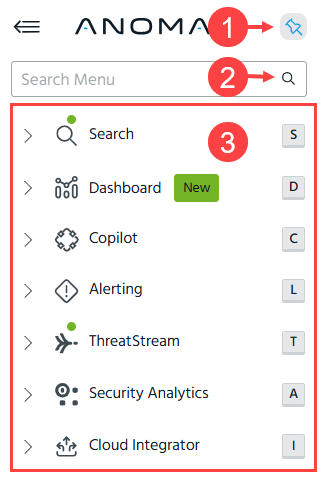
 Pin: Click to pin or unpin the side navigation panel. By default, the side navigation panel is pinned.
 Search Menu: Enter a corresponding keyword in the Search Menu field to quickly find the menu item of your interest. The search is done within the menu items of Anomali products to which your organization is subscribed.
Note that the page you land on after logging in to your ThreatStream account depends on the default landing page selected in ThreatStream Settings. See Managing My Account Settings for more information.
 Anomali platform modules. See Anomali Platform Modules for more information. Use S, D, C, L, T, A and I keys as shortcuts to switch between Anomali modules.
The following is an example of the ThreatStream UI with the side navigation panel:
(Click the image to enlarge it.)
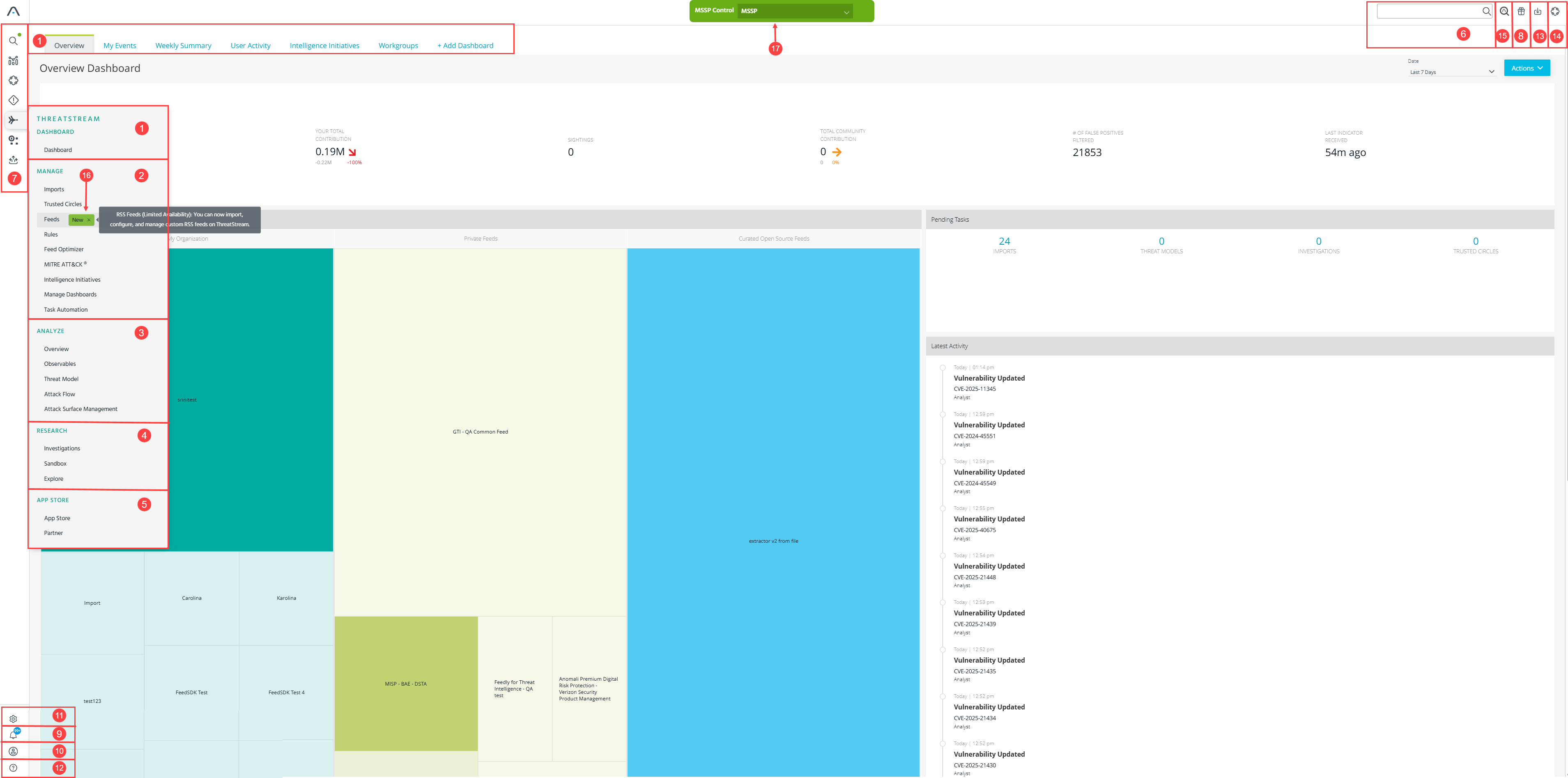
Dashboards
- Overview: Get a real-time overview of observables relevant to your organization and view alerts that require your immediate action. See A Tour of the ThreatStream Overview Dashboard for more information.
- My Events: Visualize the geographic location of threats around the world. See Visualizing Threats With MyEvents Map for more information.
- Weekly Summary: Visualize the quality of data coming through the various feeds supplying your organization with intelligence. See Viewing Weekly Summaries for Your Organization for more information.
- User Activity: Generate reports on user activity within your organization. See Generating User Activity Reports for more information.
- Intelligence Initiatives: Gain a high level view of open intelligence initiatives created by your organization. See Viewing the Intelligence Initiatives Dashboard for more information.
- Workgroups: Gain insight on the latest activity from the workgroups of which you are a member. See Viewing the Workgroups Dashboard for more information.
- + Add Dashboard: Add a custom dashboard to your home screen. See Custom Dashboards for more information.
Tip: You can rearrange the order of the dashboards on your home page by dragging and dropping the tabs.
Manage
- Imports: Import threat intelligence via raw text, CSV, Excel, PDF, or STIX. See Importing Observablesfor more information.
- Trusted Circles: Enable the sharing of information between your organization and other organizations on ThreatStream. See Collaborating with Trusted Circles for more information.
- Feeds: Add any additional threat intelligence feeds in your possession not provided by Anomali. See Managing Feeds for more information.
- Rules: Configure rules that take automated actions when specific keywords appear in newly created Threat Bulletins,
- Feed Optimizer: Compare observable overlap between open-source intelligence sources that feed your threat intelligence. See Comparing Feeds with Feed Optimizer for more information.
- MITRE ATT&CK: Manage your organization MITRE ATT&CK Security Coverage Framework. See Configuring Security Coverage of MITRE ATT&CK Profiles for more information.
- Intelligence Initiatives: Attribute threat intelligence and efforts to larger organizational goals with the help of intelligence initiatives, which allow you to focus efforts related to specific goals by centralizing related threat intelligence feeds (known within intelligence initiatives as Collections), import sessions, investigations, rules, sandbox detonations, Threat Model entities, and observables. See Attributing Organizational Goals with Intelligence Initiatives for more information.
- Manage Dashboards: View all your dashboards and choose which dashboards appear on your home screen. See Managing Dashboards for more information.
- Task Automation: Automate investigation tasks. See Automating Investigation Tasks in ThreatStream for more information.
Analyze
- Overview: View the five most recent Actors, Campaigns, Malware, Incidents, Signatures, Threat Bulletins, TTPs, and Vulnerabilities that were updated on ThreatStream. See Threat Model Dashboard for more information.
- Observables: Search for and drill down on observables relevant to your organization. See Searching for Observables in ThreatStream for more information.
- Threat Model: Your hub for threat model management on ThreatStream. Search the threat model entities you have access to on ThreatStream via keywords and easy-to-use filtering.
- Attack Flow: Collection of common MITRE Attack Flows (MAF), which provides a way to fingerprint attacks. You can view, update and export attack flows. See Attack Flow Library for more information.
 Research
- Investigations: Centrally manage threat investigations of interest to your organization. See Investigating Threats in ThreatStream for more information.
- Explore: Explore relationships between observables and other entities using a graphical tool. See Analyzing Adversary Infrastructure with Explore for more information.
- Sandbox: Perform automated observable extraction through uploading files or adding URLs. See Analyzing Malware with the ThreatStream Sandbox for more information.
- Collaborate: Leverage instant messaging within ThreatStream to chat with Organization and Trusted Circle members. See Collaborating with ThreatStream Chat for more information.
 APP Store
Purchase and load-in additional streams to increase the quality of your data.
 Search
Perform basic keyword searches for observables, Actors, Campaigns, Malware, Incidents, Signatures, Threat Bulletins, TTPs, and Vulnerabilities. For more, see Searching Intelligence in ThreatStream.
 Anomali Platform Modules
Access other Anomali platform modules:
-
Search
-
Dashboard
-
Copilot
Note: The Anomali Copilot subscription is required to view the Copilot menu. -
Alerting
Note: The Security Analytics subscription is required to view the Alerting menu. -
Security Analytics
Note: The Security Analytics subscription is required to view the Security Analytics menu. -
Cloud Integrator
Note: This is a limited-availability feature which requires Integrator Cloud v8.5.7 or later.
 What's New
Learn about important announcements, new features, enhancements, and content added to the Anomali platform over the past six months. Filter What’s New items by module or release type.
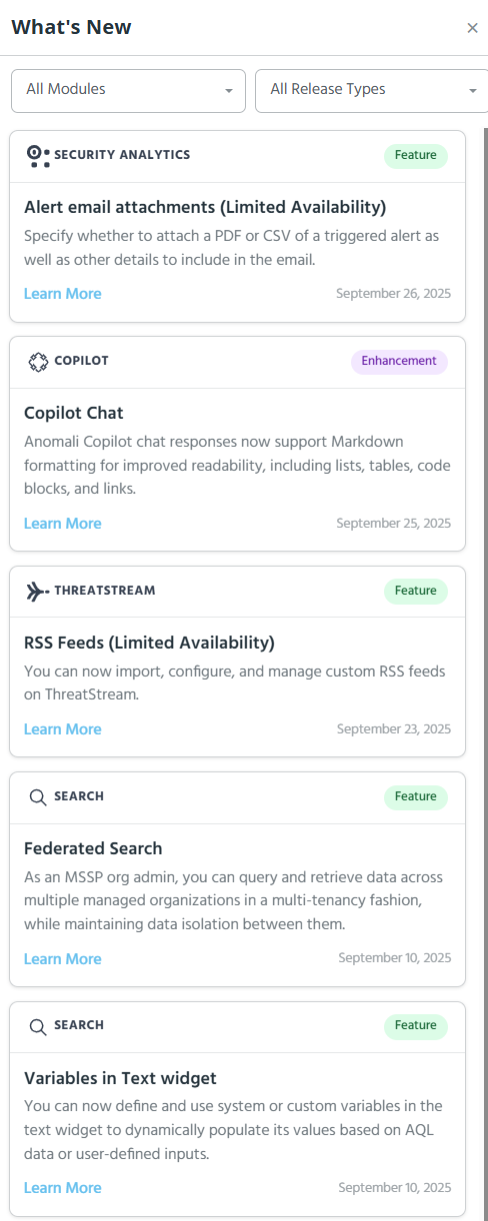
For a full list of ThreatStream releases, see What's New in ThreatStream.
For a full list of Security Analytics releases, see What's New In Security Analytics.
For a full list of Search releases, see What's New in Search.
For a full list of Copilot, see What's New in Copilot.
For a full list of Dashboard releases, see What's New in Dashboards.
 Notification Center
ThreatStream displays in-app notifications when certain events occur.
For a detailed list of notifications and how to subscribe to them, see Receiving In-App Notifications From ThreatStream.
 Help
Help
- Help: Access comprehensive context sensitive online help for the area of ThreatStream you are currently viewing.
- Downloads: Find the latest available software from Anomali.
- Support: Contact Anomali support.
- About: Read the Anomali ThreatStream copyright message.
 Settings
Settings of Anomali products to which your organization is subscribed.
Click Settings > ThreatStream to manage ThreatStream user and organization level settings. See Account Settings and Organization Administration for more information.
 Profile
- Theme: Choose the Light or Dark Theme for the platform UI. See Selecting a User Interface Theme for details.
- Profile: View and edit your profile. See Creating and Managing Your Profile for details.
- Logout: Terminate your current ThreatStream session.
 Import
Create import jobs with the import assistant. See Importing Observables with Import Assistant for details.
 Summarization
Summarize threat model entities with Anomali Copilot. See Summarizing Threat Model Entities with Anomali Copilot details.
 Anomali Copilot
Analyze complex information within ThreatStream with Anomali Copilot. See Using Anomali Copilot in ThreatStream for details.
 Status Chips
Status chips indicating recently added or soon to be deprecated features and enhancements. Mouse over a status chip for details about the change. You can see the following statuses:
-
New (green)—displayed when a new feature is added to ThreatStream.
-
Updated (blue)—displayed when an enhancement is added to an existing ThreatStream feature.
-
Deprecated (yellow)—displayed when a feature will soon be deprecated.
 MSSP Control
Control the security of multiple customers while keeping each customer’s data separate. See Using the Anomali Platform in an MSSP Environment for more information.