Investigating Threats in ThreatStream
In this section:
Investigations is a collaborative and flexible workspace that you can use to perform daily tasks. After creating an investigation, you can centralize threat data as it becomes available and perform pivoting to understand linkages. Investigation tasks can also be tracked and assigned to organization users. After completing research, you can create new intelligence in the form of threat model entities or newly imported observables. Additionally, an integration with ServiceNow enables you to push investigation information to security incident tracking systems.
Below is the example of an investigation.
(Click the image to enlarge it.)
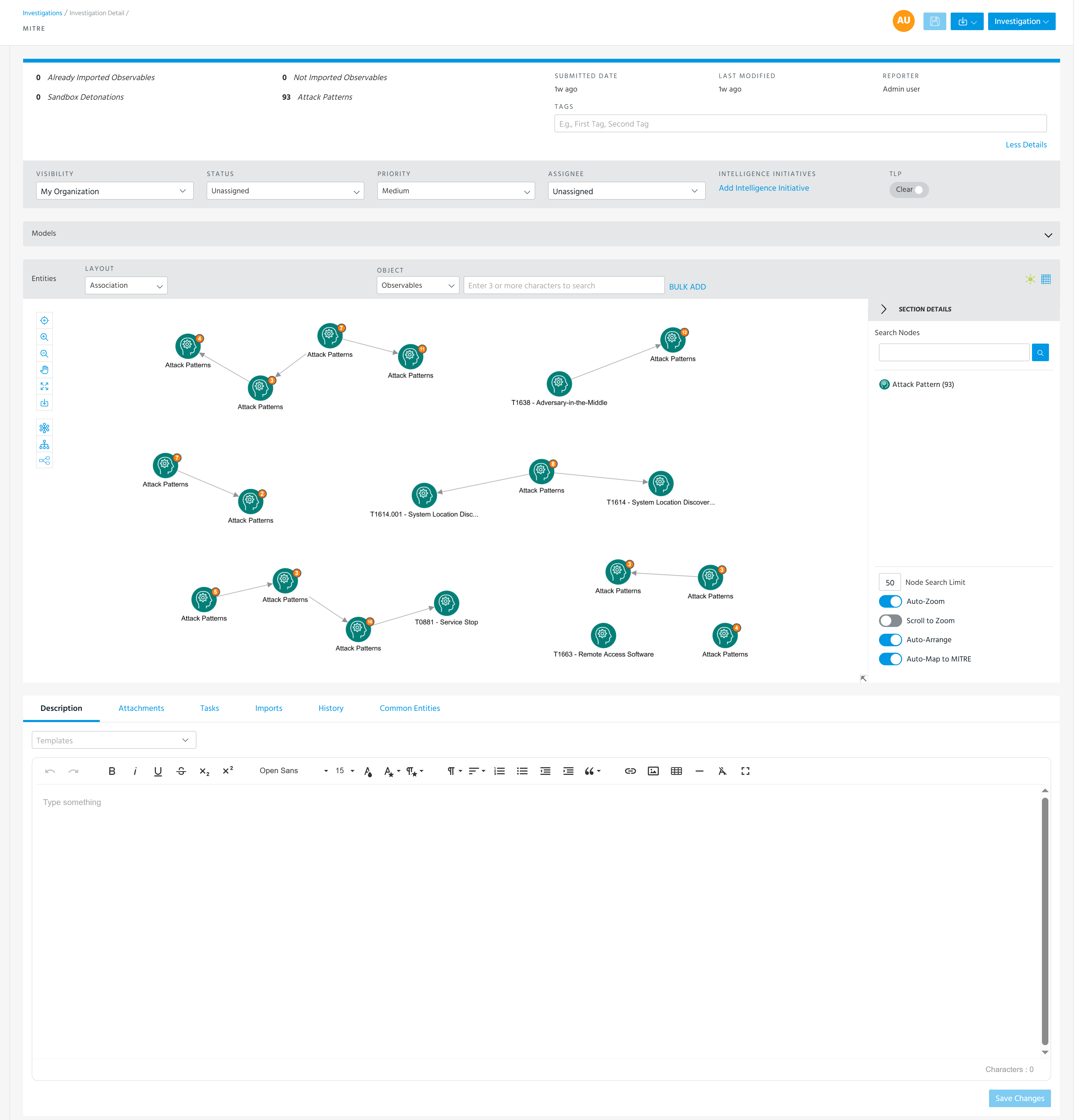
Within an investigation, you can leverage the ThreatStream Explore tool to make connections between the entities you are researching and other data, both internal and external to ThreatStream. Using the Explore tool, you may discover external data of interest that is not yet imported to ThreatStream. From the investigation, you can initiate an import session for all not-yet imported observables, thus adding them to your threat intelligence on ThreatStream.
Investigations also enables you to add contextual information to entities as Analysis. See Managing Entities on the Table View for more on adding Analysis.
Investigations List View
The Investigations list view displays the investigations that you have access to in ThreatStream. Access the Investigations list view by navigating to Research > Investigations.
(Click the image to enlarge it.)
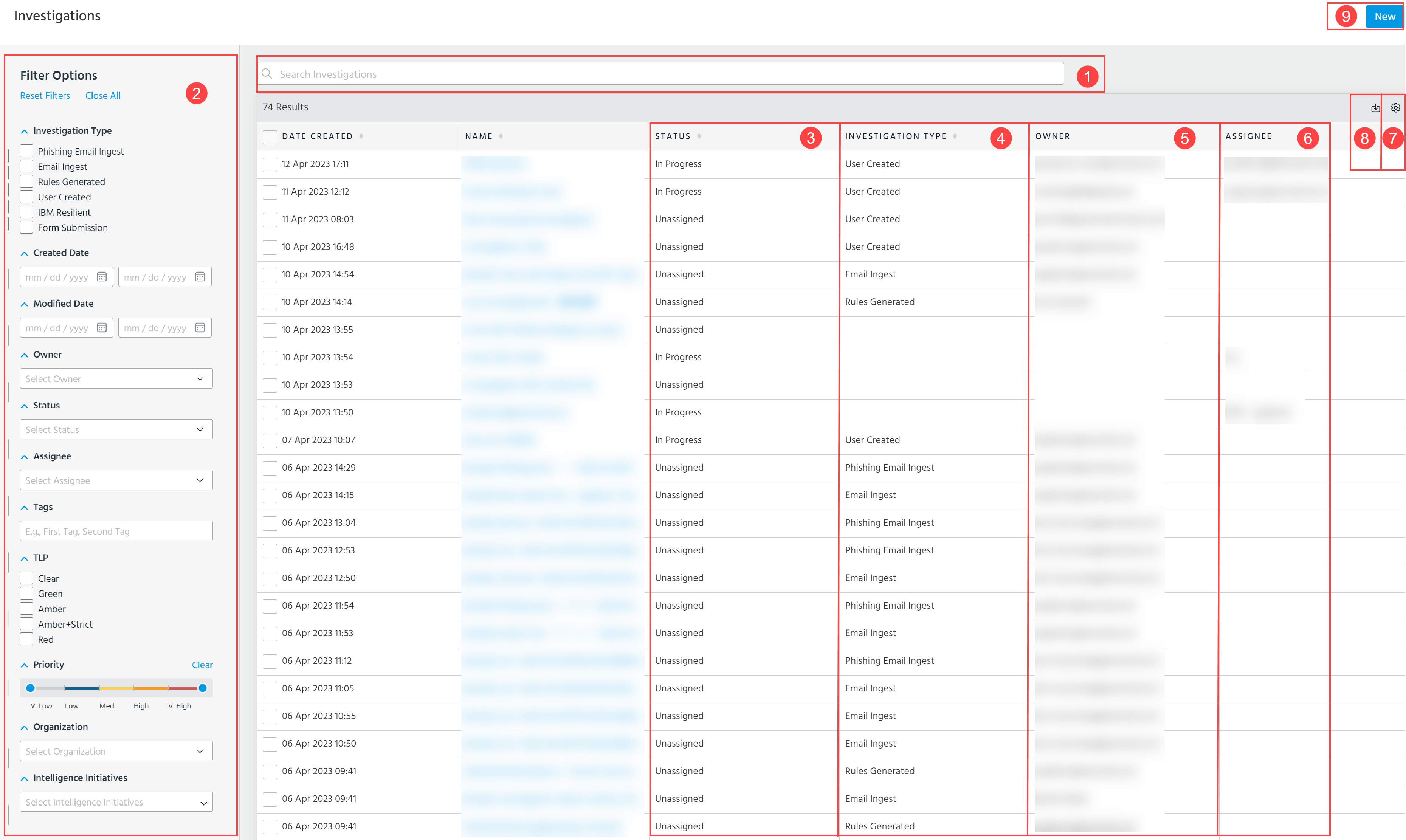
 Search: Search investigations by keywords.ThreatStream looks for matches in names, descriptions, and tags.
 Filter: Filter the investigations in the list by Investigation Type, Created Date, Modified Date, Owner, Status, Assignee, Tags, TLP, Priority, Organization, and Intelligence Initiatives.
Note: Sharing Organization Analyst ThreatStream users have an additional Form Submission Type filter to denote investigations created as a result of Sharing Organization Member submissions.
 Status: Current status of the investigation.
 Investigation Type: Describes how the investigation was created. Possible types are Phishing Email Ingest, Email Ingest, Rules Generated, and User Created.
 Owner: User that created the investigation.
 Assignee: User to which the investigation is assigned.
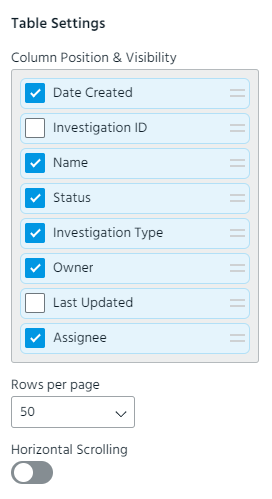
 Table Settings: Select what columns you want to be displayed. The following columns are available for selection: Date Created, Investigations ID, Name, Status, Investigation Type, Owner, Last Updated, Assignee, and Tags. The Investigation ID, Last Updated, and Tags columns are hidden by default. Additionally, you can change the order of columns in the table by using the drag-and-drop functionality, specify the number of rows to be displayed per page, and enable or disable horizontal scrolling.
 Export CSV: Export a list of investigations to a CSV file. See Exporting Investigations to a CSV File for more details.
 New: Create a new investigation. See Creating Investigations for more information.
 Tags: Tags associated with the investigation. To view all tags associated with the investigation of your interest, click the corresponding arrow in the Tags column or on the right side of the investigations table.
From the Investigations page, you can apply the following actions to selected investigations:
- Export CSV: Export selected investigations to a CSV file. See Exporting Investigations to a CSV File for more details.
- Delete: Delete selected investigations. See Deleting Investigations for more details.