Exporting Investigations to a CSV File
From the Investigations list view page, you can export investigations to a CSV file as a single item or in bulk. Additionally, you can export investigations to a CSV file from Investigation details pages.
CSV files include the following columns:
-
assignee: Organization user or workgroup currently assigned the investigation. -
assignee_type: Type of assignee (user or workgroup). -
created_ts: Timestamp of when the investigation was created. -
id: Unique ID associated with the investigation. -
modified_ts: Timestamp of when the investigation was last modified. -
name: Investigation name. -
owner: User that created the investigation. -
source_type: Source of the investigation (created by a user, or generated by a rule match or phishing mailbox). -
status: Current status of the investigation.
Exports can include up to 1000 investigations.
To export selected investigations to a CSV file:
-
Navigate to ThreatStream > Research > Investigations.
-
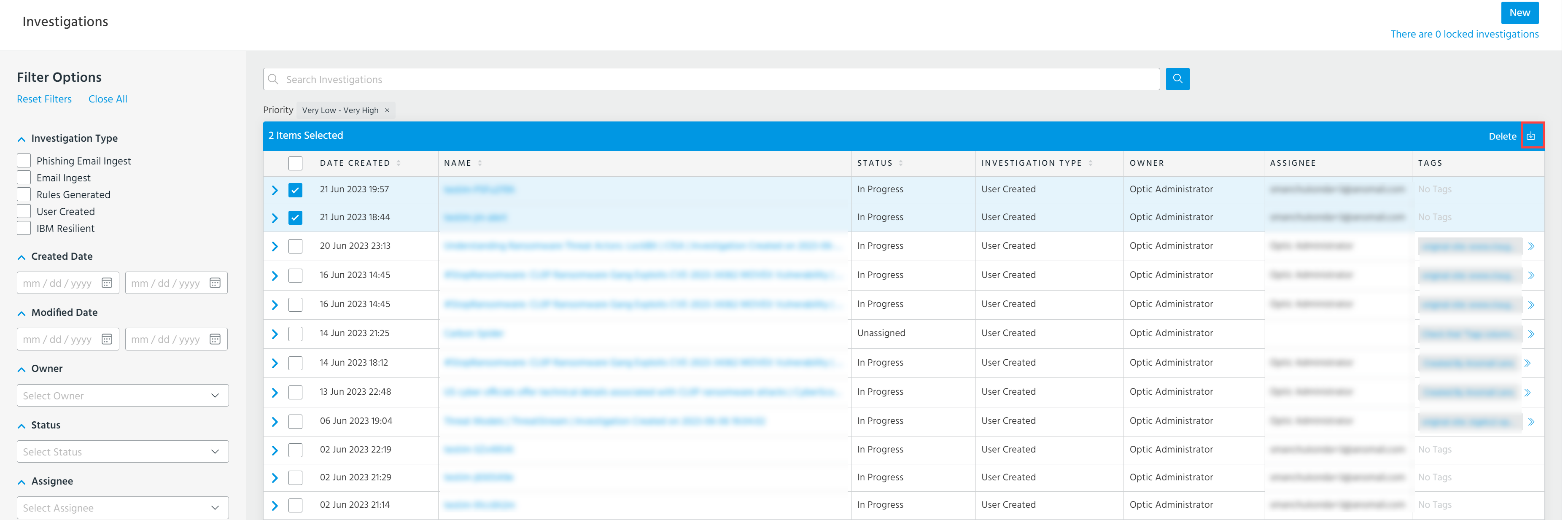
Select the investigations that you want to export.
-
Click the export icon.
Your download begins immediately.
To export investigations in bulk to a CSV file:
-
Navigate to ThreatStream > Research > Investigations.
-
Click the export icon.
-
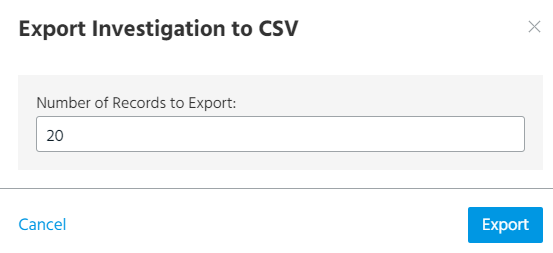
In the dialog box that opens, enter a number of records to export. Exports can include up to 100 investigations.
Your download begins immediately.
To export an investigation from an Investigation details page:
-
Navigate to ThreatStream > Research > Investigations.
-
Select the investigation that you want to export.
-
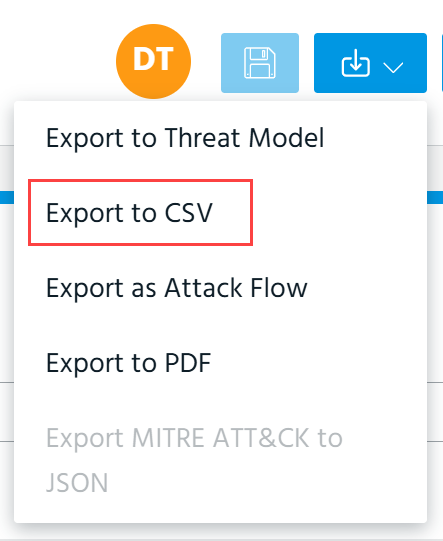
Select Export to CSV from the Export menu.
-
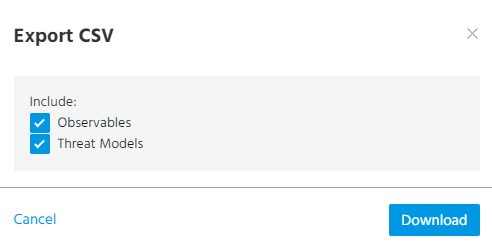
In the dialog box that opens, deselect Observables and Threat Models if you do not want to include them in the export and click Download.
Your download begins immediately.