Using the MITRE ATT&CK Framework in Investigations
In addition to the Diamond, Kill Chain, and STIX models, ThreatStream Investigations contain an on-board implementation of the MITRE ATT&CK framework. This implementation gives you a visual representation of MITRE ATT&CK associations and insight into the impact of the threat under investigation with regard to the MITRE ATT&CK Framework.
The Anomali threat model contains a library of MITRE ATT&CK techniques targeting enterprises, mobile devices, and industrial control systems. When techniques with the prefixes [MITRE ATT&CK] or [MITRE PRE-ATT&CK] are added to an Investigation, they are automatically plotted on one of the MITRE ATT&CK framework matrix in the Models section of the Investigation.
When you export investigations, you have the option of including a non-editable, point-in-time snapshot of the matrix in its current state. See Exporting Investigations as Threat Model Entities for more information.
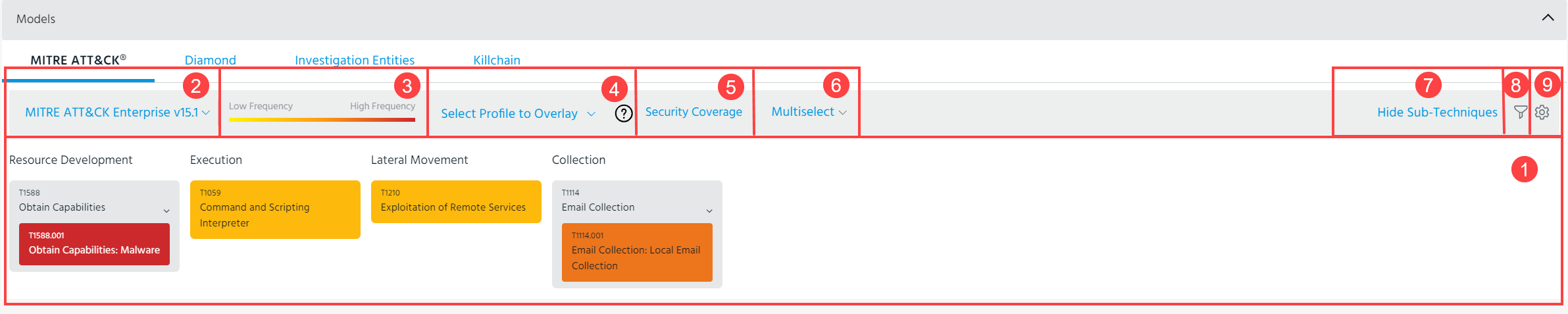
Note: The MITRE ATT&CK tab is not available for investigations that contain more than 1000 entity associations.
 Matrix: MITRE techniques associated with the Investigation are plotted on the matrix. Techniques are assigned a color within the scoring gradient based on the number of associated Observables and threat model entities relative to the other MITRE techniques contained within the Investigation. You can click techniques on the matrix to view a description.
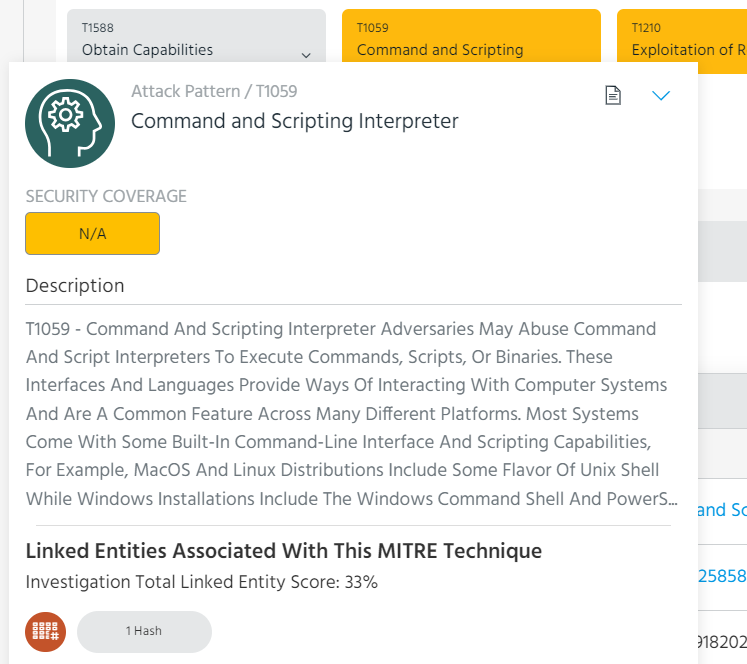
The popup displays an investigation Total Linked Entity Score, which scores techniques based on the number of associations with entities contained within the investigation. This score determines the color gradient assigned to each technique.
Techniques that contain zero associations with other entities in the Investigation are assigned a score of 0% and the lowest gradient on the matrix.
Click the Analysis icon ( )to add analysis to the technique.
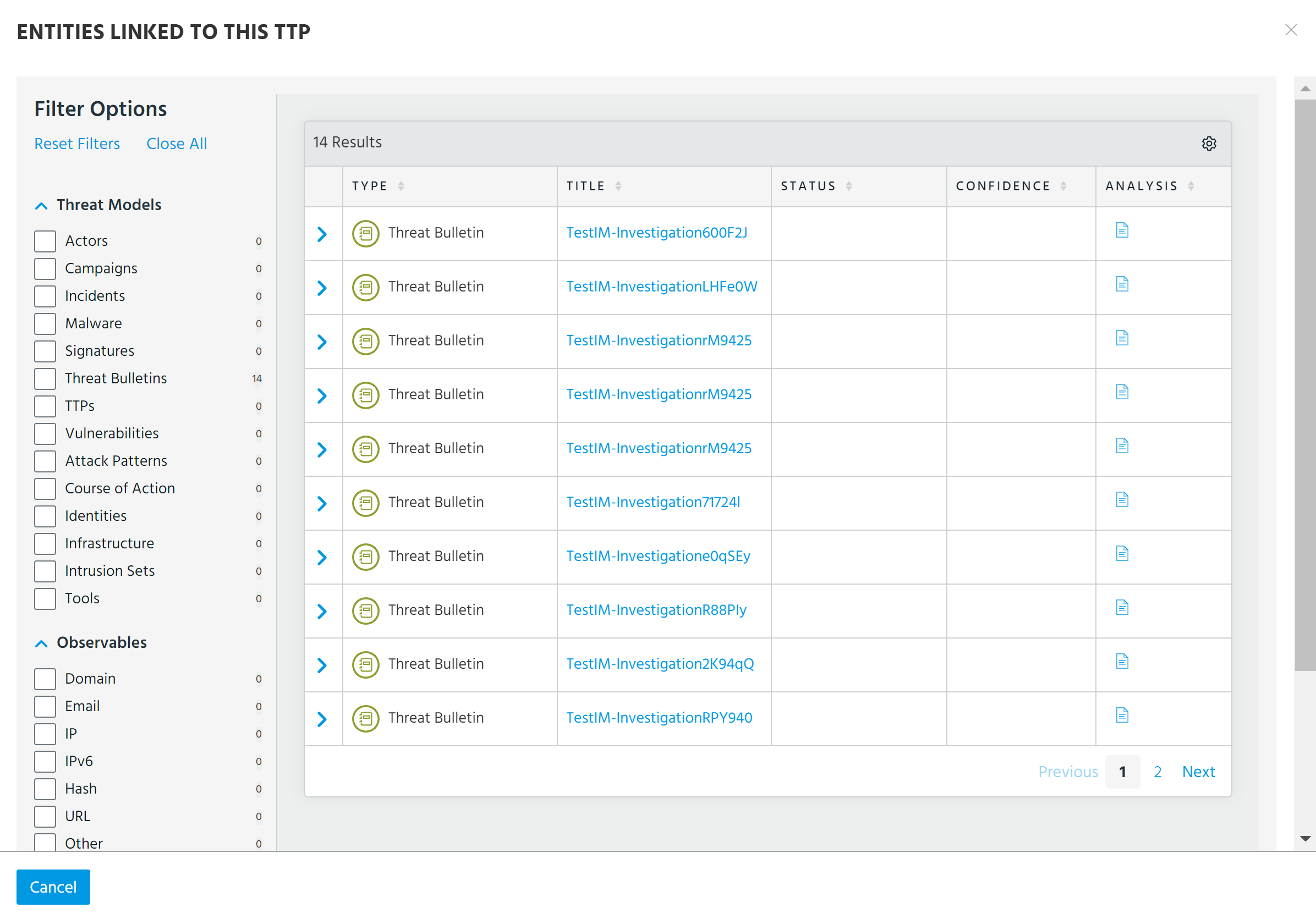
Click the arrow icon to drill down on the technique details page or remove the technique from the Investigation. An Open Entities Table option is available if the technique contains associations, enabling you to view associations in a filterable window.
 Current MITRE ATT&CK Framework Type and Version: Current default type and version of the MITRE ATT&CK framework used by your organization. See Specifying a Default MITRE ATT&CK Version for your Organization
 Gradient: Displays the current color gradient for the matrix.
 Select Profile to Overlay: Select a MITRE ATT&CK profile to overlay the current security control representation on the framework to get a snapshot of your coverage for a particular threat. For more information on configuring your security control representation, see Configuring Security Coverage of MITRE ATT&CK Profiles. For more information on MITRE ATT&CK profiles, see Managing MITRE ATT&CK Profiles.
Overlay is disabled if Select Profile to Overlay is selected. The color gradient ranges from Low Frequency to High Frequency based on the total number of investigation entities associated with the MITRE techniques.
If a MITRE profile is selected, overlay is enabled. The gradient ranges from Low Risk to High Risk. The risk level of MITRE techniques on the heat map is calculated using the following formula: Investigation Total Linked Entity Score - Security Coverage Score.
For example, if the investigation total linked entity score is 100% and security coverage is weak (score: 34), the MITRE technique is assigned the orange color representing a medium risk.
If security coverage is not available for a technique, the security coverage score of such technique is equal to 0. See Configuring a Representation of your Security Coverage from a JSON File for more details on the security coverage scoring system.
 Security Coverage: Navigate to the MITRE ATT&CK Security Coverage page. See Configuring Security Coverage of MITRE ATT&CK Profiles for details.
 Multiselect: Add threat model entities and Observables to the matrix without adding them to the Investigation. If these entities contain MITRE ATT&CK associations, the associated techniques are plotted on the matrix.
Multiselected entities are listed in the Multiselect menu. From this menu, you can click Add to Investigation to add the entity to the investigation or Remove to remove the entity from the matrix.
If the entities contain MITRE technique associations they will be plotted on the heatmap with the corresponding letters listed on the Multiselect menu.
 Show/Hide Sub-Techniques: If your organization has configured an applicable MITRE version, the screen contains an additional Show/Hide Sub-Techniques option. Click Show Sub-Techniques to expand the matrix to display sub-techniques for each technique. Additionally, you can expand sub-techniques for individual techniques by clicking the arrow next to the technique on the matrix.
Note: Sub-techniques are only visible on the matrix of MITRE ATT&CK Enterprise v7.2 and above.
 Filter: Filter techniques by associated investigation Entities and Platforms. Additionally, a Hide Unused switch enables you to display only those techniques for which you have configured a security coverage level.
 Settings: The following settings are available: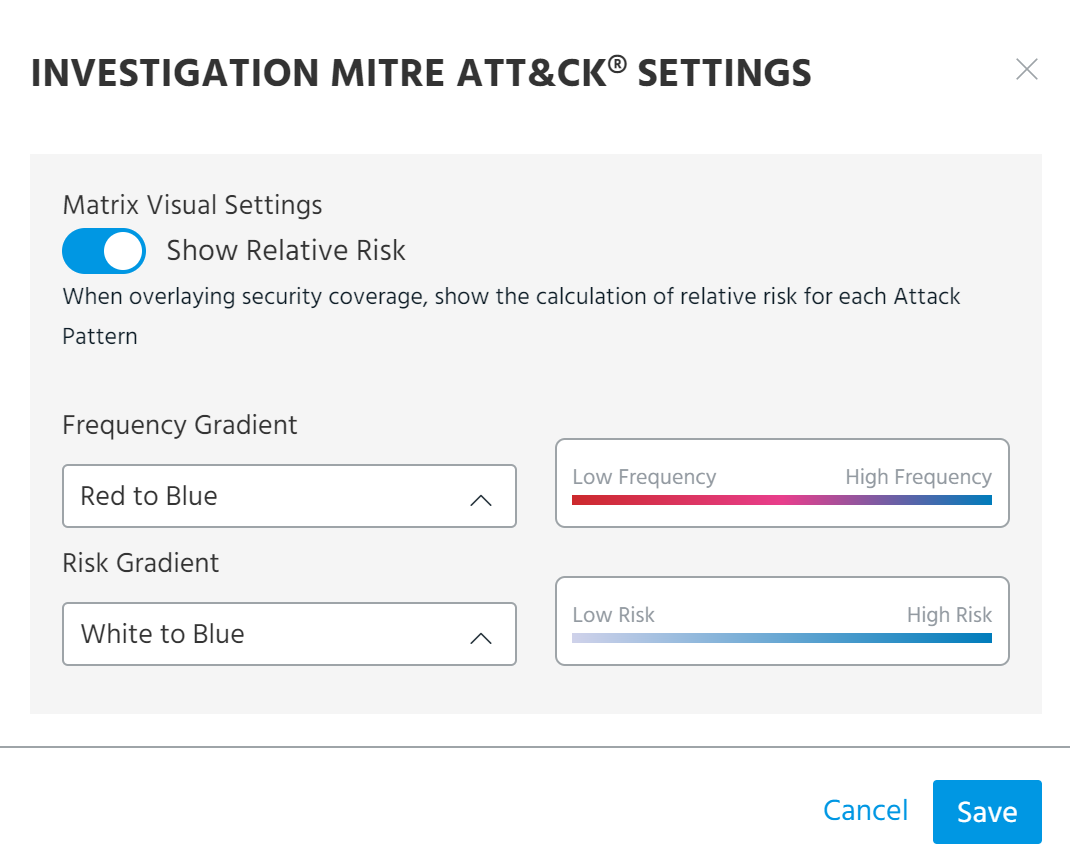
-
Show Relative Risk: When enabled, the Relative Risk view displays your coverage of the threat under investigation as a heatmap.
Risk is represented on a gradient from low to high and calculated based on the number of entities associated with a technique and the coverage level attained by your organization.
-
Frequency Gradient: Color gradient used when Overlay security coverage is disabled.
-
Risk Gradient: Color gradient used when Overlay security coverage is enabled.
Automatically Adding MITRE ATT&CK Techniques to Investigations
When you pivot on investigation entities or add new entities from the on-board Explore pivoting tool, an additional option allows you to automatically add MITRE techniques associated with the entities added to the chart.
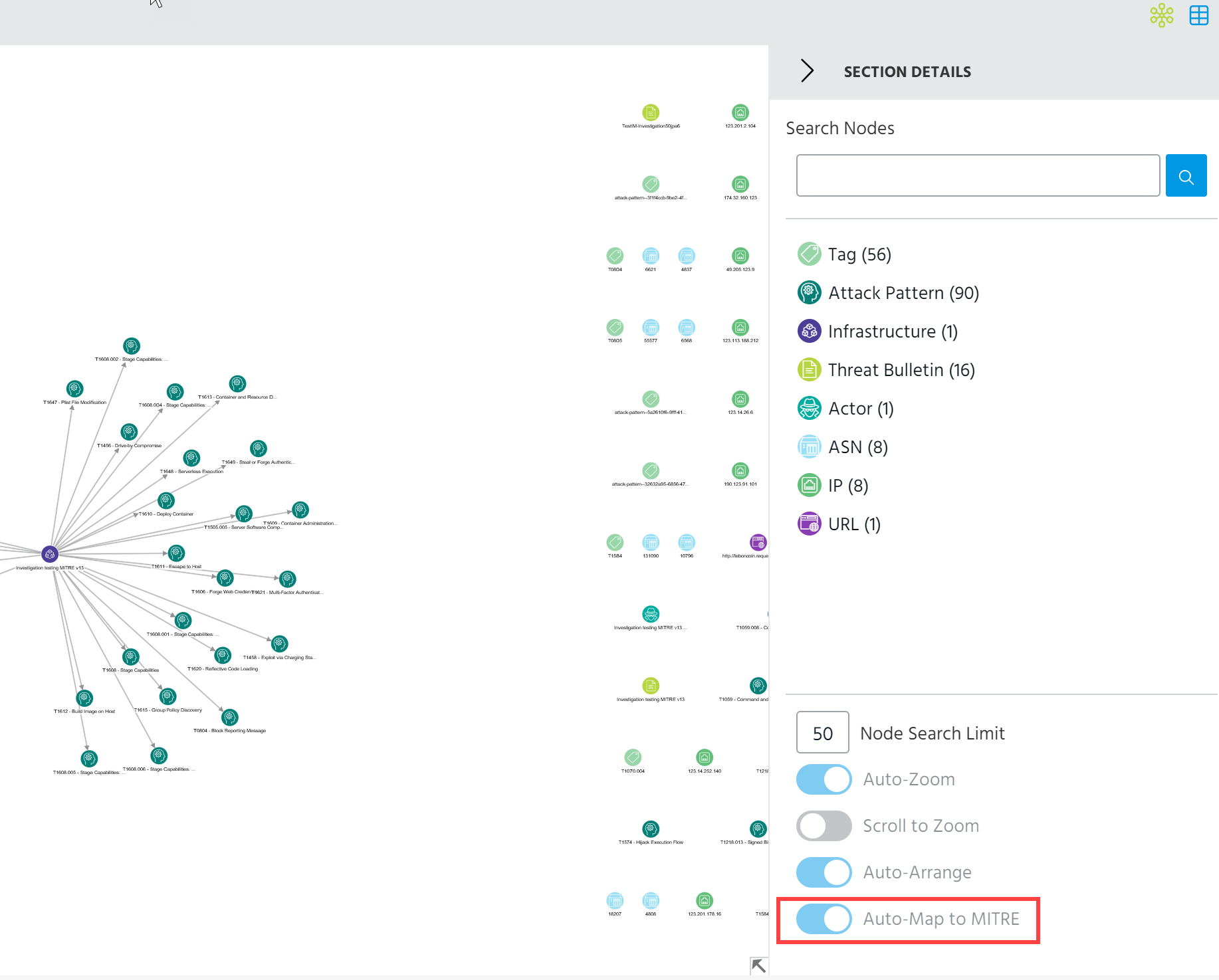
Simply ensure Auto-Map to MITRE is selected under the chart key. For more on using the Explore pivoting tool in investigations, see Using Explore In Investigations.
Note:
-
Auto-Map to MITRE is only supported for entities added within the investigation.
-
Auto-Map to MITRE is not supported for Not Yet Imported observables in the investigation.
-
Auto-Map to MITRE is not available on the standalone Explore pivoting tool or the pivoting tool on observable details pages.
Managing MITRE ATT&CK Technique Associations Within Investigations
If an association does not exist between an investigation entity and a MITRE technique, you can use the Assign technique function in the Entities table view section to connect entities in the investigation to a specific MITRE technique. Doing so creates a connection between the two entities within the investigation, thus mapping the entity to a technique on the MITRE ATT&CK matrix. However, the connection only exists within the investigation and an association is not created between the two entities.
To add a MITRE association within an investigation:
- Navigate to ThreatStream > Research > Investigations.
- Click the Name of the investigation of interest.
- Click the arrow in the Models section to open the MITRE ATT&CK tab.
- Scroll down to the Entities section and open the table view (
 ).
). - Select the entity with which you want to link the MITRE technique.
-
In the Actions menu, click Assign Technique.
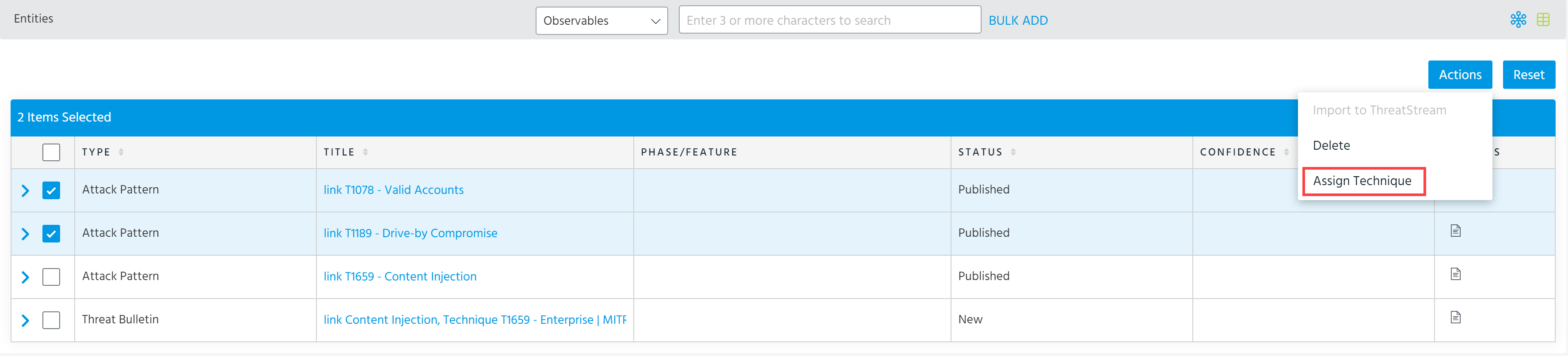
Note: The MITRE ATT&CK tab must be open in the Models section for Assign Technique to appear int he Actions menu.
-
Search for the relevant MITRE ATT&CK or MITRE PRE-ATT&CK techniques in the Add Technique search.
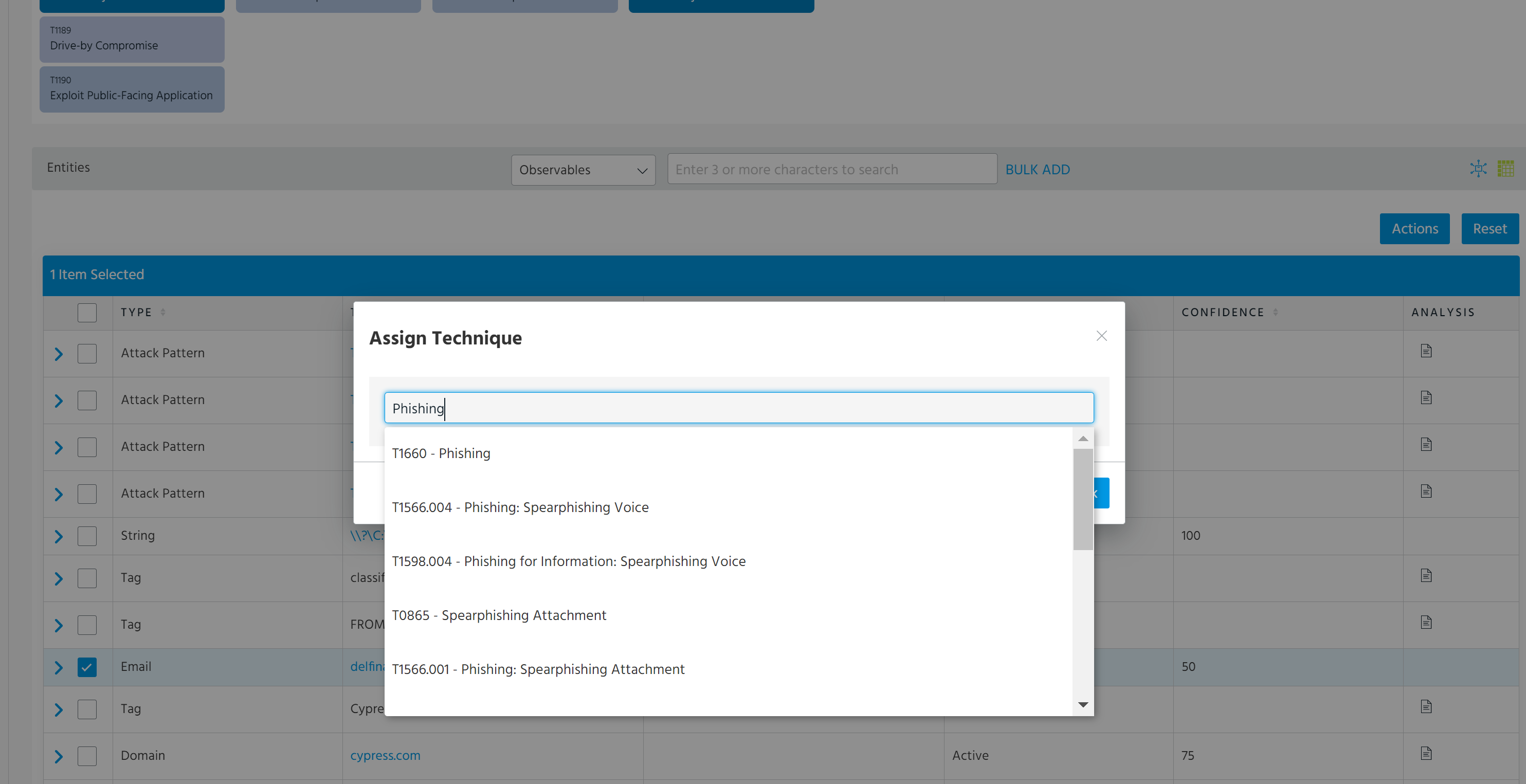
Note: There is no limit to the number of MITRE techniques you can associate with a single investigation entity.
- Select the techniques of interest and click OK.
The association is created within the investigation and reflected on the MITRE ATT&CK matrix.
See Managing Entities on the Table View for more information on the investigation entity table view.