Configuring Security Coverage of MITRE ATT&CK Profiles
ThreatStream enables you to use the MITRE ATT&CK framework to log the security coverage implemented by your organization. By leveraging the structured framework and insights provided by MITRE, your organization can enhance threat detection, improve incident response, and adopt a proactive approach to managing cyber threats.
When accessing the MITRE ATT&CK page for the first time, you are prompted to create a MITRE ATT&CK profile and configure its representation of the security coverage. A representation of the security coverage can be configured by uploading a JSON file generated by the MITRE ATT&CK Navigator or manually on the matrix of the MITRE ATT&CK framework. If your organization users have already created MITRE ATT&CK profiles, you will land on the last modified profile.
For information on how to create MITRE ATT&CK profiles, see Managing MITRE ATT&CK Profiles.
For information on configuring a MITRE profile security coverage from a JSON file, see Configuring a Representation of your Security Coverage from a JSON File. For manual configuration, see Manually Configuring a Representation of Security Coverage.
The workspace of ThreatStream investigations and threat models include an on-board implementation of the MITRE ATT&CK framework, which enables you to build visual representations of MITRE ATT&CK associations and insights into the impact of the threat under investigation with regard to the MITRE ATT&CK framework. The configured security coverage of every MITRE ATT&CK profile can be overlaid on MITRE ATT&CK models within investigations and threat models to get a snapshot of the profile coverage for a particular threat.
For more information on using the MITRE ATT&CK framework in investigations, see Using the MITRE ATT&CK Framework in Investigations.
For more information on using MITRE ATT&CK framework in threat models, see Using MITRE ATT&CK Frameworks in Threat Models.
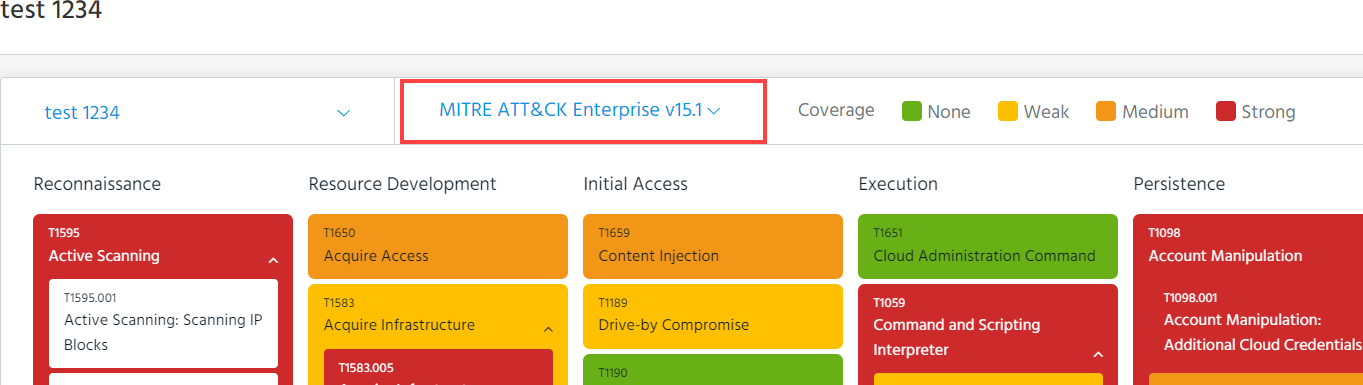
Below is an example of the test1234 MITRE ATT&CK profile with configured security coverage.
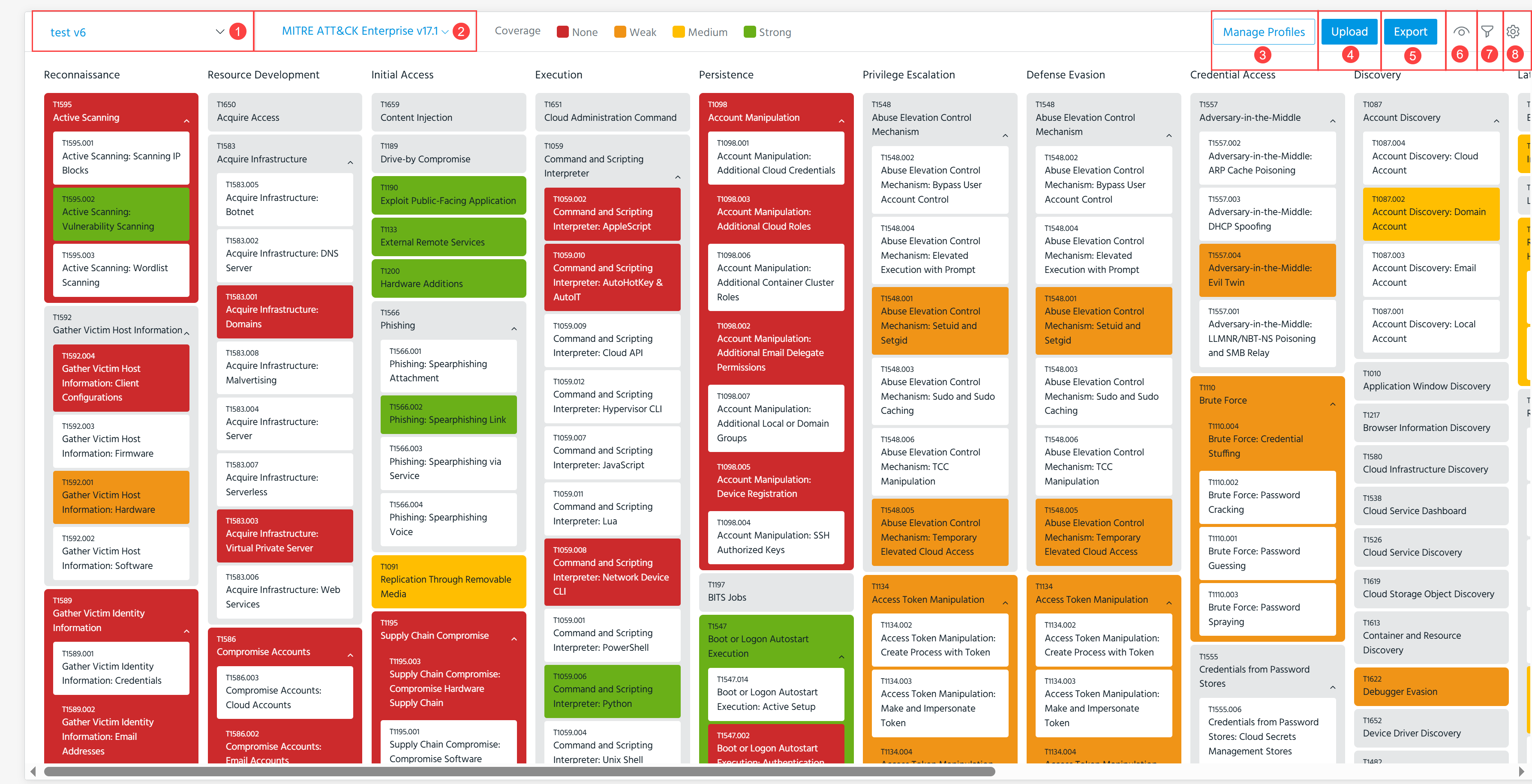
 Current MITRE ATT&CK Profile: Shows the MITRE ATT&CK profile selected to represent a security coverage.
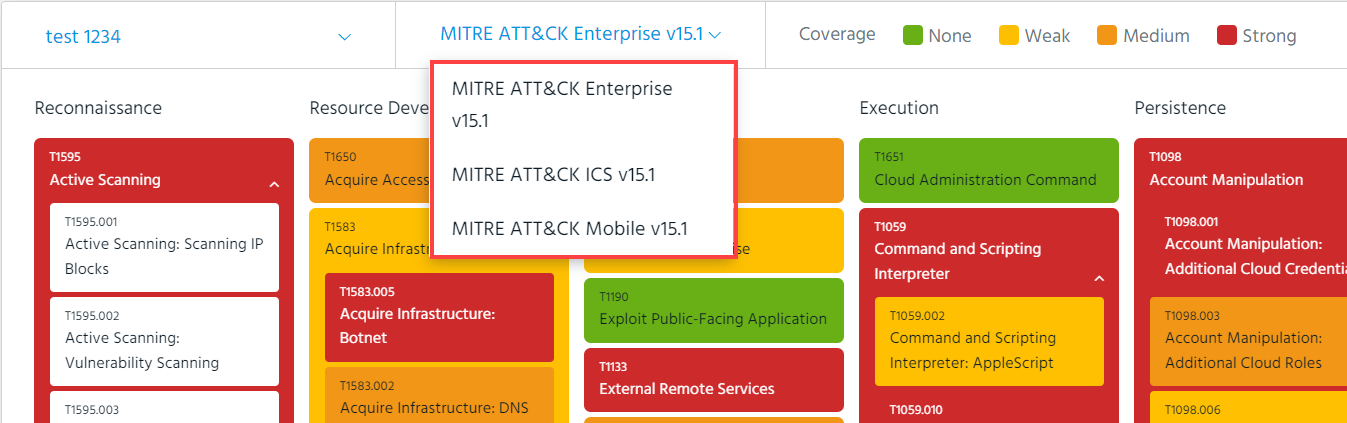
 Current MITRE ATT&CK framework Type and Version: Shows the default MITRE ATT&CK framework version used by your organization. See Specifying a MITRE ATT&CK Security Coverage Framework Version
Depending on the MITRE ATT&CK version, you can also choose one of the following MITRE ATT&CK framework types:
-
Enterprise: Shows a comprehensive matrix of tactics and techniques applied against enterprise infrastructures. Available for all supported MITRE ATT&CK framework versions.
-
Mobile: Shows a comprehensive matrix of techniques involving Android and iOS devices access and network-based effects that can be used by attackers without device access. Available for MITRE ATT&CK v7.X and later supported versions.
-
ICS: Shows how attackers achieve a tactical goal by performing an action. Available for MITRE ATT&CK v8.X and later supported versions.
MITRE ATT&CK framework versions and types can also be leveraged from MITRE Investigations and threat models. See Using the MITRE ATT&CK Framework in Investigations and Using MITRE ATT&CK Frameworks in Threat Models.
 Manage Profiles: Manage MITRE ATT&CK Profiles. See F for details.
 Upload: Configure a security coverage representation for the selected profile by uploading it from a JSON file. See Configuring a Representation of your Security Coverage from a JSON File for more information.
 Export: Export security coverage details of the selected MITRE ATT&CK profile. See Exporting MITRE ATT&CK Profiles for details.
 Show/Hide Sub-Techniques: If your organization has configured an applicable MITRE version, the screen contains the additional Show/Hide Sub-Techniques option. Click Show Sub-Techniques to expand the matrix to display sub-techniques for each technique.
Additionally, you can expand sub-techniques for individual techniques by clicking the arrow next to the technique on the matrix.
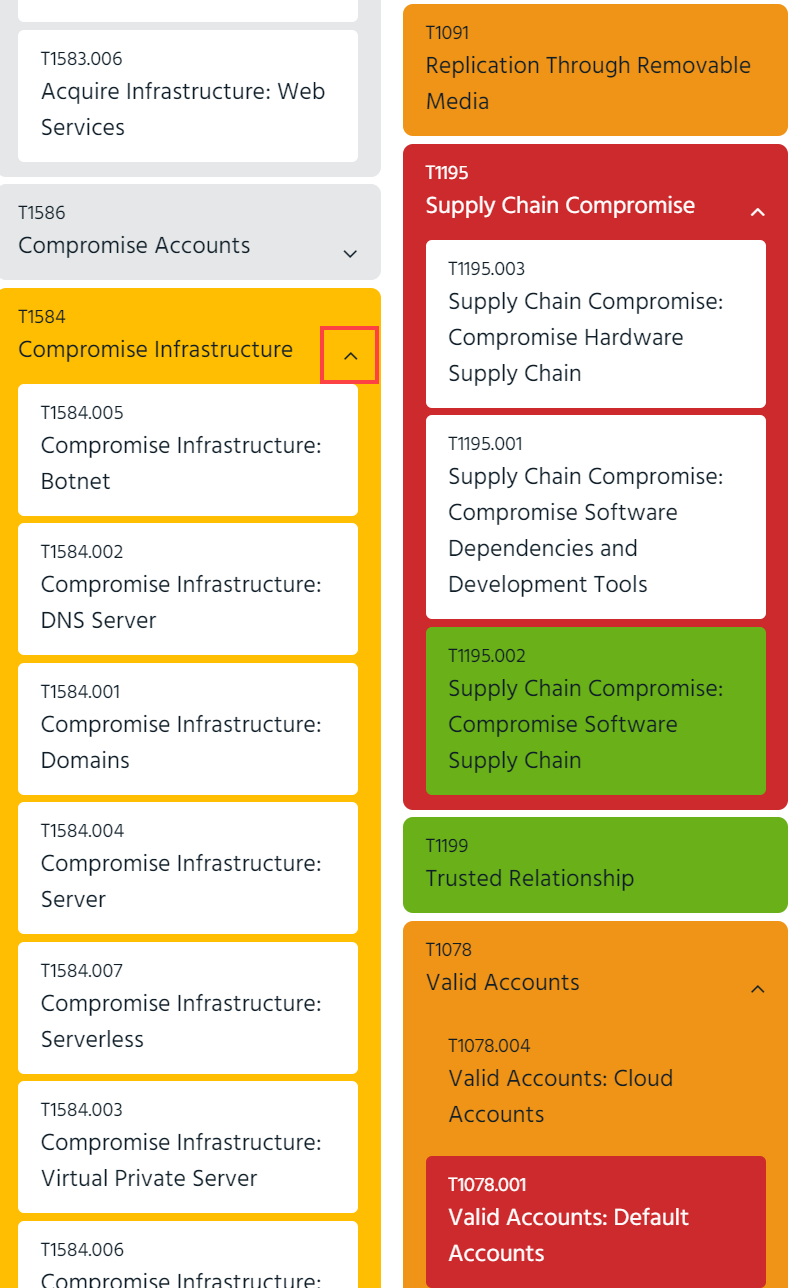
Note: Sub-techniques are only visible on the matrix of MITRE ATT&CK Enterprise v7.2 and above.
 Filter: Filter techniques by Platform and Stages. Additionally, a Hide Unused switch enables you to display only those TTPs for which you have configured a security coverage level.
Note: Filter is applicable only to MITRE ATT&CK v6.2. Filter techniques are deprecated in MITRE ATT&CK v7.2 and later.
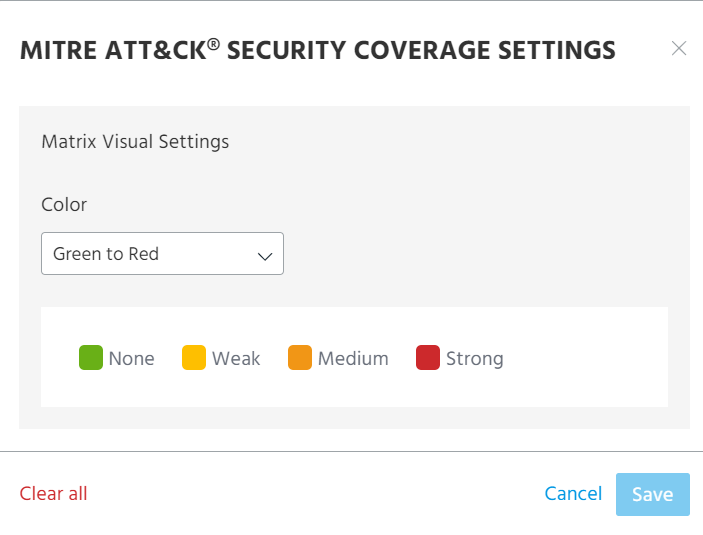
 MITRE ATT&CK Security Coverage Settings: The following settings are available:
-
Matrix Visual Settings: Select a color gradient for your MITRE profile security coverage matrix.
-
Clear all: Clear current security coverage configuration for your MITRE profile. This action cannot be reversed.
Specifying a MITRE ATT&CK Security Coverage Framework Version
Org Admins control which version and domain of the MITRE ATT&CK framework your organization uses to gauge security coverage. For more information, see Specifying a Default MITRE ATT&CK Version for your Organization.
Your current version is displayed at the top of the screen.
Configuring a Representation of your Security Coverage from a JSON File
You can quickly configure your MITRE profile security coverage representation by uploading a JSON file generated by the MITRE ATT&CK Navigator tool.
When generating your JSON file, you must adhere to the following requirements:
-
The JSON file must adhere to the MITRE ATT&CK version used by your organization.
-
domainmust be set to one of the following:enterprise-attack,mobile-attack, orics-attack. -
scorevalues must be between 0 and 100. ThreatStream maps these scores on to security level settings as follows:-
0—None (no coverage) -
1-33—Low (low level of protection) -
34-67—Medium (moderate level of protection) -
68-100—Strong (high level of protection)
-
-
Multiple layers are not supported
Note: Uploading a JSON file overwrites existing configurations.
To configure a representation of your MITRE profile security coverage from a JSON file:
-
Generate your JSON file using the MITRE ATT&CK Navigator tool.
-
Navigate to ThreatStream > Manage > MITRE ATT&CK.
-
Select the MITRE ATT&CK profile whose security coverage you want to configure.
-
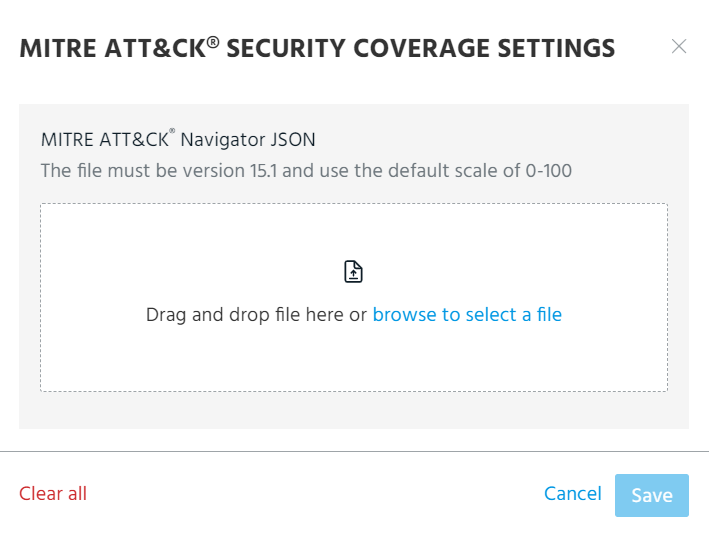
Click Upload.
-
On the resulting window, drag and drop or browse to select your JSON file from your system file explorer.
-
Click Save.
Your JSON file is uploaded. ThreatStream processes the file and updates the profile's security coverage on the MITRE ATT&CK framework displayed on the page.
Manually Configuring a Representation of Security Coverage
In addition to configuring security controls from a JSON file, you can manually configure or update security coverage of every MITRE ATT&CK profile.
To configure a representation of your security coverage:
-
Navigate to ThreatStream > Manage > MITRE ATT&CK and select the MITRE profile whose security coverage you want to con figure.
The MITRE ATT&CK framework is displayed. By default, all TTPs are assigned the "None" security level setting.
-
To log coverage for a TTP, click the TTP of interest and select a security level setting.
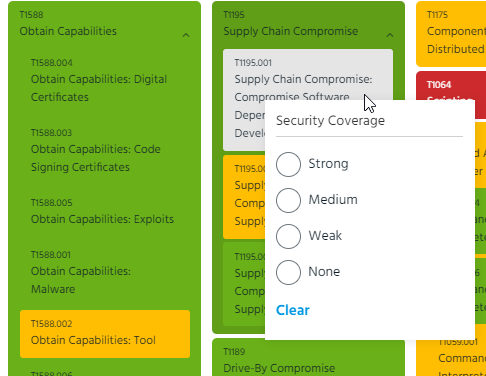
Strong (green) indicates a high level of protection. Medium (yellow) indicates a moderate level of protection. Weak (orange) indicates a low level of protection. None (red) indicates no protection.
Note: Colors depend on the gradient selected in the matrix configuration.
-
When you have finished configuring your security control coverage, click Save.
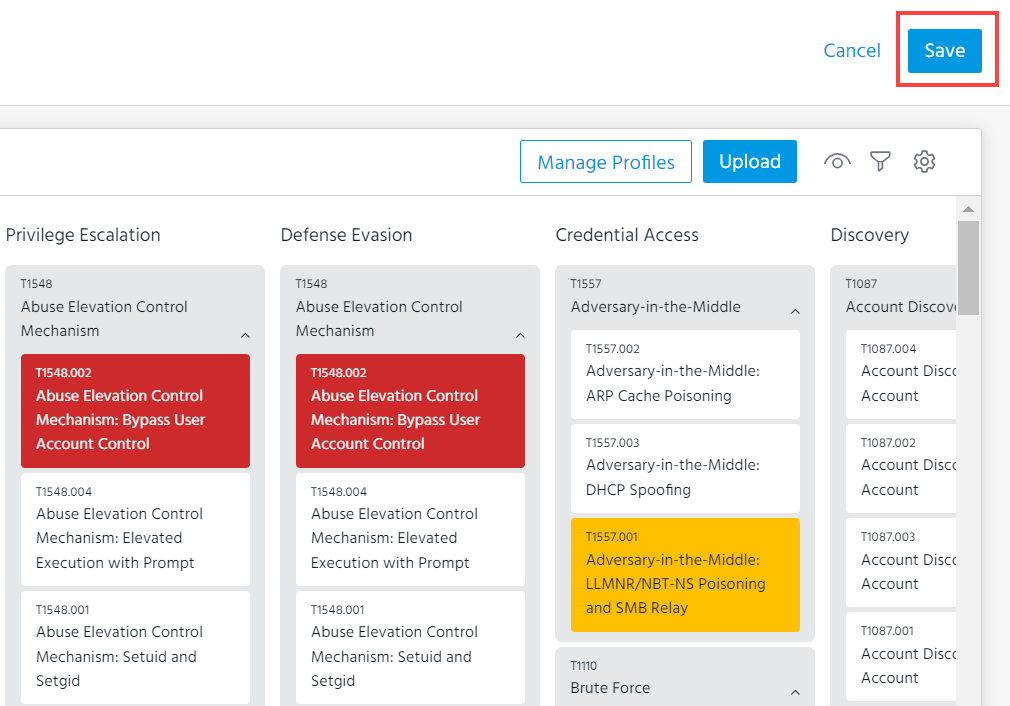
Your security coverage has been saved. You can return to the profile's MITRE ATT&CK Security Coverage page and update the representation at any time.