Managing MITRE ATT&CK Profiles
ThreatStream enables you to create multiple MITRE ATT&CK profiles with their own respective security coverage representation. Any user in your organization, except read-only users, can edit, export, or delete MITRE profiles created within the organization.
To access the MITRE ATT&CK Profiles page in ThreatStream:
-
Navigate to ThreatStream > Manage > MITRE ATT&CK.
-
On the MITRE profile page you land, click Manage Profiles or MITRE ATT&CK Profiles.
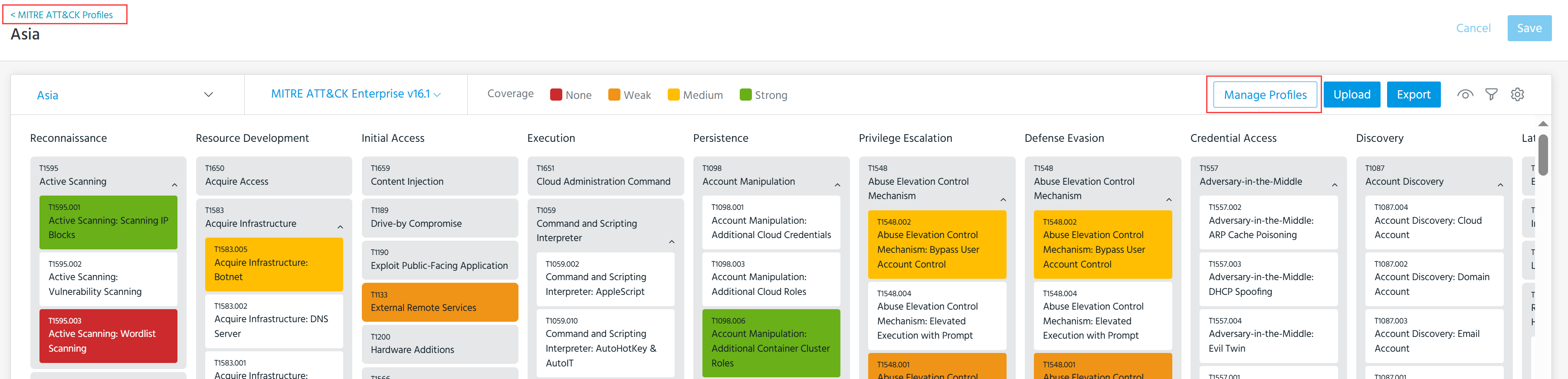
Note: Read Only users cannot access the MITRE ATT&CK Profiles page. All other users can access the page, create profiles and export profiles, and configure security coverage representation of profiles.
When you access the MITRE ATT&CK Profiles page for the first time, you may see the Migrated MITRE profile. The Migrated profile is your organization's MITRE security coverage configured prior to the implementation of the MITRE profiles functionality. You can continue using the Migrated profile or create a new MITRE profile. See Creating a MITRE ATT&CK Profile for details.
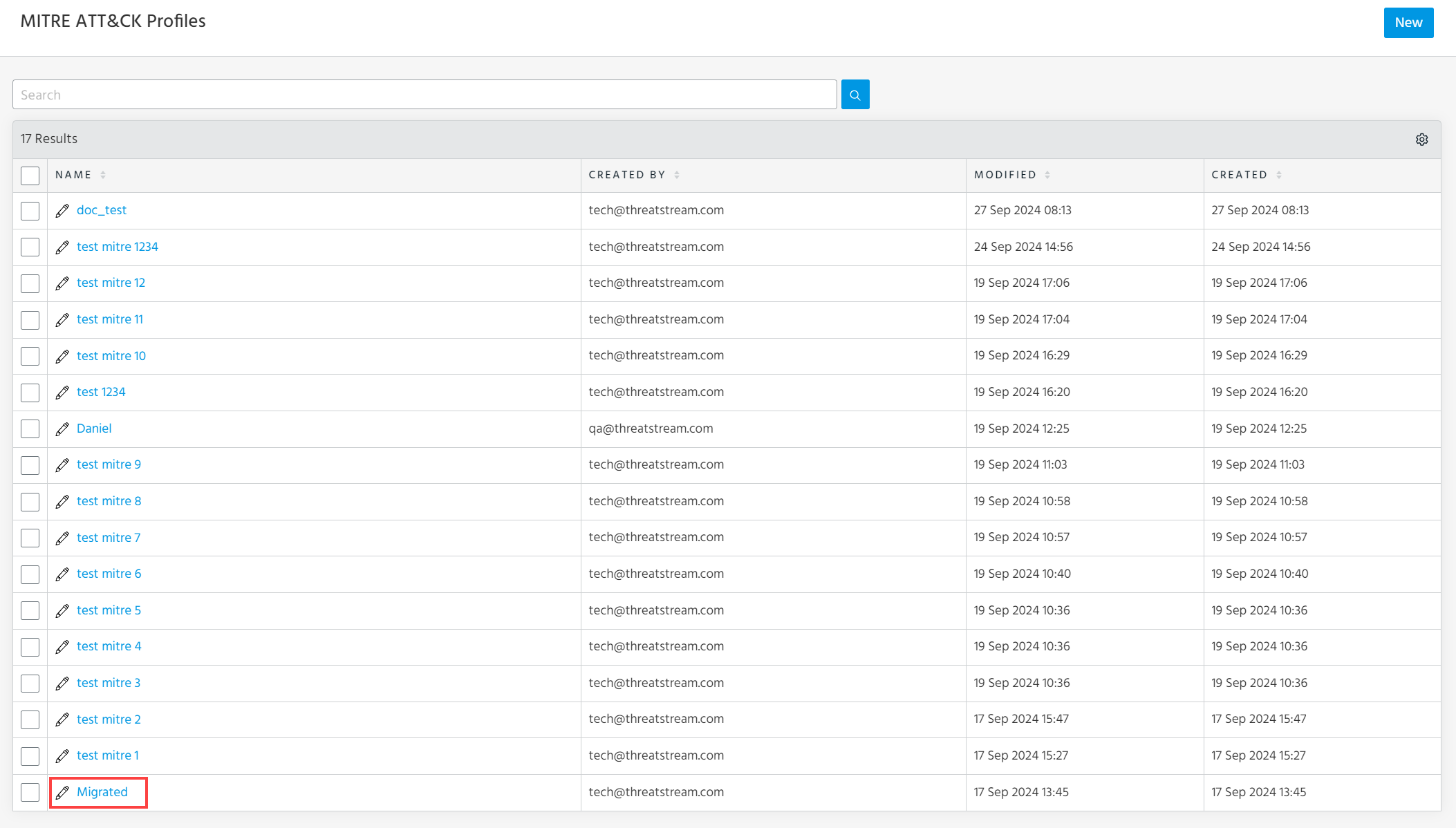
On the MITRE ATT&CK Profiles list page, you can perform the following actions:
-
Create new MITRE ATT&CK profiles. See Creating a MITRE ATT&CK Profile for details.
-
Edit names of MITRE ATT&CK profiles. See Editing a MITRE ATT&CK Profile for details.
-
Delete MITRE ATT&CK profiles. See Deleting MITRE ATT&CK Profiles for details.
For instructions on exporting MITRE ATT&CK profiles, refer to Exporting MITRE ATT&CK Profiles.
Additionally, if you use AQL dashboards, you can add MITRE profiles to them. See MITRE ATT&CK Heatmap Visualization Type for details.
Creating a MITRE ATT&CK Profile
Every organization can create up to 50 MITRE profiles.
To create a MITRE ATT&CK profile:
-
Navigate to ThreatStream > Manage > MITRE ATT&CK.
-
On the security coverage page of any MITRE profile, click Manage Profiles or MITRE ATT&CK Profiles.
-
On the MITRE ATT&CK Profiles page, click New.
-
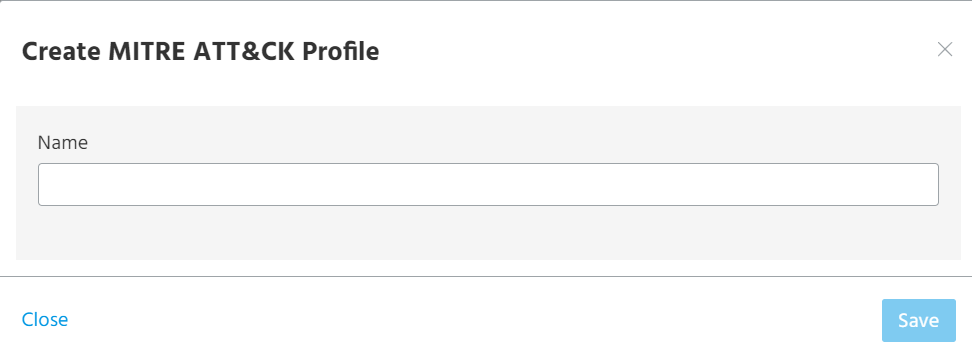
In the dialog box that opens, enter a meaningful name for the profile.
-
Click Save.
The new MITRE ATT&CK profile is created.
Alternatively, you can create a MITRE profile from the security coverage page of an existing MITRE profile by clicking Create New Profile on the MITRE ATT&CK Profile drop-down list.
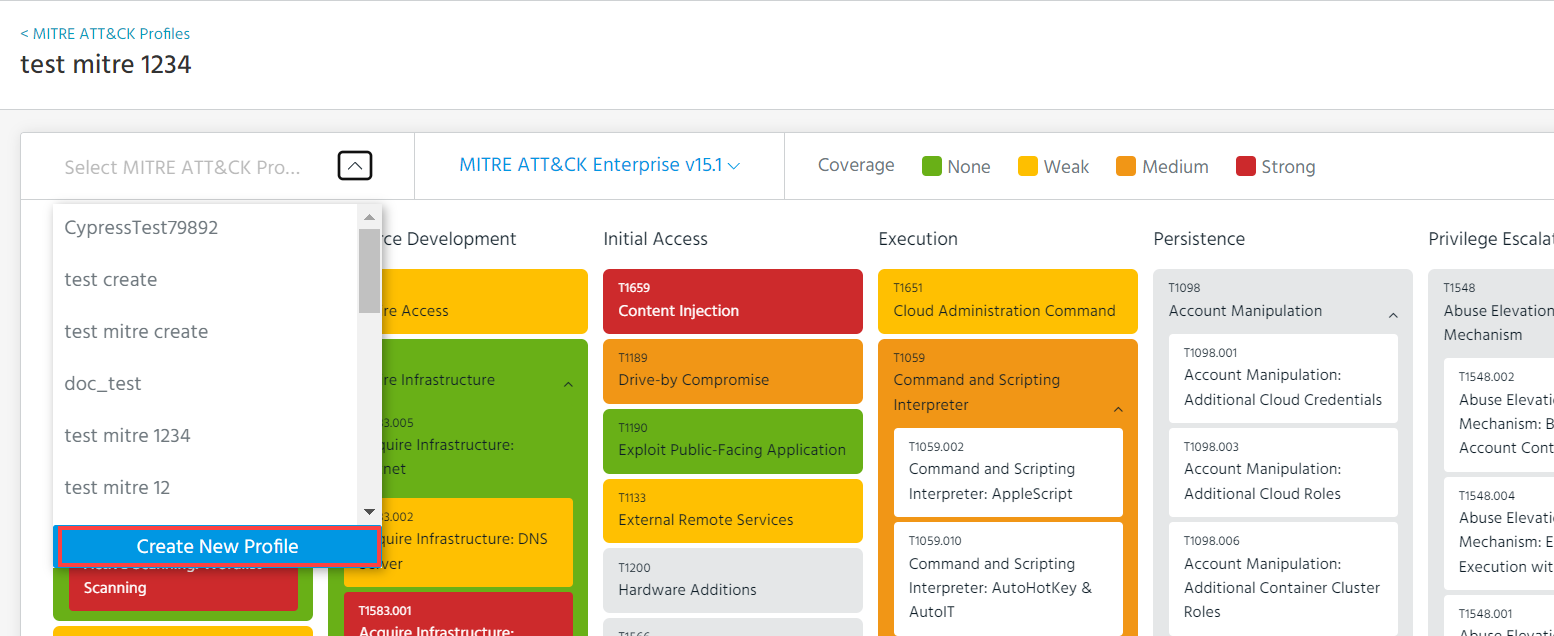
After creating the MITRE profile, you can start configuring its representation of the security. Refer to Configuring Security Coverage of MITRE ATT&CK Profiles for details.
Editing a MITRE ATT&CK Profile
Names of MITRE ATT&CK profiles can be edited.
To edit a MITRE ATT&CK profile's name:
-
Navigate to ThreatStream > Manage > MITRE ATT&CK.
-
On the security coverage page of any MITRE profile, click Manage Profiles or MITRE ATT&CK Profiles.
-
Select the profile whose name you want to edit.

-
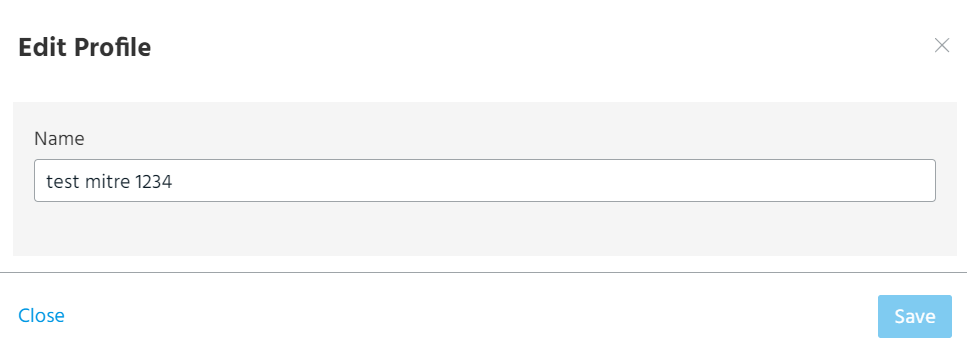
Click Edit. The Edit Profile dialog box opens.
-
Modify the name of the profile.
-
Click Save.
The name of the profile is modified.
Deleting MITRE ATT&CK Profiles
On the MITRE ATT&CK Profiles page, you can delete a single profile or in bulk.
To delete MITRE ATT&CK profiles:
-
Navigate to ThreatStream > Manage > MITRE ATT&CK.
-
On the security coverage page of any MITRE profile, click Manage Profiles or MITRE ATT&CK Profiles.
-
Select the profiles you want to delete.

-
Click Delete.
-
In the dialog box that opens, click Delete.
The selected MITRE ATT&CK profiles are deleted.