Creating Investigations
The need for starting an investigation can come from several scenarios. While browsing the threat intelligence to which you have access on ThreatStream, you may come across an observable, threat model, attack flow or sandbox report of your interest and decide to create an investigation to learn more about it or research its context.
To learn how to create new investigations:
-
From threat models, see Adding Threat Model Entities to Investigations and Managing Investigation Entities
-
From sandbox reports, see Adding Sandbox Reports to Investigations
-
From attack flows, see Creating a New Investigation From an Attack Flow
To learn how to start investigations for selected observables or create blank investigations, see the instructions below.
Starting an Investigation for Observables
To research and know more context about an observable, you can start an investigation for it.
To start an investigation for observables:
-
Navigate to ThreatStream > Analyze > Observables.
-
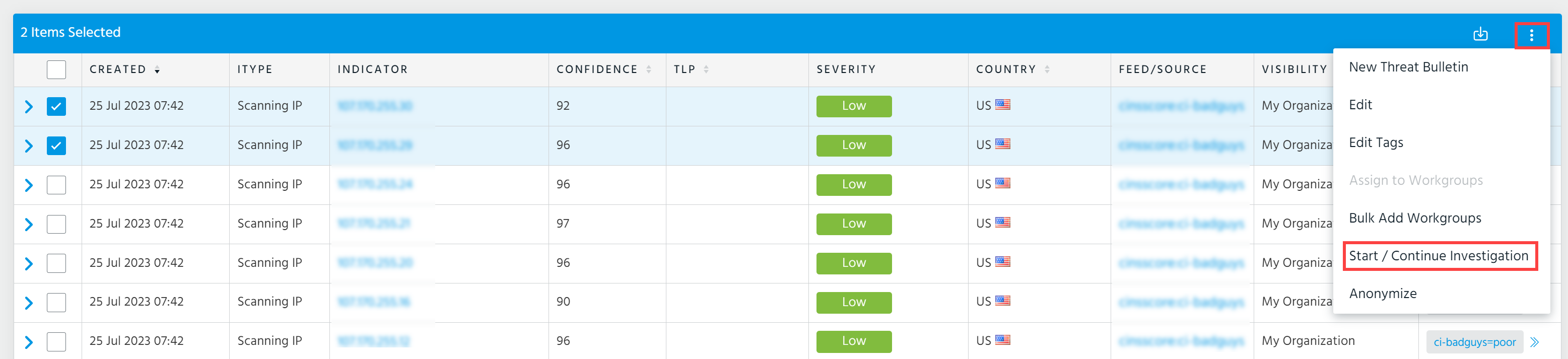
Select one or more observables that you want to add to an investigation.
-
Click three dots and then click Start/Continue Investigation.
-
Select the investigation to which you want to add the selected observables.
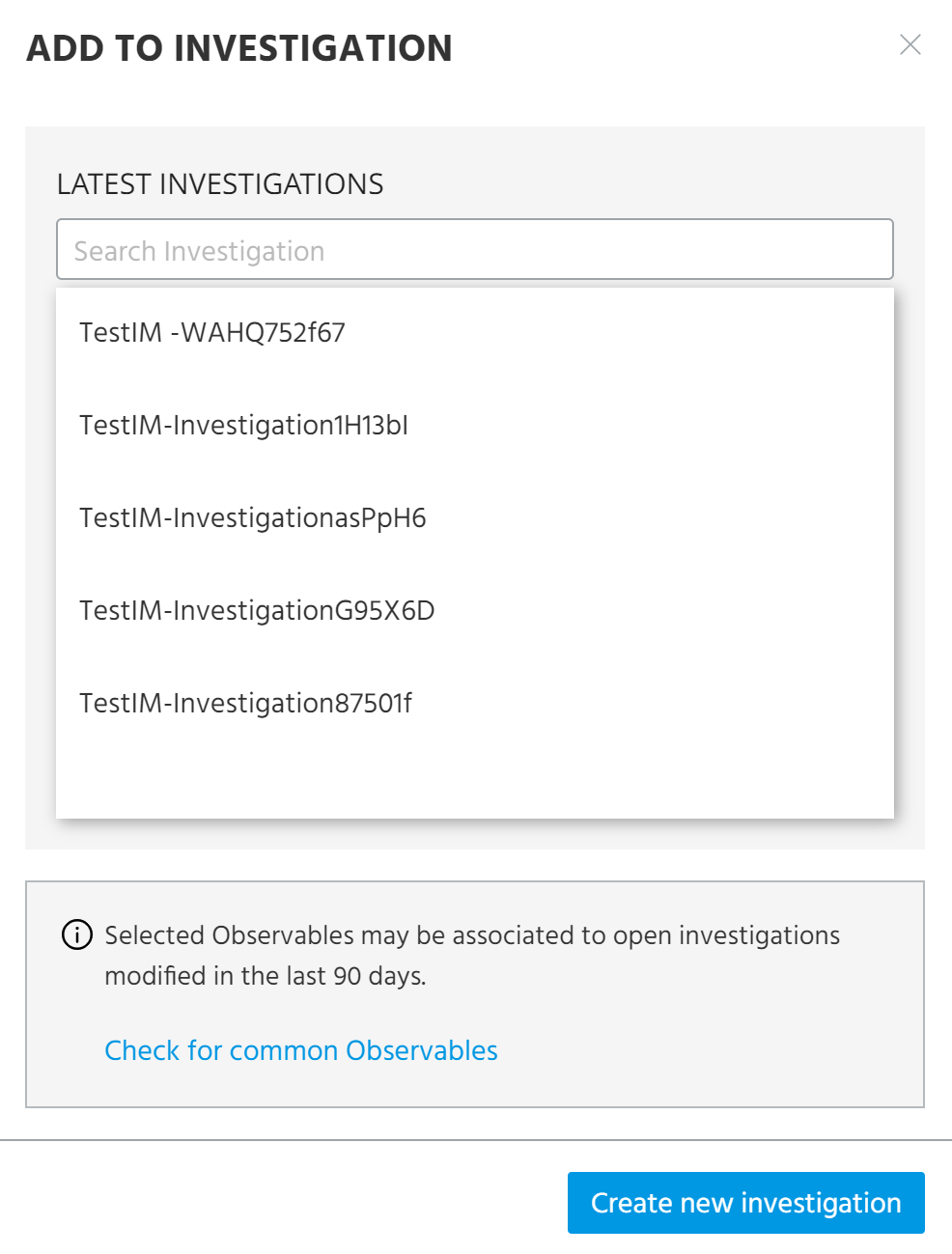
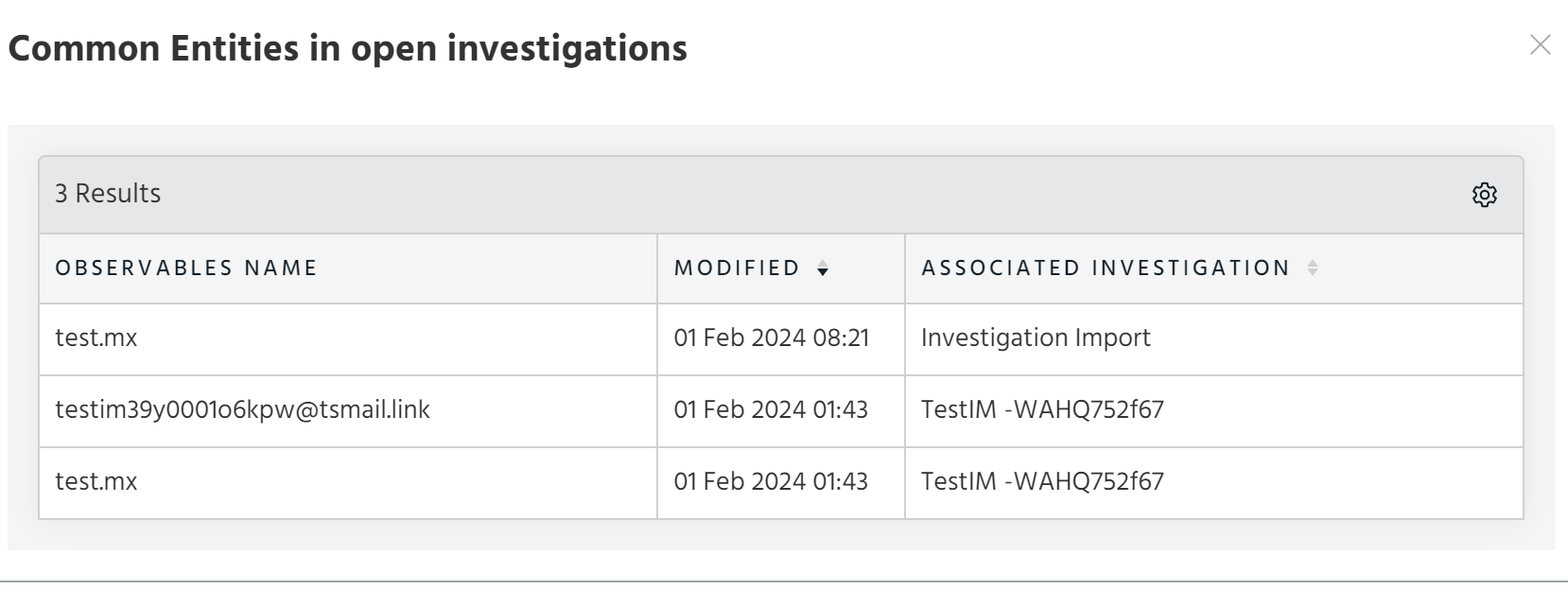
If you want to view other open investigations associated with selected observables, click Check for common Observables.
-
In the window that opens, click Yes, if you want to add related observables to the investigation.
The observables are added to the investigation.
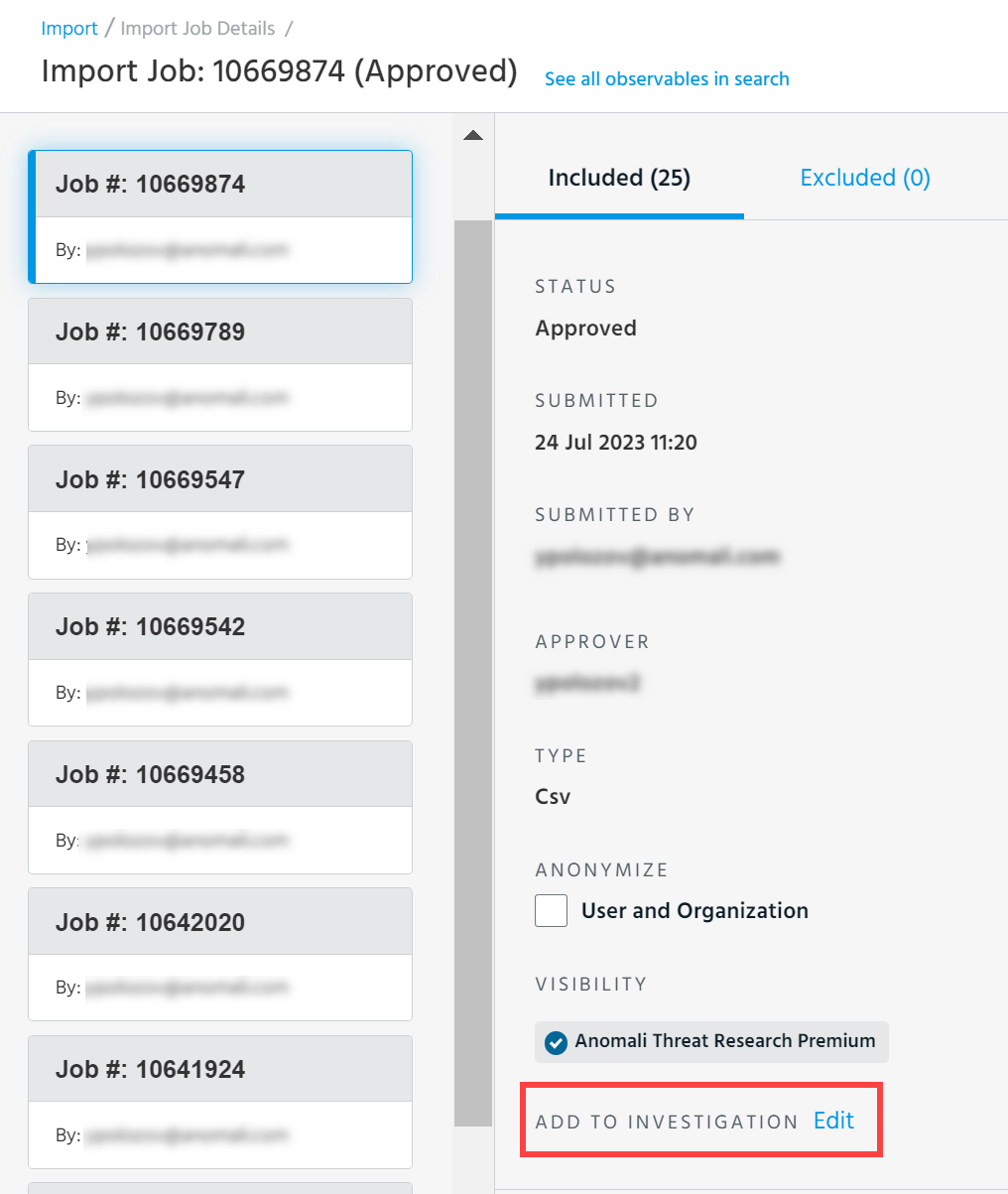
Additionally, you can add all observables from an approved import session by navigating to the approved import session and clicking Add to Investigation.
Phishing and Email Ingest Investigations
Investigations are also created as a result of ingesting a phishing email into ThreatStream. If you forward a phishing email to ThreatStream, you can follow the steps described in Ingesting Phishing Emails and then use the resulting investigation to build out a map of the attack infrastructure behind the email.
Rules Generated Investigations
Investigations are also created when the conditions of a rule are met which has "Add to Investigation" as a configured action. See Rules for more information.
Security Analytics Created Investigations
Security Analytics users can also trigger investigation creation in ThreatStream from the Security Analytics user interface. See the Security Analytics Administration & User Guide for more information.
Anomali Copilot Created Investigations
Investigations can be created from the Anomali Copilot browser extension. See the Anomali Copilot User Guide for more information.
Creating Blank Investigations
Additionally, ThreatStream enables you to start from scratch and create blank investigations. Blank investigations can be created from the Investigations Dashboard.
To create a blank investigation:
- Navigate to ThreatStream > Research > Investigations.
- In the top right corner of the page, click New. The New Investigation dialog opens.
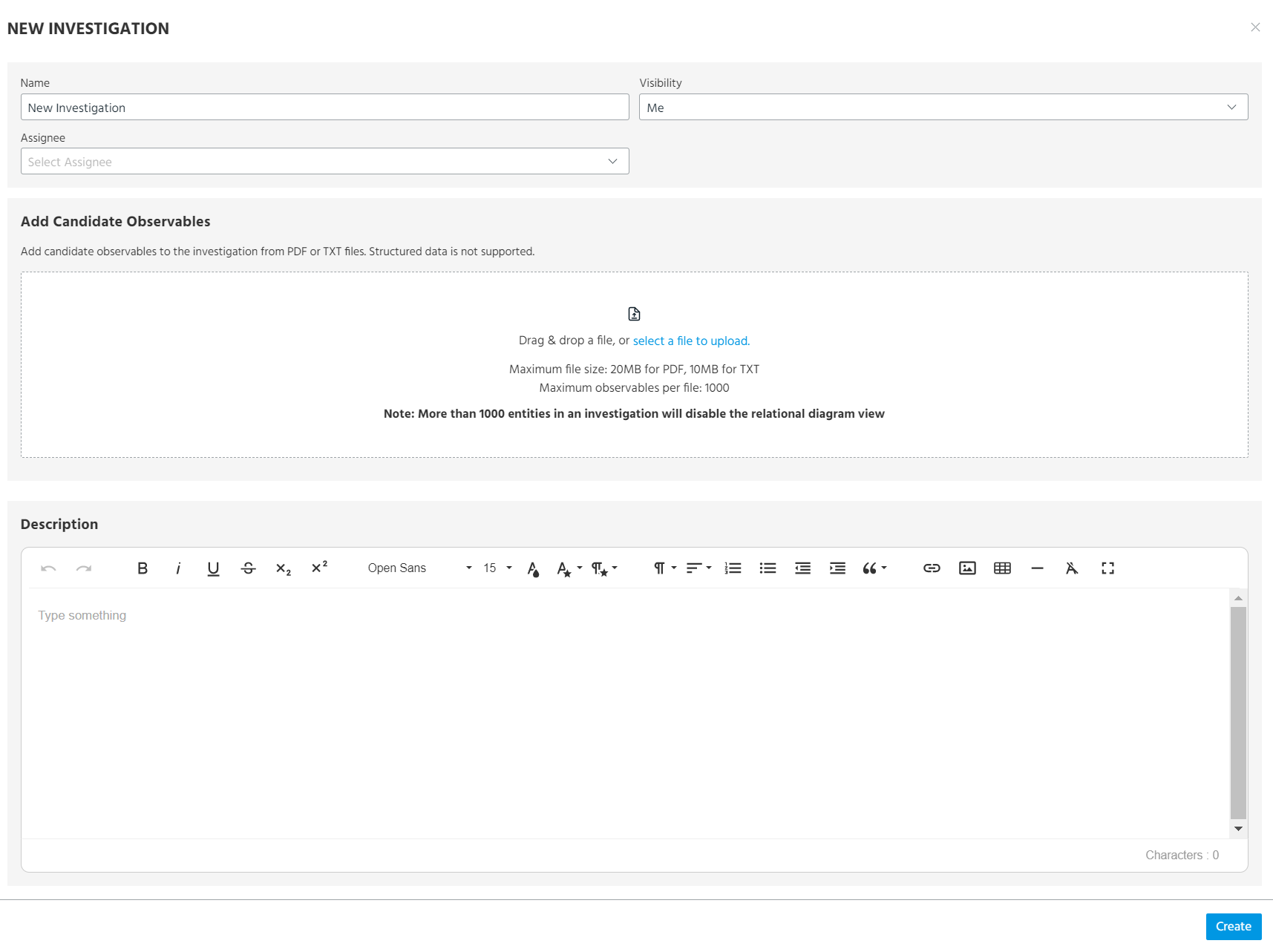
- Enter a Name for the investigation.
-
Select a Visibility setting for the investigation. By default, the investigation is visible only to you. You can expand visibility to all users in your organization (My Organization), workgroups, or a set of individual users in your organization.
- (Optional) Select an Assignee for the investigation.
-
(Optional) Add Candidate Observables to the investigation from a PDF or TXT file. Structured data is not supported. PDFs must be 20MB or less. TXT files must be 10MB or less.
Up to 1000 observables will be parsed from the file and included in the new investigation as Not Imported Observables and available on the Explore tool and table view. If any parsed observables already exist in ThreatStream, they are added to the investigation as Already Imported Observables.
Note: Adding candidate observables does not trigger an import session. Global and organization exclude lists are not applied to candidate observables until they are imported. Hence, observables present on your organization Exclude List can be added to the investigation as Not Imported Observables. If you want to import any of the parsed observables, click Import Observables in the Actions menu of the investigation.
- (Optional) Add a Description. You can enter a description by using the Rich Text editor. The Rich Text editor enables you to add pre-formatted content. You can copy and paste content including images from .doc, docx, and .pdf files into the Rich Text editor. All formatting is preserved.
- Click Create.
The new investigation will be available on the Investigations Dashboard.
Note: All investigations are assigned the My Organization visibility setting. However, investigations can be exported as Threat Model entities of any type. The resulting entities can be shared with Trusted Circles or the Anomali Community. See Exporting Investigations as Threat Model Entities for more information.