Rules
Rules enable you to take automated actions when keyword matches or advance search conditions are met in new intelligence.
Keyword-based rules can be configured to match Observables, Sandbox Reports, Signatures, Threat Bulletins, and Vulnerabilities. A single rule can contain up to 100 distinct keywords.
Advanced search-based rules can be configured to match Actors, Campaigns, Courses of Action, Identities, Incidents, Infrastructure, Intrusion Sets, Malware, Observables, Threat Bulletins, Tools, Signatures, and Vulnerabilities. Attack Patterns and TTPs are not supported.
Note: Rules cannot be configured to match intelligence whose visibility is restricted to organization workgroups.
To view or manage your rules, navigate to ThreatStream > Manage > Rules.
(Click the image to enlarge it.)
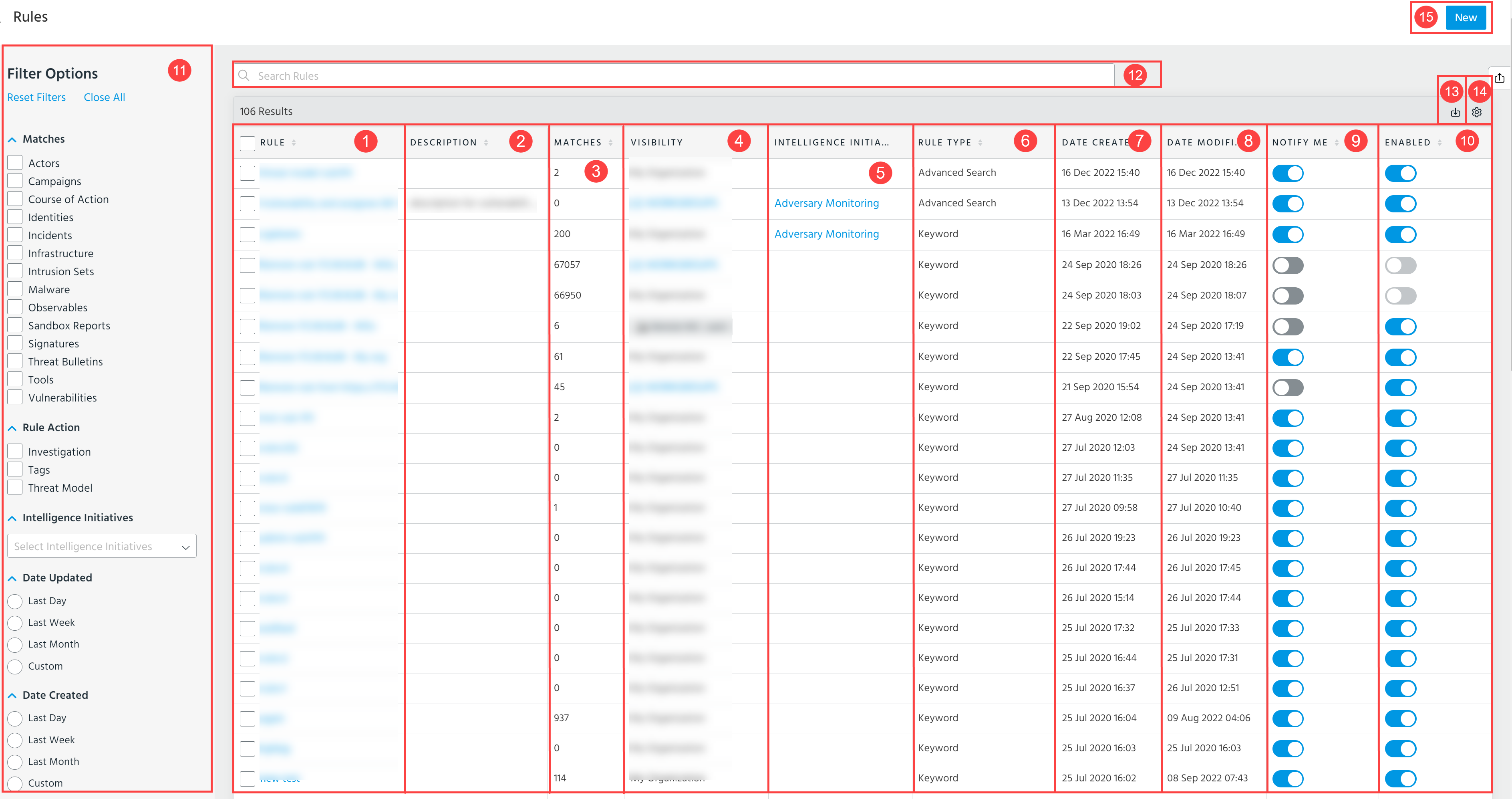
Tip: The Visibility and Description columns are not displayed by default. Click the settings icon in the top right corner of the table to add these columns.
 Rule: Configured rules. Org Admins can view all rules which belong to their organization. Non Admin users can only see rules visible to the entire organization or workgroups of which they are members.
The following icon is displayed next to rules that have been disabled by ThreatStream:

See Re-Enabling Disabled Rules for information on re-enabling the rule.
 Description: Description configured for the rule.
 Matches: Total number of matches for all keywords or advanced search conditions configured on the rule.
 Visibility: Visibility for the rule. Rules can be visible to your organization as a whole or restricted to specific workgroups.
 Intelligence Initiatives: Intelligence Initiatives associated with each rule. See Attributing Organizational Goals with Intelligence Initiatives for more information.
 Rule Type: Whether the rule is configured to match for keywords or an advanced search condition.
 Date Created: Timestamp when the rule was created.
 Date Modified: Timestamp when the rule was modified.
 Notify Me: Toggle whether you receive email notifications for matches from a particular rule. Notify Me is a user level setting which enables you to customize the rule match notifications you receive. Disabling this setting for a rule does not prevent other users in your organization from receiving notifications for the rule. See Receiving Rules Email Notifications for more information on receiving rules email notifications.
For Org Admin users: Notify Me switches are not displayed for rules whose visibility is restricted to workgroups of which you are not a member.
For Non-Admin users: Notify Me switches are available for all rules for which you have privileges to edit.
 Enable: Toggle whether the rule is enabled. If switched off, the rule is disabled and no longer matches for keywords in new intelligence.
For Org Admin users: Enabled switches are not displayed for rules whose visibility is restricted to workgroups of which you are not a member.
For Non-Admin users: Enabled switches are available for all rules for which you have privileges to edit.
 Filter configured rules by the following parameters:
- Matches: Show rules which search for keyword matches within entities, such as Actors, Campaigns, Identities, Observables, Sandbox Reports, Signatures, Threat Bulletins, and Vulnerabilities.
-
Rule Action: Filter rules based on configured action.
Note: When you use the Rule Action filter to filter on rules that add matched intelligence to a Threat Bulletin or investigation, cases occur in which the list view contain rules that display no associated Threat Bulletins or investigations. In these cases, you no longer have access to the Threat Bulletin or investigation to which the rule adds matched intelligence. For example, the visibility of the Threat Bulletin or investigation has been restricted to a workgroup of which you are not a member.
- Intelligence Initiatives: Show rules which are associated with specific intelligence initiatives.
- Date Updated: Show rules which were updated in the Last Day, Last Week, Last Month, or a Custom time range.
- Date Created: Show rules which were created in the Last Day, Last Week, Last Month, or a Custom time range.
- Date Matched: Show rules which contain keyword matches from the Last Day, Last Week, Last Month, or a Custom time range.
- Workgroups: Show rules whose visibility is restricted to specific workgroups in your organization. Org Admin users can view rules from any organization workgroup. Non Admin users can only view rules visible to workgroups of which they are members.
 Search rules by rule name or configured keywords.
 Export: Export configured rules to a CSV file. See Exporting Rules for more information.
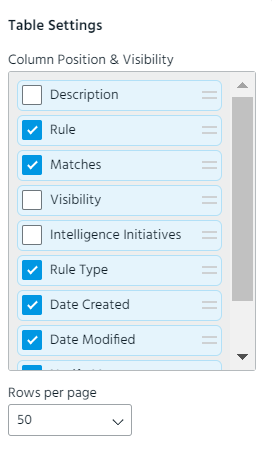
 Table Settings: Select the columns you want to be displayed. The following columns are available for selection: Rule, Description, Matches, Intelligence Initiatives, Rule Type, Date Created, Date Modified, Notify Me, and Enabled. The Description and Visibility columns are hidden by default. Additionally, you can change the order of columns in the table by using the drag-and-drop functionality and specify the number of rows to be displayed per page.
 New: Configure a new rule. See Creating Rules for more information.
From the Rules list page, you can also apply the following actions to the selected rules:
- Edit: Edit the selected rule. See Editing Rules for more information.
- Delete Selection: Remove the selected rule.
- Export: Click the download icon to export selected rules in CSV format. See Exporting Rules for more information.
- Enable/Disable Notifications: Toggle whether the Notify Me setting is enabled for the selected rules. See Receiving Rules Email Notifications for more information on receiving rules email notifications.
-
Enable/Disable Rule: Toggle whether the rule is enabled. If switched off, the rule is disabled and no longer matches for keywords or advanced search conditions in new intelligence.
Note: This switch is disabled for rules that have been automatically disabled by ThreatStream. See Re-Enabling Disabled Rules for more information.

Guidelines for Advanced Search-Based Rules
Rules can be configured based on advanced Observable or Threat Model searches.
Adhere to the following guidelines when creating advanced searches for a rule:
-
Advanced searches must follow a valid intelligence_field operator value logic and use supported fields and operators only. Use the links below for more information on creating valid search filters.
For advanced Observable searches: Constructing Advanced Observable Search Filters.
For advanced Threat Model searches: Constructing Advanced Threat Model Search Filters.
-
When using regular expressions in advanced search-based rules, results may differ from advanced Observable and Threat Model search results. This happens due to the tokenization of some intelligence fields. Searches run against data where some fields are tokenized, while rules do not. Therefore, if you use a regular expression for a field in an advanced search-based rule, the regular expression must match the entire field value to return accurate results.
For example, if the
name ~ "cybersecurity"query is used in a rule, it will return rows where "cybersecurity" is the full value of the name field. It will not return rows where "cybersecurity_domain" is the full value of the name field. On the contrary, when the same query is used in an advanced search, ThreatStream will return rows where "cybersecurity" is the full value of the name field and rows where "cybersecurity_domain" is the full value of the name field.For most use cases, Anomali recommends using
=,contains,startwith, andendwithoperators rather than regular expressions. -
When creating advanced Threat Model searches, do not specify a value for
model_type. Instead, use the Include parameter to select the entity types in which you want the rule to match.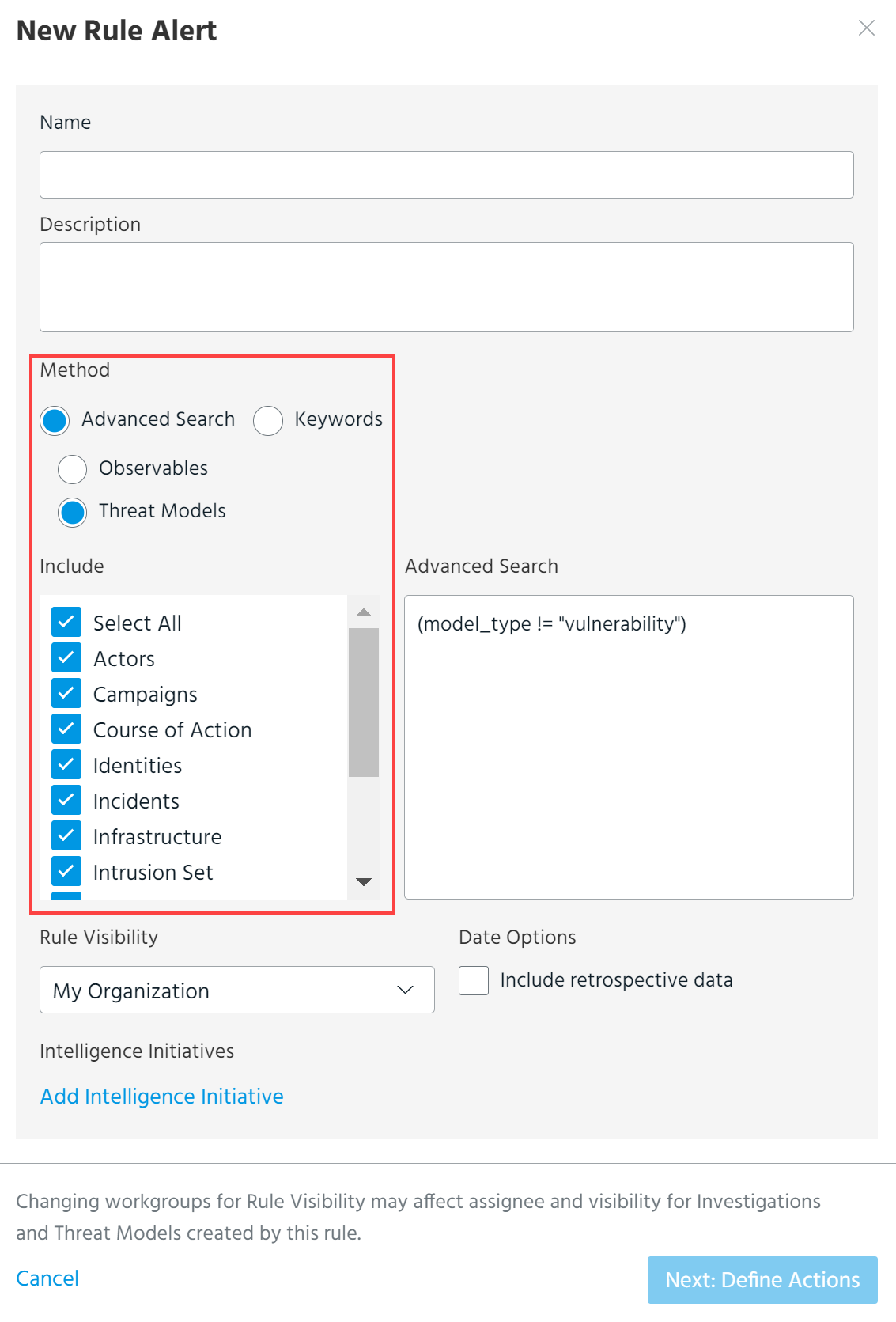
Advanced search-based rules can be configured to match Actors, Campaigns, Courses of Action, Identities, Incidents, Infrastructure, Intrusion Sets, Malware, Observables, Threat Bulletins, Tools, Signatures, and Vulnerabilities. Attack Patterns and TTPs are not supported.
-
The following fields are not supported for rule matching:
workgroups,modified_ts, andsource_modified. -
Only observables with
activestatus can be matched. Do not specifyinactiveorfalseposforstatus. -
Use advanced search filters with narrow result sets. ThreatStream verifies that filters have returned fewer than 100,000 results in the past 24 hours when you create the rule. You are prevented from creating the rule if the filter exceeds this limit when executed on the past 24 hours.
Guidelines for Keyword-Based Rules
Keyword Syntax Requirements
Keywords added to rules are treated as independent regular expressions. Each keyword must be added to a separate line or separated by a comma. A few guidelines are discussed here to formulate regular expressions. For additional guidance, use your favorite online regular expression resource.
Keywords must adhere to the following requirements:
-
A keyword must contain at least three characters.
- Keywords are not case sensitive. Therefore, if you add "ABC" to a rule, it will match "ABC" and "abc".
-
If you need to match multiple words, specify a regular expression that matches all the words, including spaces or any other characters separating them. For example, to match "company llc", specify
company llc. This will match any content in which the word "company" is followed by one space and the word "llc"; for example, "The company llc is in business". OR "The Bigcompany llc is in business". OR "Company LLC! is going out of business". However, it will not match "The company is in business". OR "The parent company is in business".
Example:\bcompany llc\b
This keyword will match "The company llc is in business" but not "The Bigcompany llc is in business".
- IP addresses must be expressed as regular expressions. In order to match exact IP addresses, the regular expression must include
\bmetacharacters at the beginning and end of the value.
Example:\b10\.1\.25\.1\b -
IP subnets must be expressed using CIDR notation and not as regular expressions.
Example:10.20.100.0/26 -
Domains, URLs, and email addresses must also be expressed as regular expressions. If specifying values of these entity types, dots (.) must be escaped in order to search for exact matches.
Example:
anomali\.com -
Similarly, the following characters must be escaped to be used literally in a regular expression: . , + , * , ? , ^ , $ , ( , ) , [ , ] , { , } , | , \
Example: To match "bot(test).exe", specify
bot\(test\).exe - Do not start or end keywords with
.*
Matched Fields
Rules looks for matches between the keywords you configure and the fields listed in the table below.
| Intelligence Type | Matched Fields |
|---|---|
| Observables | Tags, Values |
| Sandbox Reports | Hashes, Notes, Signatures, URLs |
| Signatures | Name, Signature (full text of the Signature), Signature Type, Tags |
| Threat Bulletins | Actors, Campaigns, Description, Name, Source, Status, Tags, TTPs |
| Vulnerabilities | Description, Name |
Sample Keyword Types
 Read more...
Anomali recommends the following baseline configuration:
- Executive staff email addresses
Example:ceo@organization\.comororganizationceo@free-email-provider\.com -
Organizational email domain names
Example:organization\.com - Supply chain and critical business partner email domains
Example:supply\.com - Any other domain names, trademarks, keywords, etc. used by your organization.
Example:internaldomain\.net - Relevant CIDRs, including those of your supply chain and critical business partners.
Example:192.168.2.0/24 - Executive staff IP addresses (home IPs)
Example:cable-modem-1-1-1-1.isp.netor\b1\.1\.1\.1\b - Common default passwords, code names, proprietary terms, etc.
Example: Any insecure default account passwords seen inside your organization.