Receiving Rules Email Notifications
Email notifications for rule matches in ThreatStream are controlled by the following settings:
-
Rules Matches on the My Account Tab in ThreatStream Settings. This is a global setting which controls whether email notifications are sent for rule matches. If this setting is set to Unsubscribe, no email notifications are sent. If it is set to Immediate, you receive email notifications for rule matches.
From the Rules section on the Account tab, you can also opt to receive an hourly digest that lists all rule matches in your organization.
For instructions on how to receive rule email notifications and the rule matches digest, see Receiving Email Notifications About Rule Matches in ThreatStream.
-
Notify Me on individual rules. This setting lets you control which rule matches trigger email notifications. For example, if your organization has 100 configured rules but you want to receive email notifications for only 10 of them, use the Notify Me setting to disable notifications for the remaining 90 rules. When Notify Me is enabled for a rule, the Rule Matches setting must also be set to Immediate to receive email notifications.
For instructions on how to configure email notifications for individual rules, see Configuring Email Notifications for Individual Rule Matches.
The table below illustrates how the rule email notification settings work together.
Rules Matches Notify Me Email Notification Sent Immediate Enabled Yes Immediate Disabled No Unsubscribe Enabled No Unsubscribe Disabled No
Receiving Email Notifications About Rule Matches in ThreatStream
You can receive immediate email notifications when keywords that your organization has configured in rules match new intelligence.
To receive email notifications about rule matches:
- In the bottom-left corner of the side navigation panel, click
 > ThreatStream > My Account.
 -
Locate Rules under Notifications.
-
To subscribe to Rules Matches email notifications, select Immediate in the Email drop-down list.
To subscribe to the hourly Rules Matches digest email, select Hourly in the Email drop-down list.
Note: To receive notifications for an individual rule, ensure that Notify Me is enabled for the rule from the Rules page. You will not receive email notifications for rules if their Notify Me setting is disabled.
Configuring Email Notifications for Individual Rule Matches
You can enable or disable email notifications for specific rules configured in your organization.
Note: The Rules Matches setting on the My Account tab in ThreatStream Settings must be set to Immediate even if email notifications are enabled for individual rules.
To configure email notifications for individual rule matches, use one of the following ways on the Rules page:
-
Turn the Notify Me toggle on to enable email notifications or turn it off to disable email notifications.

-
Select one or more rules, click the three-dot menu in the top-right corner of the table, and then select Enable Notifications or Disable Notifications.

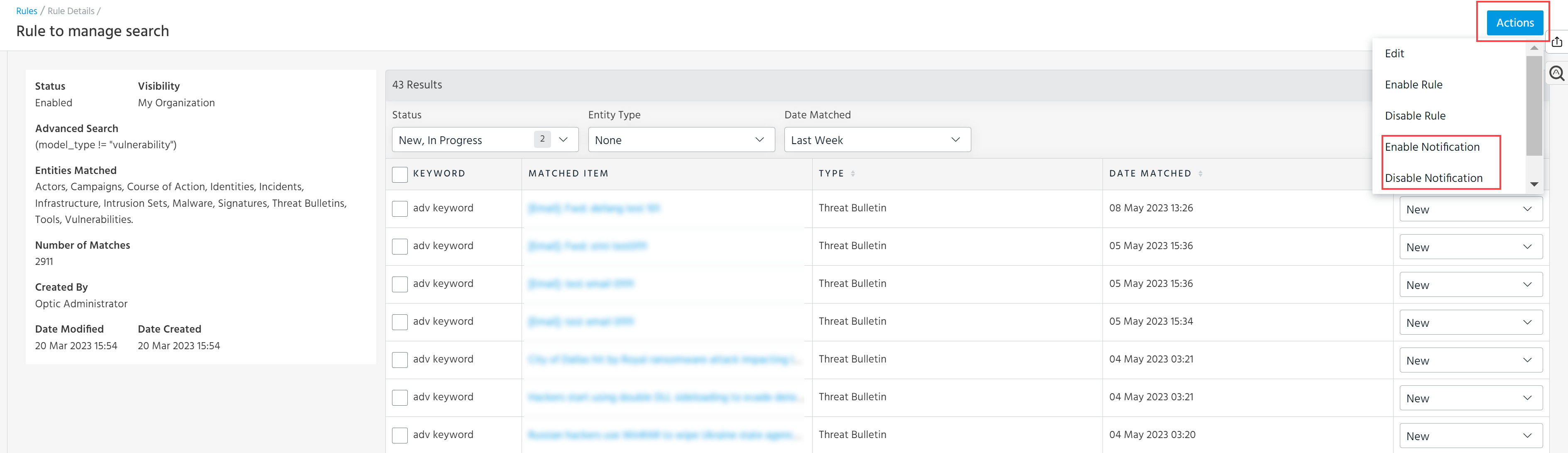
Alternatively, you can enable and disable email notifications for a specific rule on the Rule Details page under the Actions menu.
Example of the Rule Match Email Notification
The following is an example email notification for an observable match:
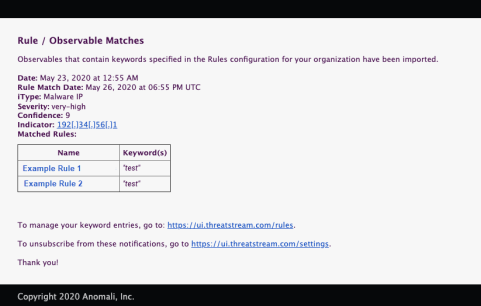
In the above example, Date provides the timestamp when the matched observable was first imported and Rule Match Date provides the timestamp of the most recent import which the rule matched.