Editing Rules
ThreatStream allows users to edit previously configured rules. While Org Admin users can view all rules in their organization, regardless of the visibility setting, they can only edit rules which are visible to the entire organization or workgroups of which they are members. Additionally, Org Admins can enable non-admin users to edit organization rules by configuring the Can Use Rules setting in ThreatStream settings. See Managing Organization Users for details.
Rules can be edited from the Rules or Rule details pages.
Editing a Configured Rule from the Rules Page
Editing a Configured Rule from a Rule Details Page
To edit a configured rule from the Rules page:
- Navigate to ThreatStream > Manage > Rules.
- Select the rule you want to edit.
- Click Edit.

-
Make required edits in the edit window. You can use both Advanced Search and Keywords-based methods.
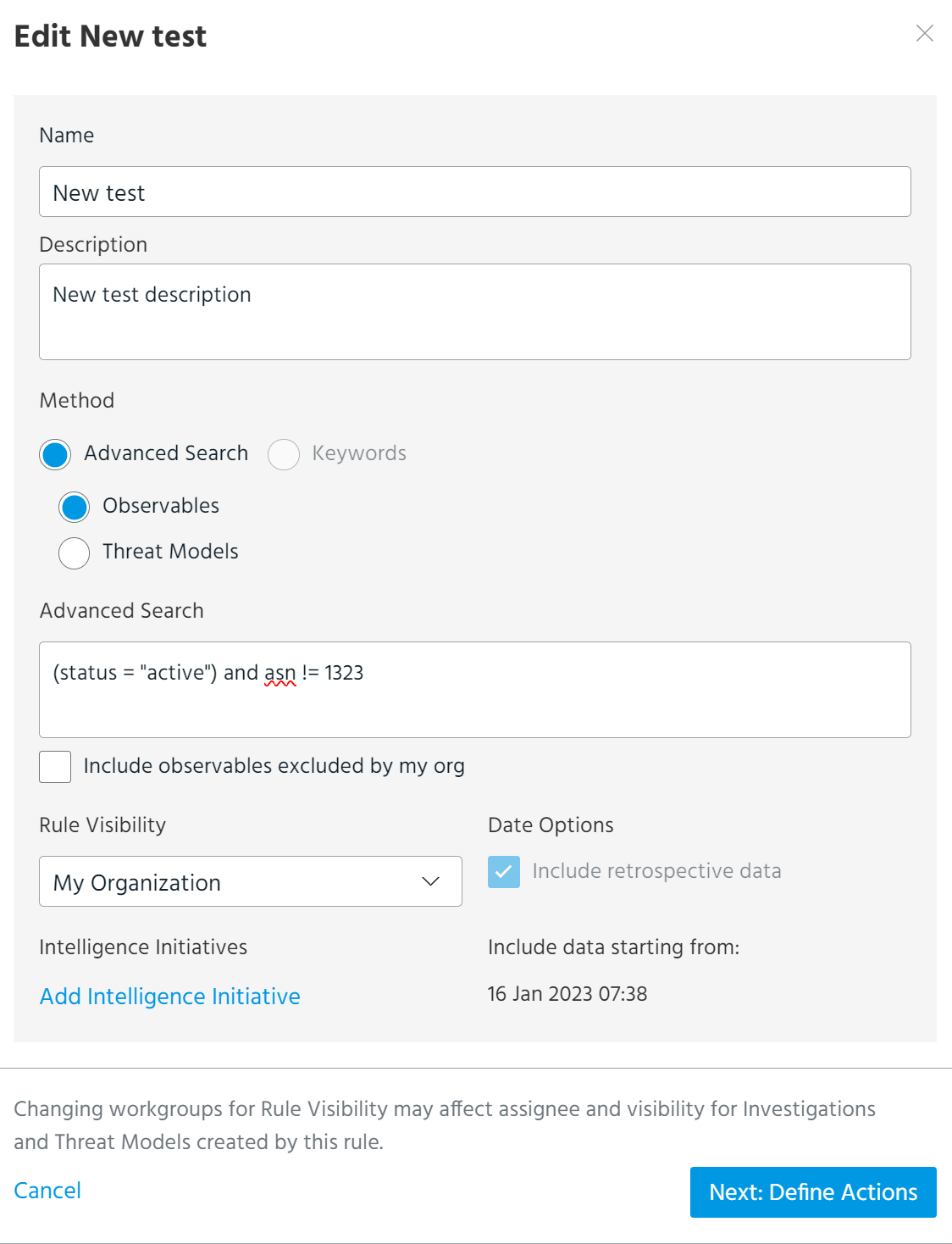
Keywords are displayed in a comma separated list. To edit an existing keyword, modify the keyword value.
When editing Rule Visibility, all workgroups to which the rule is visible are displayed—including those of which you are not a member.
-
Click Next: Define Actions and make any desired edits on the Actions page.
If the rule was configured to add intelligence to a new or existing investigation, you can edit the name or assignee of the investigation, or select No Action on the Investigation tab.
If you updated the visibility of the rule so that the previous investigation assignee no longer has access, you must manually update the investigation assignee to a user or workgroup with access to the rule based on the new visibility setting.
Note: In cases where rules were configured to create a new investigation for keyword matches, visibility of the associated investigation is automatically updated when you edit the visibility of the rule. However, when associated investigation visibility does not match the rule visibility—such as cases where users modify the investigation visibility outside of the rule—investigation visibility is not automatically updated.
If you do not have access to the associated investigation because of its visibility setting, investigation details are not displayed and you cannot make any changes to the investigation on the Investigation tab of the Edit Rule window.
If the rule was configured to associate matched intelligence with threat model entities, you can use the Selected filter to reference the Threat Model entities that have already been saved for the rule in a read-only list. If you want to remove selected entities, you must remove the Selected filter and use the search function to locate them.
- Click Save Rule.
Note: Changes to existing rules can take up to five minutes to take effect on keyword matching behavior.
To edit a configured rule from a Rule details page:
-
Navigate to ThreatStream > Manage > Rules.
-
Select the rule you want to edit.
-
On the Rule details page, click Actions > Edit.

-
Make required edits in the edit window. You can use both Advanced Search and Keywords-based methods.
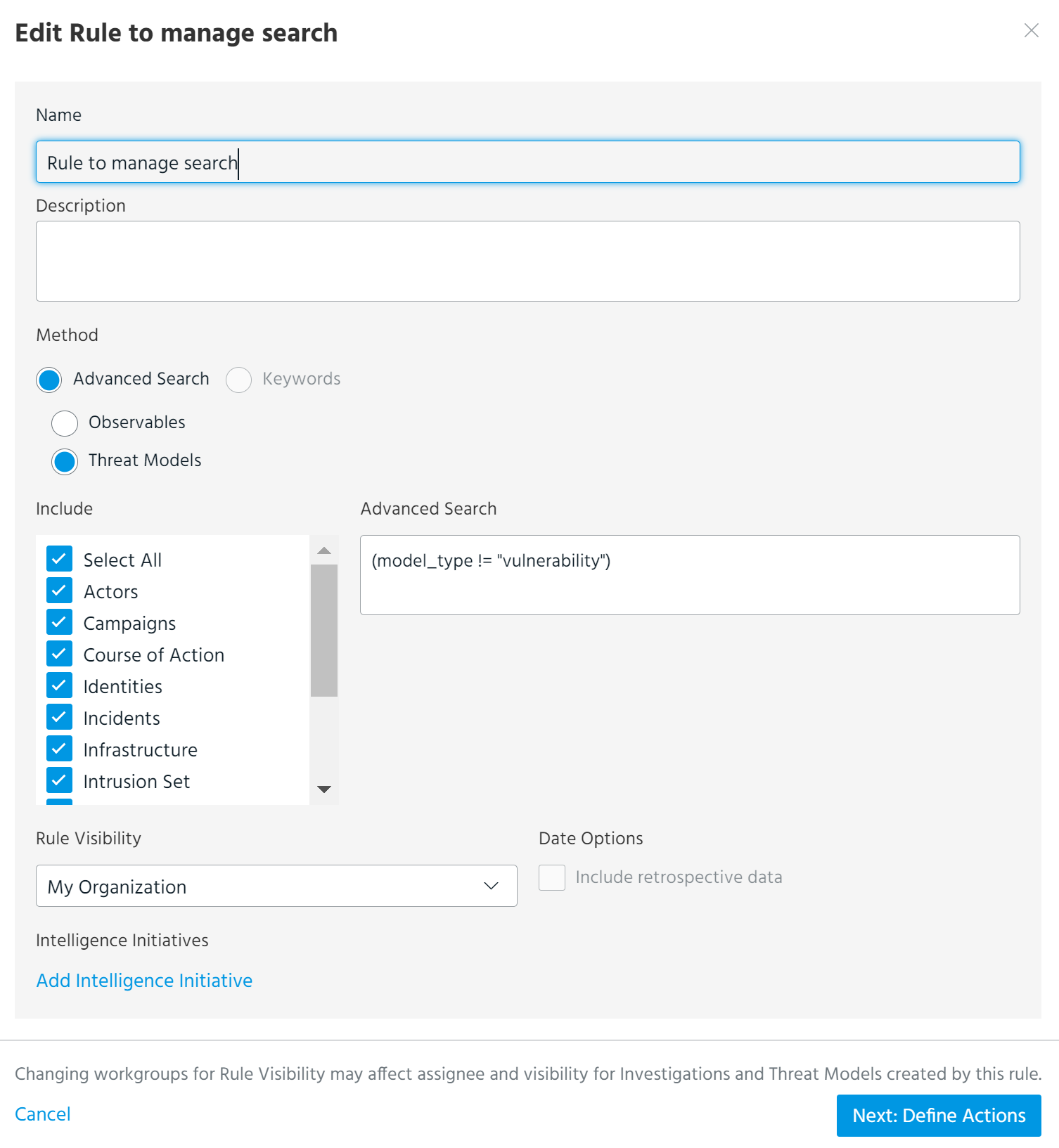
Keywords are displayed in a comma separated list. To edit an existing keyword, modify the keyword value.
When editing Rule Visibility, all workgroups to which the rule is visible are displayed—including those of which you are not a member.
-
Click Next: Define Actions and make any desired edits on the Actions page.
If the rule was configured to add intelligence to a new or existing investigation, you can edit the name or assignee of the investigation, or select No Action on the Investigation tab.
If you updated the visibility of the rule so that the previous investigation assignee no longer has access, you must manually update the investigation assignee to a user or workgroup with access to the rule based on the new visibility setting.
Note: In cases where rules were configured to create a new investigation for keyword matches, visibility of the associated investigation is automatically updated when you edit the visibility of the rule. However, when associated investigation visibility does not match the rule visibility—such as cases where users modify the investigation visibility outside of the rule—investigation visibility is not automatically updated.
If you do not have access to the associated investigation because of its visibility setting, investigation details are not displayed and you cannot make any changes to the investigation on the Investigation tab of the Edit Rule window.
If the rule was configured to associate matched intelligence with threat model entities, you can use the Selected filter to reference the Threat Model entities that have already been saved for the rule in a read-only list. If you want to remove selected entities, you must remove the Selected filter and use the search function to locate them.
- Click Save Rule.