Performing Advanced Observable Searches
ThreatStream provides advanced search functionality for cases involving specialized searches. Advanced Search queries are formed by constructing filters.
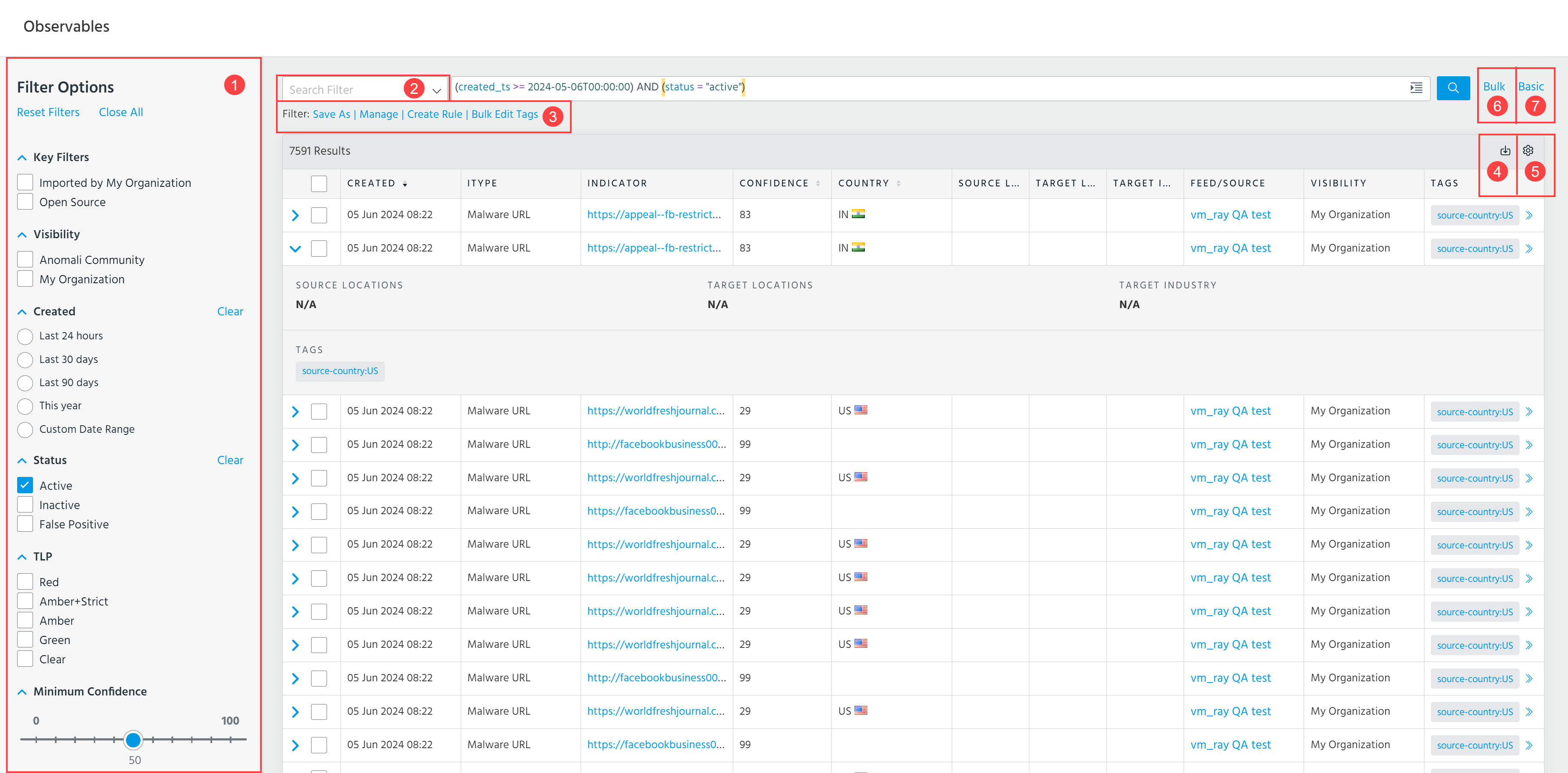
 Filter Options: Filter displayed search results. Filters are reflected in the advanced search query when applied. See Filtering Search Results for more information about available filter options.
Filter options do not reflect saved searches that contain regex operators such as !=. In these cases, selecting one of the filter options overwrites the query.
 Search Filter: Select and execute a previously saved search filter. Searches are automatically executed when you select the saved search. The filter options are updated to reflect the search query you select.
ThreatStream automatically saves the most recent advanced search query you executed. Select Last Search in the Search Filter menu to execute this search filter again.
Note: If you switch to basic search after entering an advanced search query that contains regex operators, nested conditions, or fields unsupported by the filter options, the query is not translated to basic search. Thus, search results are different between basic and advanced search in these cases.
 Filter: Take the following actions:
-
Save or manage search filters. See Saving Observable Search Filters for more information.
-
Create a rule.
-
Bulk edit tags. See Bulk Tag Management of Observables for more information.
 Export: Export listed search results. For more information, see Exporting Search Results.
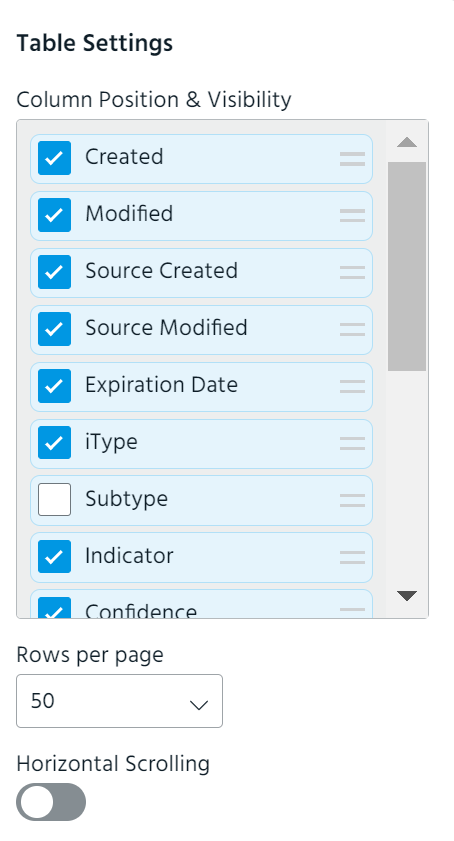
 Table Settings: Select which search result columns to be displayed. Available columns include Created, Modified, Source Created, Source Modified, Expiration Date, iType, Subtype, Indicator, Confidence, Tags, TLP, Created By, Severity, Feed/Source, Visibility, and Locations. Additionally, you can change the order of columns in the table by using the drag-and-drop functionality, specify the number of rows to be displayed per page, and enable or disable horizontal scrolling.
 Bulk: Search for a large number of keywords. See Performing Bulk Observable Searches for details.
 Basic: Go back to the basic observable search page.
From the advanced observables search page, you can apply the following actions to selected observables:
- New Threat Bulletin: Create a Threat Bulletin with the observables you select from listed search results. See Threat Bulletins for more information.
Edit Tags: Add or remove tags associated with observables from the listed search results in bulk. For more information on editing tags in bulk, see Bulk Tag Management of Observables.
To add private tags that are only visible to your organization, assign them the My Organization visibility setting. Tags assigned the Anomali Community visibility setting are visible to any user with access to the observable. See Adding Private Tags to Observables for more information.
Note: Observables can contain up to 200 tags per organization. Tags added by other organizations do not count toward this limit.
- Assign to Workgroups: Restrict the visibility of the selected observable to specific workgroups within your organization. See Restricting Observable Visibility to Workgroups for more information.
- Bulk Add Workgroups: Restrict the visibility of the selected observables to specific workgroups within your organization. See Restricting Observable Visibility to Workgroups for more information.
- Start/Continue Investigation: Create a new investigation with the observables you select from listed search results or add them to an existing investigation.
- Anonymize: Change the user and organization information anonymization setting for selected observables that belong to your organization. If enabled, users outside of your organization with access to the data will see "Analyst" in all fields that would otherwise display an organization or user name.
Constructing Advanced Observable Search Filters
Advanced Search filters are composed of expressions that adhere to the following format:
intelligence_field operator value
Filters can contain any number of expressions joined together by the logical operators AND, OR, and NOT.
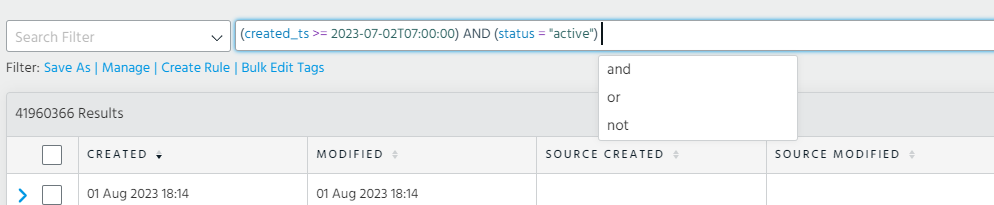
As you type, ThreatStream suggests context specific valid operators and fields.
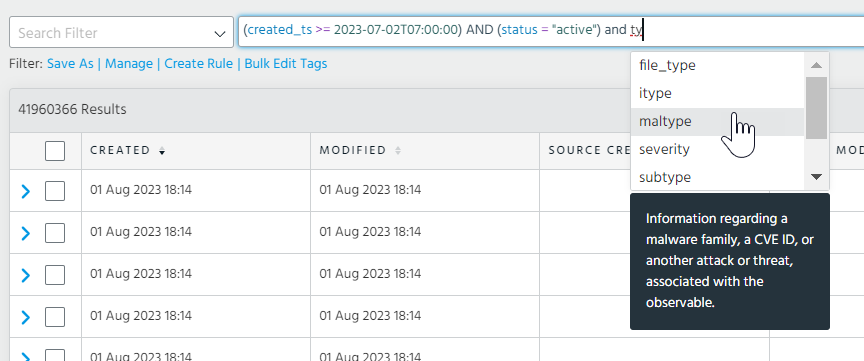
You can hover over fields in the suggestion window to view descriptions for the selected field.
ThreatStream color codes your advanced search queries for ease of use.

-
Fields are blue
-
Operators are purple
-
Values are green
-
Warnings are underlined in yellow
Tip: Warnings occur when you use the
=or!=operators and enter an unexpected value for the specified field. Click the warning to view a list of suggested values. -
Errors are underlined red
Tip: Errors occur when queries exhibit missing parenthesis, misplaced tokens, or unknown fields, operators, or values (such as an unsupported date format).
Click the expand icon to see your search query in an expanded view.

Note: Advanced search queries must be 4,000 characters or less.
Supported Intelligence Fields
To view the list of fields that can be used in advanced search queries, see Intelligence Fields in ThreatStream.
Note: Though the values specified in advanced search filters are case-insensitive, field names are case-sensitive. For example, including Tags instead of tags creates an invalid search filter that will not return any results. To create a valid search filter, you must enter the field name exactly as it appears in the Intelligence Fields in ThreatStream Appendix. For more on case sensitivity, see Case Sensitivity in ThreatStream Search.
Search Operators
Advanced search on ThreatStream supports the search operators listed in the table below.
| Operator | Description |
|---|---|
=
|
Searches for results that are identical to the value after the operator. Note: The behavior of the |
!=
|
Searches for results that exclude the value after the operator. |
contains
|
Searches for results that are composed partially or wholly of the value after the operator. Values specified after the Note: The behavior of the |
startswith
|
Searches for results that begin with the value after the operator. |
endswith
|
Searches for results that end with the value after the operator. |
~
|
Searches for results that match the regular expression after the operator. Only valid for use in filter expressions that contain regular expressions.
Note: Avoid using regular expression operators in search queries. As an alternative, use the |
!~
|
Searches for results that do not match the regular expression after the operator. Only valid for use in filter expressions that contain regular expressions. Note: Avoid using regular expression operators in search queries. As an alternative, use the |
insubnet
|
Searches for results that fall within the subnetwork after the operator. See Subnet Queries in Advanced Search for more information. |
!insubnet
|
Searches for results that do not fall within the subnetwork after the operator. See Subnet Queries in Advanced Search for more information. |
<
|
Searches for results that are less than the numerical value or date after the operator. See the Data Types table for additional information about date data types. |
<=
|
Searches for results that are less than or equal to the numerical value or date after the operator. See the Data Types table for additional information about date data types. |
>
|
Searches for results that are greater than the numerical value or date after the operator. See the Data Types table for additional information about date data types. |
>=
|
Searches for results that are greater than or equal to the numerical value or date after the operator. See the Data Types table for additional information about date data types. |
AND
|
Searches for results that are included in both the filter expression before and the filter expression after the operator. |
OR
|
Searches for results that are included in either the filter expression before or the filter expression after the operator. Results included in both filter expressions are also returned. |
NOT
|
Searches for results that are excluded from the filter expression after the operator. |
Each data type is compatible with certain search operators. The table below displays all of the valid operators and fields associated with each data type.
| Data Type | Valid Operators | Field Names |
|---|---|---|
| String | =, !=, contains, startswith, endswith, ~, !~, insubnet, !insubnet |
Note:
|
| Numeric | =, !=, <, <=, >, >= |
confidence, stream_id, import_session_id, owner_id, trusted_circle_ids |
| Date | =, !=, <, <=, >, >= |
Date can be specified as follows:
Note: When values such as 1d or 2w are specified, the search engine automatically interprets them as $NOW-<value> and searches for the appropriate time range. For example,
created_ts >= 1d is interpreted as “created_ts >= $NOW-1d” and returns everything that has a timestamp greater than equal to NOW minus one day (that is, the time range is the last day). Conversely, created_ts <= 1d is interpreted as “created_ts<= $NOW-1d” and returns everything that has a timestamp less than NOW minus one day (that is, everything except the last day). |
| Boolean | =, != |
is_public
|
| Logical | AND, OR, NOT |
Joins together multiple expressions. Example: |
Tags Queries in Advanced Search
Unlike other string type observable fields, tags can contain multi-word phrases. Therefore, advanced search behavior for tags differs from other string type observable fields for certain operators.
- When applied to the
tagsfield, the=operator returns all observables in which the query string appears as a whole word anywhere in the field. For example,tags = "attack"will match the following tags: "attack", "attack pattern", and "zero day attack", but not "attacker". - When applied to the
tagsfield, thecontainsoperator returns all observables in which the query string appears as a contiguous substring anywhere in the field. For example,tags contains "of Ant"will match "Bank of Antarctica", but not "Bank of the Antarctic". - The
startswithoperator does not support multi-word queries, such astag startswith "panama papers". This also includes hyphenated word queries, such astag startswith "mustang-panda". Therefore, you can use thestartswithoperator to query tags that contain a word beginning with the specified value only. For example,tag startswith "pan"can yield any of the following tags: "panda", "mustang panda", "panama papers", "pan", and so on. - The
endswithoperator does not support multi-word queries, including hyphenated word queries. Instead,endswithinserts an OR between words specified after the operator. Therefore, you can use theendswithoperator to query tags whose ending characters or words match the value specified after the operator. For example,tag endswith "security testing"can yield any of the following results: "testing", "pentesting", "enterprise security", and so on.
Subnet Queries in Advanced Search
There are two methods for searching IP observables that fall in particular subnets:
-
Use the
insubnetoperator and specify a subnet using CIDR notation.For example, to search in the IP subnet 192.168.23.170/27, enter the following query:
type= ip AND ip insubnet 192.168.23.170/27Includingtype = ipin the above query is optional, however, specifying it narrows down the results to only observables of type IP address. -
Use the
typeandstartswithoperators to search within a subnet. After specifyingtype = ip, you can usestartswithto search for IP addresses within /8, /16, /24, or /32 subnets.For example, to search in a /16 subnet, such as 95.86.0.0/16, enter the following query:
type = ip AND value startswith 95.86To search in a /24 subnet, such as 95.86.35.0/24, enter the following query:
type = ip AND value startswith 95.86.35
Examples of Advanced Search Filters
confidence >= 90confidence >= 90 AND itype = "apt_ip"classification = "public"confidence >= 90 AND (severity = "high" OR severity = "very-high")confidence >= 90 AND (itype = "apt_ip" OR itype = "bot_ip" OR itype = "c2_ip")confidence >= 70 AND (itype startswith "apt" OR itype startswith "mal" OR itype startswith "c2")confidence >= 75 AND itype != bot_ip AND itype != Actor_ip AND itype != brute_ipitype startswith aptsubtype=sha256subtype=md5-
(type="md5" or type="ip") and (subtype=md5) -
(type="hash" or type="ip") and (subtype=md5)Note: When
typeis used in a search query, you can assign the valuesmd5andhashinterchangably to it for all hash observables. However, in the subtype field, the valuemd5queries md5 type hash observables only and excludes hashes of all other types. (subtype="sha1") and (status="active") and (created_ts>=2020-03-09T23:49:39)value endswith net((itype != "bot_ip" AND confidence >= 75) OR (itype = "bot_ip" AND confidence >= 99)) AND classification = "public"modified_ts >= 2015-01-01T00:00:00country = "US"type = ip AND ip insubnet 192.168.23.170/27-
type=url AND value contains ".exe" -
(is_osint=true) and (status="active") -
(is_osint=true) and (type="url") (is_osint=true) and (confidence >= 90)(is_osint=false) and (type="url")