Filtering Search Results
You can use any of the filters, located in filter widget to the left of the search results, to create a search query or refine results after performing a query.
(Click the image to enlarge it.)

Selected filters are displayed under the search bar.
You can add any combination of search filters. Alternatively, you can perform wide searches by adding a filter to a blank query. For example, if you select the Inactive from the Status category, a list of all observables with the status Inactive will be returned.
When you apply filters from different categories, they are separated by an AND operator. When you apply filters from the same category, they are separated by an OR operator. For example, you select Albania and Canada from the Countries category, and Actor IP and Malware Email from the iType category. Results will be displayed based on the following criteria:
iType: actor_ip OR mal_email
Country: AL OR CA
The following search filters are available:
- Key Filters: Show only observables that were imported by your organization (Imported By My Organization) or those originating from open source feeds (Open Source). See Filtering Open Source Observables for more information.
- Visibility: Show only observables classified as Anomali Community (formerly "Public") or My Organization (formerly "Private").
- Created: Show only observables added to ThreatStream during the specified date range.
- Status: Show only observables with the status of Active, Inactive, or False Positive.
- TLP: Show only observables assigned the selected Traffic Light Protocol.
- Minimum Confidence: Show only observables with specified minimum confidence scores.
-
Tags: Show only observables with specified tags.
Note: Due to caching, tags created within the last 30 minutes may not populate the Tags filter.
- Feeds: Show only observables from specified open source feeds, premium feeds, or other intelligence sources.
-
Type: Type of observable value—domain, email address, IP address, IPv6 address, Hash, URL, or other.
For additional information on filtering hash type observables, see Filtering Hash Observables.
- iType: Select one or more indicator types to include.
- Source (Trusted Circles, APP Store, etc): Show only observables from a selected source.
- Org: Show only observables that belong to the selected organization.
- Workgroups: Show observables that are visible only to the selected workgroups.
- Recent Import Sessions: Show only observables associated with the specified import session ID.
- Countries: Show only observables whose IP value corresponds with the selected countries of origin.
- ASN: Show only observables with the specified ASN.
- Source Locations: Show only observables associated with the selected source countries, regions, or administrative areas (US States and Washington DC only).
- Target Locations: Show only observables associated with the selected target countries, regions, or administrative areas (US States and Washington DC only).
- Target Industry: Show only observables associated with the selected target industries.
Search results are automatically updated after selecting filters.
You can also use filters to create an advanced search query by selecting filters and clicking Advanced. To read more about advanced searches in ThreatStream, see Performing Advanced Observable Searches.
Filtering Hash Observables
When you select Hash in the Type filter section, additional filters are available which enable you to filter by specific hash types. Available hash subtype filters include: MD5, SHA1, SHA256, and SHA512.
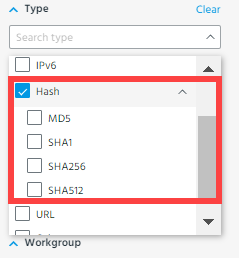
When you select any of these hash types, only hashes of the selected type are displayed in the search results.
Hash subtype filters map onto the subtype intelligence field. Thus, you can use this field to construct advanced search filters that query hashes of the specified subtype.
Hash Subtype Advanced Search Examples
-
To query hash observables of the SHA256 subtype:
subtype=sha256 -
To query hash observables of the MD5 subtype:
subtype=md5 -
To query active hash observables of the SHA1 subtype which were created after a specific timestamp:
(subtype="sha1") and (status="active") and (created_ts>=2020-03-09T23:49:39) -
To query hash observables of the MD5 subtype and IP address observables:
(type="hash" or type="ip") and (subtype=md5)Note: When
typeis used in a search query, you can assign the valuesmd5andhashinterchangably to it for all hash observables. However, in the subtype field, the valuemd5queries md5 type hash observables only and excludes hashes of all other types.
Filtering Open Source Observables
ThreatStream leverages a number of open source intelligence streams to feed your threat intelligence in ThreatStream. The Observables search screen provides an Open Source filter in the Key Filters section, thus enabling you to query observables from open source intelligence streams.
When you select Open Source Intelligence, open source observables are displayed exclusively. When not selected, both open source and non-open source observables are displayed.
The Open Source Intelligence filter maps onto the is_osint intelligence field. Set this field to true to query open source observables exclusively. Set this field to false to exclude open source observables from your query.
Open Source Intelligence Advanced Search Examples
-
To query all active open source observables:
(is_osint=true) and (status="active") -
To query all open source URL observables:
(is_osint=true) and (type="url") -
To query all open source observable with confidence values over 90:
(is_osint=true) and (confidence >= 90) -
To query all non-open source hash observables:
(is_osint=false) and (type="url")
Searching Workgroup Restricted Observables
The Observables search page provides a Workgroups filter, thus enabling you to query observables which are visible only to specific workgroups in your organization.
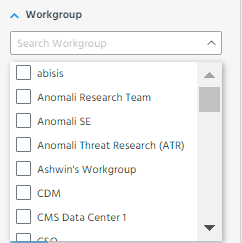
Only workgroups of which you are a member are available in the filter.