Saving Observable Search Filters
You can save frequently used advanced observable search filters. Saving filters enables you to perform common queries with the click of a button.
Note: Filters longer than 2,000 characters cannot be saved.
To save a search filter:
- Navigate to Analyze > Observables.
- Click Advanced.
- Form an advanced search query. For a complete list of search fields, see Intelligence Fields in ThreatStream.
- Click Filter: Save as.
- Enter a name for the new filter.
- Click Save.
Saved filters can be accessed from the Search filter menu on the advanced search bar.
Best Practices for Saved Search Filters
Anomali recommends adhering to the following best practices when constructing saved search queries to improve search performance:
-
Avoid using regular expression operators in search queries. As an alternative, use the
contains,endswith, orstartswithoperators to search for specific phrase matches. If these alternative operators do not fulfill your use case, contact Anomali Support for assistance.For example, use
(value endswith ".com.au")instead of(value ~ ".*\.com\.au") -
Avoid redundancies when constructing search queries. Do not include filters which duplicate search results.
For example, the query
(tags contains "apt28" OR tags ~ "apt28")contains two filters that yield the same results. In this case,(tags contains "apt28")is the recommended query. -
For any saved search filters that include the criteria "
itype = XXX_md5", the iType value in the Search iType list under Filter Options (XXX File Hash) remains unselected.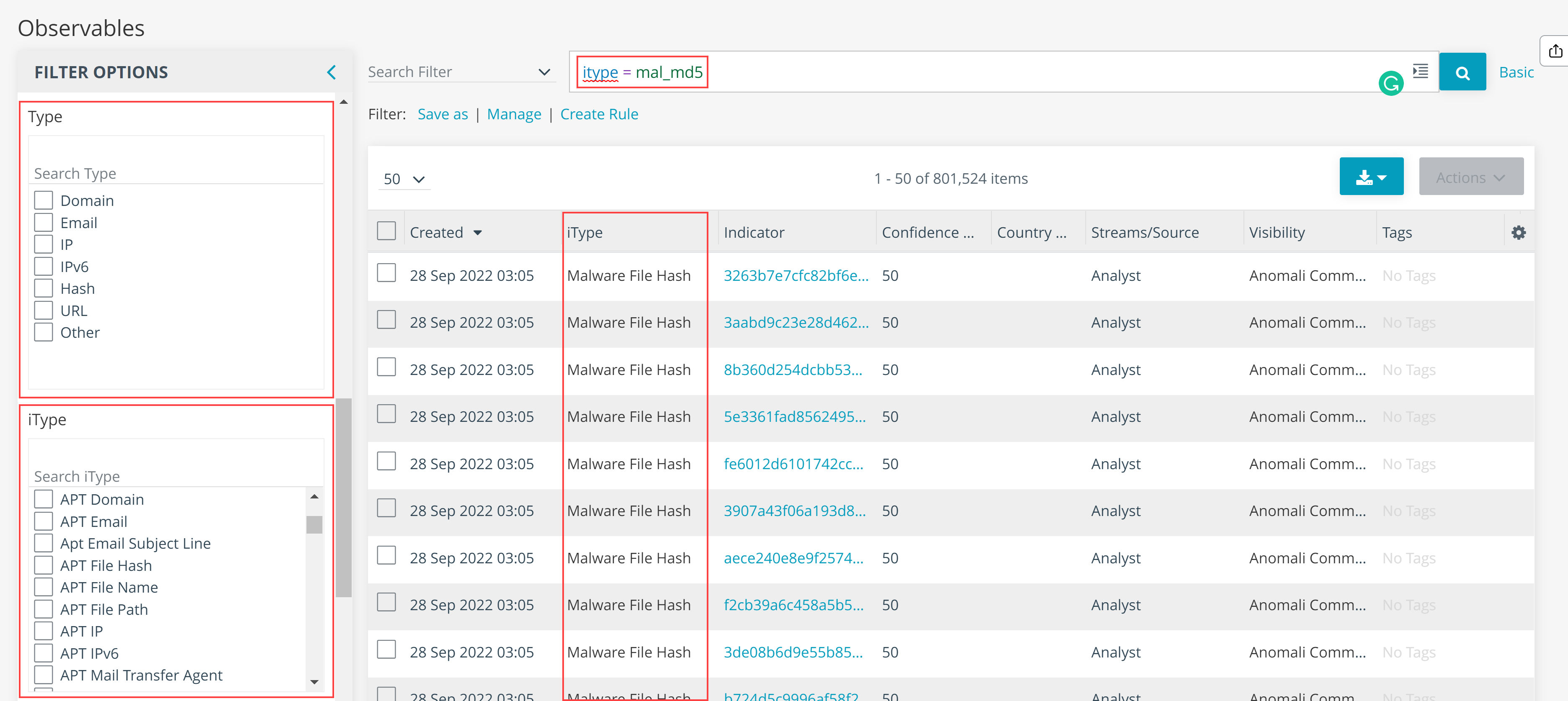
Note that the search results returned for those saved searches are still the same as before and include hashes of all subtypes - MD5, SHA1, SHA256, SHA512. See Examples of Advanced Search Filters for details. Even though this discrepancy is cosmetic, Anomali recommends that you update your saved search criteria to "
itype = XXX_hash" to mitigate the issue.
Managing Saved Search Filters
Saved searches can be managed from the Saved Searches page. Users with Org Admin privileges can edit or delete any search filter that belongs to their organization. Non-admins can only edit or delete search filters that they themselves created.

To edit a search filter:
- Navigate to ThreatStream > Analyze > Observables.
- Click Advanced.
- Click Filter: Manage.
- Click the search filter you want to edit. The filter will populate the advanced search bar.
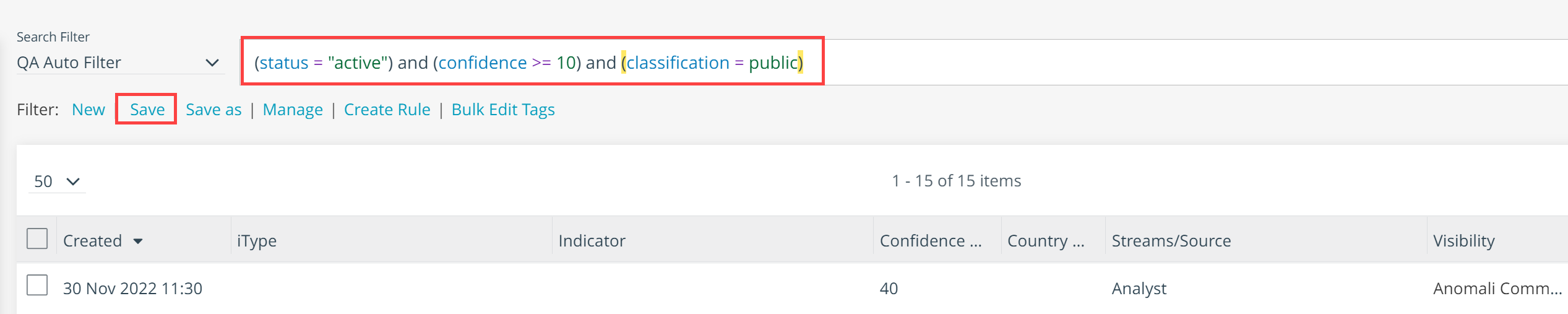
- Make required changes to the search filter.
- Click Save.
To delete search filters:
- Navigate to ThreatStream > Analyze > Observables.
- Click Advanced.
- Click Filter: Manage.
- Select the search filters you want to delete.

- Click Delete.