Creating Rules
Org Admins and users, who have the Can Use Rules setting enabled for them, can configure rules from the Rules list view page. See Managing Organization Users for details.
An organization can configure up to 300 rules.
Tip: You can also configure advanced search based rules from the Advanced Threat Model or Observables search pages. To do this, enter an advanced search query and click Create Rule.

The query automatically populates the Advanced Search field on the New Rule Alert window.
To create a new rule:
- Navigate to ThreatStream > Manage > Rules.
- Click New.
-
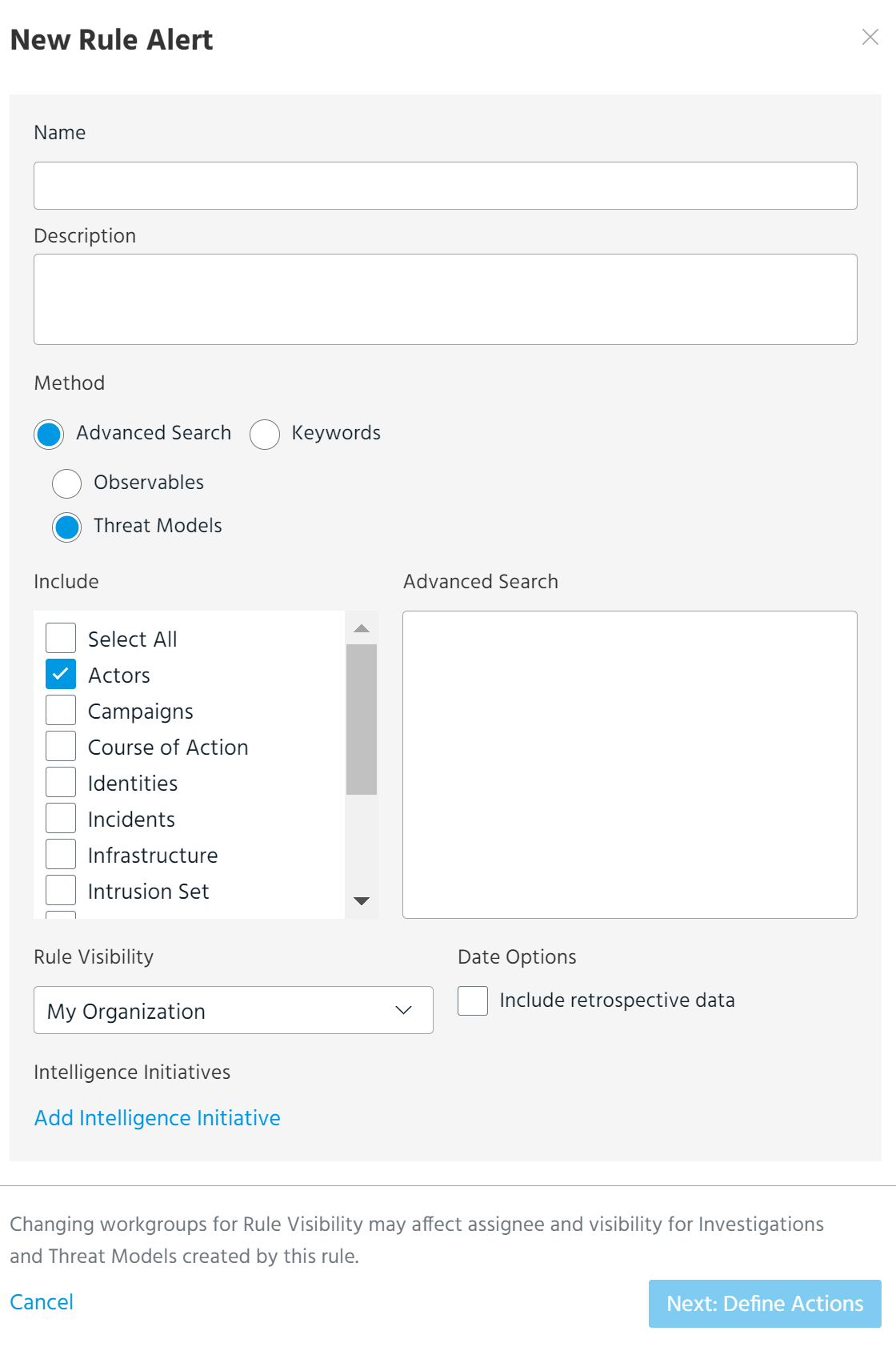
Enter a meaningful Name and Description for the rule.
-
Specify a Method for the Rule—Advanced Search or Keyword.
Note: Once the rule is created, the method for the rule cannot be changed.
-
If you specified Advanced Search, select Observables or Threat Models and configure the following settings:
Field Description Include (Threat Models only) Select the Threat Model entity types in which you want the rule to match. Advanced Search
Advanced search filter of interest. The rule will trigger configured actions when the filter matches incoming intelligence.
Include observables excluded by my org
When this setting is enabled, the rule will trigger when observables from your organization Exclude List match the advanced search filter. When this setting is disabled, the rule will not take its configured actions when observables on your Exclude List match the advanced search filter.
Rule Visibility Specify the visibility for the rule. Rules can be visible to All users in your organization or only to the organization workgroups you specify. Only the workgroups of which you are a member are available to select.
For more information on workgroups, see Restricting Access to Intelligence with Workgroups
Date Options Select Include retrospective data if you want the rule to match on items that were created prior to the creation of the rule.
If you select this option, you must specify a date range for the retrospective matching under Include data starting from. You can select Last Day, Last Week, Last Month, or specify a Custom date. Custom dates can be no earlier than 90 days prior to the present date.
Retrospective searches must result in 10,000 or fewer matches. You are prevented from creating the rule if the retrospective search results in more than 10,000 matches. To continue, you must specify a shorter date range or more restrictive Advanced Search query.
Intelligence Initiatives Associate the rule with an active intelligence initiative. See Attributing Organizational Goals with Intelligence Initiatives for more information. If you specified Keywords, configure the following settings:
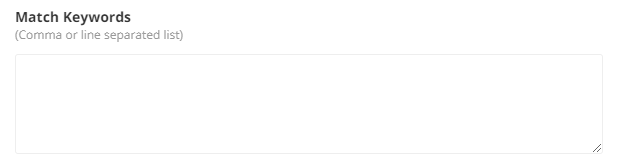
Field Description Match Keywords
(Required) Keywords of interest. The rule will trigger configured actions when any of the keywords are matched. Keywords are not case sensitive.
A single rule can contain up to 100 keywords. Separate keywords with commas or line breaks.
Keywords must adhere to the guidelines detailed in Keyword Syntax Requirements.
Include
- Observables
- Sandbox Reports
- Signatures
- Threat Bulletins
- Vulnerabilities
iTypes
If you selected Observables under Include, you can configure the rule to match within specific indicator types. By default, all indicator types are selected.
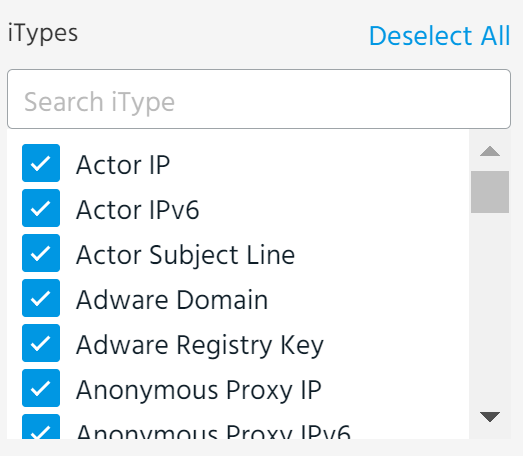
You can use the search function to locate and deselect or select specific indicator types.
Note: Click Deselect All to deselect the indicator types and then select a specific subset.
Exclude When Observables in the Exclude List of My Organization is selected, the rule will exclude observables from your organization Exclude List. When this setting is enabled, the rule will not take its configured actions when keywords appear in observables on your Exclude List.
This setting is only available when you select Observables for Match Within.
Rule Visibility Specify the visibility for the rule. Rules can be visible to All users in your organization or only to the organization workgroups you specify. Only the workgroups of which you are a member are available to select.
For more information on workgroups, see Restricting Access to Intelligence with Workgroups
Intelligence Initiatives Associate the rule with an active intelligence initiative. See Attributing Organizational Goals with Intelligence Initiatives for more information. Click Next: Define Actions when complete.
-
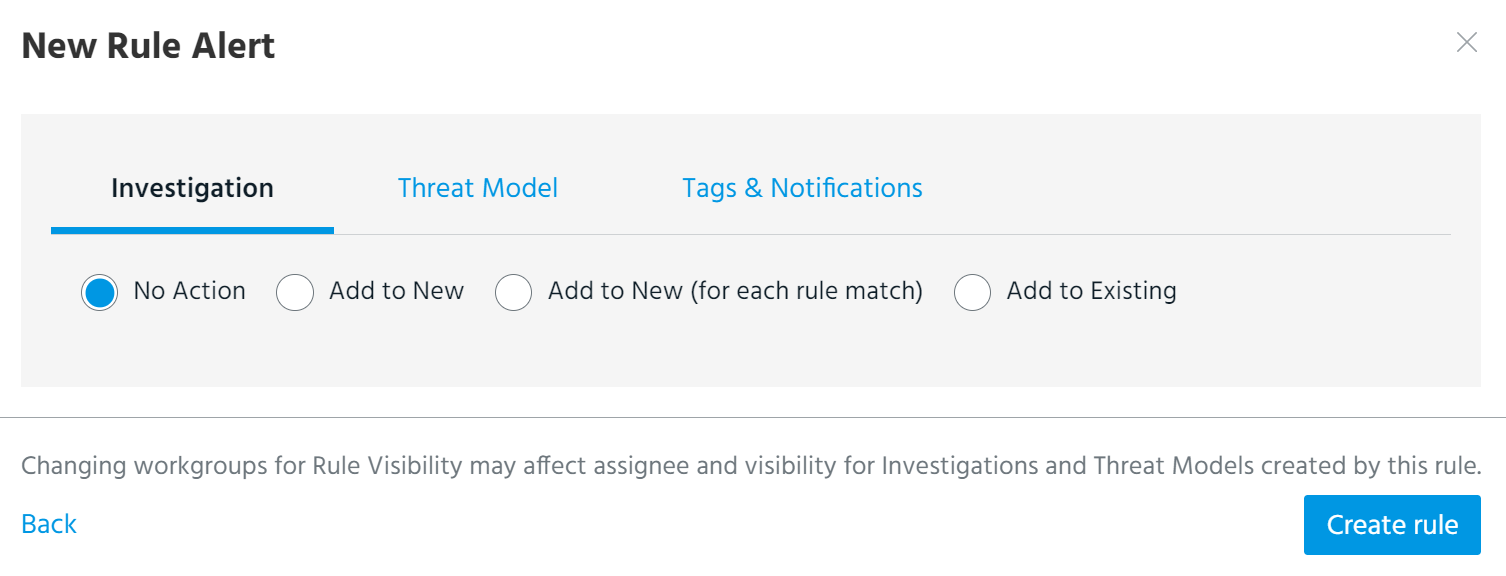
Configure the actions that the rule will take when matches occur. Rules can be configured to add matched intelligence to new or existing investigations, associate matched intelligence with Threat Model entities, add tags to matched intelligence, or send notifications when matches occur.
Field Description Investigation
Action Select one of the following:
- No Action—do not add matched intelligence to an investigation.
-
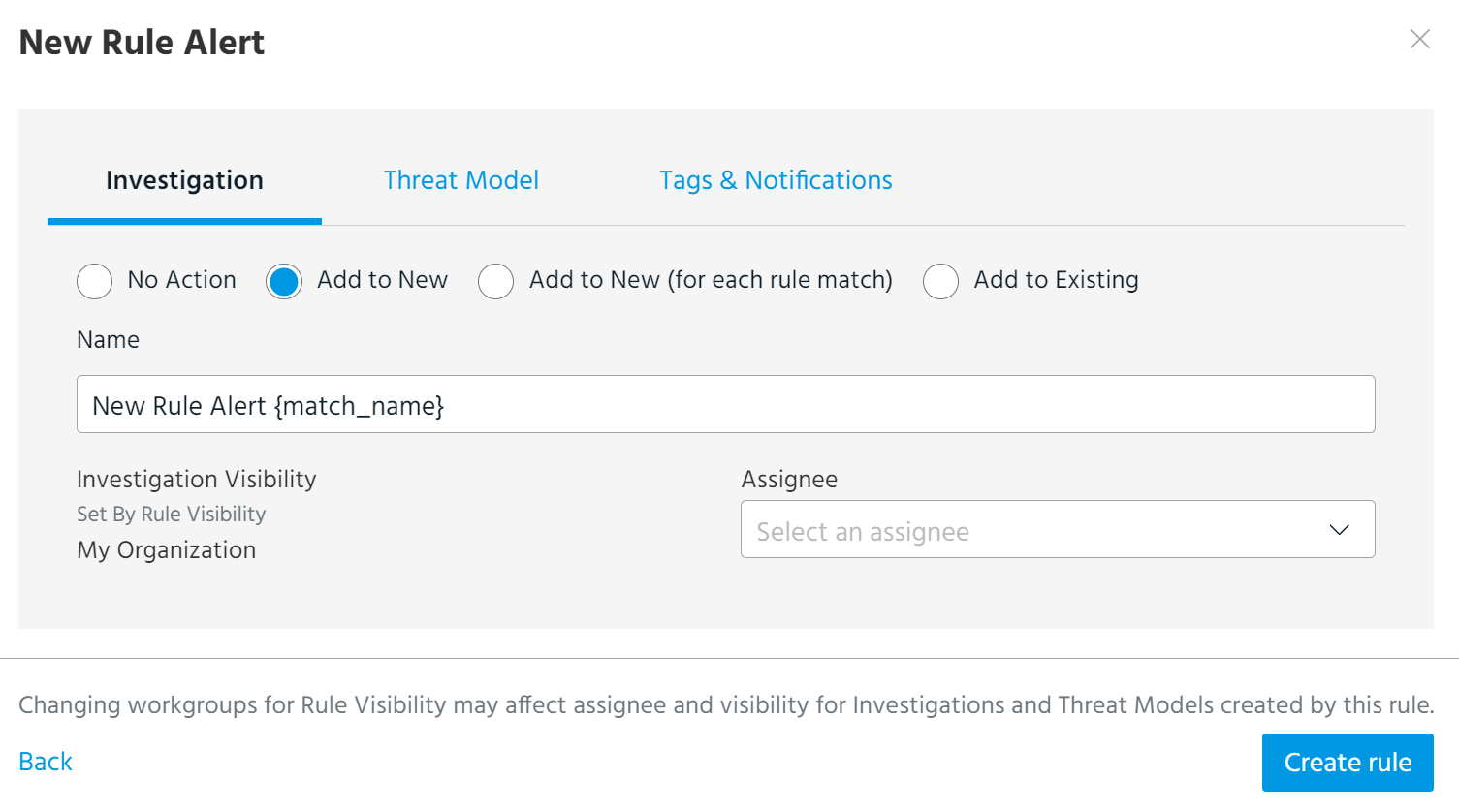
Add to New—add matched intelligence to a new investigation. An investigation is created when you complete a rule configuration.
-
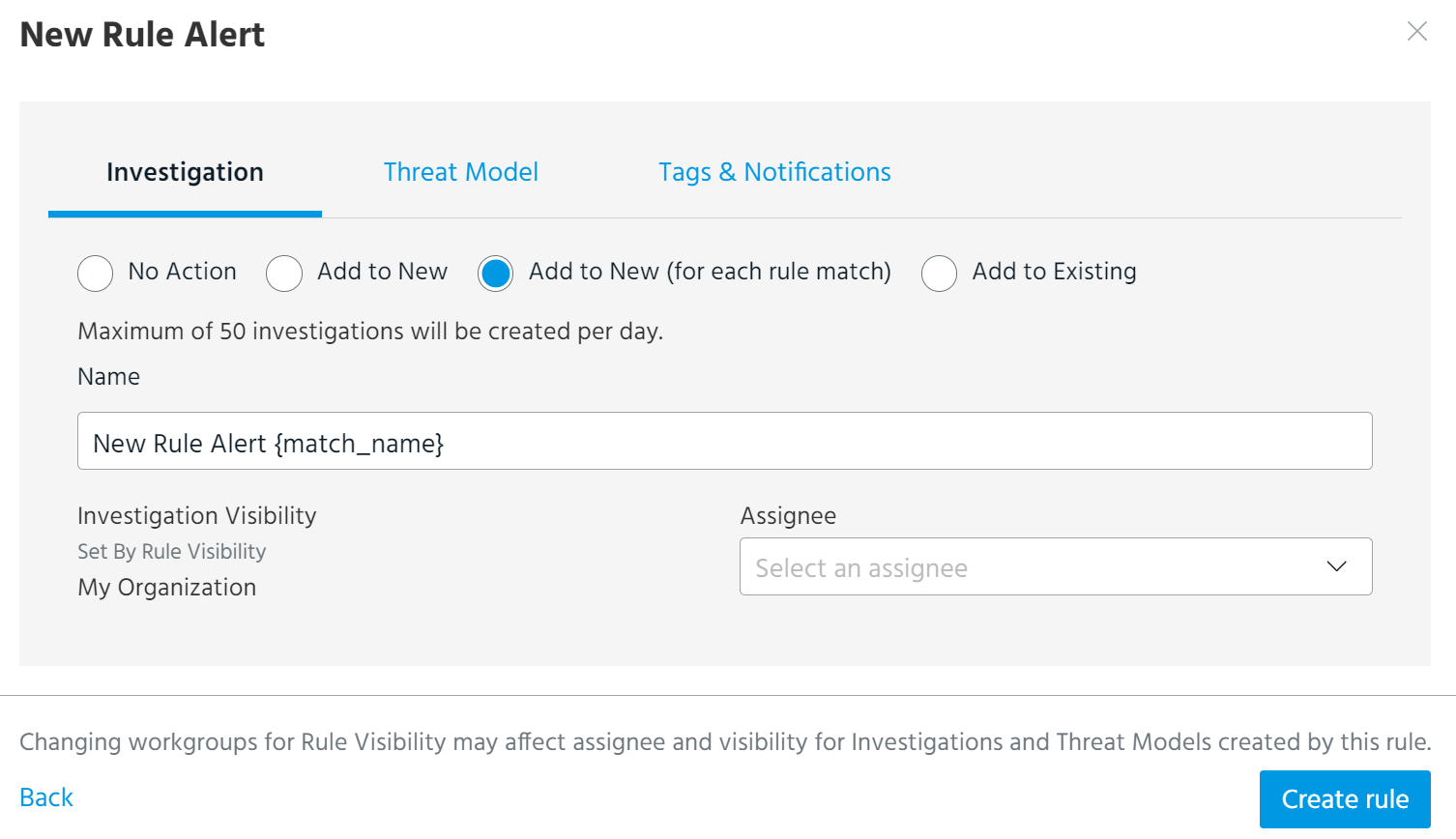
Add to New (for each rule match)—create an investigation for every rule match and select an assignee to conduct the investigations. Maximum of 50 investigations can be created per day. The rule is disabled if more than 50 investigations per day are opened. To continue using the disabled rule, you must modify and re-enable it. See Re-Enabling Disabled Rules for details.
 Notes:
-
If a rule matches a sandbox report, the investigation created for this rule match will contain the sandbox report ID in its name.
-
Users assigned to the investigations created by rule matches will not be notified of the created investigations even if the When any Investigation is created notification setting is enabled for them in My Profile settings.
-
-
Add to Existing—add matched intelligence to an existing investigation. Use the search function and select the investigation of interest from the list.
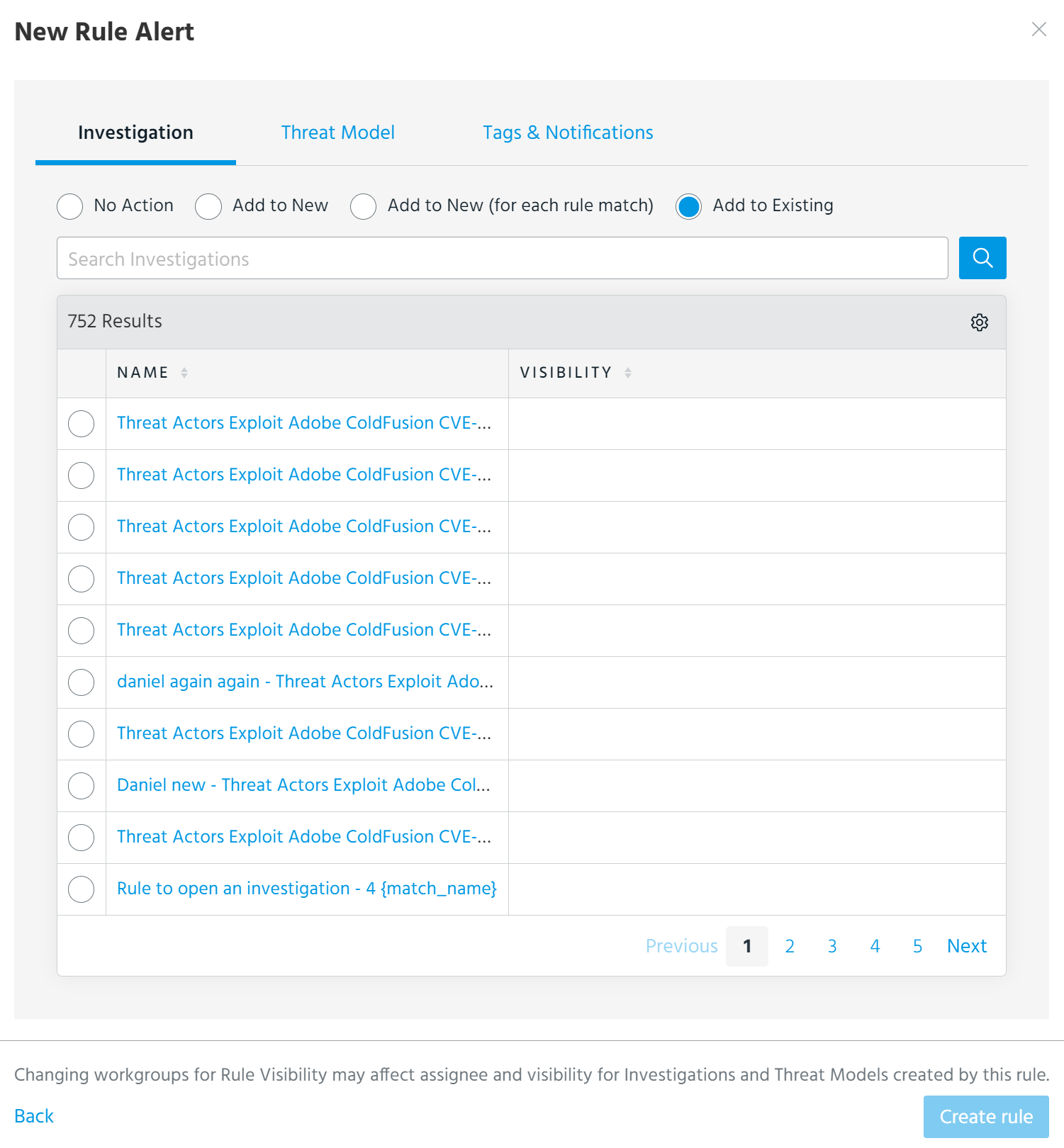
Note: If the visibility of the rule is restricted to workgroups in your organization, only investigations visible to the exact same set of workgroups are displayed. Investigations visible to a subset of the workgroups are not displayed.
Name (New Investigation Only) (Required) Name assigned to the investigation that will be created the first time a keyword match occurs. Investigation visibility (New Investigation Only) Visibility setting of the new investigation. The investigation inherits the same visibility setting configured for the rule and cannot be edited.
Assignee (New Investigation Only) Organization user to whom you want to assign the new investigation. If you selected My Organization for the visibility of the rule, you can select any user in your organization. If you restricted the visibility of the rule to specific workgroups, only users from the selected workgroups are available.
Threat Model
Action Select one of the following:
- No Action—do not associate matched entities with Threat Model entities.
-
Add To—associate matched intelligence with existing Threat Model entities. Use the search function and select the entities of interest from the list. You can select up to 10 entities.
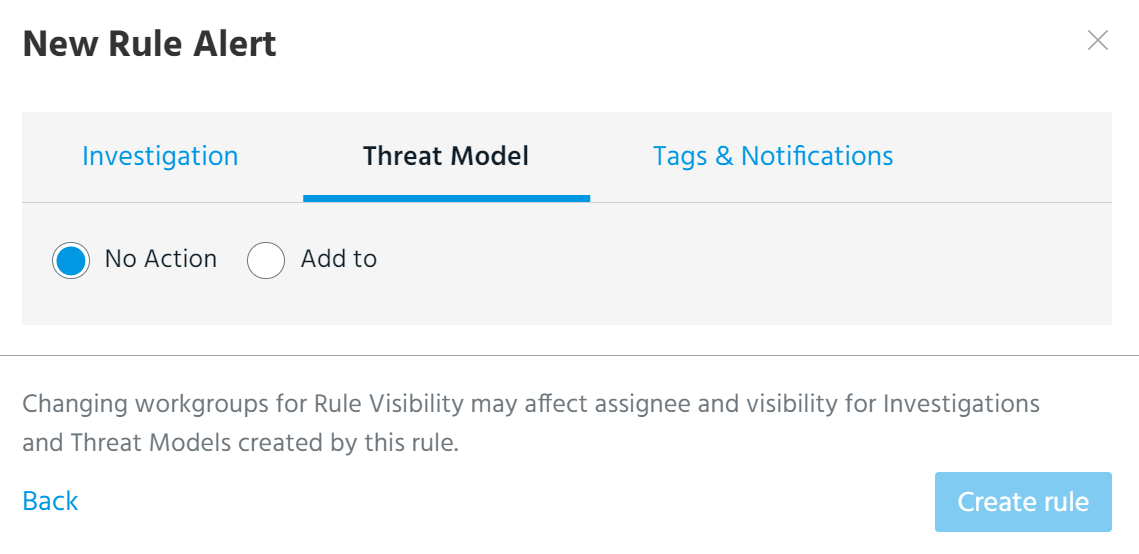
Tip: You can use the All filter to filter search results by Threat Model entity type.
Tags & Notifications Tags If desired, specify tags which will be added to matched intelligence.

To add private tags that are only visible to your organization, assign them the My Organization visibility setting. Tags assigned the Anomali Community visibility setting are visible to any user with access to the entity.
Organizations and intelligence sources can prevent users of other organizations on ThreatStream from adding public tags (those with the Anomali Community visibility setting) to their intelligence. To prevent your tags from being dropped in these cases, Anomali recommends setting the visibility to My Organization for tags added to matched intelligence.
Note: All entity types in ThreatStream are limited to 200 tags per organization. Tags added as a result of rule matches can be dropped if matched entities reach this limit.
Notify Select which users in your organization will receive email notifications when the rule is triggered.
By default, All users with visibility into the rule receive notifications. Alternatively, you can restrict notifications to a specific user workgroup. If the rule is visible to all users in your organization, all workgroups in your organization are available to select. If the rule is restricted to specific workgroups in your organization, only those with visibility into the rule are available to select. See Restricting Access to Intelligence with Workgroups for more information on workgroups.
Users must subscribe to the Keyword Matches email list in order to receive notifications when rules are triggered. See Receiving Notifications from ThreatStream for more information.
Note: Notifications for matches in Sandbox Reports are sent to all users in your organization and cannot be restricted to specific workgroups.
Notify Me Toggle whether you receive email notifications when keyword matches occur. Notify Me is a user level setting which enables you to customize the rule match notifications you receive. Disabling this setting for a rule does not prevent other users with visibility into the rule from receiving notifications. See Receiving Rules Email Notifications for more information on receiving rules email notifications. Exclude from notifications When Observables imported by My Organization is selected, the rule suppresses notifications for observables imported by your organization. When this setting is enabled, keyword matches in observables imported by your organization do not appear in Keyword Match or Hourly Digest emails. In these cases, matches are still visible from the rule details page and other configured actions are taken.
This setting is only available when you select Observables for Match Within.
- No Action—do not add matched intelligence to an investigation.
- When complete, click Create Rule.
Note: Rules can take up to five minutes after creation to begin matching keywords based on the configured criteria.