Re-Enabling Disabled Rules
ThreatStream automatically disables rules that have negative performance impact:
-
Rules that are slow to complete
-
Rules that exceed 100,000 matches in a 24-hour period
A banner message similar to the following is displayed on the details page of disabled rules that had more than 100,000 matches in a 24 hour period:
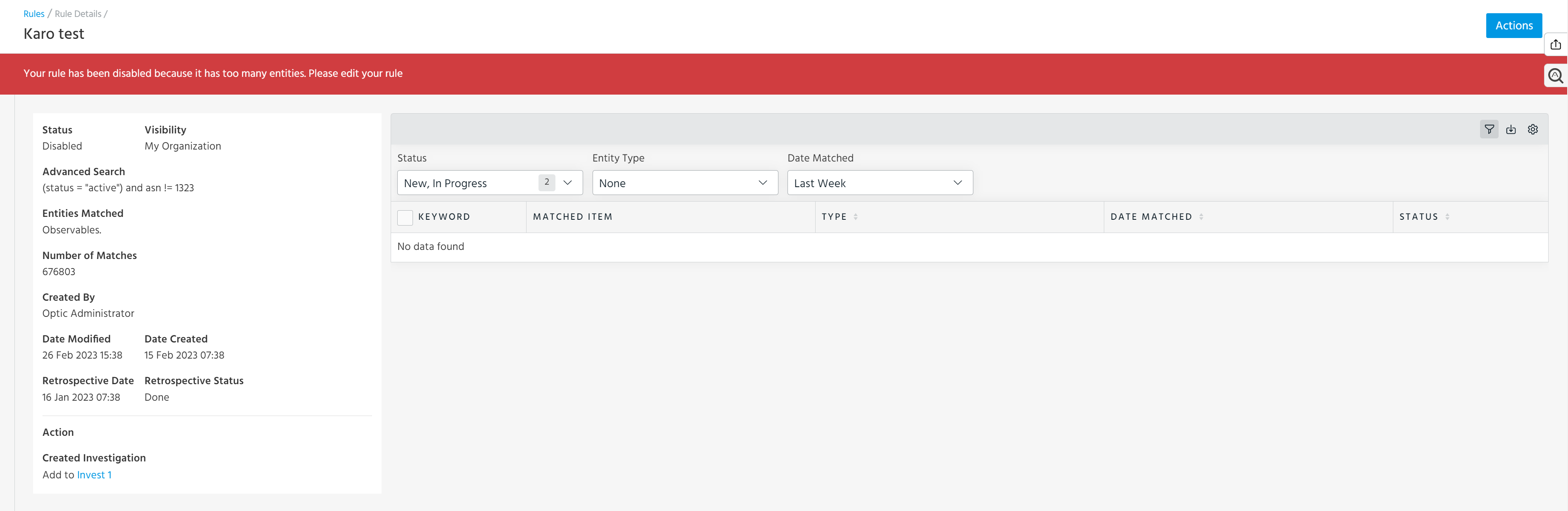
-
Rules that create more than 50 investigations in a 24-hour period.
A banner message similar to the following is displayed on the details page of disabled rules that created more than 50 investigations per day:
.png)
Additionally, a warning icon is displayed next to disabled rules on the rules list view screen. The Enabled switch is disabled while the rule is in this state.

Org Admins will receive a notification about the disabled rule if they have the Disabled Rule Notifications setting enabled. See Managing My Account Settings for details.
To re-enable a rule:
-
Navigate to ThreatStream > Manage > Rules.
-
Click the name of the disabled rule. The rule details page is displayed.
-
Click Edit in the Actions menu.
-
Enter a more restrictive configuration in the Match Keywords or Advanced Search section.
-
Click Next: Define Actions.
-
Click Save Rule. ThreatStream verifies that the new match criteria returns results that do not exceed the limits.
The rule is automatically re-enabled after validation.