Viewing Rule Details
Rule details pages enable you to view and track all matches found for configured keywords.
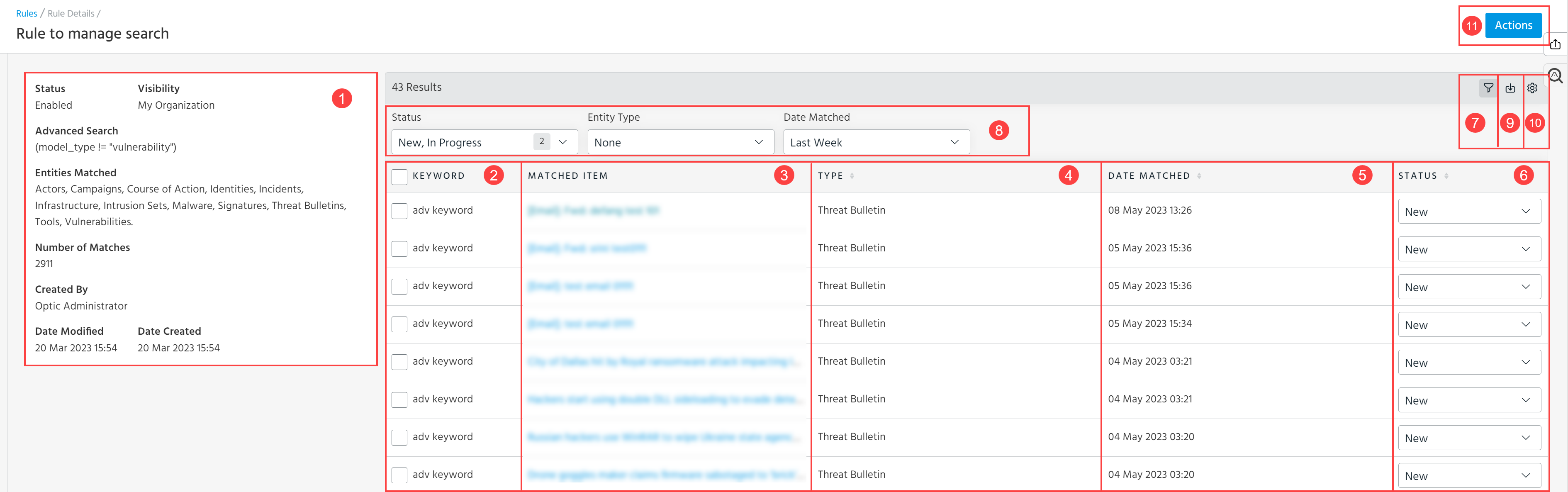
 Rule details.
| Field | Description |
|---|---|
| Description | Description configured for the rule. |
| Status | Whether the rule is currently enabled or disabled. |
| Visibility | Whether the rule is visible to your organization or specific workgroups only. |
| Advanced Search | Keywords | Advanced search or keywords on which the rule matches newly created intelligence. |
| Entities Matched | Types of entities in which the rule searches for matches. |
| Number of Matches | Total number of entities matched by the rule. |
| Created By | User that created the rule. |
| Date Modified | Date Created | Timestamp of when the rule was created and modified. |
| Retrospective Date | Retrospective Status | Prior date to which the rule searched for retrospective matches at the time of its creation. |
 Keyword: Keywords associated with the rule.
 Matched item: Entity in which the rule found a match. You can drill down on intelligence by clicking a Matched Item.
 Type: Type of matched entity.
 Date Matched: Timestamp of when the match was discovered.
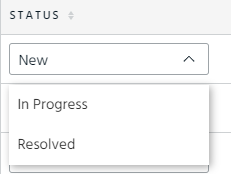
 Status: Status of the match. Use this field to track any necessary follow-up on matches. Statuses include:
- New—default status of all matches.
- In Progress—match is currently under investigation.
- Resolved—match has either been adequately investigated or deemed benign.
 Click the filter icon to hide or show the following filters: Keyword, Status, Entity Type, and Date Matched. By default, a filters are displayed.
 Filter matches by Keyword, Status, Entity Type, and Date Matched.
 Export to CSV: Export rule details to a CSV file. See Exporting Rules for more information.
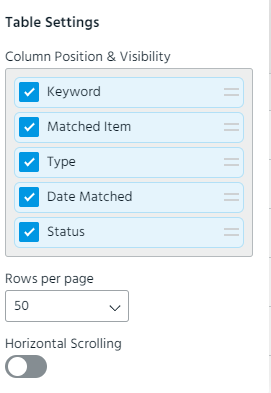
 Table Settings: Select the columns you want to be displayed. By default, all columns—Keyword, Matched Item, Type, Date Matched, Status—are displayed. Additionally, you can change the order of columns in the table by using the drag-and-drop functionality, specify the number of rows to be displayed per page, and enable or disable horizontal scrolling.
 Take actions on the rule. Actions include:
-
Edit: Edit the rule. See Editing Rules.
-
Enable Rule | Disable Rule: Toggle whether the rule is enabled. If switched off, the rule is disabled and no longer matches for keywords or advanced search conditions in new intelligence.
Note: This action is disabled for rules that have been automatically disabled by ThreatStream. See Re-Enabling Disabled Rules for more information.
-
Enable Notification | Disable Notification: Toggle on or off the Notify Me setting for selected rules. See Receiving Rules Email Notifications for more information on receiving rules email notifications.
-
Delete: Delete the rule. See Deleting Rules for details.
From each Rule details page, you can take actions on selected matches.

Actions include:
-
Change Status—change the status of the match.
-
Add to investigation—add selected matches to a new or existing investigation. See Investigating Threats in ThreatStream for more information.
- Export—Export selected matches to a CSV file. See Exporting Rules for more information.