Collaborating on Investigations
The investigation workspace is designed to support contributions from multiple users within an organization. To ensure that one user does not overwrite the changes of another user by mistake, only one user can edit an investigation at a time. ThreatStream locks investigations when an edit is made. Other users with access to the investigation are prevented from making edits until you save the investigation or leave the page.
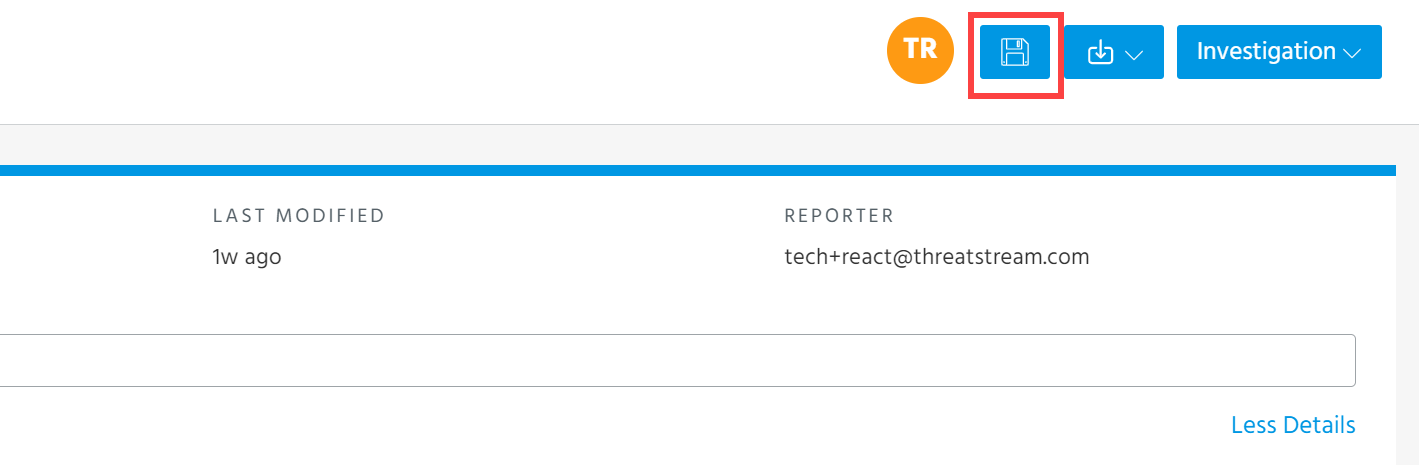
When you make edits to an investigations, the Save button becomes available. To save your edits, click the Save button.
The following message is displayed when you access a locked investigation which is being edited by another user:

You can click Request Edit Access to view who is editing the investigation.
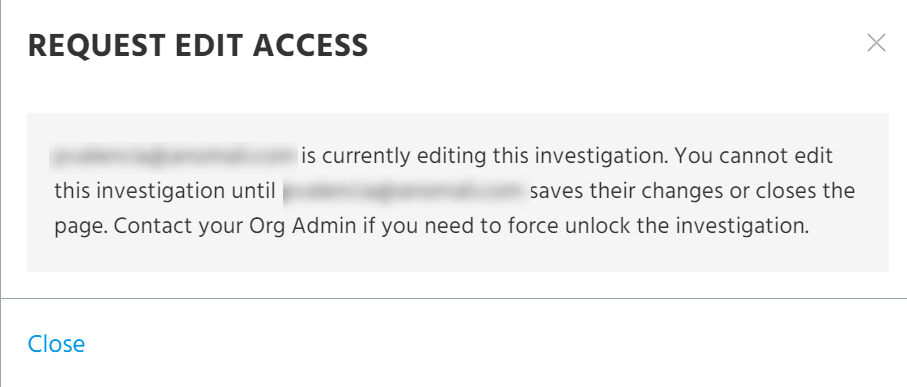
If the listed user is unable to save their edits, contact one of your ThreatStream Org Admins for assistance. Org Admins can unlock investigations using the instructions in Managing Locked Investigations.
Managing Locked Investigations
Org Admin users have the ability to unlock investigations which organization users are editing. When an Org Admin unlocks an investigation for another user, unsaved changes made by the user are lost.
To unlock investigations:
Note: You must be an Org Admin to unlock investigations which are being edited by other users.
- Navigate to ThreatStream > Research > Investigations.
-
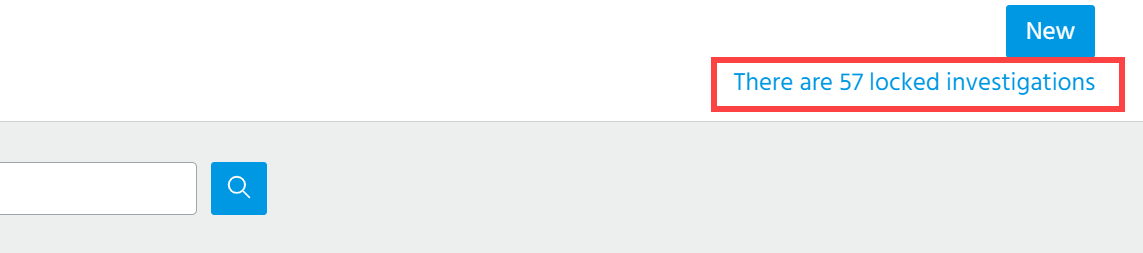
Click There are... locked investigations.
-
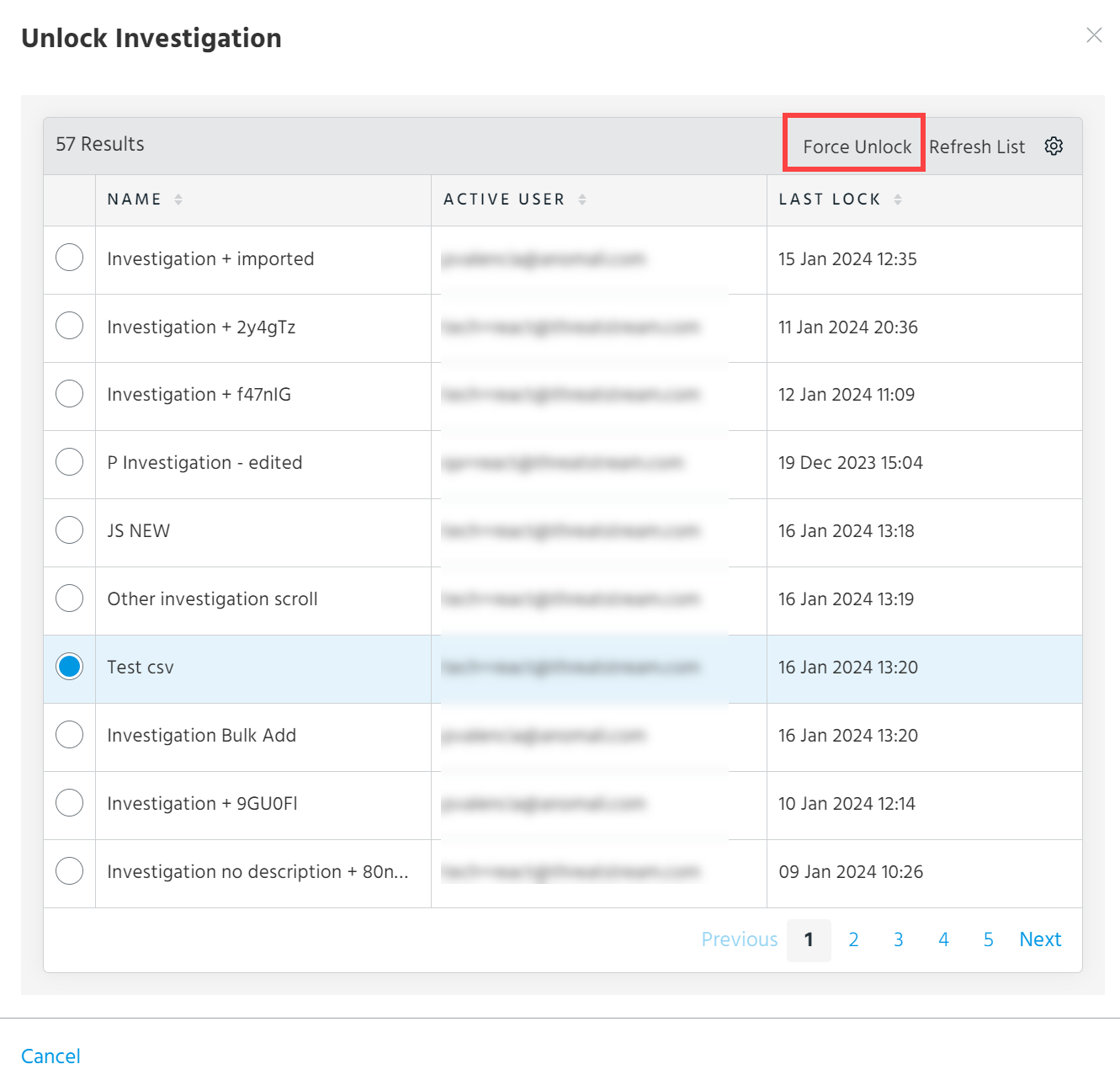
On the resulting window, select the investigation you want to unlock and click Force Unlock.
-
Click Unlock and Lose Unsaved Changes to confirm.
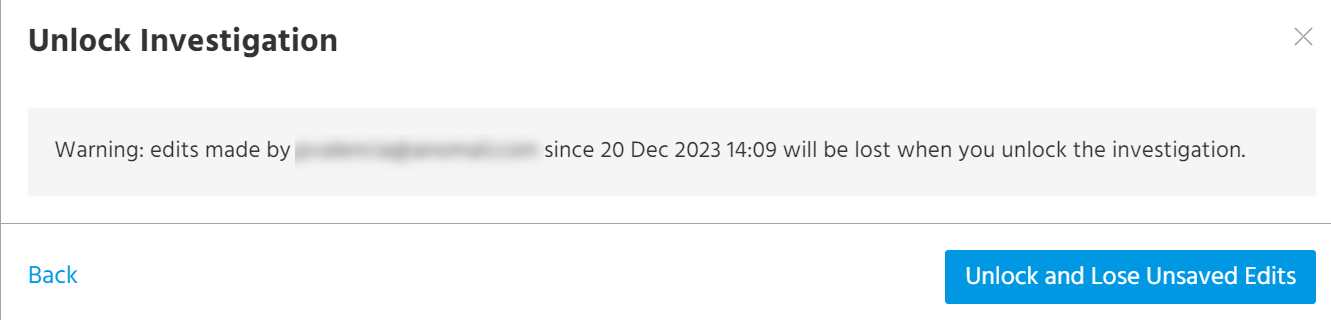
The investigation is unlocked. Other users can now make changes to the investigation.