Creating Description Templates From Investigations
Although you can enter a description for an investigation in rich text, free-form, using a template not only saves time but also enforces consistency to descriptions entered by multiple users of your organization.
You can save existing rich text description templates or create new ones from scratch for further use with other investigations.
To save an existing description as a template:
-
Navigate to ThreatStream > Research > Investigations.
-
Click an investigation with a description that you want to use a template.
-
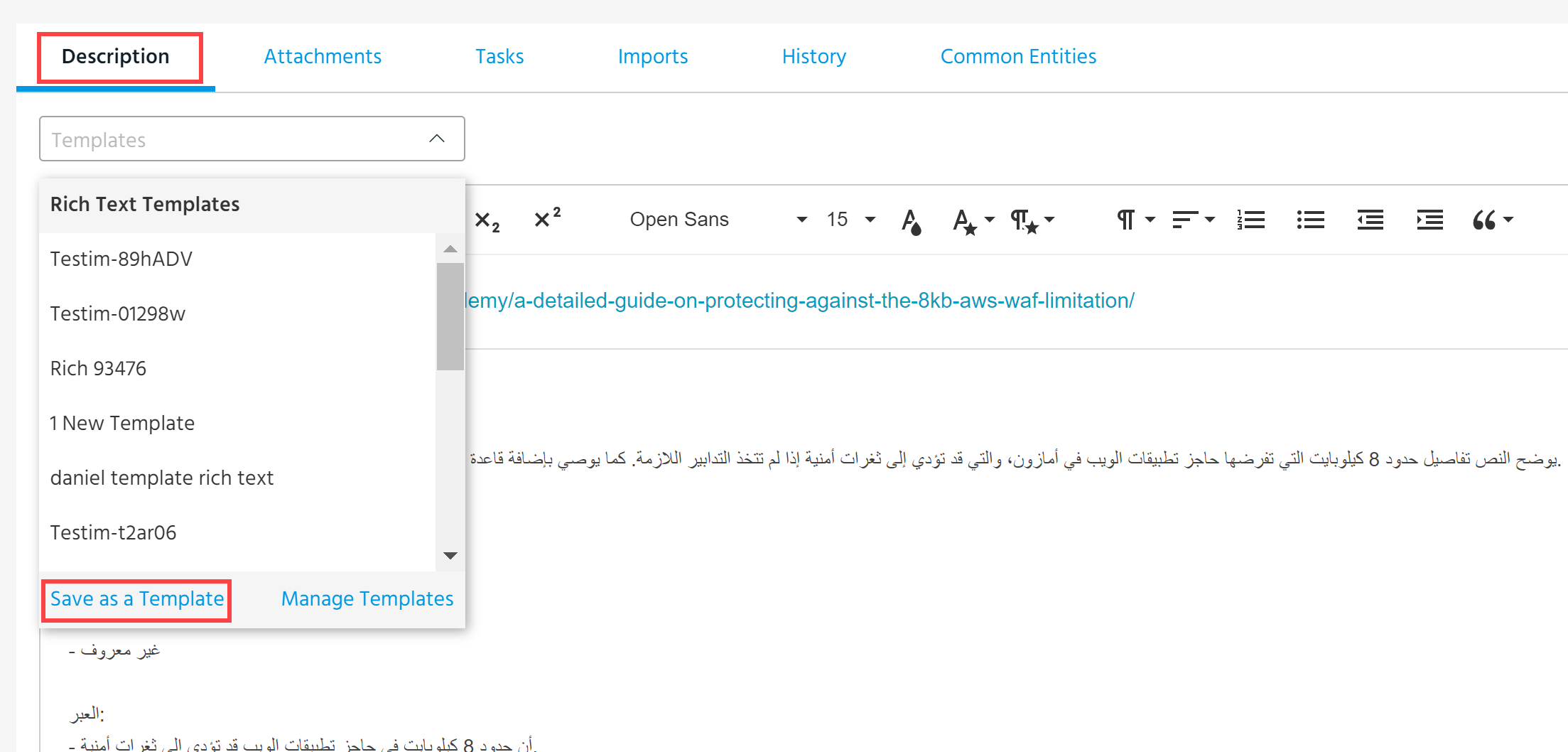
On the Description tab, click Templates > Save as a Template.
-
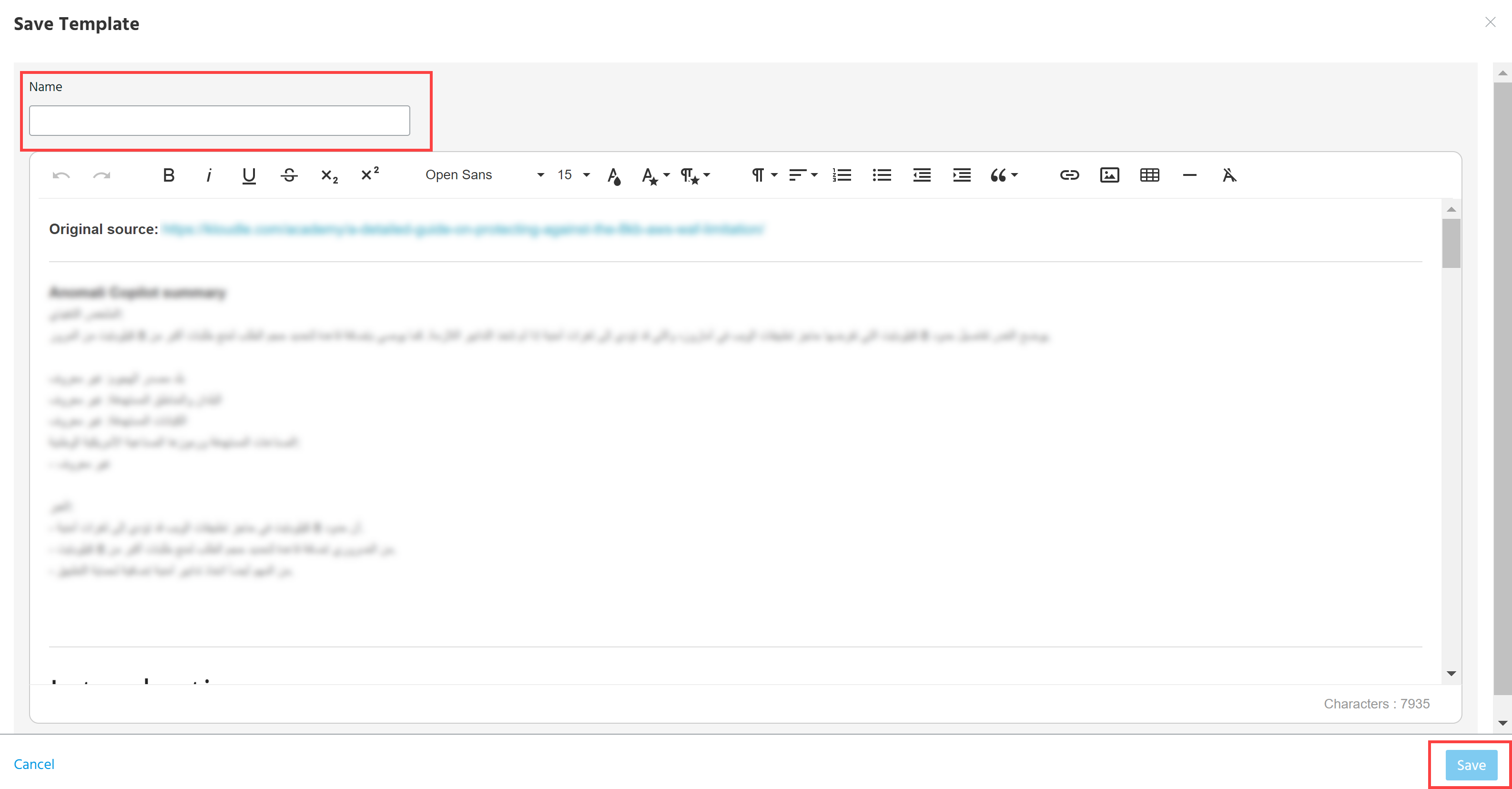
In the dialog box that opens, enter a name for the new template and modify the description, if necessary.
-
Click Save.
To create a template from scratch:
-
Create a new investigation. See Creating Investigations .
- Open the details page of the new investigation.
- On the Description tab, click Templates > Save as a Template.
- In the dialog box that opens, enter a name and description for the template.
- Click Save.
The newly created template can be found in ThreatStream Settings under the Manage Templates tab and on the list of Templates in investigations. To learn how to edit or remove templates, see Managing Description Templates.