Generating User Activity Reports
The User Activity dashboard enables you to generate ad-hoc reports on up to one year of user activity. While any user in ThreatStream can generate user activity reports, only Org Admins can generate reports on the activity of all users in their organizations. Non-admin users can only generate reports on their own activity.
User reports include statistics on investigations, threat model entities, sandbox detonations, imports, and false positives.
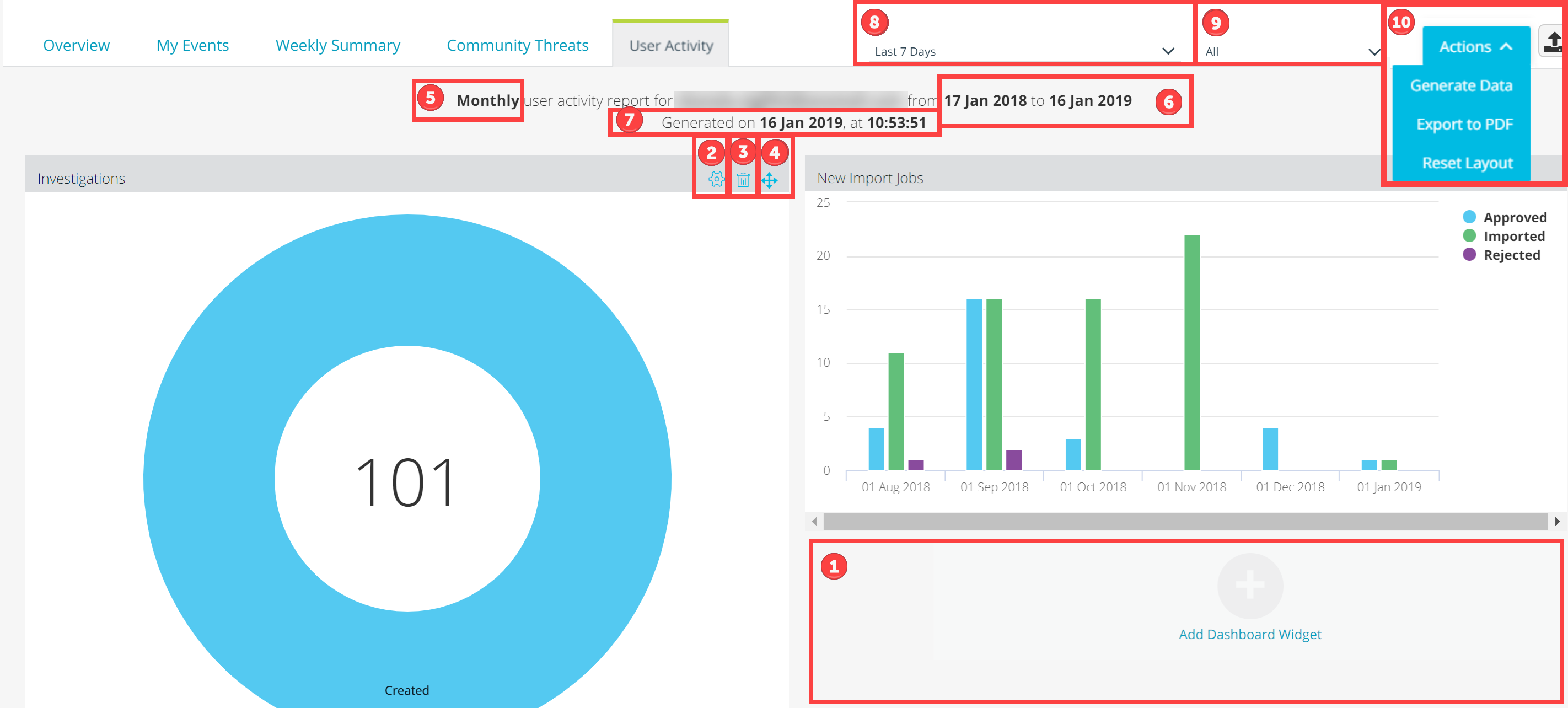
 Add Dashboard Widget: By default, all widgets are displayed on the User Activity dashboard. However, if you remove widgets from the dashboard you can click Add Dashboard Widget to re-add them.
 Widget Settings: View and edit parameters that set how the widget displays data.
 Delete Widget: Remove the widget from your dashboard.
 Move Widget: Change the location of the widget on your dashboard. Click and drag the widget to the desired location.
 Data Bucket Size: Depending on the time range you select for your report, daily, weekly, or monthly data is displayed. If the selected date range is less than or equal to 14 days, daily data is displayed; if the selected date range is between 15 and 150 days, weekly data is displayed; if the selected date range is between 151 and 365 days, monthly data is displayed.
 Report Date Range: Date range for the generated report.
 Report Timestamp: Date and time when the report was generated. UTC time is always displayed.
 Date Range: Select a date range for the report.
 User: Select the user or workgroup for whose activity the report will be generated. Org Admins can select a single user, workgroup, or choose to generate a report on All users in their organizations. Non-admin users can only generate reports on their own activity.
 Actions:
- Generate Data: Click Generate Data to generate a report based on the selected parameters.
- Export to PDF: Export the current report in PDF format.
- Reset Layout: Restore dashboard layout to its default setting. Any widgets you have removed will be added to the dashboard.
To generate a user report:
- In the top navigation menu, click Dashboard and then User Activity.
-
Select a date range from the dropdown.
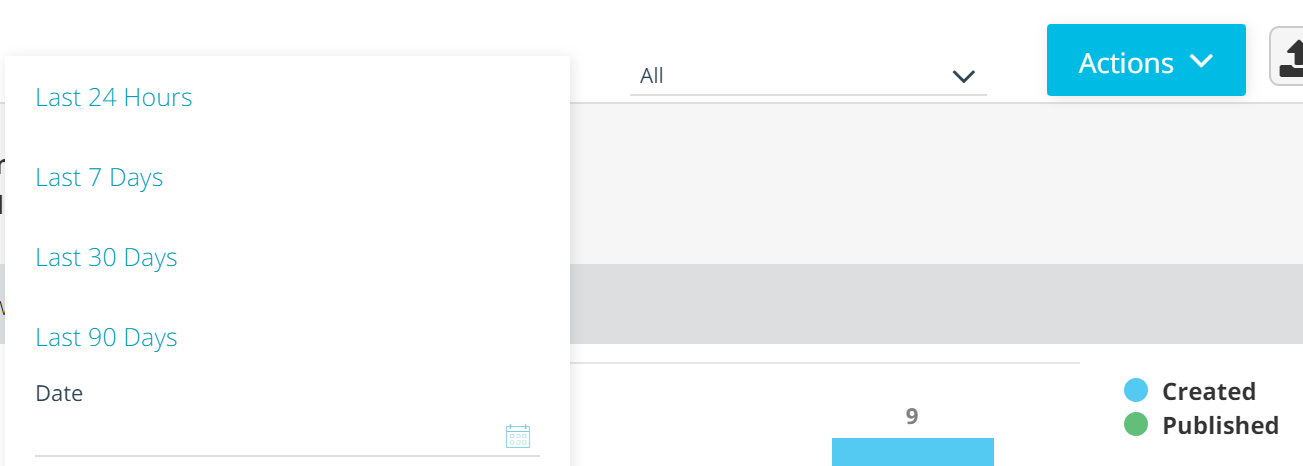
- Select the user whose activity you want to view.
- In the Actions menu, click Generate Data.
Data will populate the User Activity dashboard. The data is available to view until you generate a new report.
Generating User Activity Reports By Workgroup
Org Admins can generate workgroup based user activity reports from the User Activity dashboard.
To generate user activity reports by workgroup:
- In the top navigation menu, click Dashboard and then User Activity.
-
Select a date range from the dropdown.
-
Under User, select the workgroup for which you want to generate the report.
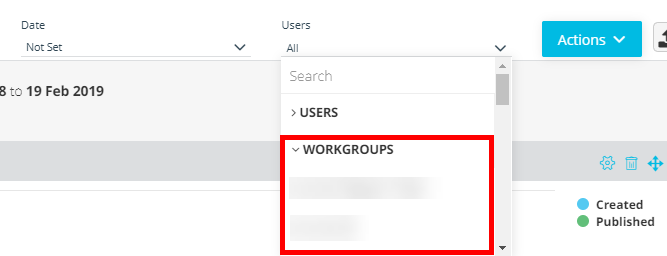
- In the Actions menu, click Generate Data.
Data will populate the User Activity dashboard. The data is available to view until you generate a new report.
Available User Activity Widgets
The following table contains an alphabetical list of all available widgets. Once you add a widget, it is no longer available in the Add New Dashboard Widget drop-down list. Therefore, your drop-down list will only contain widgets that are not yet added to your dashboard. All widgets are displayed on the dashboard by default.
| Widget | Description |
|---|---|
| False Positives | Displays the number of false positives reported by the user. Observables are displayed based on the time they were reported as false positive. |
| Investigations |
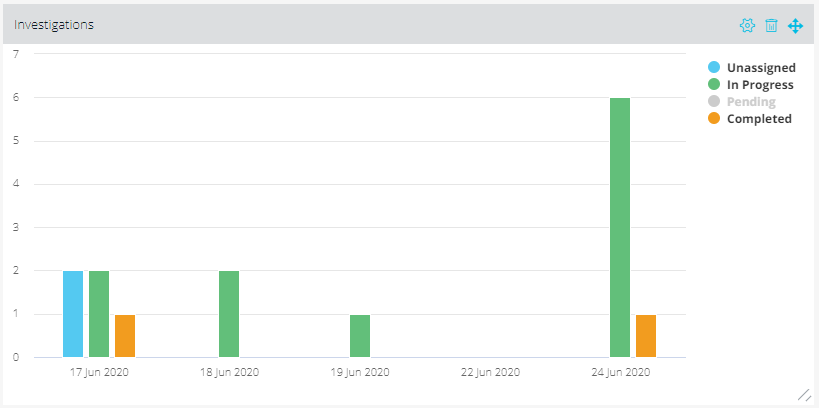
Displays investigation workflow status updates made by the user by status—Unassigned, In Progress, Pending, Completed, and Created. You can click the settings wheel to configure how information is displayed on the widget.
You can click the settings wheel to configure how information is displayed on the widget.
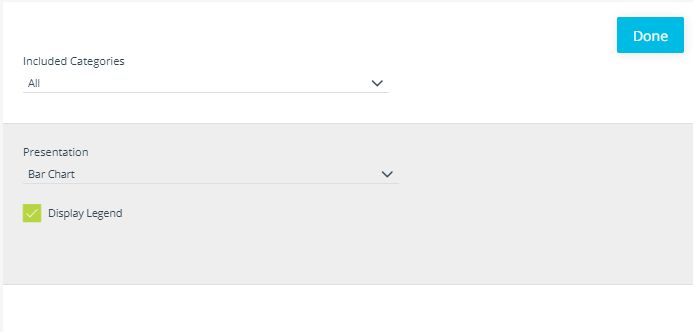
You can configure the following widget parameters:
|
| New Import Jobs |
Displays the number of import jobs that were approved, rejected, or submitted by the user. Import jobs with errors are also displayed. Note: Counts do not include re-imported instances of existing observables. |
| New Observables |
Displays the number of observables imported by the user. Observables can be filtered by indicator type. |
| New Threat Models | Displays the number of threat model entities created and published by the user. Entities can be filtered by entity type and publication status. |
| Sandbox Reports |
Displays the number of Malware samples detonated by the user. Submissions can be filtered by detonation findings; Benign or Malicious. |
Exporting User Reports
User reports can be exported in PDF format. When you export a report, all widget parameters configured in Widget Settings are honored. However, exports do not honor data filtering selections you make using widget keys.
To export a user report:
- Generate the user report that you want to export.
-
In the Actions menu, click Export to PDF. Your download will begin automatically.
Note: PDF exports always include the report that is displayed on the dashboard, regardless of any unexecuted date range or user selections.