Managing Profile Settings
From the Profile menu on the Anomali platform, you can create and manage your platform profile, view your Anomali Virtual Compute (AVC ) daily usage, select the Light or Dark theme for the platform user interface, and access Account Settings.
For details on viewing your AVC, see Viewing Daily AVC Usage.
For details on how to change the platform theme, see Selecting a User Interface Theme.
For details on account settings, see Managing Account Settings.
Creating and Managing Your Profile
When you log in to ThreatStream for the first time, you are prompted to create a profile. Fill out the Profile form or click Complete later to complete your profile later.
(Click the image below to enlarge it.)
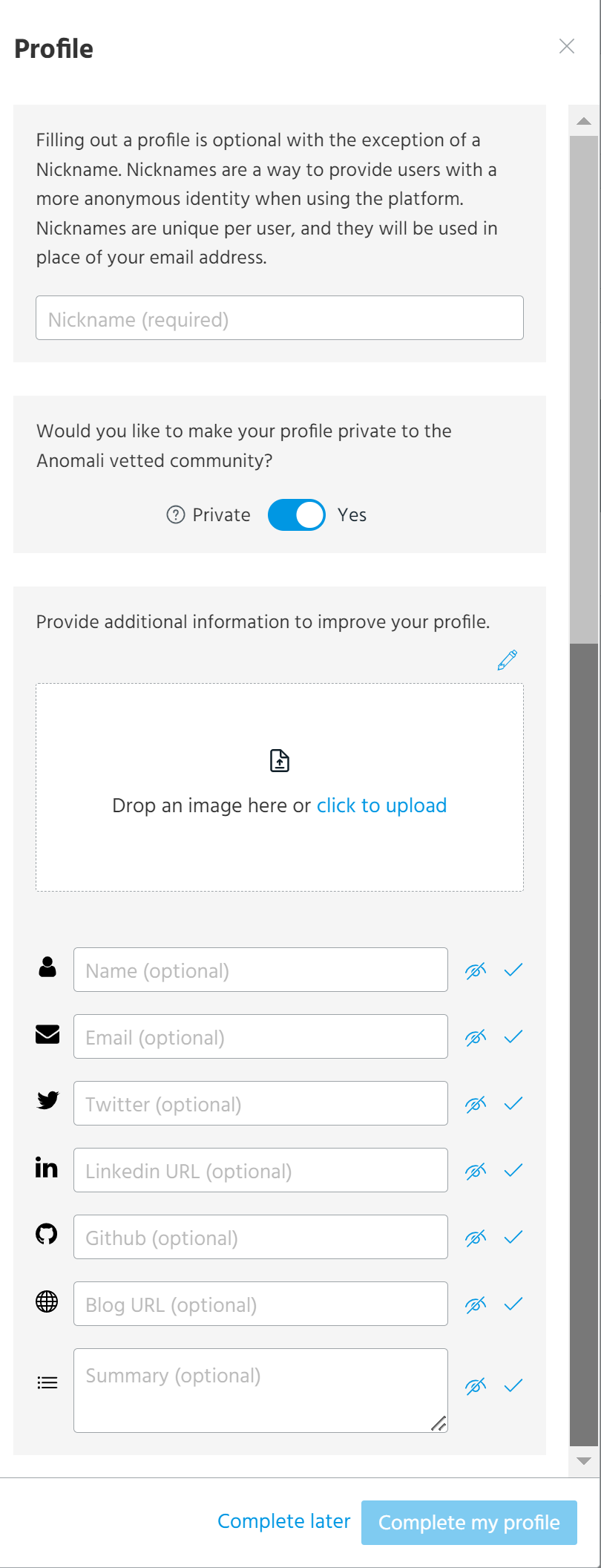
You must enter a nickname. If you don't create a nickname, you will not be able to access the Profile page on the platform. Nicknames can include alphanumeric characters, hyphens (-), and underscores (_) only. Spaces and special characters are not supported. However, words can be separated using hyphens and underscores. All other fields are optional.
If you have not been prompted to create a profile, please contact Anomali Support for assistance.
Accessing Your Profile
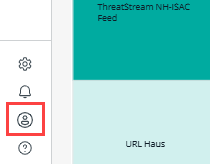
You can access your profile by clicking the profile icon ( ) at the left bottom of the Anomali platform user interface.
Editing Your Profile
All profile fields except for the Nickname field can be edited. To edit a profile field, click > Profile.
Edit the fields of your interest by clicking the edit icon next to them.
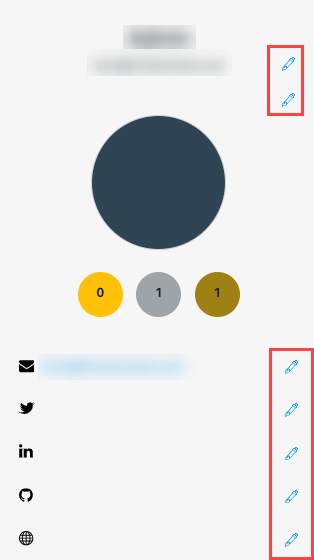
To save changes, click the check icon.

Privacy Settings
If you do not want your profile to appear in the Anomali Community search results, you can make your profile Private.

Alternatively, you can make individual fields on your profile private. Fields are private and not visible to the Anomali community unless you make them public. The eye icon toggles the visibility of each field on and off.
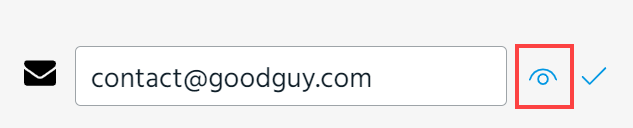
When the eye is closed, the field is not visible to the Anomali community. When the eye is open, the field is visible to the Anomali community.
Achievement Badges
Badges recognizing your threat intelligence achievements and contributions to the Anomali community are displayed on your profile in the widget below.

For more information on earning badges, see Earning Badges.
Viewing Daily AVC Usage
To view your Anomali virtual compute (AVC) usage, click > Profile.
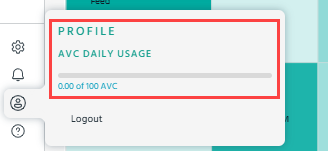
For more information about AVC, refer to Anomali Virtual Compute.
Selecting a User Interface Theme
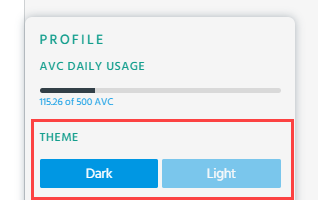
From the Profile menu, you can choose the Light or Dark theme for your platform user interface.
To change the theme, click > Profile, and then select the preferred theme.
The selected theme is applied consistently across all platform modules and pages. By default, the Light theme is enabled.
Managing Account Settings
On the Profile > Account Settings page, you can create and manage API OAuth and MCP credentials to integrate ThreatStream with OAuth-compatible third-party applications.
For details on managing OAuth API credentials, see Managing OAuth 2.0 API Credentials .
For details on managing MCP credentials, see Managing MCP Credentials.