Collaborating with ThreatStream Chat
ThreatStream Chat provides a channel of communication between collaborators on the ThreatStream user interface. Chat is hosted within ThreatStream and not by an external third party. Posted content is visible only to intended audiences, thus enabling worry-free communication between teams and industry partners.
In addition to sending direct and group messages to members of your own organization, Chat enables communication with Trusted Circle organizations.
Messages cannot be deleted once sent. Please exercise caution when communicating with internal or external audiences.
Accessing Chat
To access ThreatStream Chat, navigate to Collaborate.
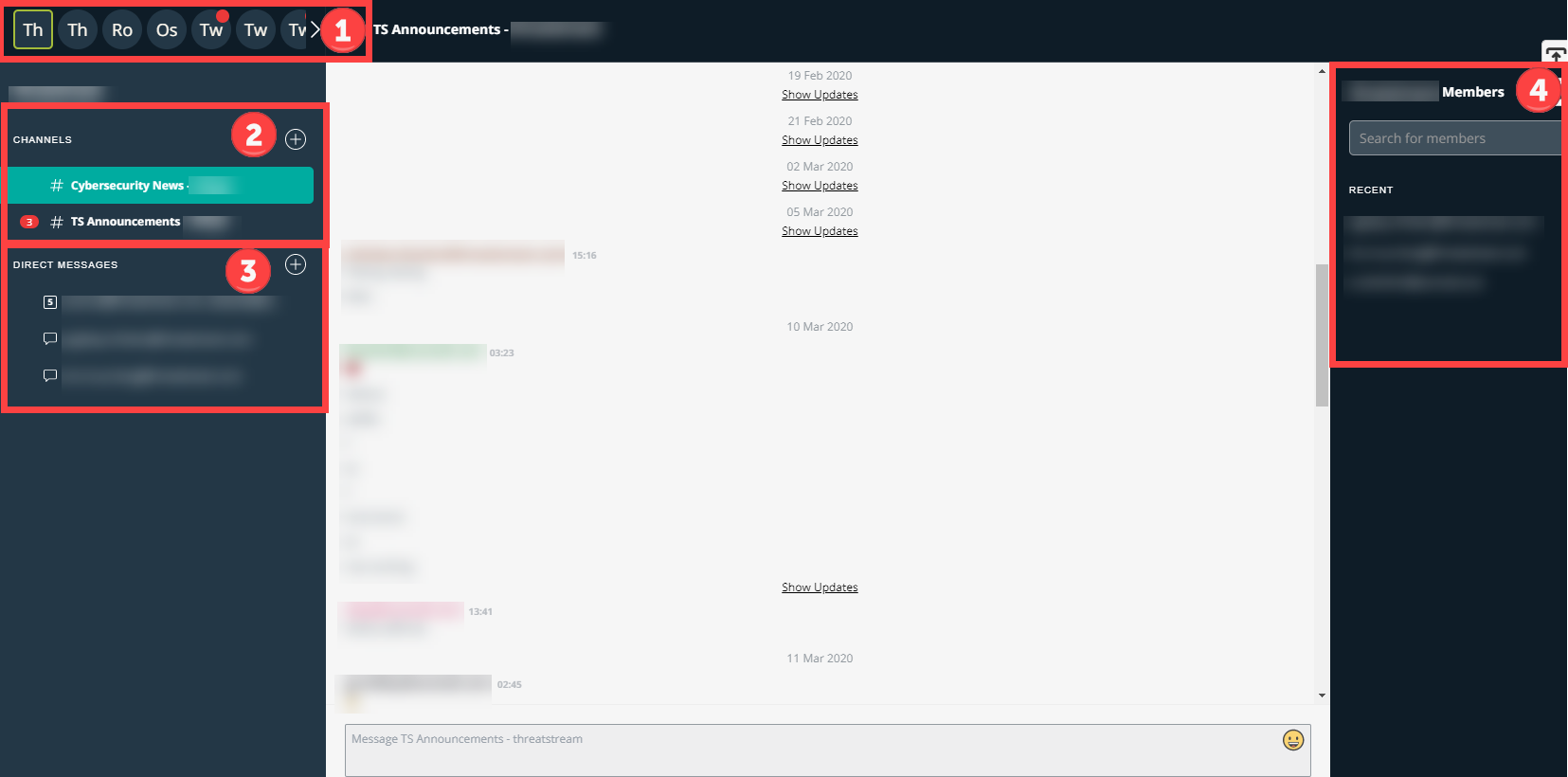
 Chat Rooms: Available chat rooms include your organization and any chat-enabled Trusted Circles of which your organization is a member.
Tip: Are you a member of the Anomali News Chat Trusted Circle and looking for the COVID-19 chat channel? Locate and open the "anomalinewschat" chat room.
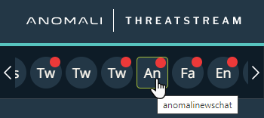
The Anomali News Chat Trusted Circle chat room contains a single channel called COVID-19 - anomalinewschat. For more information on gaining access to this channel, see Chat - COVID-19 .
 Channels: When you select a chat room, a list of available channels for the chat room is displayed. Channels are specific to each chat room and used for wider topical communication and announcements within a chat room. Channel configurations vary between organization and Trusted Circle chat rooms:
- Your organization contains one default channel—TS Announcements. You can also create additional channels within your organization. See Sending Channel Messages for more information.
- Trusted Circle chat rooms contain two default channels—Cybersecurity News and TC Announcements. Trusted Circle channels contain all chat users within the Trusted Circle. See Chatting With Trusted Circles for more information.
 Direct Messages: Recent messages with groups and members within your organization. See Sending Direct Messages and Sending Group Messages for more information.
 Organization Members: A list of members in your organization. Click a user name to launch a direct message with the user. See Chatting With Your Organization for more information.
Note: The organization members list is only displayed when your organization chat room is selected.
Your 20 most recent conversations are also accessible from a follow-me window, which can be launched from the bottom right corner anywhere in ThreatStream.
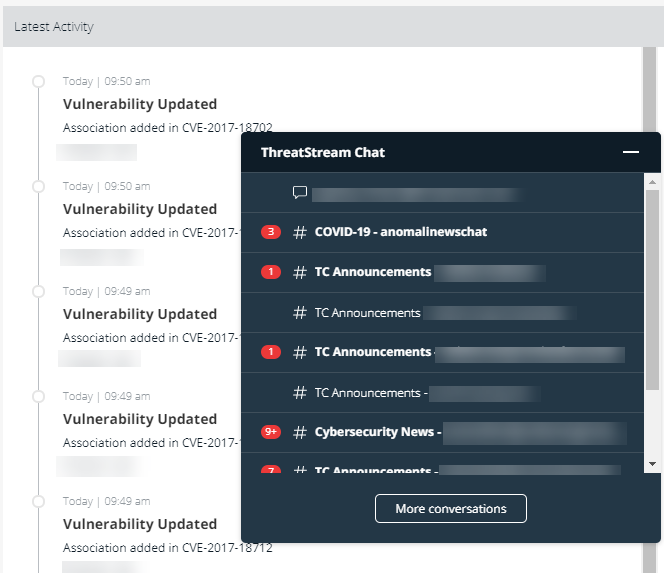
While you can view and respond to messages from this window, you can only create new direct or group messages from the primary Chat user interface.