Enabling Chat for Your Organization
Chat is disabled by default. Org Admins can enable Chat for their organizations from the Organization tab within ThreatStream settings.
Once Chat is enabled for your organization, an additional column is available on the User Admin screen within ThreatStream settings, which allows Org Admins to grant or deny organization users permission to use Chat. All users are excluded from Chat by default and must be granted permission by an Org Admin in order to use Chat.
Requirements Before Enabling Chat
Before enabling Chat for your organization, you must ensure that your network has socket connectivity to the following DNS name and IP addresses:
- wss.chat.threatstream.com
- 3.20.109.10
- 3.20.109.51
- 3.20.96.2
After ensuring connectivity, you can enable Chat on ThreatStream using the steps in the next section.
Enabling Chat on ThreatStream
Org Admins can enable Chat from the Organization tab within ThreatStream settings.
To enable Chat for your Organization:
- In the top navigation bar, click
 and then Organization.
 -
Click Activate next to Enable ThreatStream Chat.

- Select My Organization accepts these terms and click I agree on the resulting window.
Requirements After Enabling Chat
After enabling Chat for your organization, all users with active sessions at the time of enablement must logout of ThreatStream and login again.
Additionally, organization members to be included in Chat must be given the Chat privilege on the User Admin tab within ThreatStream settings.
Note: Only Org Admins can modify user privileges.
To edit the Chat privileges of organization members:
- In the top navigation bar, click and then User Admin.
-
Locate the Chat column and check or uncheck the box corresponding with the users to which you want to grant or revoke access.
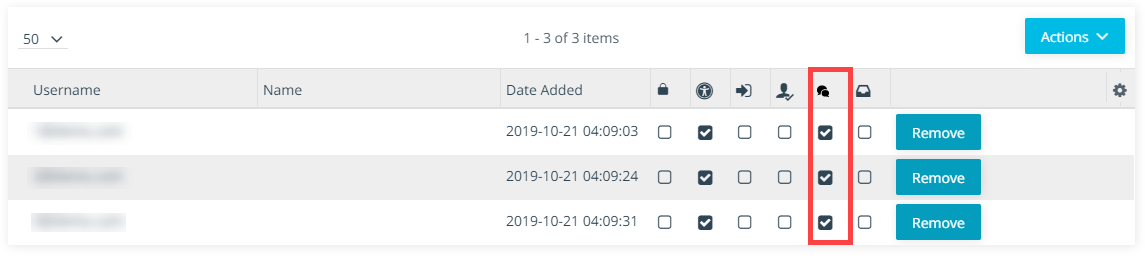
Changes to user privileges are saved automatically. If users have an active sessions when privileges are modified, changes take effect the next time users login to ThreatStream.