Managing Feeds
On the Feeds page, you can do the following:
- View the list of feeds currently feeding your threat intelligence
- Submit new feeds to which your organization has access
Viewing Feeds
The Feeds page displays a list of every feed feeding your threat intelligence, including premium feeds purchased from the APP Store.
To view the list, navigate to ThreatStream > Manage > Feeds.
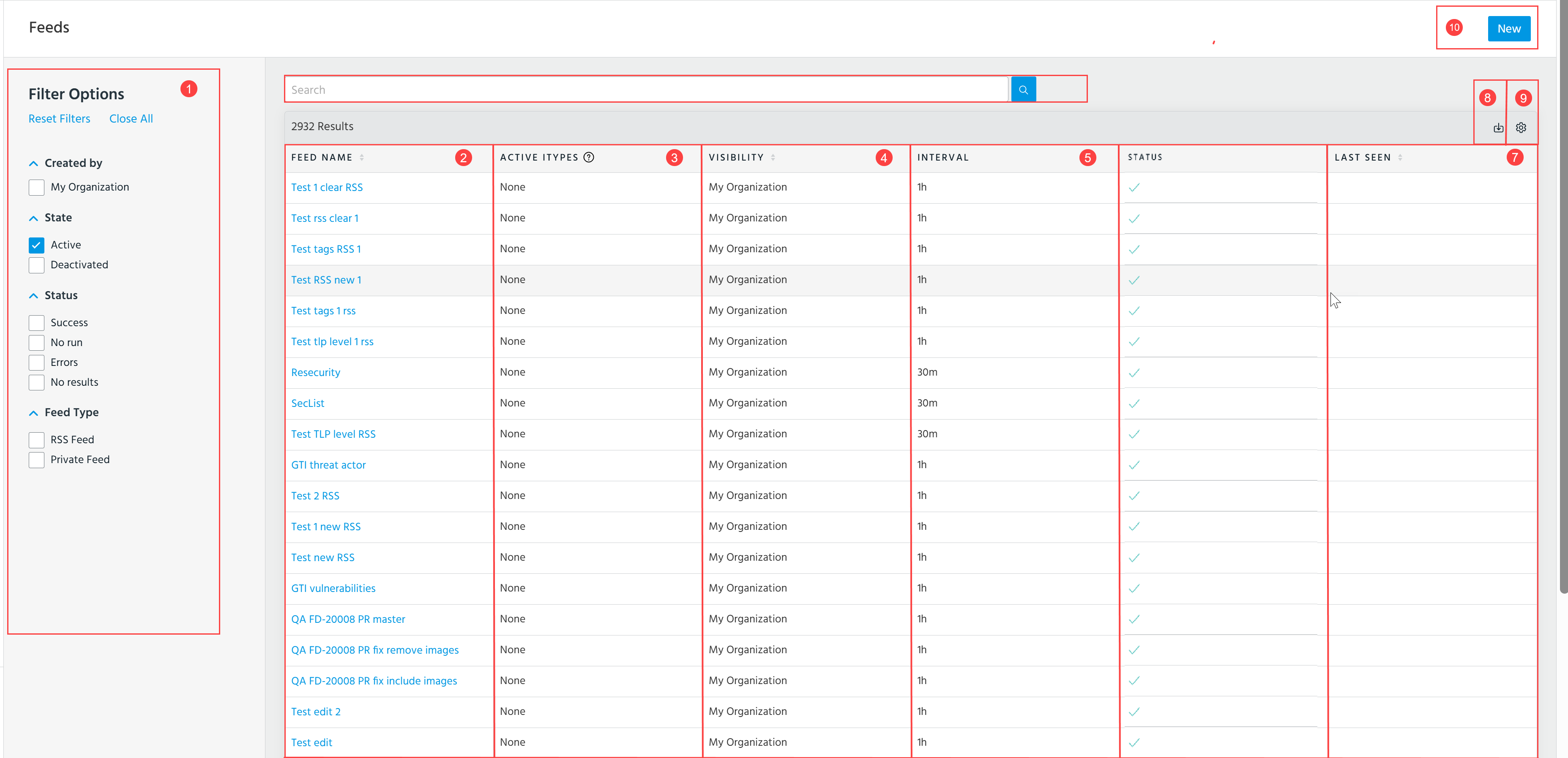
 Filter Options: Filter the feeds listed on the page by Created by, State, Status, and Feed Type.
 Feed Name: Name of the feed. Click the feed name to view feed details, deactivate the feed, or edit the feed. See Viewing Feed Details for more information.
 Active iTypes: Recent indicator types provided by the feed.
 Visibility: Visibility of the threat intelligence data provided by the feed.
 Interval: Interval at which the feed is updated on ThreatStream.
 Status: Possible status values include:
-
Active—the feed is currently feeding your threat intelligence on ThreatStream.
-
Deactivated—the feed has been deactivate and is no longer feeding your threat intelligence on ThreatStream.
-
No run—ThreatStream has not synced with the feed yet.
-
Errors—syncing with the feed has failed due to an error(s).
-
No results—syncing has ended with no results.
 Last Seen: Timestamp of when the feed was most recently updated.
 Export to CSV: Export the feeds to a CSV file. See Exporting Feeds to a CSV File for more information.
 Table Settings: Select what columns you want to be displayed. You can select the following columns: Feed Name, Active iTypes, Visibility, Interval, and Last Seen. Additionally, specify how many rows you want to be displayed per page.
 Search: Search for feeds on ThreatStream by name.
 New: Create a new feed on ThreatStream.
There are three submission types:
- Basic Feed Submission: Used for plain text feeds with one entry per line. A majority of feeds are compatible with this method. See Importing Feeds Using Basic Submission for more information.
- Advanced Feed Submission: Used for all feeds not compatible with the basic submission method, such as those that employ HTML formatting. Regular expressions must be provided in order to select the proper data. See Importing Feeds Using Advanced Submission for more information.
- Configure RSS Feed: Used for adding and managing external RSS feeds. See Importing RSS Feeds for more information.
Note: Feeds that require authentication cannot be submitted. Contact Anomali support with any questions.
After submitting a feed, you can view feed details, monitor its status and health. If necessary, you can edit and deactivate the submitted feed.
For information on how to edit a previously submitted feed, refer to Editing Feeds.
For information on how to deactivate a previously submitted feed, refer to Deactivating Feeds.