Importing Feeds Using Advanced Submission
The Advanced feed submission method must be used with non-plain text feeds that use any kind of formatting. Advanced feed submissions use regular expressions to distinguish the intelligence from the formatting and prevent the collection of false positives.
Advanced feed submissions extract data based on the observable types mapped to the Group Name you specify in your regular expression.
Feed submissions are always private to your organization.
Creating Regular Expressions for Advanced Feed Submissions
Regular expressions tell the data scraper where the intelligence is on the page. In other words, regular expressions provide the pattern that the scraper uses to parse the intelligence values.
The example below illustrates a successful regular expression.
Feed code sample:
<td><a href="/host/134.247.2.21/"
The IP addresses provided by this feed are located in a table. For the scraper to collect only the IP addresses, a regular expression must pinpoint the intelligence and assign it to a Group Name. Group Names are then mapped to an observable type.
The sample below illustrates a regular expression that successfully selects the needed intelligence.
Regular expression sample:
(?P<hash>,.*,)(?P<tags>.*)
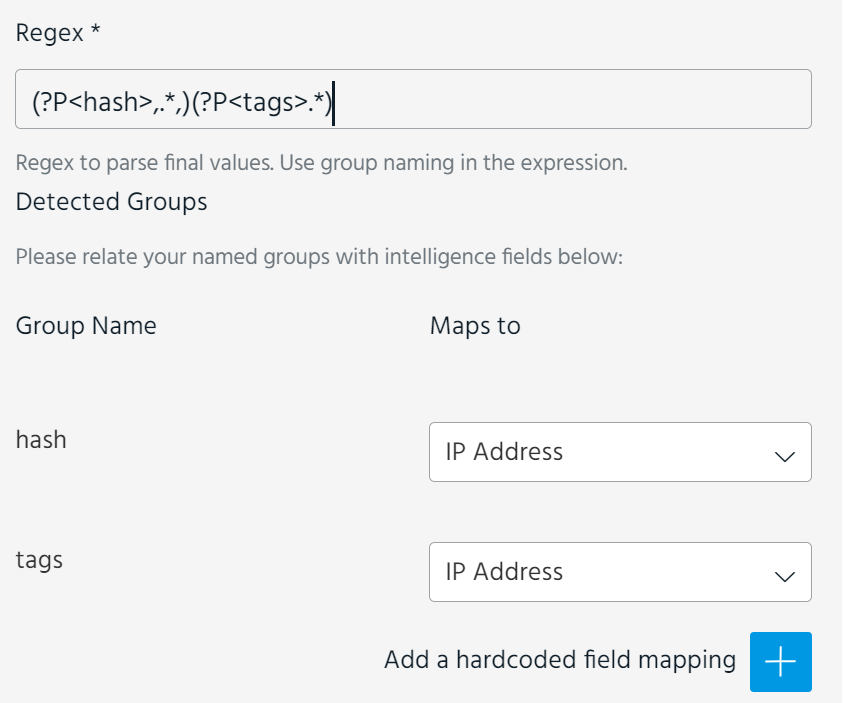
The above regular expression assigns the intelligence from the feed to the 'hash' and 'tags' group names.
Though the form will not let you submit an invalid regular expression, it is possible to submit a valid regular expression that fails to select the necessary data. To prevent these types of errors, test your regular expression to ensure it selects the needed information before submitting it.
After entering a valid regular expression, you can map the specified group name to an observable type available in the drop-down list. A group name can be mapped to one of the following observable types:
-
IP Address
-
Domain
-
Email Address
-
URL
-
Hash
-
iType
-
Source
-
Tag
-
MalType
To import a feed using advanced submission:
- Navigate to ThreatStream > Manage > Feeds.
- Click New.
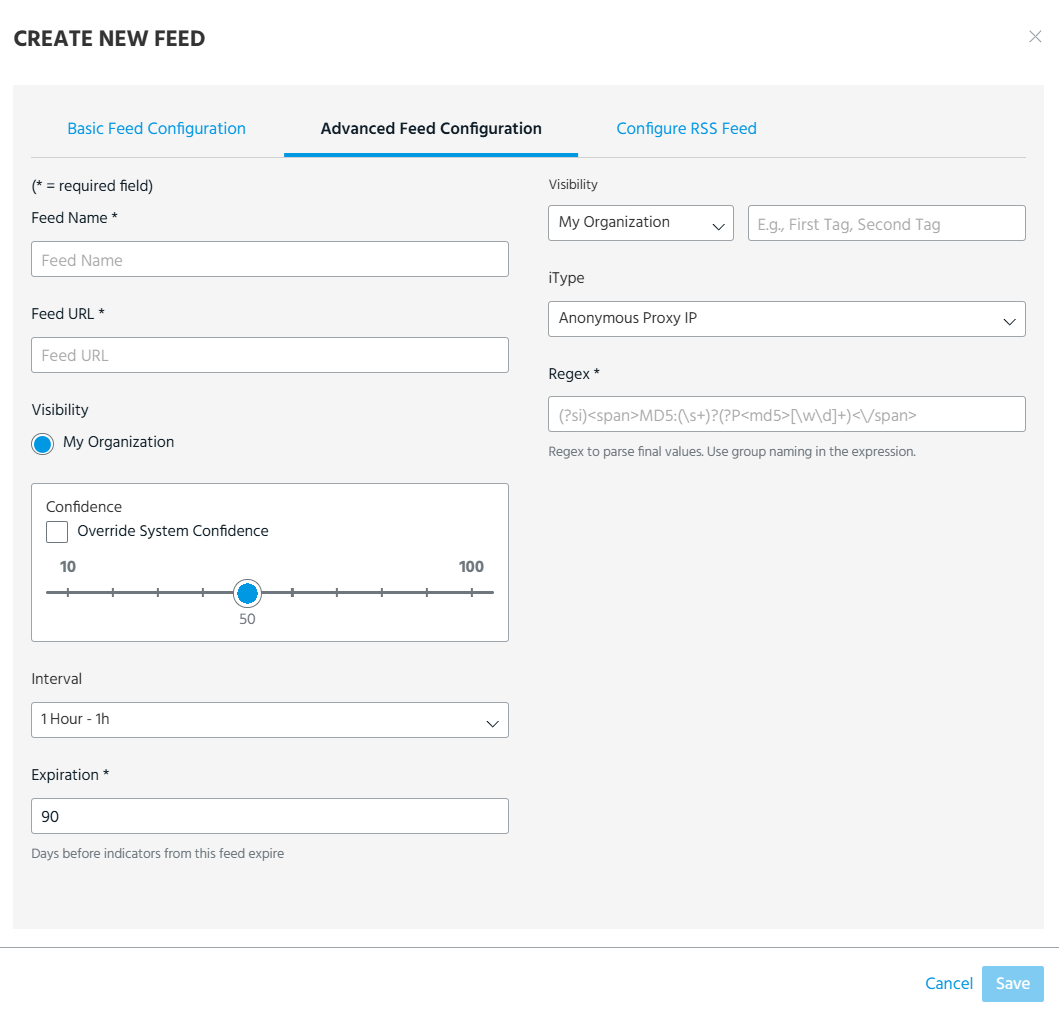
- In the Create New Feed dialog box, click the Advanced Feed Configuration tab.
-
Configure the following feed settings:
Setting Description Feed Name Name for the feed. Feed URL URL where the feed is hosted. Visibility Visibility of the observables provided by the feed in ThreatStream. The visibility of feed submissions is always set to My Organization (visible to your organization only). Confidence Default source reported Confidence scores for the intelligence provided by the feed.
You can select Override System Confidence to use the selected default Confidence score over assigned ThreatStream Confidence scores.
For more on observable confidence, see Observable Confidence in ThreatStream.
Interval Interval at which intelligence should be pulled from the feed. Expiration The number of days you want intelligence from this feed to stay active. Tags Tags you want to associate with intelligence from this feed.
As you type the first few characters of the tag, the 20 most used tags in your organization from the previous seven days are displayed. Enable the Preferred Tags Only toggle to display and search though only the list of preferred tags. Alternatively, enter * to display preferred tags.
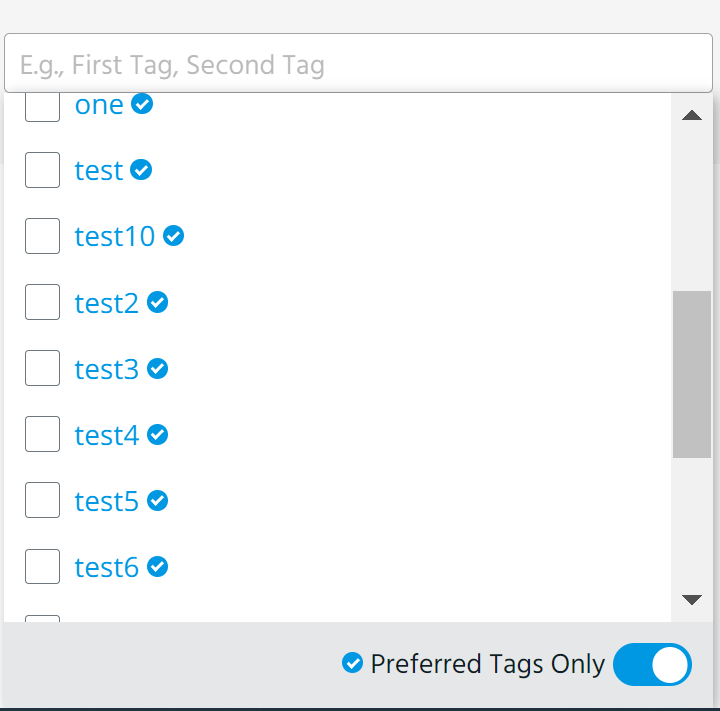
Tags assigned the My Organization visibility setting are only visible to your organization. Tags assigned the Anomali Community visibility setting are visible to users of all organizations that have access to the observable. See Adding Private Tags to Observables for more information.
Note: Observables can contain up to 200 tags per organization. Tags added by other organizations do not count toward this limit.
iType Indicator type you want to assign to all intelligence from the feed. - Enter a Regex that parses the intelligence in the feed from any formatting on the page.
-
In the corresponding fields, confirm that the group name from your regular expression is mapped to the correct observable type.
- Click Save.