Importing RSS Feeds
On ThreatStream, you can configure and manage custom RSS feeds without scripts or IT support. This enables you to quickly expand your organization’s intelligence collection, automate the structured extraction of observables and reports, and maintain data quality through deduplication, tagging, and curation. Configured RSS feeds automatically ingest, parse, and tag new observables and articles, while Anomali Copilot generates concise summaries of the ingested articles.
On details pages of RSS feeds in ThreatStream, you can view feed health and ingestion status, filter and search observables, and trace them back to their original sources for context and trust decisions. See Viewing Feed Details for more information.
-
You can configure up to 1,000 RSS feeds for your organization.
-
The Anomali Copilot subscription is required to import observables and generate automated Copilot summaries with identified tags and associations for each article in an RSS feed. Contact Anomali Customer Support for details.
To import an RSS feed:
- Navigate to ThreatStream > Manage > Feeds.
- Click New.
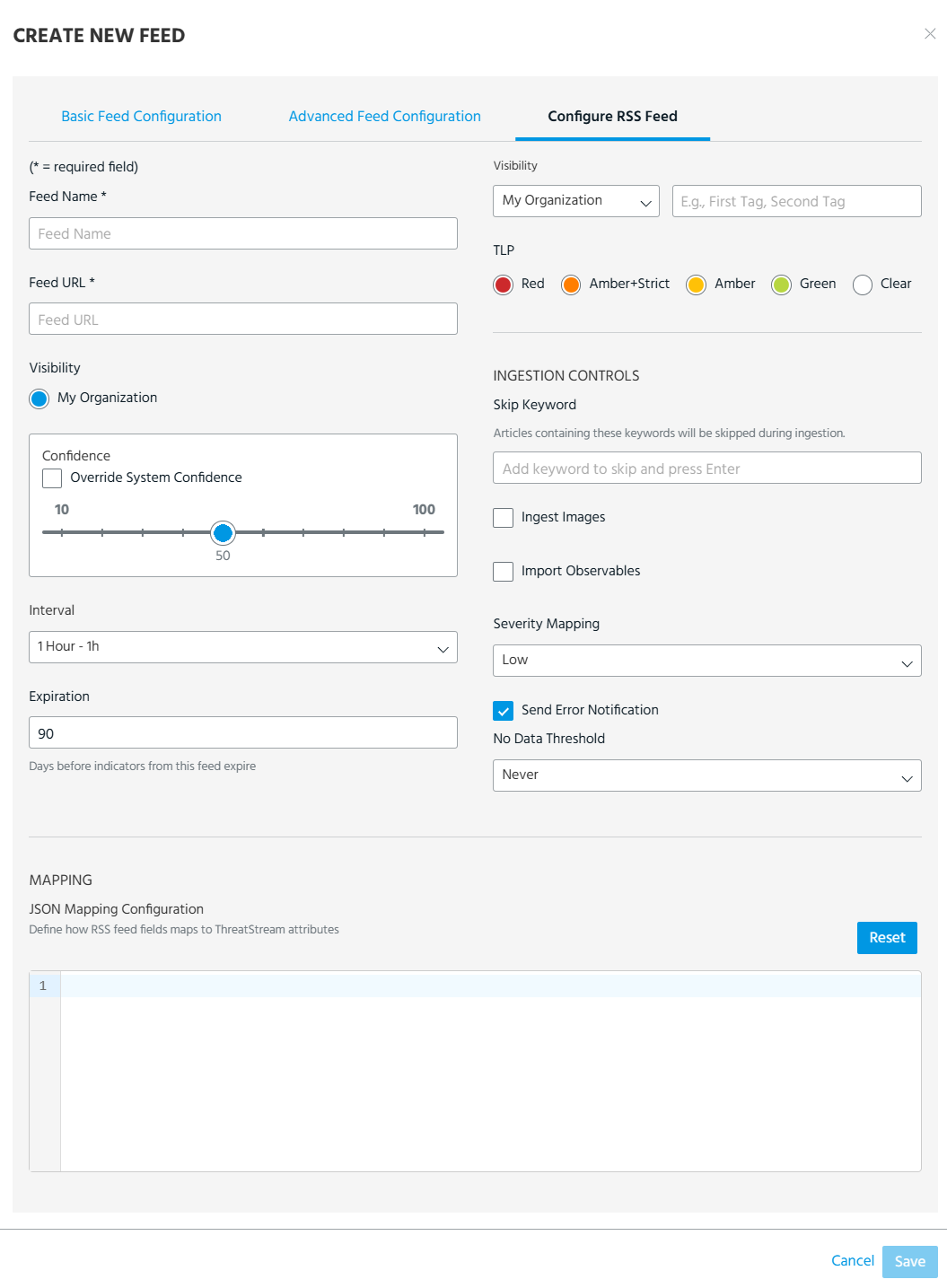
- In the Create New Feed dialog box, click the Configure RSS Feed tab.
-
Configure the following RSS feed settings:
| Setting | Description |
|---|---|
| Feed Name | Name for the RSS feed. |
| Feed URL | URL where the RSS feed is hosted. |
| Visibility | Visibility of the intelligence provided by the feed in ThreatStream. The visibility of RSS feed submissions is always set to My Organization (visible to your organization only). |
| Confidence |
Default source reported Confidence scores for the intelligence provided by the feed. You can select Override System Confidence to use the selected default Confidence score over assigned ThreatStream Confidence scores. For more on observable confidence, see Observable Confidence in ThreatStream. |
| Interval | Interval at which intelligence should be pulled from the RSS feed. |
| Expiration | The number of days you want intelligence from this feed to stay active. |
| Tags |
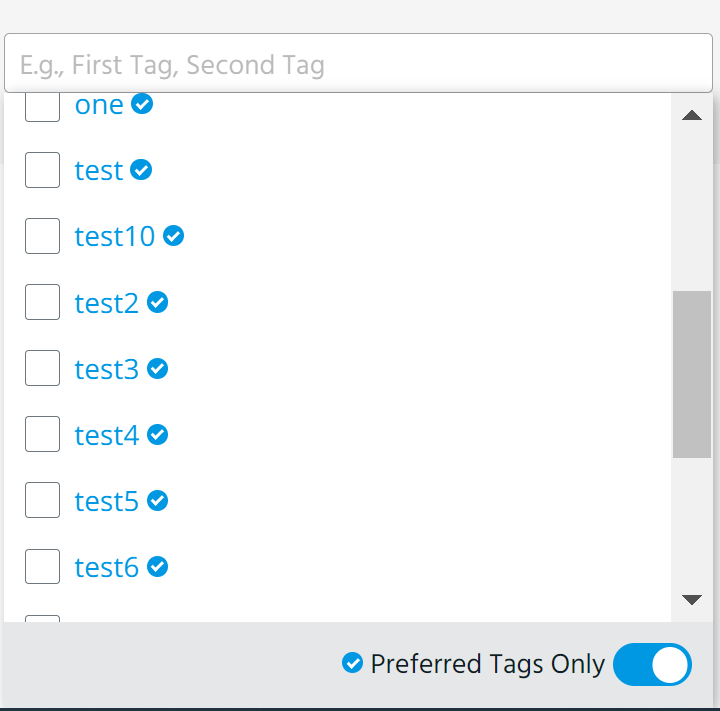
Tags you want to associate with intelligence from this RSS feed. As you type the first few characters of the tag, the 20 most used tags in your organization from the previous seven days are displayed. Enable the Preferred Tags Only toggle to display and search though only the list of preferred tags. Alternatively, enter * to display preferred tags.
Tags assigned the My Organization visibility setting are only visible to your organization. Tags assigned the Anomali Community visibility setting are visible to users of all organizations that have access to the observable. See Adding Private Tags to Observables for more information. Note: Observables can contain up to 200 tags per organization. Tags added by other organizations do not count toward this limit. |
| TLP | Assign a TLP (Traffic Light Protocol) color to the ingested intelligence. |
| Skip Keyword | Add keywords to skip the articles containing these keywords during ingestion. |
| Import Observables | Select the Import Observables check box if you want to import observables from the RSS feed to ThreatStream. Imported observables are auto-approved automatically. |
| Ingest Images | Select the Ingest Images check box if you want to ingest images. |
| Severity Mapping | Select a default severity value for the intelligence from the RSS feed. |
| Send Error Notification |
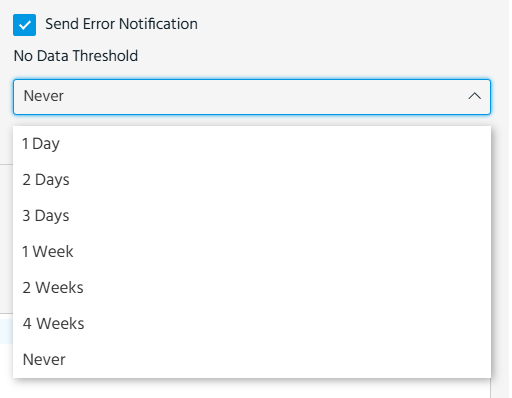
Select the Send Error Notification check box and a No Data Threshold if you want to receive notifications about RSS feed errors.
|
| JSON Mapping Configuration |
Define how RSS feed fields maps to ThreatStream attributes in JSON format. By default, the JSON Mapping Configuration section is populated automatically. Example of the mapping: Copy
|
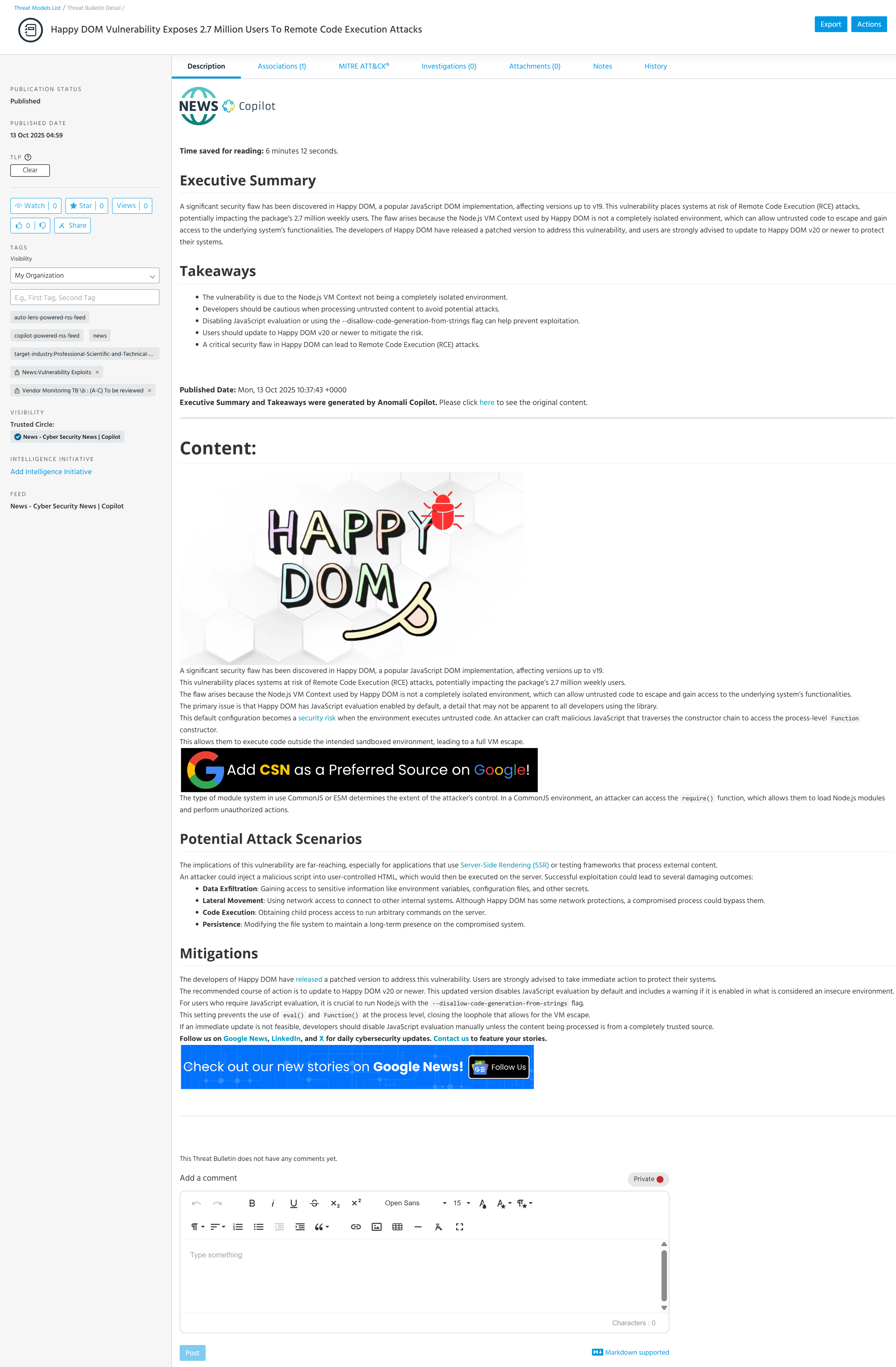
Below is an example of a Threat Bulletin (article) ingested into ThreatStream from the News – Cyber Security News | Copilot custom RSS feed. The Anomali Copilot summary was added automatically.