On this page:
Related topics:
Video 
Security Operations Overview
Anomali Agentic SOC Operations provides a structured workflow that helps you move from raw security telemetry to investigation and case management within the platform. The workflow progressively turns security activity into events that require more focused attention:
Logs → Detections → Alerts → Incidents → Cases
The workflow is designed to reduce the time required to move from a raw signal to a resolved case.
The Agentic Fleet performs triage, correlation, investigation, and case analysis work that would otherwise require significant analyst effort, and presents the resulting decisions and recommendations for human review where required.
Detection and alert rules define which activity is important in your environment. Anomali Agentic Fleet then analyzes the resulting alerts, investigates incidents, and organizes the resulting investigations into cases. Throughout the workflow, the Anomali Unified Response Agent (AURA) coordinates the appropriate agents and platform capabilities, while platform governance controls determine which recommendations require human approval.
For more information about AURA, see Understanding AURA.
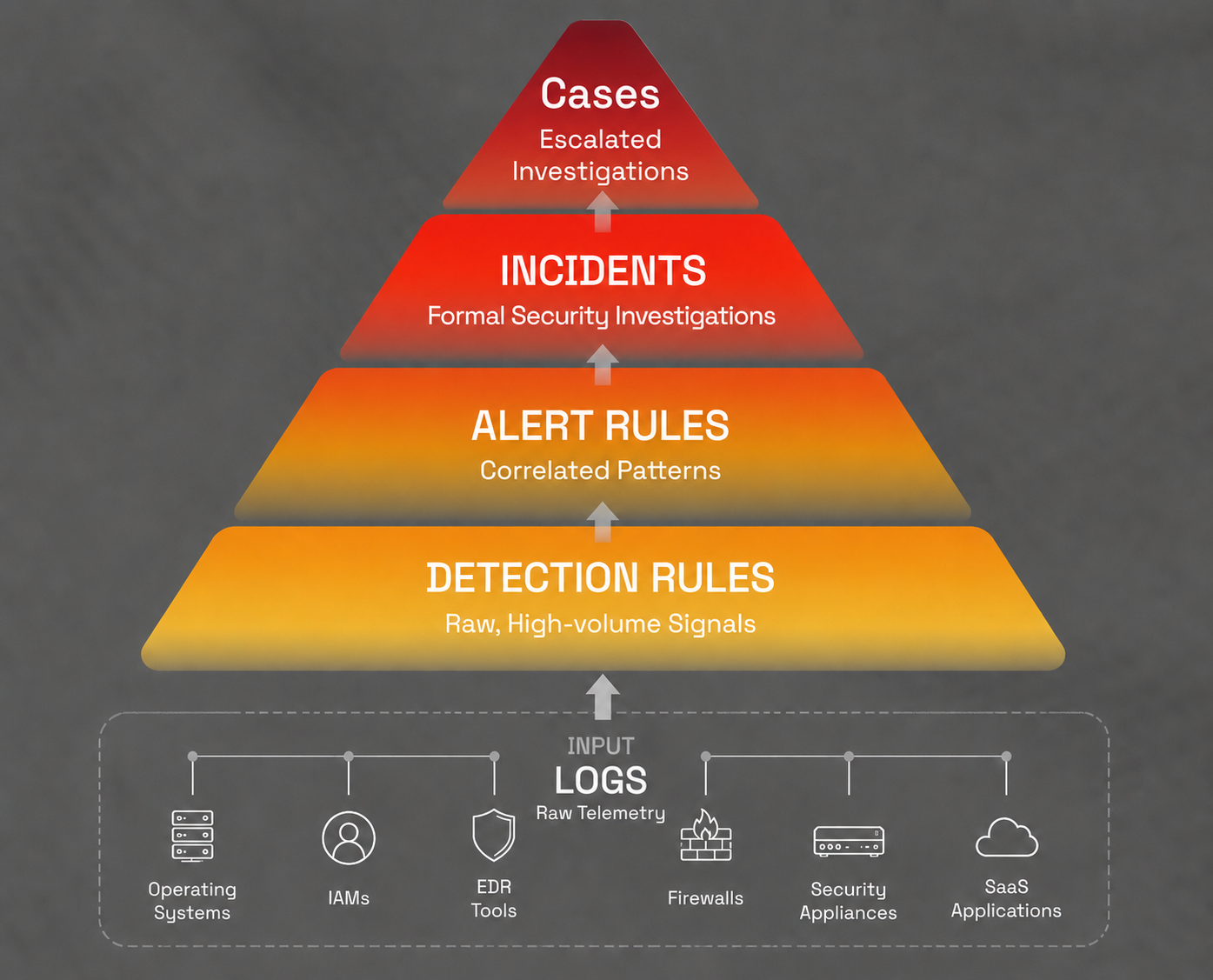
SOC Operations workflow: Logs provide input to Detection Rules, and activity becomes progressively more actionable through Alerts, Incidents, and Cases.
Note: The agents analyze, investigate, and document security activity and recommend what should happen next. They do not carry out response actions in your environment. Remediation steps such as isolating a host or blocking a domain are performed by you after you review the recommendation.
From Logs to Detections
Logs provide the foundation for the SOC operations workflow. They contain raw telemetry collected from sources across your environment, such as operating systems, identity and access management systems, EDR tools, firewalls, security appliances, and SaaS applications.
Detection rules evaluate this data using scheduled Anomali Query Language (AQL) searches with configured search schedules and look-back windows. You can use pre-built detection rules or create custom rules with AQL queries or natural-language prompts.
When activity in the logs matches a detection rule, the Anomali platform generates a detection. You can review generated detections in the Detections dashboard, where related activity is organized by severity and associated MITRE ATT&CK tactics.
Detection rules establish the first layer of logic in the workflow and are fully controlled by you. The agentic workflow does not define or replace these rules, or independently create alerts from raw logs.
For details on configuring detection rules, refer to Detection Rules.
From Detections to Alerts
Alert rules evaluate the generated detections to identify activity that requires further attention. An alert can be based on a single detection or a pattern involving multiple detections. Alert rules can identify significant individual events, repeated activity, or related activity that forms a larger pattern.
When the conditions of an alert rule are met, Anomali platform generates an alert. By default, alerts generated by an alert rule are automatically evaluated by AURA's specialized agent—the Alert Triage Agent—using relevant context, such as enrichment data, entity risk, historical activity, threat intelligence, and relationships with other alerts. It can also identify situations where multiple alerts become significant when considered together. The agent also takes the alert severity and its own confidence into account.
Based on its analysis, the Alert Triage Agent then recommends one of the following actions:
- Promote: The available evidence recommends moving the alert to an incident for formal investigation. Promote does not mean that agent has definitively determined that the activity is malicious. The recommendation is presented for human approval. After approval, AURA creates the incident and preserves the relevant source-alert linkage automatically. The incident is then automatically handed off to the Incident & Investigation Agent for further investigation. You do not need to perform a manual hand-off before the incident investigation begins.
-
Investigate: The initial triage is inconclusive but additional queryable telemetry is available in the environment to investigate immediately. Upon receiving this verdict, the Alert Triage Agent automatically transfers ownership to the Incident & Investigation Agent, preserving all extracted entities, rule lineage, and initial enrichment context. The investigation executes directly at the alert level to query host telemetry, network events, and threat intelligence observables without prematurely generating an incident. The lifecycle concludes with an attached Investigation Report that resolves into one of three exit states: recommending incident creation for confirmed threats, closing as a false positive for verified benign activity, or routing to an analyst via the Approval Queue if findings remain inconclusive.
-
Monitor: The available evidence does not justify creating an incident, but it also does not provide enough positive evidence to classify the activity as benign. An alert with a Monitor recommendation is re-evaluated on a schedule seven times. Each re-evaluation looks for additional evidence that would support promoting the alert or classifying it as a false positive. You can view them on the Alerts page. See Alerts. If sufficient evidence to promote the alert is not found within the seven evaluation attempts, the alert is routed to the Approval Queue for further action by the human. You can then close the alert (Close as Expired) or Promote to Incident.
-
False Positive: The available evidence clearly shows why the activity is benign. Alerts classified as False Positive are automatically resolved and removed from the active work queue. The decision, rationale, and supporting evidence remain part of the auditable history of the alert for later review. You can view the alerts marked as False Positive on the Alerts page. See Alerts.
Disabling Auto Triage with AURA
If you do not want alerts automatically evaluated by the Alert Triage Agent, that is, if you want to review alerts yourself, you can disable the Auto Triage with AURA setting when setting up an alert rule. Alert rules with Auto Triage with AURA disabled are not automatically evaluated by the Alert Triage Agent and must be triaged manually. See Creating Alert Rules for details.
Triaging an Alert Manually
You can run the Alert Triage Agent on an individual alert at any time. Open the alert and select Triage with AURA. Use this to triage alerts generated by alert rules that have Auto Triage with AURA disabled. See Viewing Alert Detailsfor details.
When you invoke an agent manually, it operates within your assigned role and permissions. See Governance, Permissions, and Human Control.
Note: Agents evaluate alerts generated after agents are enabled in your environment. Alerts that already existed at that time are not evaluated retroactively. You can triage them with Triage with AURA.
From Alerts to Incidents
When the Alert Triage Agent recommends promotion of an alert to an incident, the recommendation appears in the Approval Queue. After you approve the recommendation, the agent creates the incident and associates the source alert or alerts with it. A group of related alerts can be promoted together so that you do not need to create the incident and link the alerts manually.
The incident is then automatically handed off to the Incident & Investigation Agent for further investigation. You do not need to perform a manual hand-off before the incident investigation begins.
Incident Investigation
The Incident & Investigation Agent performs a hypothesis-driven investigation of the incident and its associated alerts.
During the investigation, the agent:
-
Identifies the entities involved
-
Reviews relevant context and previous activity
-
Develops an investigation hypothesis
-
Runs targeted searches against the security data available in your environment
-
Uses the results to confirm, deny, or refine the hypothesis
The agent evaluates the available evidence and records its investigation findings and supporting evidence.
You do not need to follow each investigation step. All of these happen autonomously, orchestrated by AURA. At the end of the investigation, the Incident & Investigation Agent recommends one of two incident outcomes, which you see in the Approval Queue:
-
Escalate—when broader investigation, response, or coordination is required.
-
Close—when no further case-level handling is required. A closure reason is required, such as resolved, benign, suspicious, duplicate, superseded, or inconclusive. If the available evidence remains inconclusive, the incident remains under investigation according to the re-investigation workflow rather than being closed automatically.
Note: When the evidence is incomplete, conflicting, or requires stronger validation, the Incident & Investigation Agent can perform structured multi-perspective hypothesis testing. This analysis deliberately looks for both supporting and contradictory evidence, including evidence that could disprove the current hypothesis. As the evidence changes, confidence in the resulting recommendation can increase or decrease. A lower confidence score means the available evidence is weaker or more conflicting; it does not mean that the agent run failed.
From Incidents to Cases
After you approve an escalation recommendation, AURA creates a case and the Case Management Agent enriches and manages the case from that point on. It assembles the complete picture of the activity, including alerts, incidents, investigation evidence, threat intelligence, organizational context, and relevant history.
What a Case Contains
The agent organizes the case into a narrative describing what happened, the findings that support it, and recommended next steps. The case record can include any or all of the following that are available:
-
The incidents linked to the case and their investigation results
-
The source alerts associated with those incidents
-
The entities involved in the activity
-
Linked threat intelligence, including indicators from ThreatStream
-
Related cases that involve the same entities or activity
Recommended Response Steps
The agent recommends these steps. It does not perform them. You review the recommended steps and carry them out in your environment.
See Using the Response Workbook for details.
Assigning and Closing a Case
The Case Management Agent does not assign cases to users. After you review a case, assign it to the appropriate analyst or team. Close the case when the response is complete. See Managing Cases for details.
Evidence and Audit History
The evidence collected during triage, investigation, and case compilation is retained with the case and can be reviewed at any time. The case audit history records the actions taken on the case and distinguishes activity performed by an agent, a system component, or a human user. See Viewing Case Details for details.
Exporting a Case Report
You can export a case as a formatted report targeted to different audiences, such as an executive summary for management or a technical report for analysts. Report content is generated from the evidence and information already associated with the case rather than requiring you to recreate the investigation manually. See Exporting Cases for details.
Approval Queue
The Approval Queue is the primary workspace for decisions that require your attention.
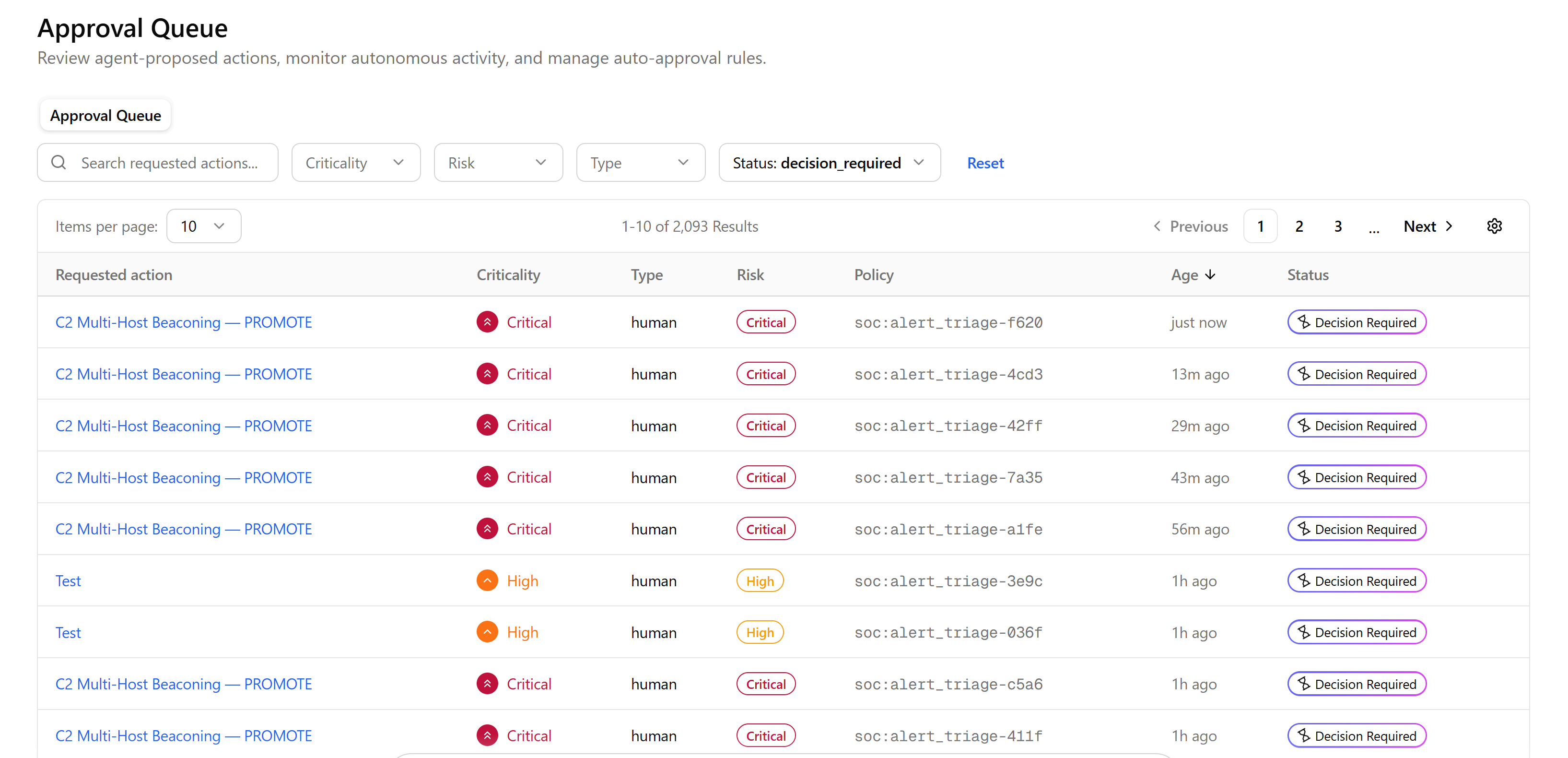
Instead of showing you every alert generated in your environment, the queue focuses on agent recommendations and workflow decisions that require human approval. For alert triage, this typically means reviewing a recommendation to promote an alert or group of related alerts to an incident. You can also see incident-level recommendations, such as escalating an incident to a case or closing an incident.
Not every agent decision requires your review. Depending on the applicable governance controls, AURA can handle some supported dispositions without waiting for your approval. For example, an alert with positive evidence that it is benign can be automatically classified as a false positive. An alert that requires continued observation can remain in the monitoring workflow. Automatically handled decisions remain traceable. When the workflow supports it, you can review or override an automatically applied disposition.
When you review a decision in the Approval Queue, you can see the recommendation, confidence, evidence, reasoning, and history. Use this information to make your decision. When you override an agent disposition, the override is recorded in the audit history.
For details on using the Approval Queue, see Using Approval Queue.
Human Actions in the SOC Workflow
In the overall agentic SOC workflow, the following remain your responsibility:
-
Configure detection rules. See Creating Detection Rules.
-
Configure alert rules. See Creating Alert Rules.
-
Examine the Approval Queue for tasks that require your input: an alert that needs to be triaged to the Promote verdict or an incident that should be Escalated to a case or Closed. See Using Approval Queue.
-
Review cases on the Cases page. See Cases.
-
Perform the recommended response actions. See Using the Response Workbook.