Related topics:
Alert Rules
The Alert Rules page is where you view, create, enable, disable, suppress, and manage all alert to which you have access.
An alert rule defines how one or more detections are grouped and escalated into an alert. An alert rule is a distinct, configurable record, separate from the alerts it produces. Whereas detection rule evaluates raw log data, an alert rule evaluates already-produced detection records, watching for a pattern such as a single high-severity detection, a repeated detection, a multi-stage sequence, or a correlated pair of detections that together represent a meaningful security event.
To access your alert rules, navigate to ThreatStream Next Gen > Security Operations > Alert Rules.
(Click the image to enlarge it.)
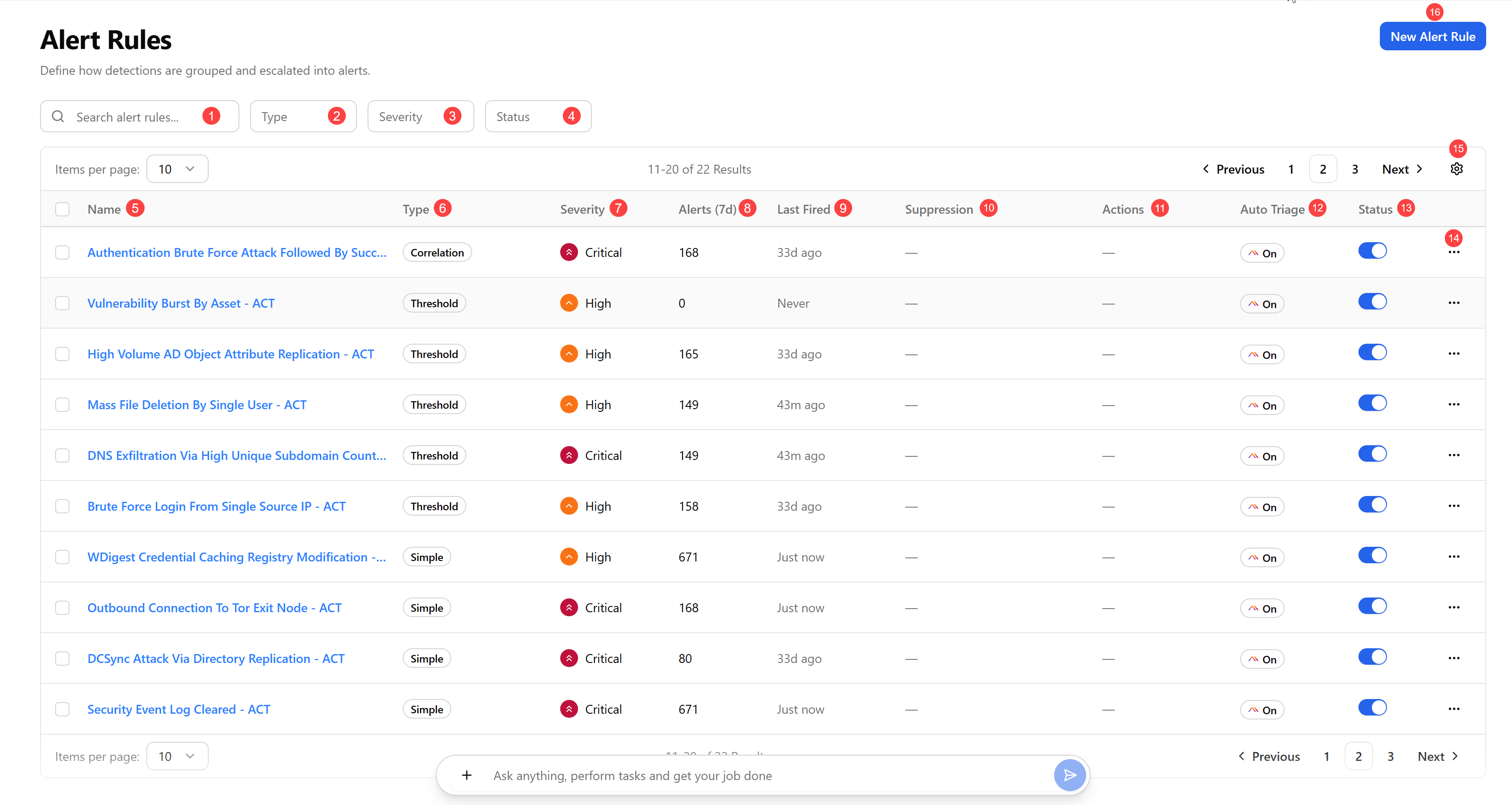
 Search: Search alert rules by their names. The search is case insensitive and updates incrementally.
 Type: Filter alert rules by their type:
-
Simple—triggers an alert when a single detection meets the configured risk threshold.
-
Threshold—triggers an alert when the same detection recurs for the same entity and observable values within a defined time window.
-
Compound—triggers an alert when an ordered sequence of stages is satisfied and all stages share the same Group By value.
-
Correlation—triggers an alert when an ordered sequence of detection conditions is satisfied, including conditions based on the presence or absence of an expected detection.
 Severity: Filter alert rules by the severity assigned to the alerts they produce—Critical, High, Medium, or Low.
 Status: Filter alert rules by their status—Active, Inactive, or Suppressed.
 Name: Name of the rule, shown as a clickable link that opens the rule for editing. If the rule has a description, it appears as a subtitle beneath the name.
 Type: A badge showing the rule type: Simple, Threshold, Compound, or Correlation.
 Severity: A color-coded severity badge: Critical (red), High (orange), Medium (yellow), Low (green).
 Alerts (7d): The count of alerts the rule has produced in the past seven days.
 Last Fired: A relative timestamp showing when the rule most recently produced an alert; blank if the rule has never fired.
 Suppression: Displays a dash if the rule is not suppressed, or "Suppressed until [date]" with a clock icon if a suppression is active. Click to open the suppression management dialog.
 Actions: Icons for any notification channels configured on the rule. For example, webhook (
 ) or email (
 ). If no channels are configured, a dash (-) is displayed.
 Auto Triage: Displays whether Auto Triage with Aura is enabled for the rule.
 Status: An enable and disable toggle for the rule; changing it prompts for confirmation.
 More options menu:
-
Edit: Edit the alert rule. See Editing Alert Rules for details.
-
Duplicate: Create a copy of the rule that can be customized independently. See Duplicating Alert Rules for details.
-
Add Suppression: Temporarily suppress the rule from producing new alerts. See Adding Suppression to Alert Rules for details.
-
Test Rule: Test the alert rule. See Testing Alert Rules for details.
-
Manage Access: Define who can access the alert rule. See Managing Access to Alert Rules for details.
-
Disable/Enable: Turn the alert rule off/on. See Disabling Alert Rules and Enabling Alert Rules for details.
-
Delete: Delete the alert rule. See Deleting Alert Rules for details.
 View Settings: Select the columns and table density (default or compact) to be displayed. By clicking the drag handle icon (
 ), drag and drop columns to change their position in the table. To return the view back to its default settings, click Reset View.
 New Alert Rule: Create a new alert rule. For details, see Creating Alert Rules.