Managing Alert Rules
You can take several actions on alert rules to which you have access. You can edit a rule configuration, duplicate it to create an independent variant, or add a temporary suppression window to pause the alerts it produces. You can also test the logic of a rule against existing data without creating an alert record, manage who besides the rule owner can access it, disable it temporarily, enable it again when you are ready to resume normal operation, and delete it when you no longer need it, either one at a time or in bulk.
Editing Alert Rules
To edit an alert rule:
-
Navigate to ThreatStream Next Gen > Security Operations > Alert Rules.
-
Click the rule name, or open the more options menu (...) for the rule and click Edit.
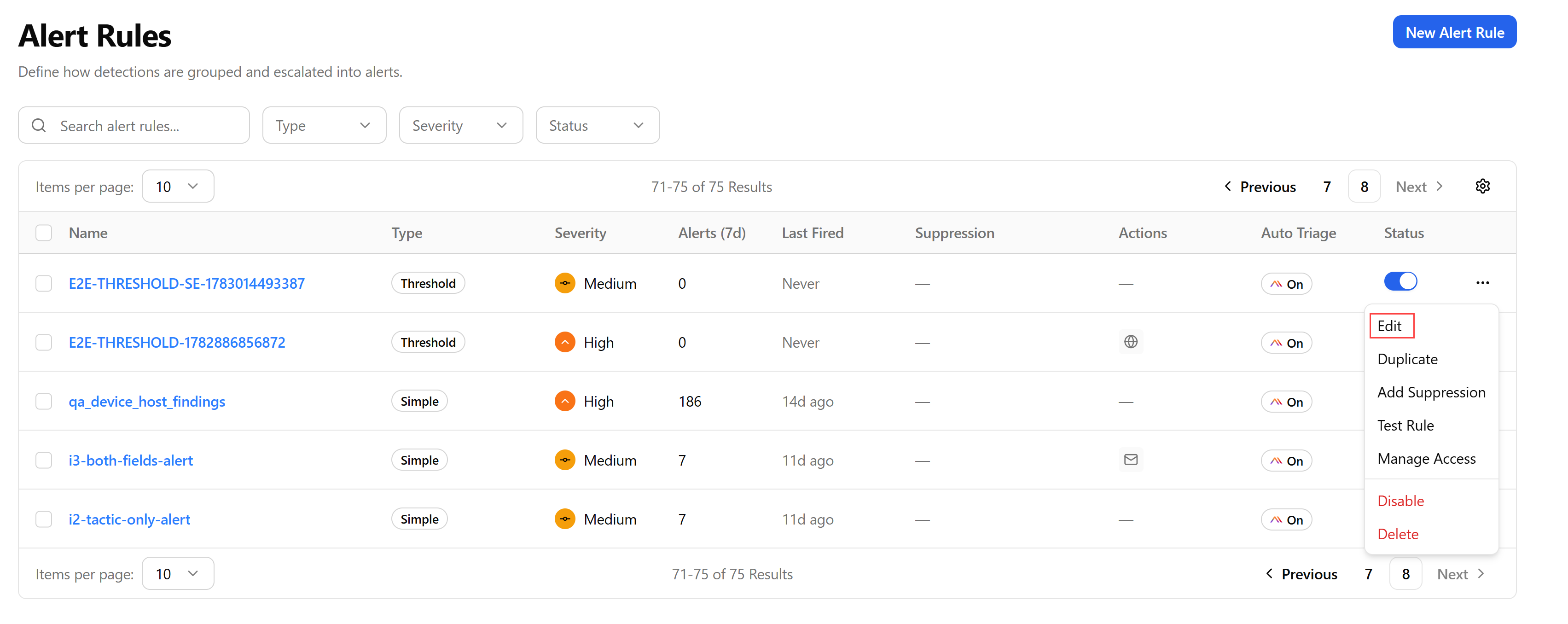
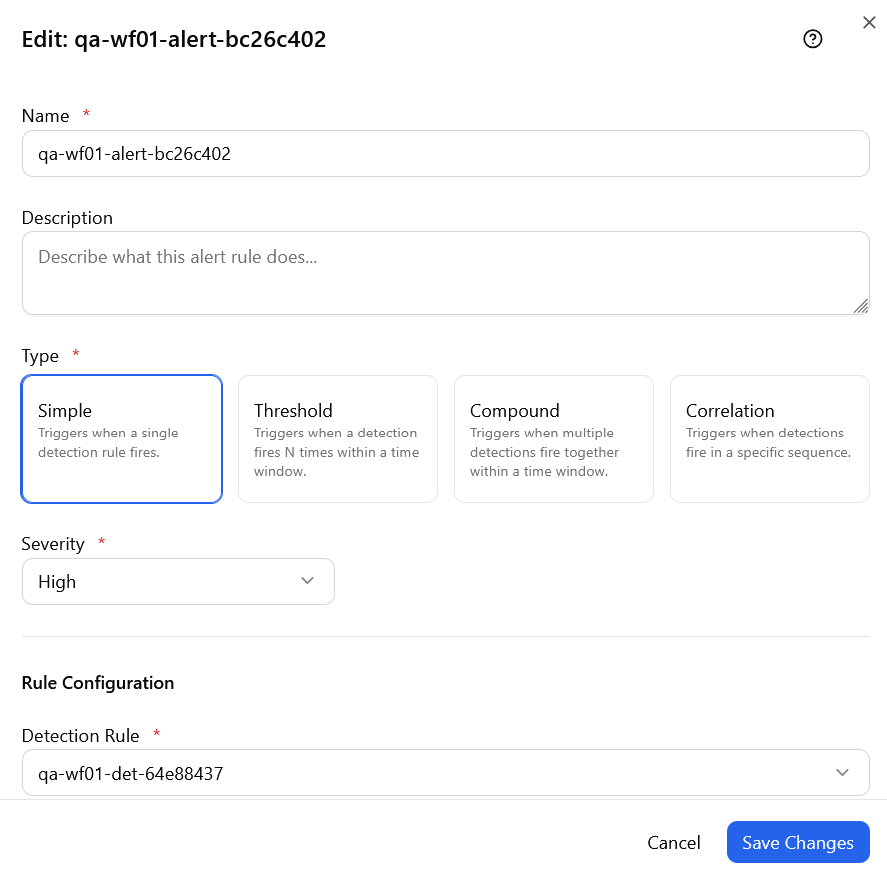
The rule opens in the same dialog that was used to create it, with all fields pre-populated, as shown below:
-
Configure the fields you need. See Creating Alert Rules for field descriptions.
-
Click Save Rule.
Duplicating Alert Rules
Duplicating (cloning) an alert rule gives you an independent, editable copy of its full configuration, so you can build a variant without disturbing the original rule already running in production. This is especially useful when you want to test a different Minimum Risk Score, Count Threshold, or Time Window without risking the live rule, adapt an existing rule's detection rules and severity to a related scenario, or quickly build out a set of similar rules that share most of their configuration but differ in just one or two conditions.
To duplicate (clone) an alert rule:
-
Navigate to ThreatStream Next Gen > Security Operations > Alert Rules.
-
Locate the alert rule of your interest.
-
Open the corresponding more options menu (...) and click Duplicate.
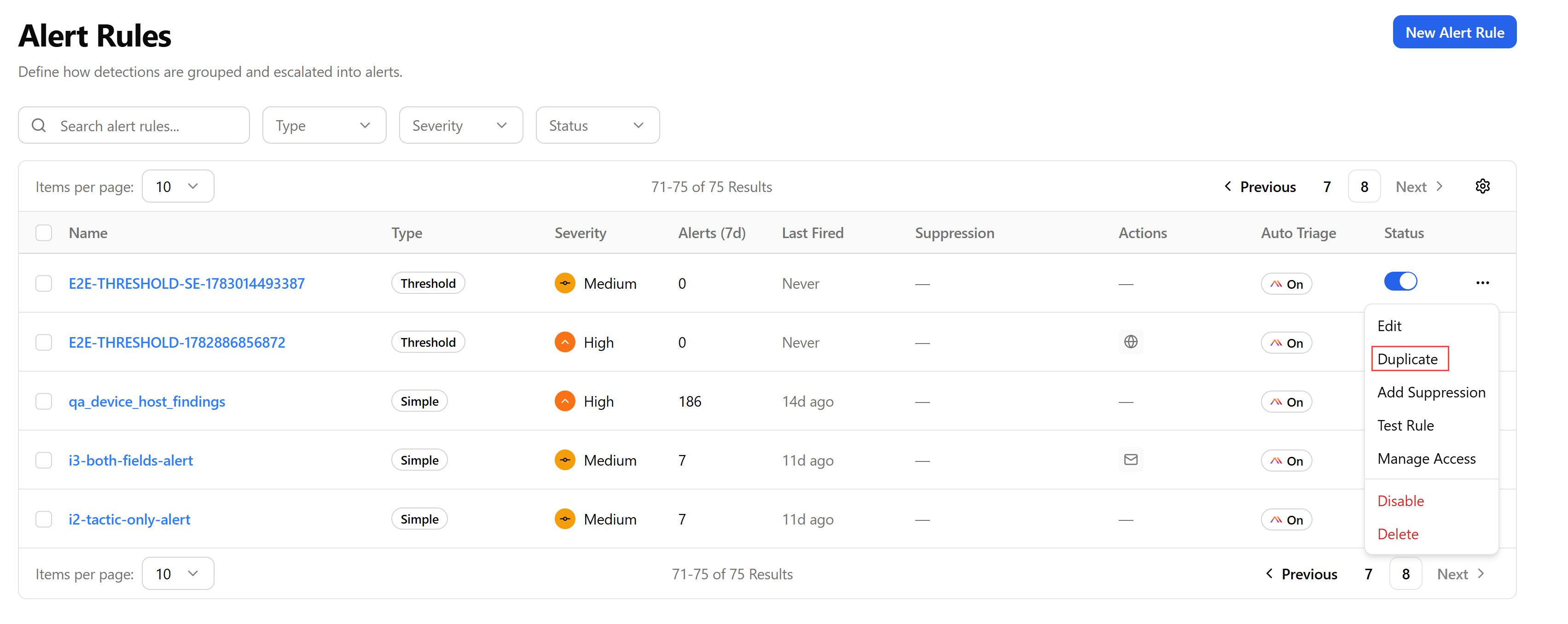
The duplicate opens in the editing mode, pre-populated with the same configuration as the original. Rename it and adjust any fields you need, then click Save Rule.
Adding Suppression to Alert Rules
While suppressed, the rule continues to evaluate detections but does not produce new alerts until the suppression expires.
To add suppression to an alert rule, you must have the required permissions. For details, see Alert Rule Actions and Their Required Permissions.
To suppress an alert rule:
-
Navigate to ThreatStream Next Gen > Security Operations > Alert Rules.
-
Locate the alert rule you want to suppress.
-
Open the corresponding more options menu (...) and click Add Suppression.
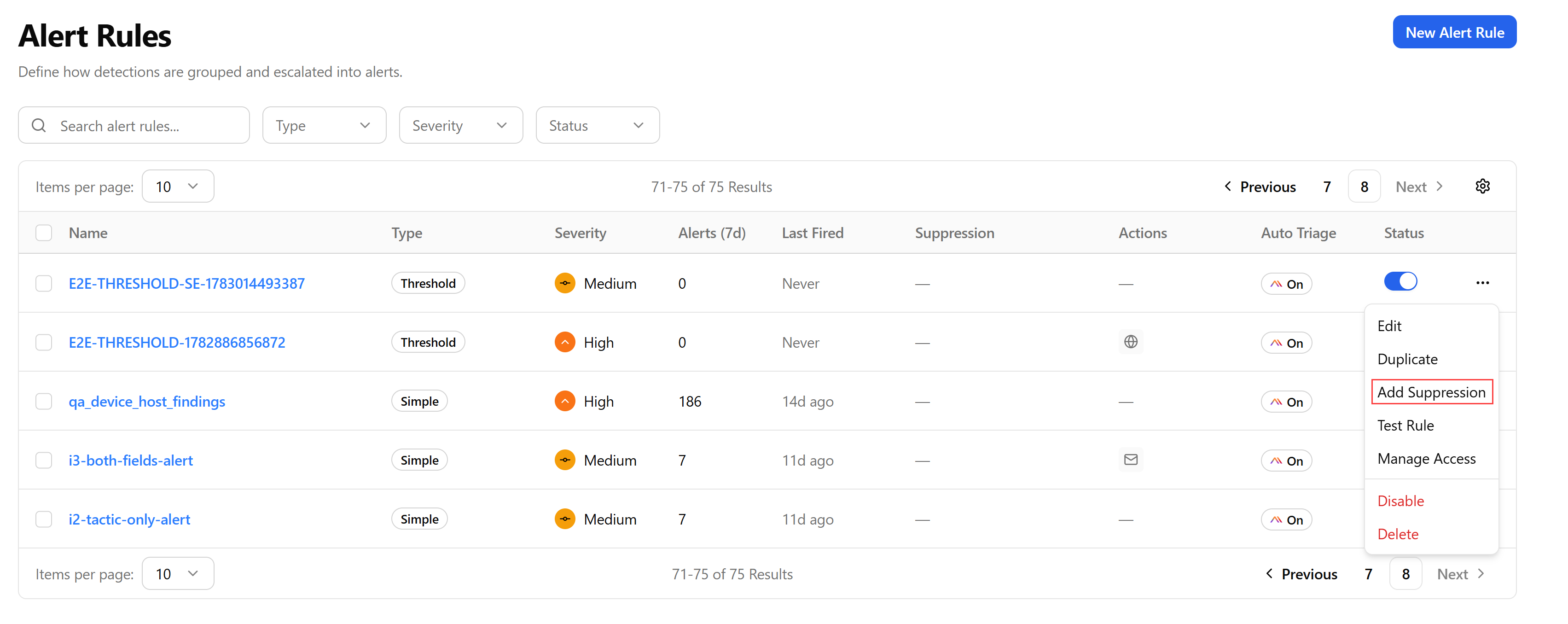
-
In the Suppress Alert Rule dialog box, select a duration from the Suppress For drop-down list.
-
Enter a mandatory reason in the Reason field.
-
Click Apply Suppression.
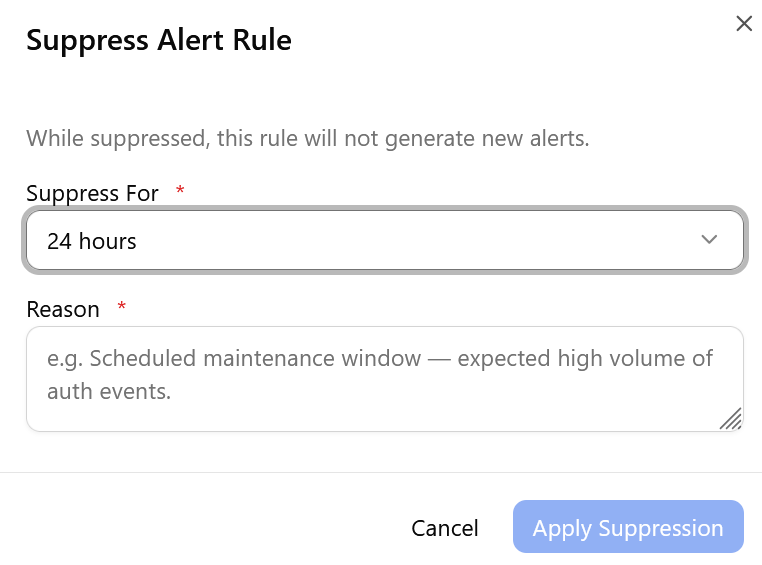
The suppression expires automatically at the selected date and time. No manual action is required to resume normal evaluation. A suppressed rule shows its expiry date in the Suppression column and remains distinct from a rule that is fully disabled.
Testing Alert Rules
Testing an alert rule lets you confirm its logic behaves as expected before relying on it, using existing data with no risk of side effects. A test run does not create an alert record, so you can run it as many times as needed.
To test an alert rule:
-
Navigate to ThreatStream Next Gen > Security Operations > Alert Rules.
-
Locate the alert rule you want to test.
-
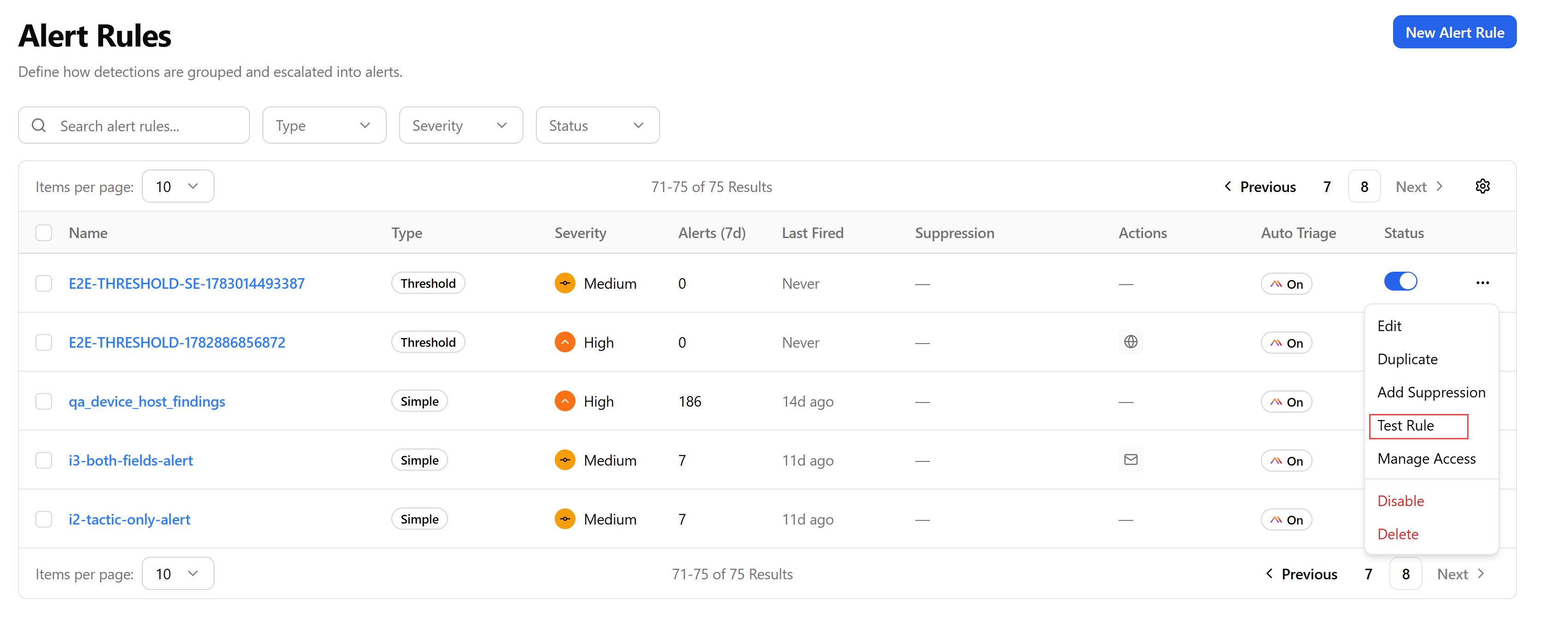
Open the corresponding more options menu (...) and click Test Rule.
-
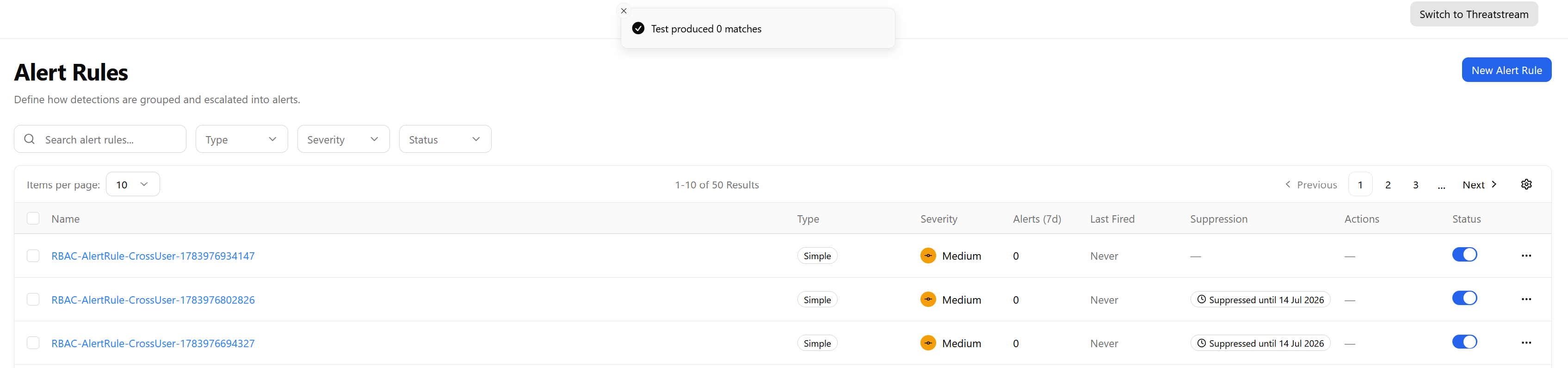
View the match count returned in the confirmation message.
Managing Access to Alert Rules
See Managing Access to Alert Rules for more details on managing access to alert rules.
Disabling Alert Rules
You can disable an alert rule to temporarily stop it from producing new alerts without deleting it. Common reasons include tuning a rule that is generating too many false positives, working through a maintenance window where expected activity would otherwise trigger it, or keeping a superseded rule as a backup after replacing it with a newer one.
You can disable an individual alert rule or in bulk.
To disable an alert rule:
-
Navigate to ThreatStream Next Gen > Security Operations > Alert Rules.
-
Locate the alert rule you want to disable.
-
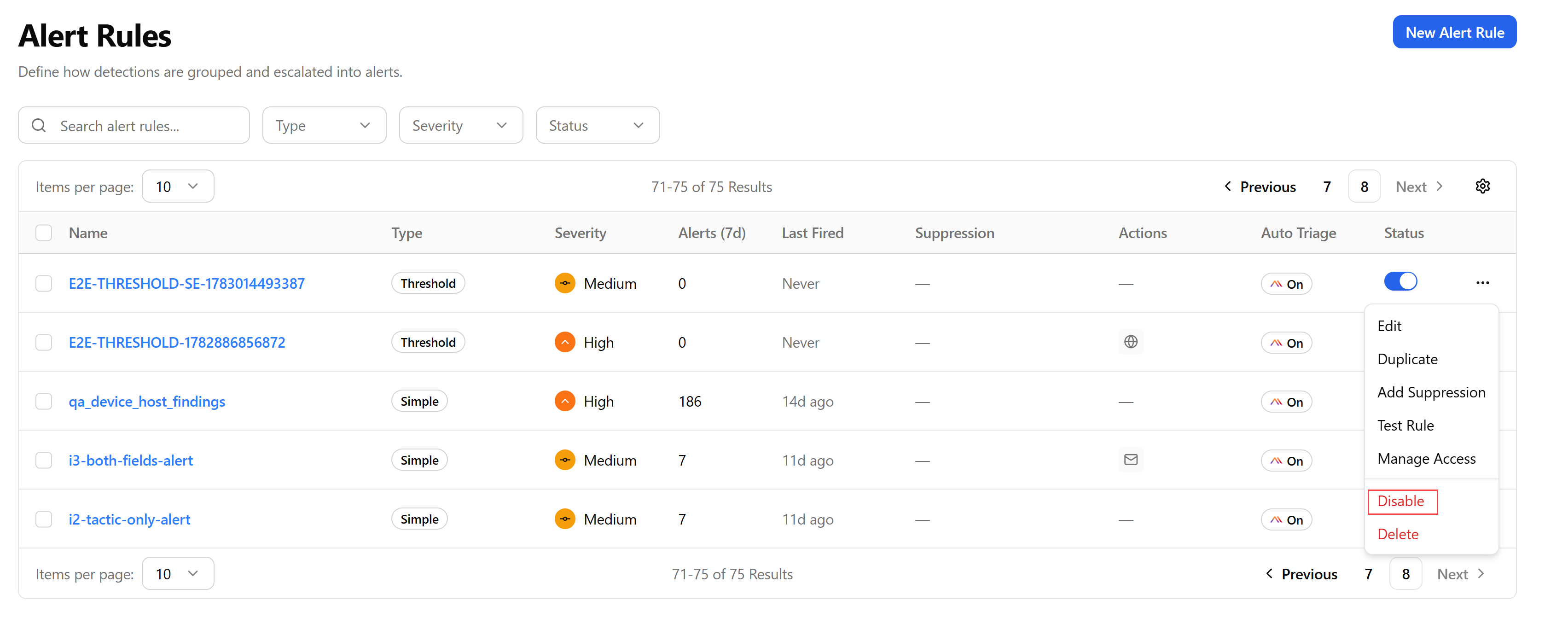
Open the corresponding more options menu (...) and click Disable. Alternatively, you can also toggle the Status switch off in the rules list.
-
Confirm the action when prompted.
The alert rule is disabled.
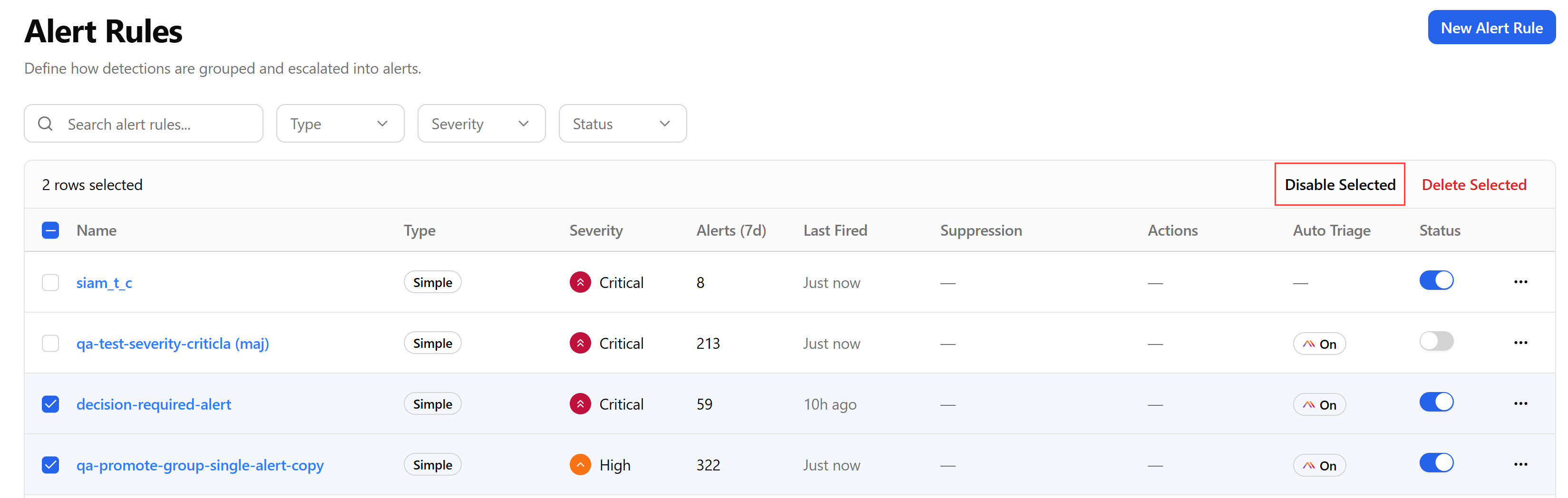
To disable alert rules in bulk:
-
Navigate to ThreatStream Next Gen > Security Operations > Alert Rules.
-
Select two or more rules and click Disable Selected.
-
Confirm the action when prompted.
The selected alert rules are disabled.
Enabling Alert Rules
You can enable an individual alert rule or in bulk to resume evaluation after it has been disabled.
To enable a disabled alert rule:
-
Navigate to ThreatStream Next Gen > Security Operations > Alert Rules.
-
Locate the alert rule you want to enable.
-
Open the corresponding more options menu (...) and click Enable, or toggle the Status switch in the list on.
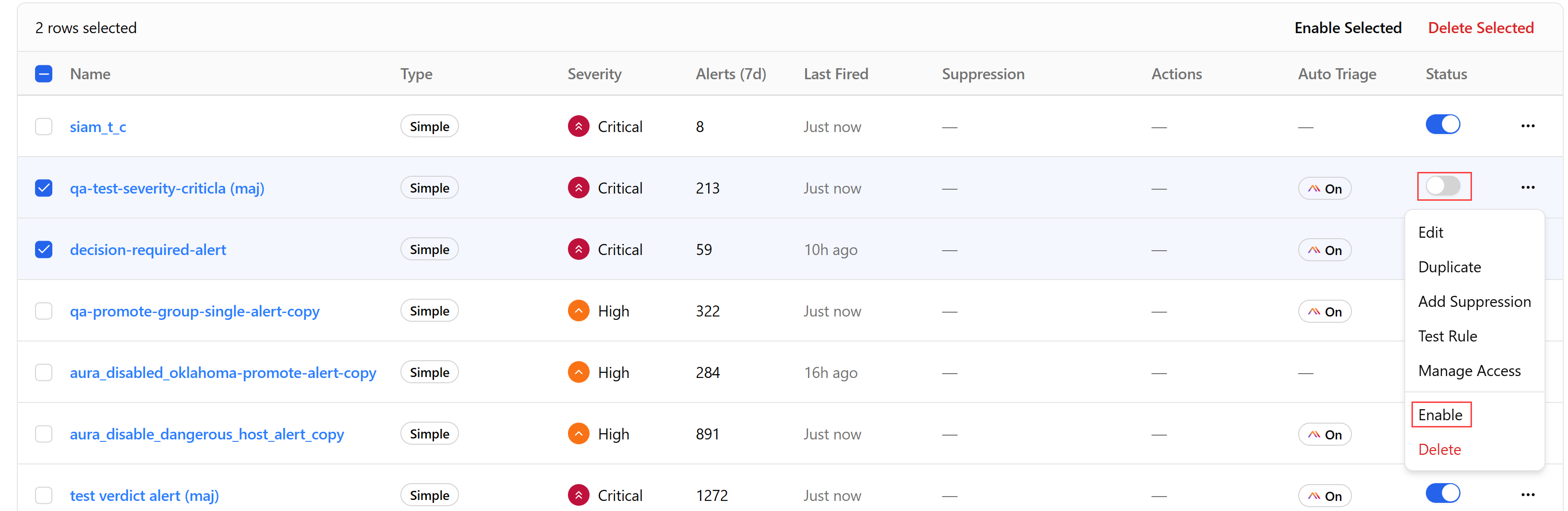
The rule is enabled.
To enable alert rules in bulk:
-
Navigate to ThreatStream Next Gen > Security Operations > Alert Rules.
-
Select two or more disabled rules and click Enable Selected.

-
Confirm the action when prompted.
The selected alert rules are enabled.
Deleting Alert Rules
You can delete an alert rule when it is no longer needed, for example if it has been permanently replaced by another rule. Deleting a rule is permanent and cannot be undone, so consider disabling it first if you may want to reuse it later.
You can delete an individual alert rule or in bulk.
To delete an alert rule:
-
Navigate to ThreatStream Next Gen > Security Operations > Alert Rules.
-
Locate the alert rule you want to delete.
-
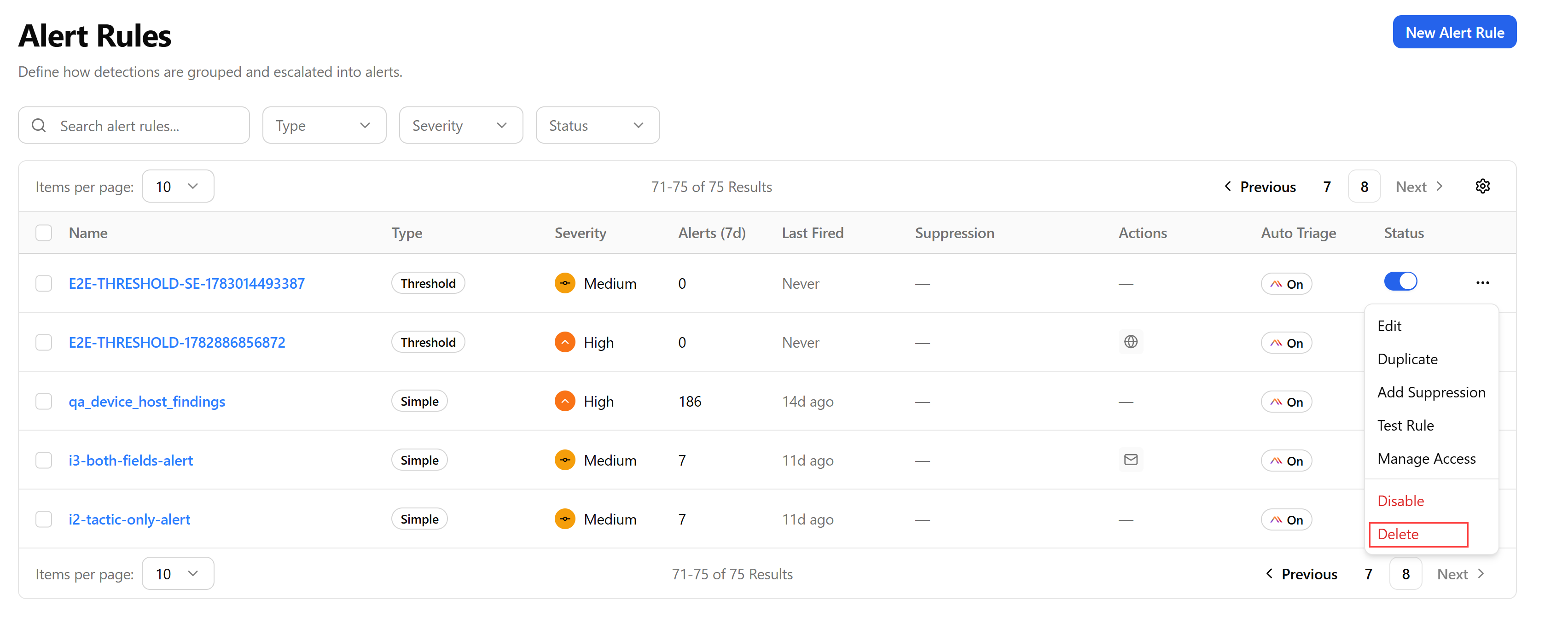
Open the corresponding more options menu (...) and click Delete.
-
Confirm the deletion when prompted.
The alert rule is deleted.
To delete alert rules in bulk:
-
Navigate to ThreatStream Next Gen > Security Operations > Alert Rules.
-
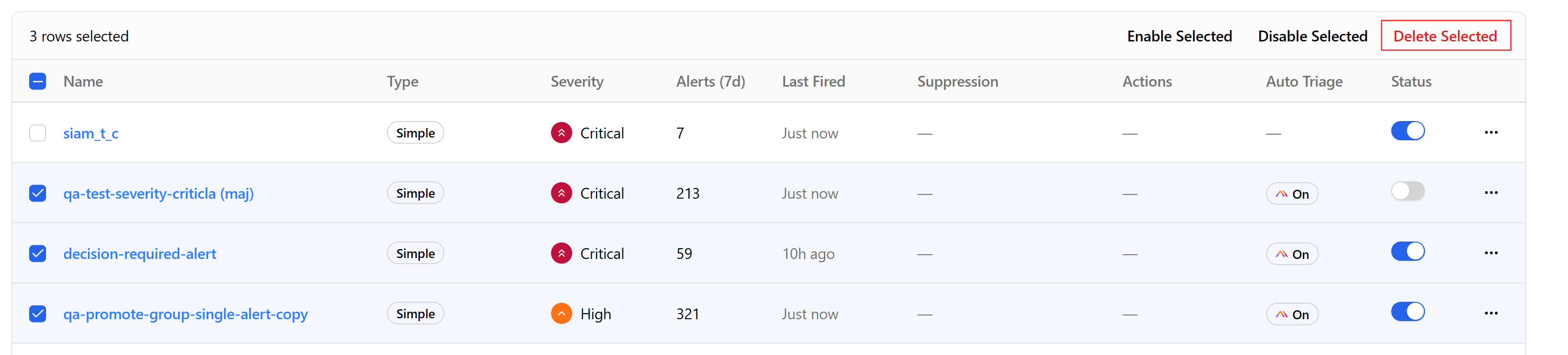
Select two or more rules and click Delete Selected.
-
Confirm the deletion when prompted.
The selected alert rules are deleted.