On this page:
Related topics:
Managing Access to Alert Rules
Alert rule access is governed by two independent permission layers that both must pass:
-
Permissions determine what actions a user can perform on alert rules as a class. For example, viewing rules or managing (creating, editing, deleting, enabling/disabling, suppressing) them. See Managing Roles for details on permissions that can be assigned to roles.
-
Per-object access control (ACL) determines which users can access a specific alert rule, and at what level.
Alert Rule Actions and Their Required Permissions
The following table lists the available alert rule actions and the required combination of permissions and ACL access levels for each action. Both requirements must be met. If either check fails, the action is denied. Users who do not have an ACL access level assigned to them cannot view alert rules.
Organization Administrators can view, edit, duplictae, and delete any alert rule, regardless of their ACL.
The creator is the owner of the alert rule by default. The owner can restrict a rule to Private or share it to specific roles.
New alert rules default to Read. All users with the View Alert Rules permission can see them.
Suppressing an alert rule requires the Suppress Alert Rules permission specifically. This permission does not by itself grant the ability to edit or delete the rule.
| Action | Permission Required | Access Level Required |
|---|---|---|
| View an alert rule | View Alert Rules | Read or higher |
| Create an alert rule | Manage Alert Rules | n/a |
| Edit an alert rule | Manage Alert Rules | Write or Owner |
| Delete an alert rule | Manage Alert Rules | Owner |
| Enable or disable an alert rule | Manage Alert Rules | Write or Owner |
| Duplicate (clone) | Manage Alert Rules | Read or higher |
| Suppress an alert rule | Suppress Alert Rules | Read or higher |
| Transfer ownership | n/a | Owner |
| Configure sharing | n/a | Owner |
Managing Access to an Individual Alert Rule
The Sharing & Permissions dialog box controls who besides the rule owner and organizational administrators can access the rule. It shows the current Owner and a Write Access table listing roles, with the option to grant that role write access to the rule. Organization Administrators always have full access regardless of these settings.
To manage access to an alert rule:
-
Navigate to ThreatStream Next Gen > Security Operations > Alert Rules.
-
Open the more options menu (...) for the rule and click Manage Access.
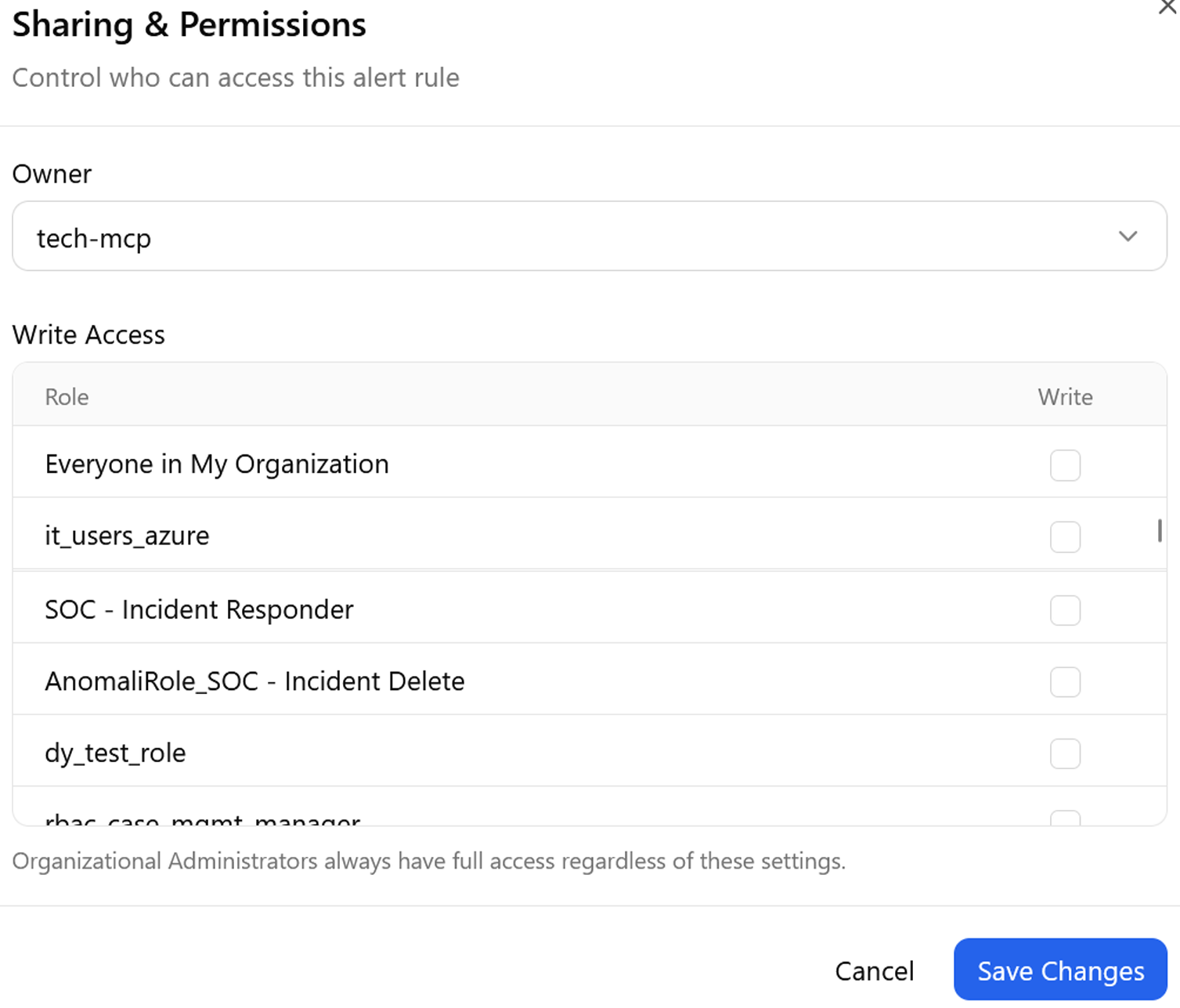
-
If necessary, change the owner.
-
Select the Write permission to grant that role write access.
-
Click Save Changes.
Access permissions to the rule have been updated.