Creating Alert Rules
To create a new alert rule:
-
Navigate to ThreatStream Next Gen > Security Operations > Alert Rules.
-
Click New Alert Rule.
-
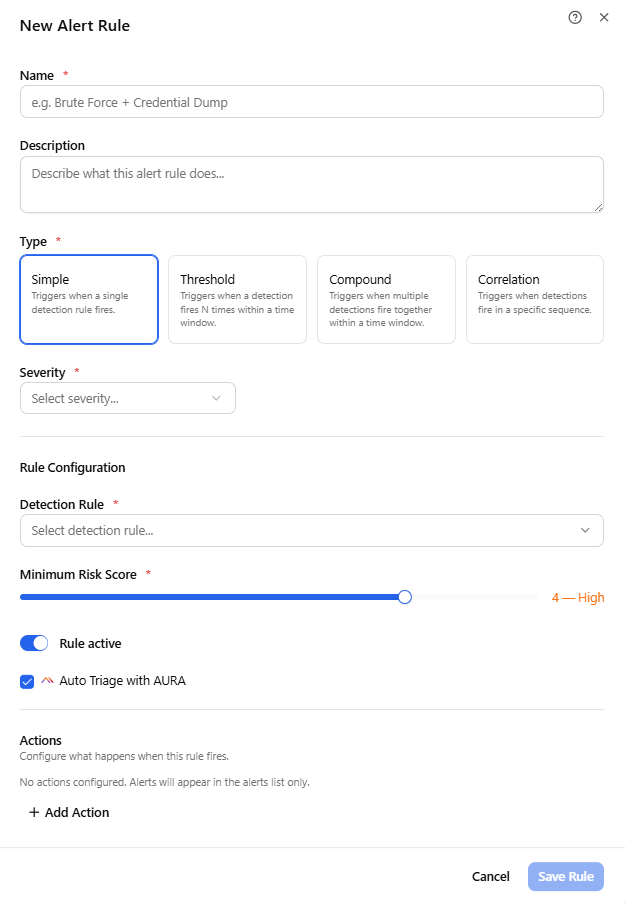
Configure the following universal fields, which apply to every rule regardless of type:
Field Description Name Enter a unique, descriptive name for the rule. Description (Optional) Provide a note describing what the rule detects and why it matters. Type Select the type of the alert rule. The selected option displays the corresponding fields in the Rule Configuration section.
Possible values:
-
Simple
-
Threshold
-
Compound
-
Correlation
See Configuring the Alert Rule Type for more information on the fields specific to each type.
Severity Select the severity assigned to alerts this rule produces: Critical, High, Medium, or Low. Detection Rule Select one or more detection rules for this rule to watch. Applies to Simple, Threshold, and Compound rule types; see Configuring the Alert Rule Type for each type's specific behavior. Not applicable to Correlation rules, which select a detection rule per step instead. Minimum Risk Score Select the minimum detection risk score, Low to Critical, required to count toward this rule. Applies to Simple and Threshold rule types only; see Configuring the Alert Rule Type for details. Rule Active (Optional) Toggle to determine whether the rule begins evaluating immediately on save. Enabled by default. Auto Triage with AURA (Optional) When enabled, alerts generated by this rule are automatically picked up and evaluated by the Alert Triage Agent. The Agent analyzes and annotates each alert and routes it (for example, promote, investigate, monitor, or close as false positive) without requiring manual assignment. All alerts evaluated by the Alert Triage Agent can then be reviewed on the Approval Queue page. See Using Approval Queue.
When disabled, alerts from this rule are created without an Agent verdict and left unassigned. They are not included in automatic threshold checks or scheduled bulk reviews. They wait in the queue until an analyst reviews them.
The setting is enabled by default.
Actions (Optional) Configure one or more notification actions (coming soon). See Configuring Alert Rule Actions.
-
-
Click Save Rule.
The alert rule is added to the list of rules on the Alert Rules page.
Configuring the Alert Rule Type
Simple Rule
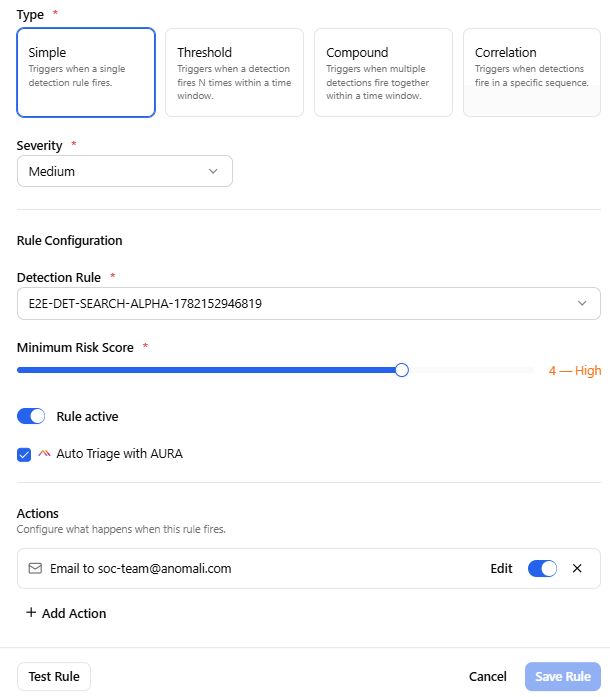
A Simple rule watches for a specific detection and produces one alert per matching detection. Use Simple rules for detections significant enough on their own to always warrant analyst attention.
-
Detection Rule — required; a searchable multi-select for one or more detection rules to watch. Selected rules appear as removable chips.
-
Minimum Risk Score — required; a slider from one to five (Low to Critical). Detections below this score are observed but do not trigger the alert.
Threshold Rule
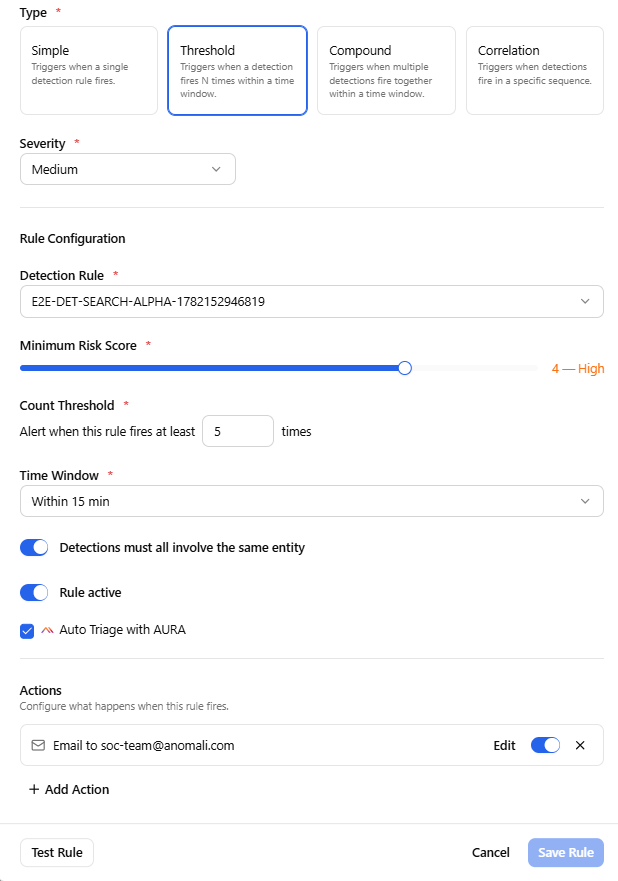
A Threshold rule watches for the same detection occurring repeatedly within a time window, and fires once the count reaches the configured minimum.
-
Detection Rule — required; a searchable multi-select for one or more detection rules to watch.
-
Minimum Risk Score — required; same one-to-five slider as the Simple type.
-
Count Threshold — required; the minimum number of matching detections needed to fire the alert.
-
Time Window — required; the window within which the count must be reached, for example within 15 min or within 1 hour.
-
Detections must all involve the same entity — a toggle restricting matches to detections sharing the same entity.
Compound Rule
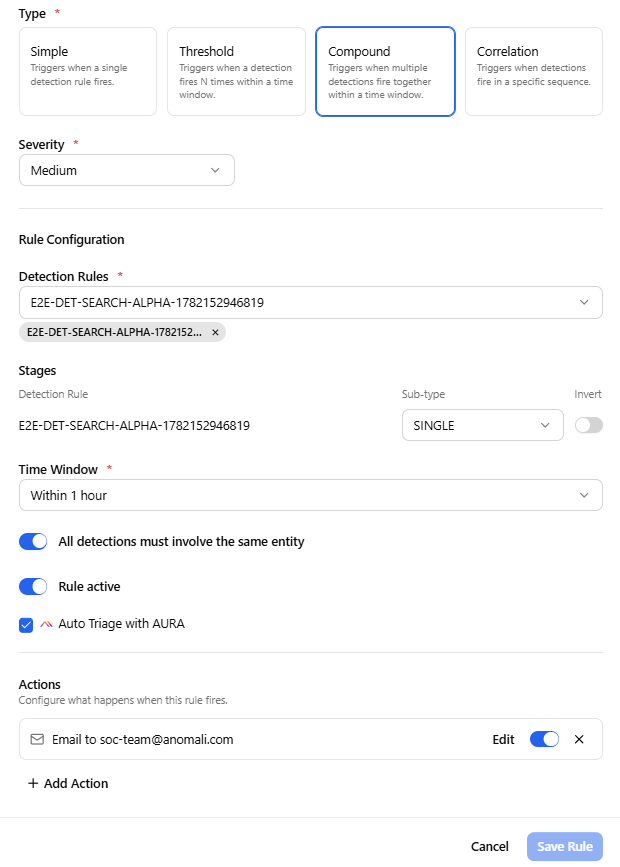
A Compound rule detects multi-stage activity by evaluating an ordered set of stages, where each stage is its own configurable condition.
-
Detection Rules — required; a multi-select pool of detection rules available to reference across the stages of the rule. Selected rules appear as removable chips.
Under Stages, each stage references one of the selected detection rules and a sub-type that determines its condition:
-
SINGLE — the stage is satisfied when the selected detection rule fires at least once. No additional fields are shown.
-
THRESHOLD — the stage is satisfied when the selected detection rule fires at least Count times within the stage's Time Window.
-
UNIQUE_VALUES — the stage is satisfied when at least Count distinct values of the specified Field, for example destination_ip, are observed within the stage's Time Window.
Additionally, each stage also has an Invert toggle. Turning it on requires that the stage's condition does not occur, rather than requiring that it does.
-
Time Window — required; the overall window governing the timing between stages.
-
All detections must involve the same entity — a toggle requiring every stage to resolve against the same entity.
Correlation Rule
A Correlation rule detects an ordered sequence of detections, including cases where an expected detection is absent.
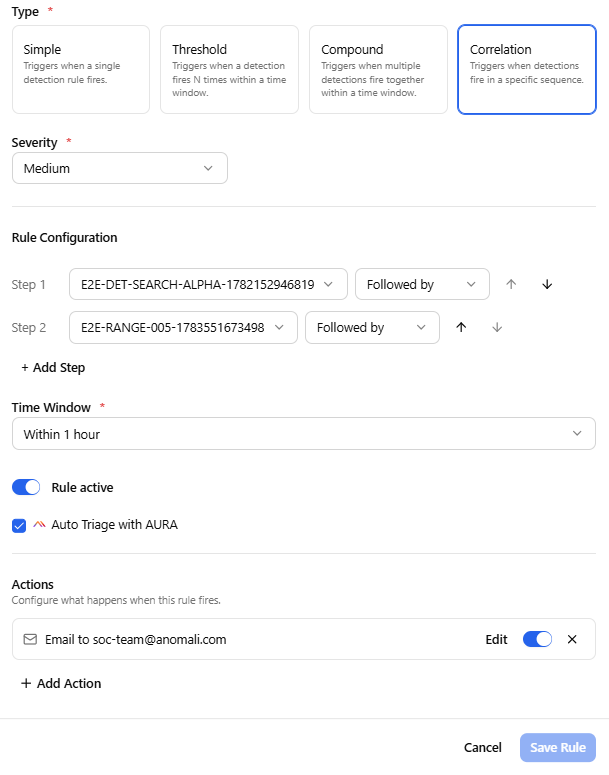
Each step in the sequence has a Select rule search field for choosing the detection rule that step watches and a condition drop-down setting the relationship to the previous step:
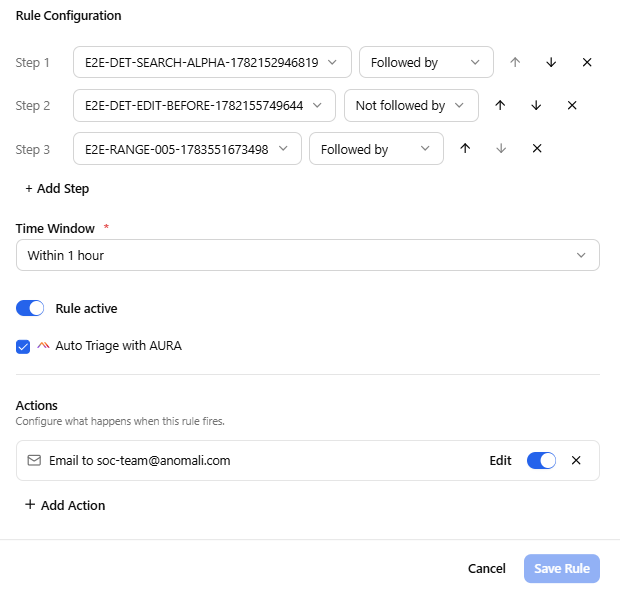
-
Followed by — the step's detection must occur after the previous step, within the time window.
-
Not followed by — the step's detection must not occur after the previous step, within the time window. The absence itself is the signal.
Use the up and down arrows next to each step to reorder the sequence, and + Add Step to extend it. A single Time Window field below the steps sets the window for the sequence. Available Time Window options across rule types include within 5 min, within 15 min, within 1 hour, within 6 hours, and within 24 hours.
Configuring Alert Rule Actions
By default, a new rule has no actions configured, and its alerts appear in the alerts list only.
To configure a new action:
Click + Add Action to open the action picker, which lists two categories:
-
Email (SMTP) — Sends an email through a configured SMTP integration each time the rule fires.
-
Webhook — Sends the alert payload as a POST request to a configured webhook endpoint, for example a SIEM or ticketing system.
Each action you add appears as a row in the Actions section with an icon, display name, an Edit button, an enabled and disabled toggle, and a remove control. Toggling an action off pauses it without removing it from the rule.
Selecting Email (SMTP) opens the Configure Email Notification dialog, where you set To, CC, and BCC recipients (suggested addresses appear below each field), a Subject Template, and a Message Body. Both the subject and body accept variable placeholders, for example {alert_number}, {rule_name}, {severity}, and {alert_link}, which are filled in automatically when the notification is sent.
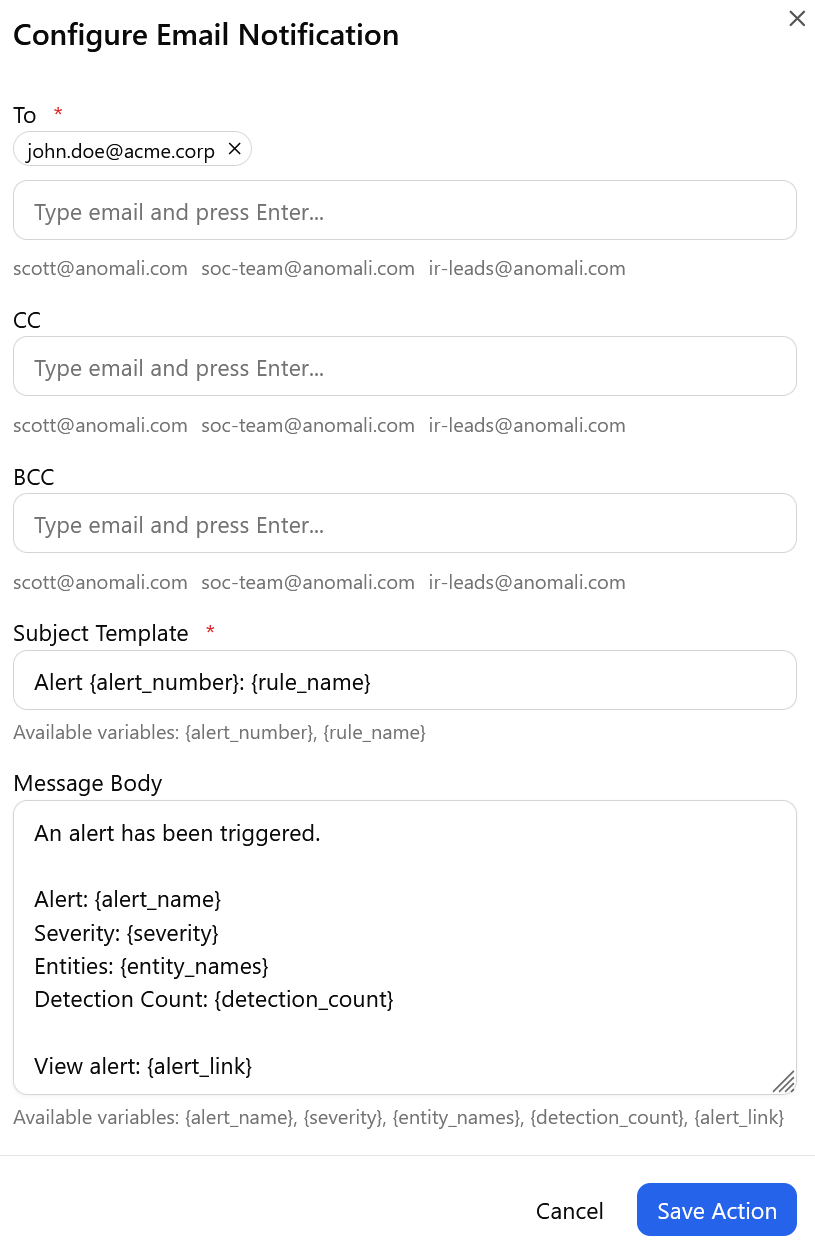
Click Save Rule to save the rule, or Cancel to discard changes.