Related topics:
Using Approval Queue
Use the Approval Queue to review and act on the decisions AURA has routed to you for approval.
Through the Approval Queue page, you can review agent recommendations for tasks that require human approval. You can also approve, reject, or override the recommendations through the details page (Reviewing Requested Actions page) of each listed task.
-
Review a recommendation. Click an item in the Requested action column to open the approval details page and see the recommended action, the confidence level, and the evidence, reasoning, and history behind it.
-
Take an action on the agent recommendation. On approval details pages, you must take one of the following actions:
-
Promote to Incident: Move the alert to an incident for formal investigation.
-
Continue Investigation: Allow additional evidence to be gathered before taking further action.
-
Monitor: Continue monitoring the alert for additional evidence.
-
Close as Expired: Close the alert when monitoring does not provide sufficient evidence to justify promotion.
-
Close as False Positive: Resolve the alert when the evidence shows that the activity is benign.
-
Escalate: Escalate the incident when it requires a coordinated response from higher-tier staff or an external team.
-
Close: Close the incident when the activity has been handled and no further coordinated response is required.
-
(Click the image to enlarge it.)
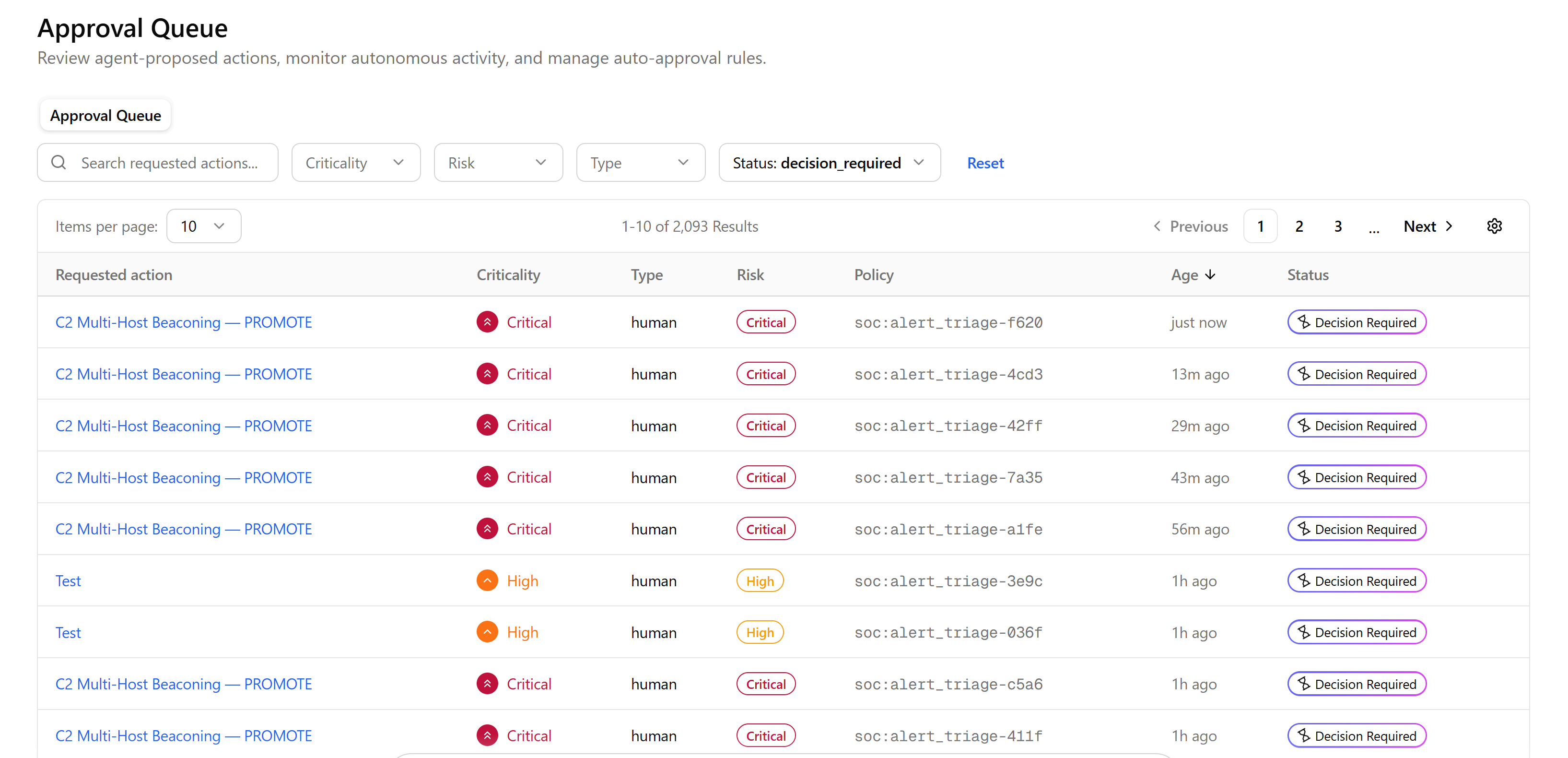
 Search requested actions: Search requested actions by their name. The search is incremental.
 Criticality: Filter requested actions by their criticality—info, low, medium, high, or critical. The criticality value defines how severe the underlying threat or finding is.
 Risk: Filter requested actions by their risk—info, low, medium, high, or critical. The risk value defines how risky it would be to take the recommended action.
 Type: Filter requested actions by their type—human-created or agent-created.
 Status: Filter requested actions by their status:
-
Created—task is generated but has not yet started. This is the starting point for both Agent tasks and human tasks.
-
In Progress—work is actively happening on the task. For an Agent task, this means the Agent is running the associated workflow (for example, correlating a CVE against the asset inventory).
-
Decision Required—task that needs a person to make a decision before it proceeds. This status displays as a "Decision Required" badge in the queue. If the workflow is HITL (human-in-the-loop), the underlying action is blocked until the decision is made.
-
Actioned—human task has been resolved.
-
Completed—Agent has finished its work. The result of the work, including supporting evidence, is stored with the task.
-
Closed—task has reached its final state. A task reaches Closed after being Actioned (human task) or Completed (Agent task). A task can also move directly to Closed without ever reaching Decision Required, if the Agent determines no human decision is needed (for example, when a credential lookup finds the associated identity is no longer active).
 Reset: Reset filters.
 Requested Action: See Reviewing Requested Actions for details.
 Decision: Decision suggested by the agent.
 Criticality: Criticality of the requested action.
 Type: Type of the requested action—human-created or agent-created
 Risk: Risk level of the requested action.
 Policy: Identifies the specific workflow rule that generated this task and is governing how it's handled. The format shows the domain and workflow (for example, soc:alert_triage) followed by a unique identifier for that run, so you can trace exactly which policy required this item to come to you for a decision.
 Status: Status of the requested action.
 Age: How long ago was the requested action item created.
 View Settings: Select the columns and table density (default or compact) to be displayed. By clicking the drag handle icon (
 ), drag and drop columns to change their position in the table. To return the view back to its default settings, click Reset View.