On this page:
Related topics:
Reviewing Requested Actions
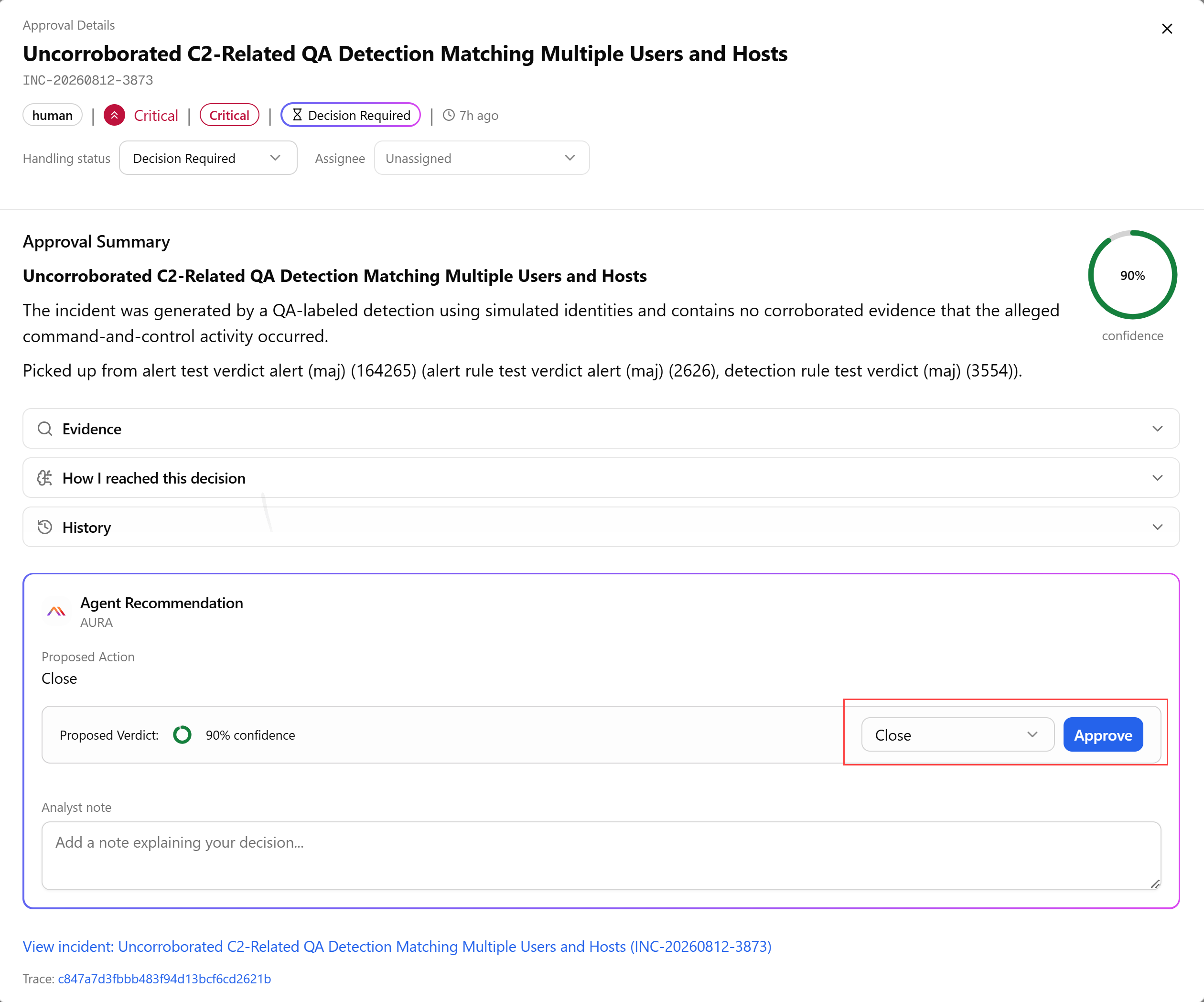
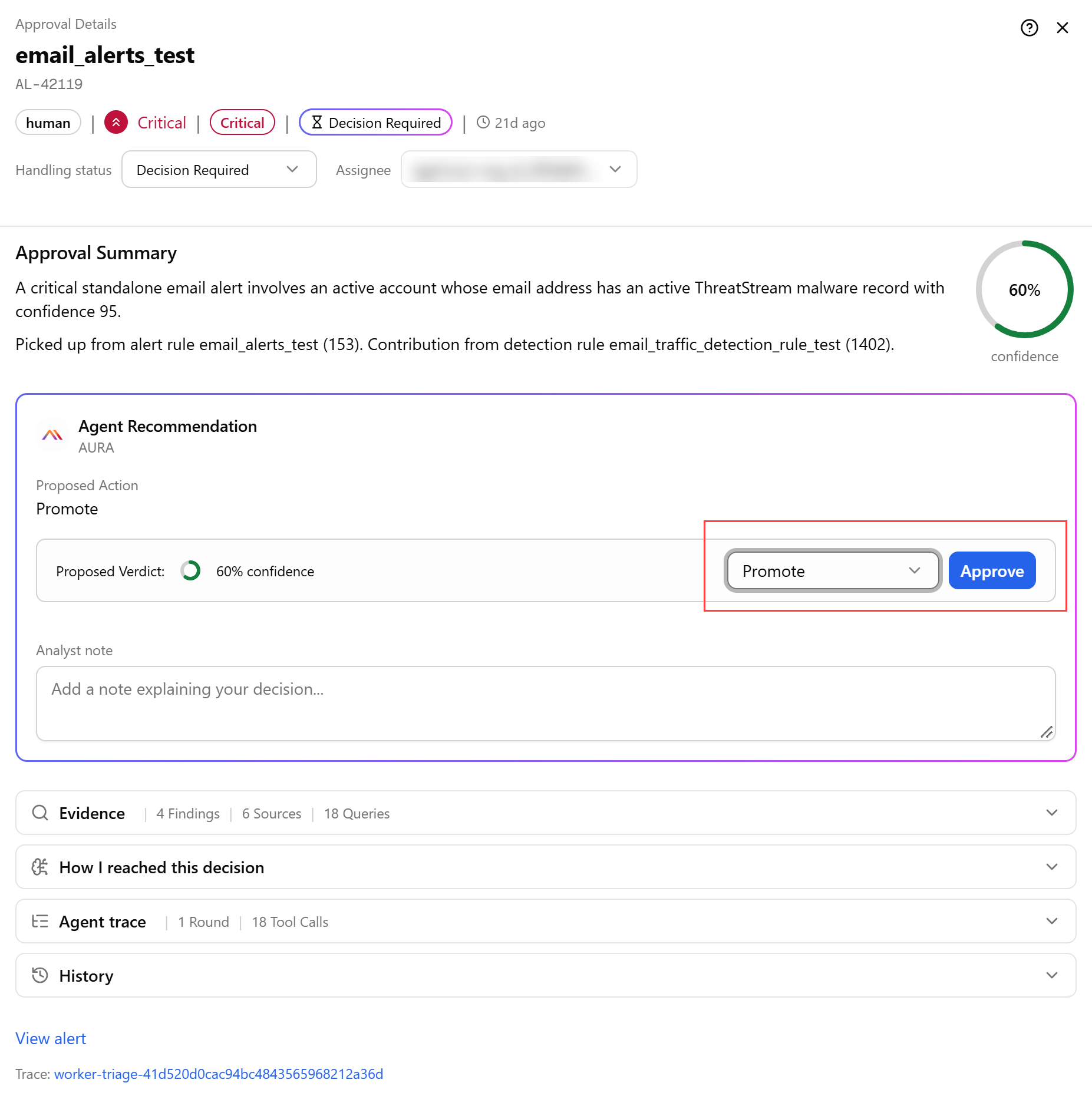
For each requested action in the Approval Queue, open its approval details page. The page provides an approval summary along with the Agent recommendation and confidence level.
To understand how the Agent reached its recommendation, review:
-
Evidence— information supporting the recommendation. AURA shows both what it found and what it checked but did not find. That gives you visibility into the evidence supporting the alert and the corroborating evidence that was absent, instead of hiding the investigation behind a single AI verdict.
-
How I reached this decision— agent reasoning behind its recommendation.
-
Agent trace— sub-agent and tools that participated in the run as well as their responsibilities, tool calls, and findings.
-
History — previous activity and context associated with the alert or incident.
To take a decision about an alert, see Deciding How the Alert Should Proceed.
To take a decision on an incident, see Deciding How the Incident Should Proceed
Deciding How the Alert Should Proceed
After reviewing the request approval for an alert, select the appropriate action:
- Promote: The available evidence recommends moving the alert to an incident for formal investigation. Promote does not mean that agent has definitively determined that the activity is malicious. The recommendation is presented for human approval. After approval, AURA creates the incident and preserves the relevant source-alert linkage automatically. The incident is then automatically handed off to the Incident & Investigation Agent for further investigation. You do not need to perform a manual hand-off before the incident investigation begins.
-
Investigate: The initial triage is inconclusive but additional queryable telemetry is available in the environment to investigate immediately. Upon receiving this verdict, the Alert Triage Agent automatically transfers ownership to the Incident & Investigation Agent, preserving all extracted entities, rule lineage, and initial enrichment context. The investigation executes directly at the alert level to query host telemetry, network events, and threat intelligence observables without prematurely generating an incident. The lifecycle concludes with an attached Investigation Report that resolves into one of three exit states: recommending incident creation for confirmed threats, closing as a false positive for verified benign activity, or routing to an analyst via the Approval Queue if findings remain inconclusive.
-
Monitor: The available evidence does not justify creating an incident, but it also does not provide enough positive evidence to classify the activity as benign. An alert with a Monitor recommendation is re-evaluated on a schedule seven times. Each re-evaluation looks for additional evidence that would support promoting the alert or classifying it as a false positive. You can view them on the Alerts page. See Alerts. If sufficient evidence to promote the alert is not found within the seven evaluation attempts, the alert is routed to the Approval Queue for further action by the human. You can then close the alert (Close as Expired) or Promote to Incident.
-
False Positive: The available evidence clearly shows why the activity is benign. Alerts classified as False Positive are automatically resolved and removed from the active work queue. The decision, rationale, and supporting evidence remain part of the auditable history of the alert for later review. You can view the alerts marked as False Positive on the Alerts page. See Alerts.
The agent performs the initial triage and presents its findings, but you make the decision that determines how the alert moves forward.
If you choose to promote and approve the recommendation, the workflow continues automatically. The agent creates the incident, links the source alert or alerts, assigns the incident type, and hands the investigation to the Incident & Investigation Agent. See Incident & Investigation Agent for details.
For a full understanding of the agentic security operations flow, see Security Operations Overview.
Deciding How the Incident Should Proceed
After reviewing the approval details for an incident, select the appropriate action:
-
Escalate: Indicates the activity requires a coordinated response effort from a higher tier staff or external team. After you approve an escalation recommendation, AURA creates a case and the Case Management Agent enriches and manages the case from that point on. It assembles the complete picture of the activity, including alerts, incidents, investigation evidence, threat intelligence, organizational context, and relevant history.
-
Close: Closes the incident indicating one of the following closure reasons:
-
Benign—the investigation confirmed that the activity was non-malicious, supported by affirmative evidence. The investigation evidence is automatically preserved in the report.
-
Suspicious—the investigation is complete based on the available data, but the activity could neither be verified as benign nor confirmed as an active threat, leaving unexplained residual risk. You must describe the remaining anomalies or unexplained activity in the Analyst Note field.
-
Duplicate—the activity is identical to activity already tracked in another incident. Linked Incident ID must be added in the Analyst Note field.
-
Superseded—the incident scope has been absorbed, expanded, or replaced by another incident. Linked Incident ID must be added in the Analyst Note field.
-
Inconclusive—the investigation was blocked or incomplete due to missing data sources, evidence gaps, or conflicting telemetry. The Analyst Note field is automatically filled with identified data gaps and confidence impacts. The note can be edited.
-
Resolved—a confirmed threat or issue occurred and was handled or remediated (either during this investigation or prior to it). You must describe the remediation actions taken or explain how the issue was resolved in the Analyst Note field.
-
For a full understanding of the agentic security operations flow, see Security Operations Overview.