On this page:
Related topics:
Using the Response Workbook
The Response Workbook is a structured incident response plan attached to every case. It organizes response tasks into four sequential incident response phases, tracks task completion, generates a Lessons Learned record, and captures approver sign-off before the case is closed.
To access the Response Workbook, open the case of your interest in full-page view. See Accessing the Case Full-Page View for details.
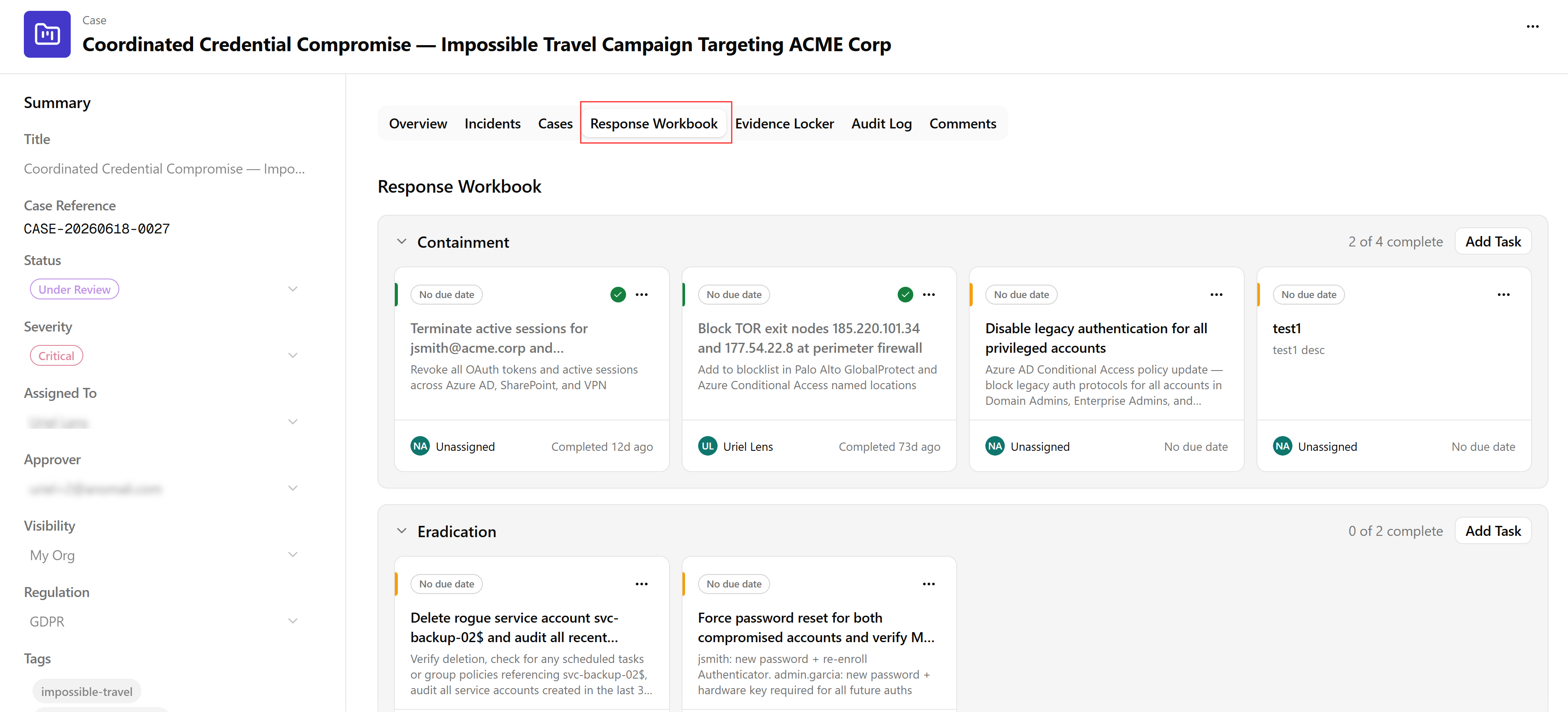
Understanding Response Phases
The Response Workbook organizes tasks into four incident response phases:
- Containment — actions taken to limit the spread or impact of the incident, for example, isolating affected systems or revoking compromised credentials.
- Eradication — actions taken to remove the threat from the environment, for example, removing malware, patching vulnerabilities, or deleting unauthorized accounts.
- Recovery — actions taken to restore normal operations, for example, restoring systems from backups or re-enabling services.
- Review & Close — post-incident activities including lessons learned, stakeholder reporting, and case closure sign-off.
Each phase panel displays a header row with the phase name, a phase status label (such as Not Started, In Progress, or Complete), and a task counter in the N / N tasks format denoting completed / total tasks.
Adding Tasks
To add a task to a phase:
- Click Add Task within the phase body.
- In the Add Task dialog, complete the following fields:
- Title (required) — a short description of the task.
- Description (optional) — additional context for the task.
- Assignee — the analyst responsible for completing the task.
- Target Asset — the asset the task applies to. Search and select from available assets.
- Target Identity — the identity the task applies to. Search and select from available identities.
- Due Date — the date by which the task should be completed.
- Click Add Task.
Tasks added by analysts appear in the phase with the Pending status.
Editing Tasks
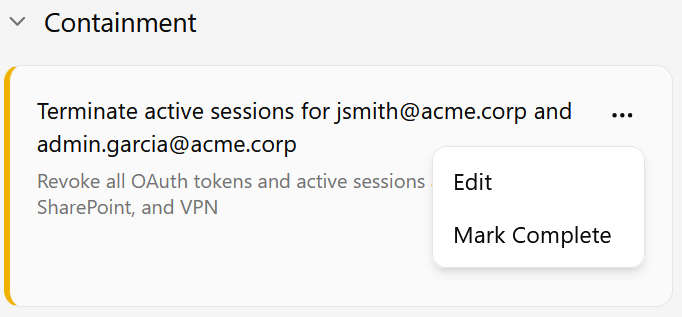
To edit a task:
- Click the more options menu (...) on the task card and select Edit.
- In the Edit Task dialog box, update any of the following fields:
- Title — the task name.
- Description (optional) — additional context for the task.
- Status — the current state of the task: Pending, In Progress, or Complete.
- Assignee — the analyst responsible for completing the task.
- Target Asset — the asset the task applies to.
- Target Identity — the identity the task applies to.
- Due Date — the date by which the task should be completed.
- Click Save.
To mark a task complete without opening the edit dialog, click the more options menu (...) on the task card and select Mark Complete.
Tracking Task Progress
Task status is indicated by the border color of the task card: an orange card border implies the task is Pending, while a green card border implies the task is Complete.
Each phase header shows a task counter in the N / N tasks format (completed tasks / total tasks), so you can see phase-level progress at a glance without expanding individual tasks. Phase statuses are updated automatically as tasks are completed.