Viewing Case Details
On the Case Details panel, you can view the full context of a case, including its metadata, associated incidents, evidence, audit log, and comments.
To open the Case Details panel, click a case tile on the Cases page or select View Details from the Cases list view page.
For a more comprehensive investigation experience, you can open the case in the full-page version. The full-page view provides additional capabilities such as linked cases, response workbook, and case closure details.
See Accessing the Case Full-Page View for details.
Using the Case Details Panel
A Case Details slide-over panel displays a case header followed by the Overview, Incidents, Evidence Locker, Audit Log, and Comments tabs.
(Click the image to enlarge it.)
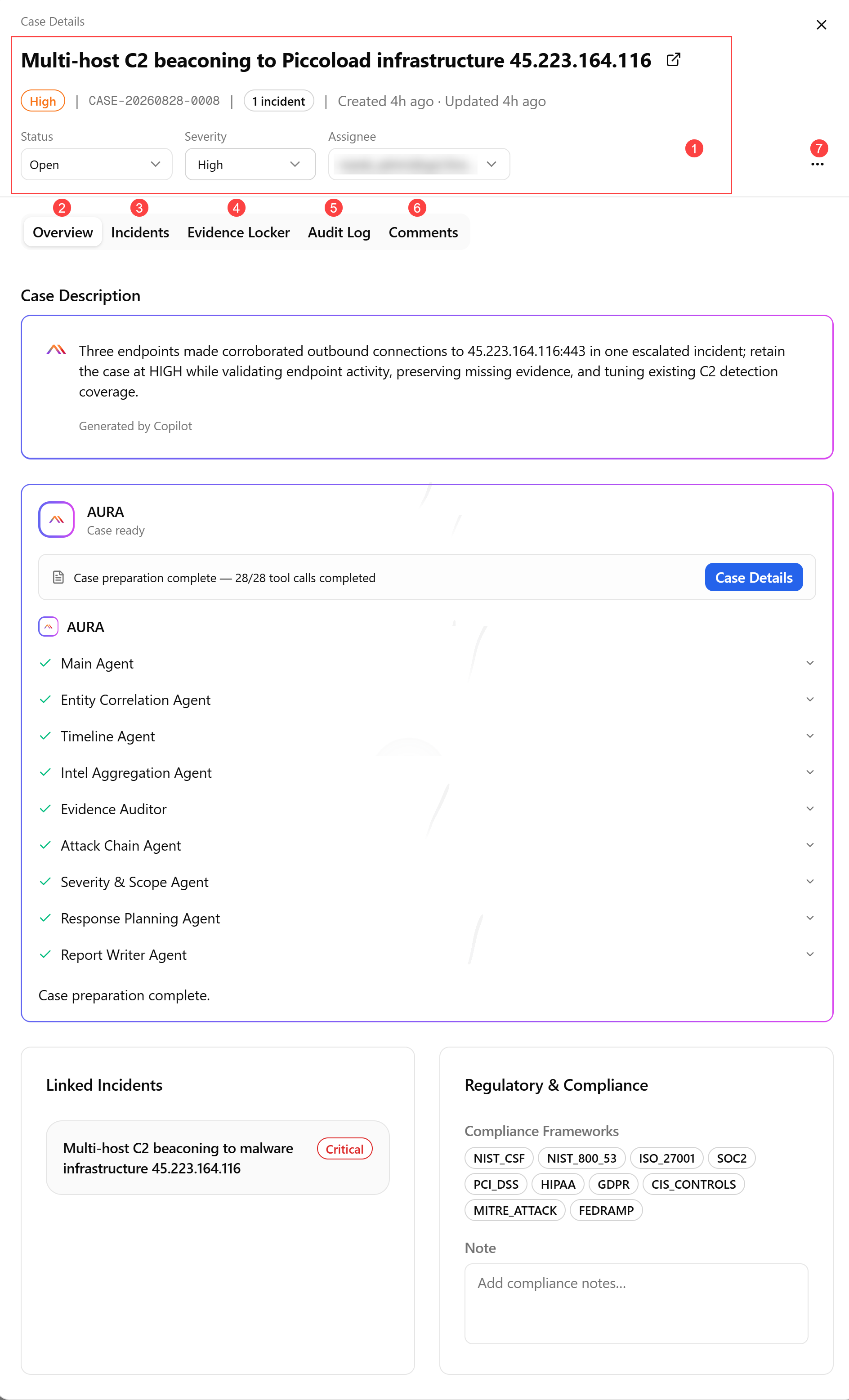
 Case header: displays the case title, a case severity badge, a unique case ID, the number of linked incidents, and creation/update timestamps. Below that, there are dropdown fields for Status, Severity, and Assignee, allowing you to quickly view and update these key case attributes.
 Overview Tab
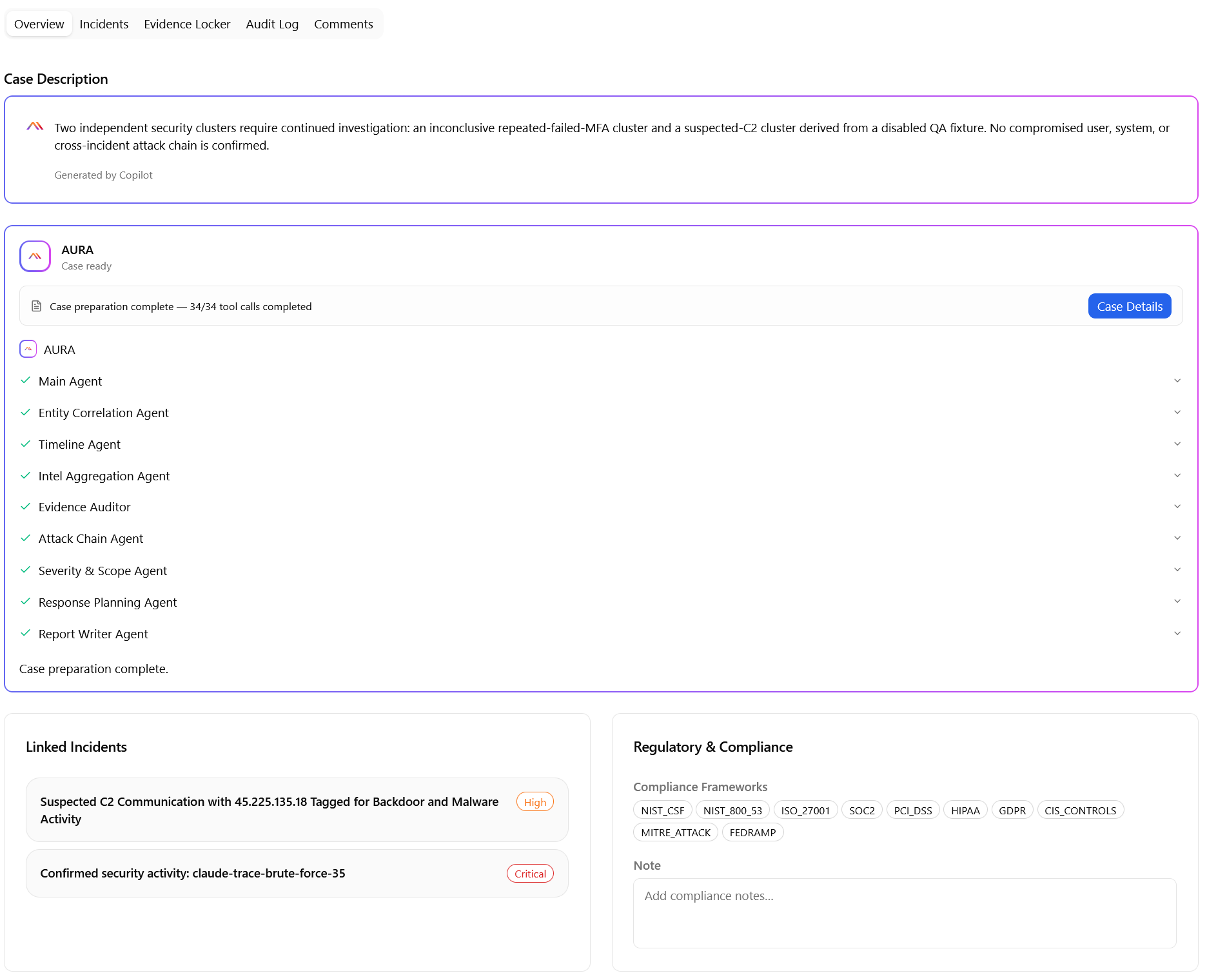
The Overview tab is the default landing tab of the case details panel. It contains the following sections:
| Section Name | Description |
|---|---|
| Case Description | Anomali AI-generated case summary, synthesized from all linked incidents, evidence, and threat intelligence. |
| AURA |
AURA (Anomali Unified Response Agent) is the orchestrator behind the Agentic Fleet. At the case level, AURA runs the Case Management Agent, which consolidates all linked incidents, alerts, detections, evidence, and threat intelligence into a complete case enrichment. The section displays the agent status, the number of tool calls completed, and a checklist of the following sub-agents:
Additionally, this section includes the Case Details button allowing you to open a full-page view of the case. See Accessing the Case Full-Page View for details. |
| Linked Incidents | Incidents linked to the case. You can click each incident to view incident details. See Viewing Incident Details for more information on incident details. |
| Regulatory & Compliance | Compliance tags applicable to the case (such as PCI-DSS, HIPAA, or GDPR). Click a tag you consider relevant to the case. Use the Note field to leave compliance notes. |
 Incidents Tab
The Incidents tab is the primary place for managing incidents linked to the case.
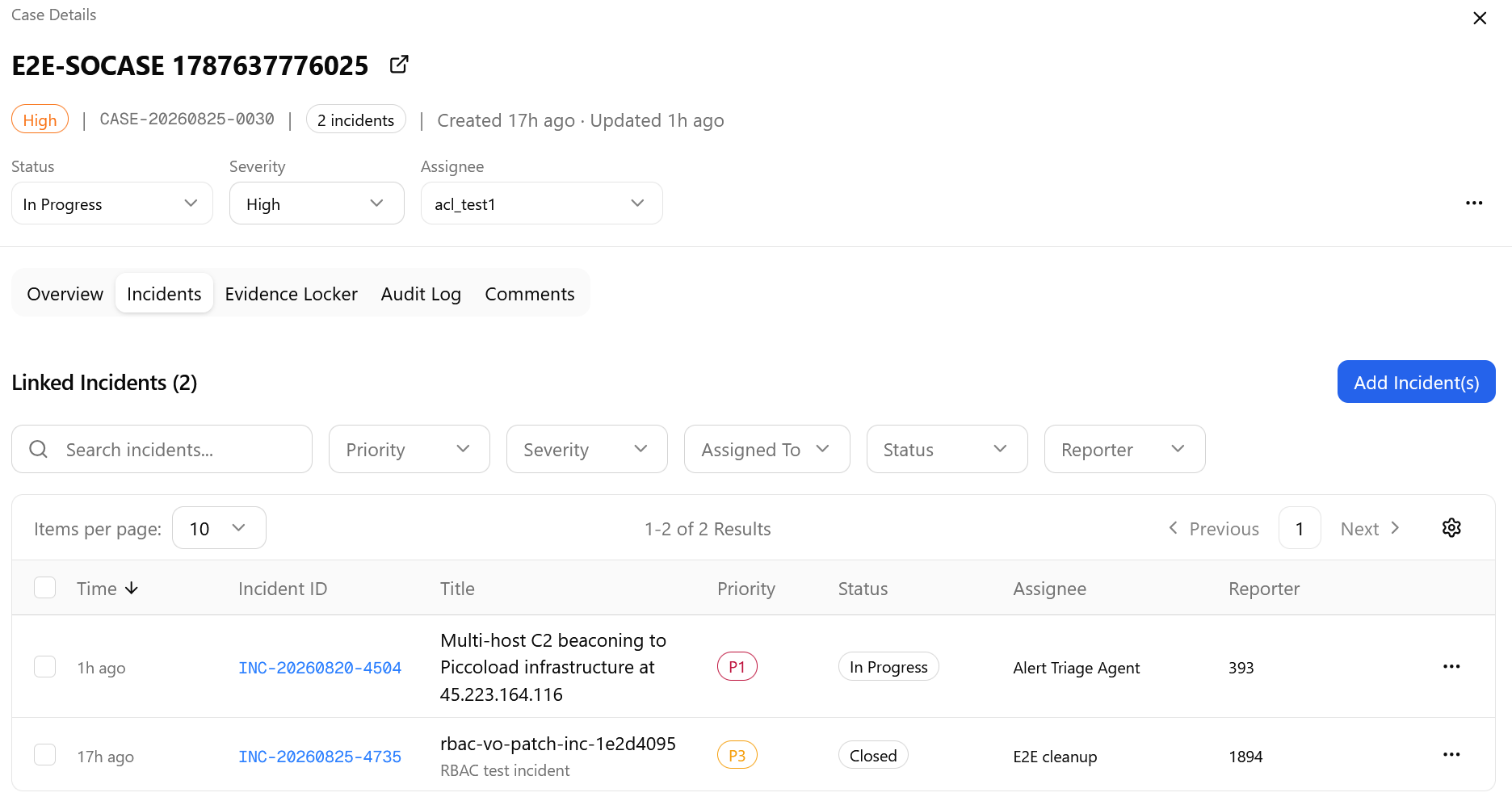
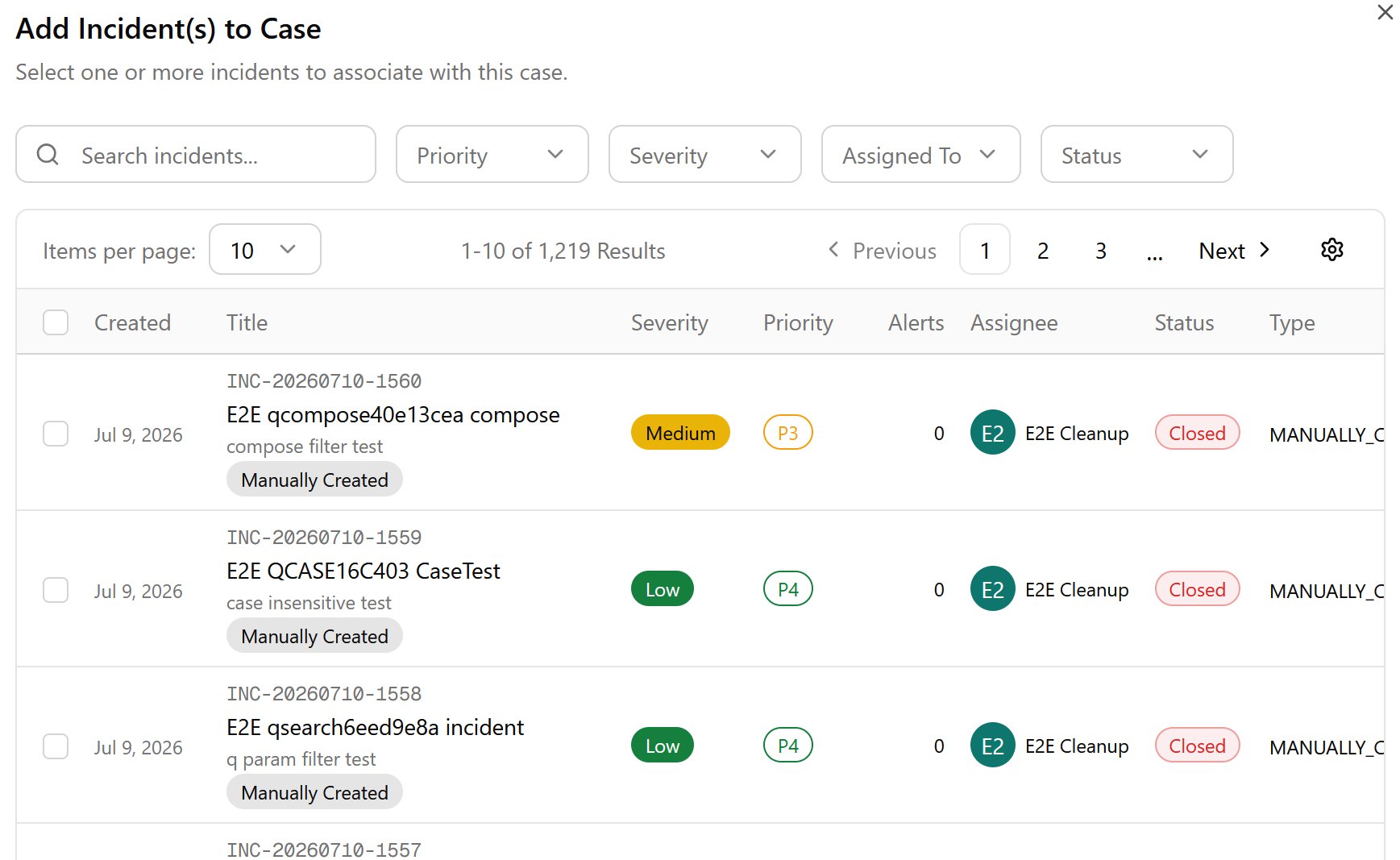
The tab header shows Linked Incidents (N). Filter incidents by priority, severity, analyst assigned to, and status. Select one or more incidents and confirm to link them.
If you need to add more incidents to the case, click Add Incident(s) to open a search modal for linking existing incidents to the case.
All linked incidents are provided in a table with the following columns:
| Column | Description |
|---|---|
| Created | Date the incident was created. |
| Title |
Incident (INC) number, incident title, short description, and incident type. |
| Severity | Severity level of the incident. |
| Priority | Priority level of the incident (P1–P4). |
| Alerts |
Count of alerts linked to the incident. |
| Assignee |
Avatar and name of the analyst assigned to the incident. |
| Status | Current lifecycle state of the incident |
| Type | Incident type (for example, Manually Created). |
| Updated |
Relative timestamp of when the incident was last updated. |
 Evidence Locker Tab
The Evidence Locker tab provides access to the case evidence page. See Using the Evidence Locker for full documentation of evidence ingestion, TLP classification, exports, and the Audit Log.
 Audit Log Tab
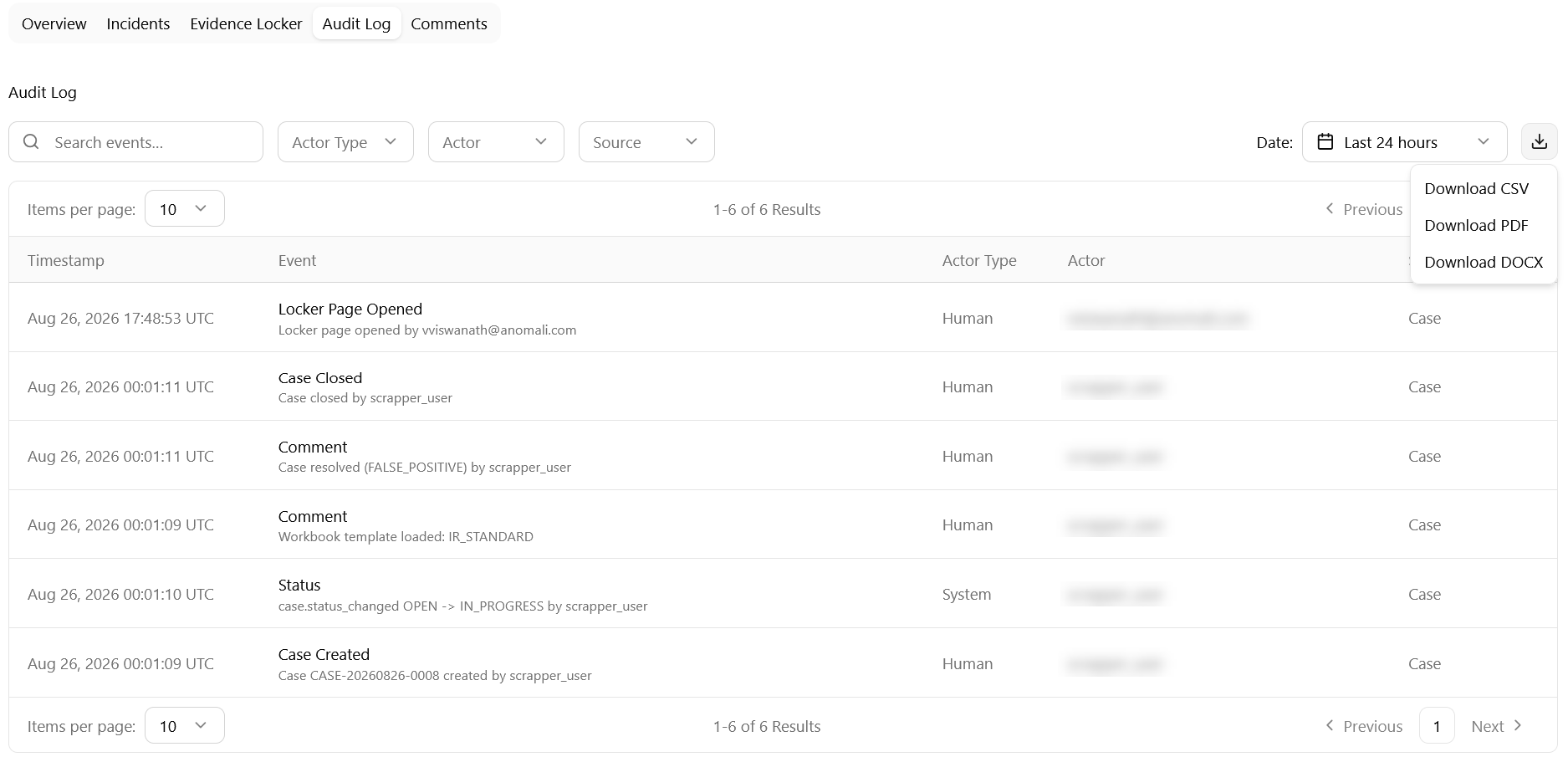
The case-level Audit Log tab is the single record of all activity on the case. Each entry displays a UTC timestamp, an event type, a description of the action taken, the actor type (Human or System), the actor name, and the source.
Use the Search events field and the Actor Type, Actor, and Source filters to narrow results. Use the Date preset to adjust the time range. Click the download icon to export the log as a CSV, PDF, or DOCX file. Audit log entries are immutable.
 Comments Tab
The Comments tab allows analysts to add notes and context to the case record. A rich-text composer appears at the top of the tab that includes all the standard text formatting tools.
Click Submit to post a comment.
Each comment entry shows:
-
Author name and timestamp
-
The actual comment
-
Per-comment action icons: Reply (
 ) available on all comments and Edit (
 ) available only on your own comments.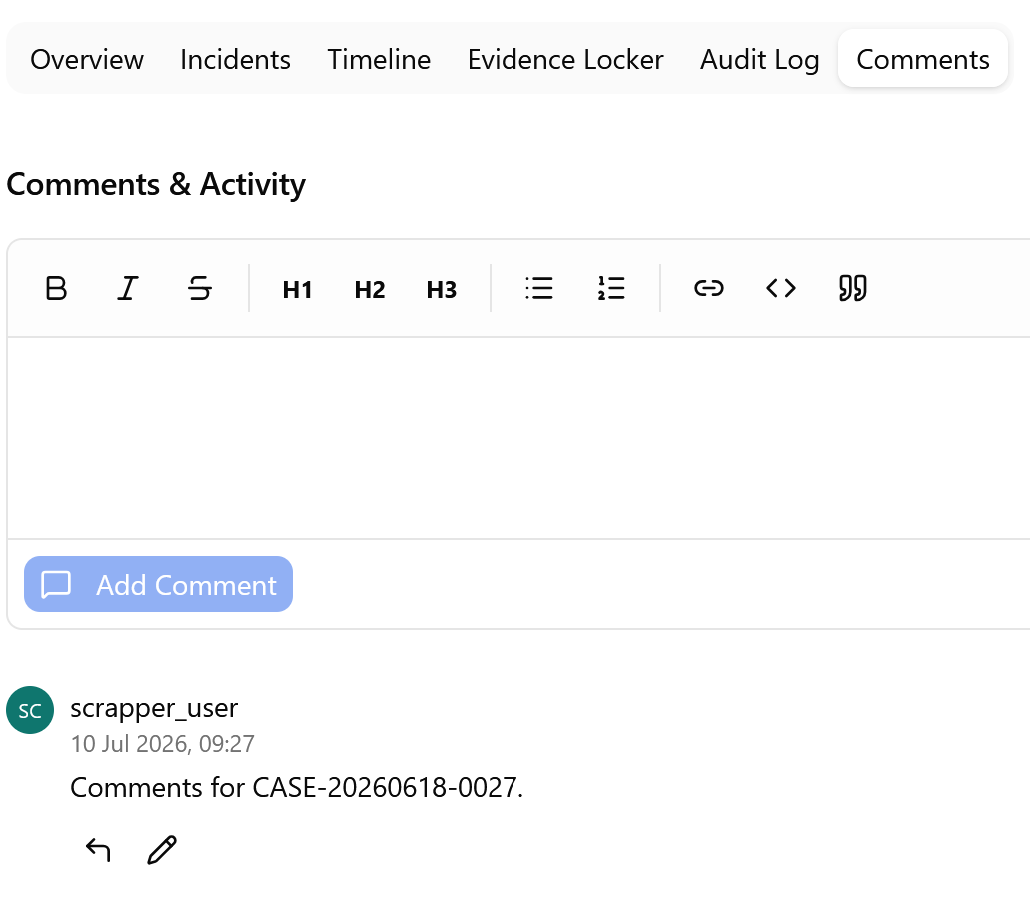
 More options menu:
-
Share: Click Share to copy the case link to clipboard.
-
Export: Click Export > Download to download a .zip folder with all files associated with the case.
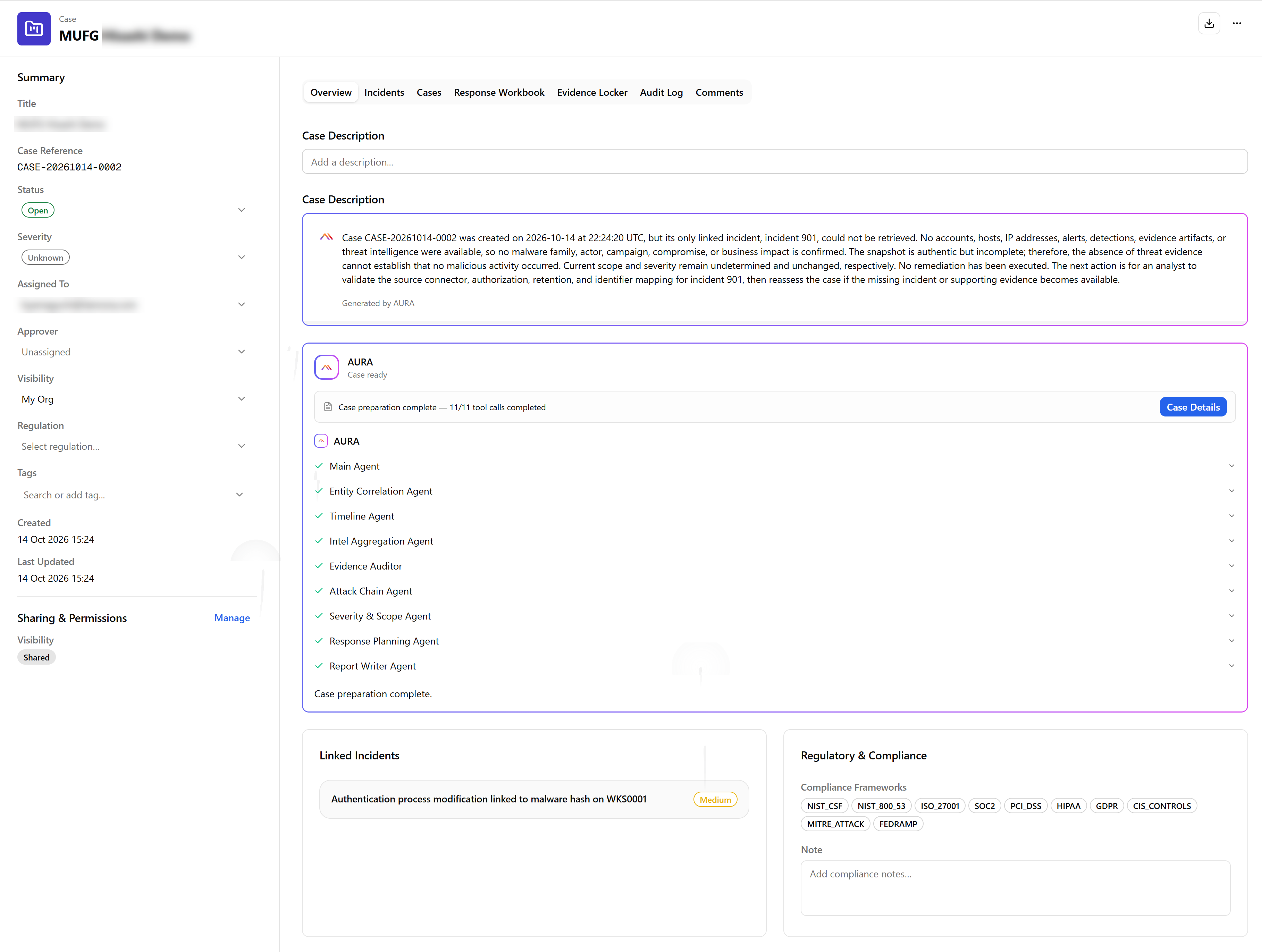
Accessing the Case Full-Page View
To open the dedicated case full-page view, click the external link icon ( ) next to the case title in the Case Details slide-over panel header, or select Open Case Page from the more options menu (...) on the Cases list view page.
Use the full-page view as the primary workspace for in-depth case investigation. Unlike the slide-over panel, it keeps key case metadata visible in the left sidebar as you move between tabs.
The full-page view also provides the following additional capabilities:
-
AI-generated case description.
-
Cases tab: Lets you link related cases.
-
Response Workbook tab: Lets you track incident response phases, generate a lessons learned record, and coordinate approver sign-off before closing the case. See Using the Response Workbook for details.
-
Closure Record tab: Appears after the case is closed and displays closure details, including the case resolution, the user who closed the case, and the closure date. See Closing Cases for more information on the full closure workflow.
-
Sharing & Permissions sections. See F for more information.