On this page:
Related topics:
Using the Evidence Locker
The Evidence Locker is an immutable evidence store attached to every case. It preserves files, investigation artifacts, and system-generated evidence with SHA-256 integrity hashing for chain-of-custody tracking. Evidence items added to the Evidence Locker cannot be deleted or modified after addition.
Adding Evidence
You can attach one or more artifacts or records to the evidence locker associated with a case.
-
Navigate to ThreatStream Next Gen > Security Operations > Cases.
-
Click on a case tile.
- Click the Evidence Locker tab.
- Click Add Evidence.
- In the upload modal, complete the required fields:
- Title: Enter a title for the evidence.
- Evidence Type: Select the type of the evidence artifact. See Evidence Types for a list of supported formats.
- TLP Classification: select one of the classification options: WHITE, GREEN, AMBER, RED
- (Optional) Add a description and tags.
- Select the file to upload. Maximum file size is 50 MB per file.
- Click Upload.
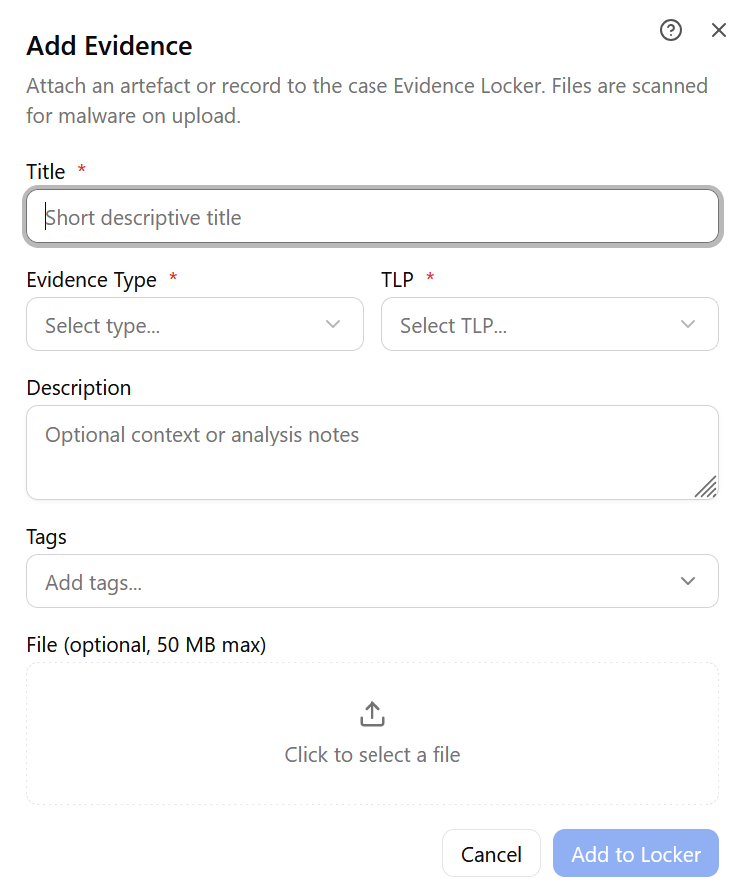
Uploaded files are scanned for malware on ingest. A file with a detected threat is rejected immediately and the rejection is recorded in the Audit Log with the reason. If the scan fails, contact Anomali Support for assistance .
Evidence Types
The Evidence Type field categorizes each item added to the Evidence Locker.
Note: Maximum file size: 50 MB. Maximum total Case Locker storage: 5 GB per case.
Available types include:
| Evidence Type | Description |
|---|---|
| Log Extract | Raw or processed log file extract. Supported formats: .log and .txt. |
| Screenshot | Screenshot or image file. Supported formats: PNG, JPG, JPEG, GIF, BMP, TIFF, and WEBP |
| File | Any other document, spreadsheet, or text file. Supported formats: PDF, DOCX, DOC, TXT, MD, RTF, XLSX, XLS, CSV, and HTML. |
| IOC Set | Collection of IOCS,such as IP addresses, domains, URLs, or file hashes, associated with the investigation. |
| Memory Dump | Captured copy of system memory that can be analyzed for evidence of malicious activity, processes, or artifacts. |
| Packet Capture | Capture of network traffic that provides detailed information about communications observed during the investigation. Supported formats: PCAP, PCAPNG. |
| Report | Structured document that summarizes investigation findings, supporting evidence, and relevant conclusions or recommendations. Supported formats: PDF and DOCX. |
| Other | Any binary or file not covered by the other types. |
Using System-Generated Evidence
Evidence items can arrive in the Evidence Locker automatically from external investigation systems. This is the primary mechanism for capturing SIEM log search results, investigation reports, and detection artifacts without requiring analysts to manually export and re-upload files.
System-generated items appear in the Evidence Locker with the originating system identity as the source and labeled as SYSTEM, rather than an analyst name.
Understanding Evidence Locker Components
Evidence Items
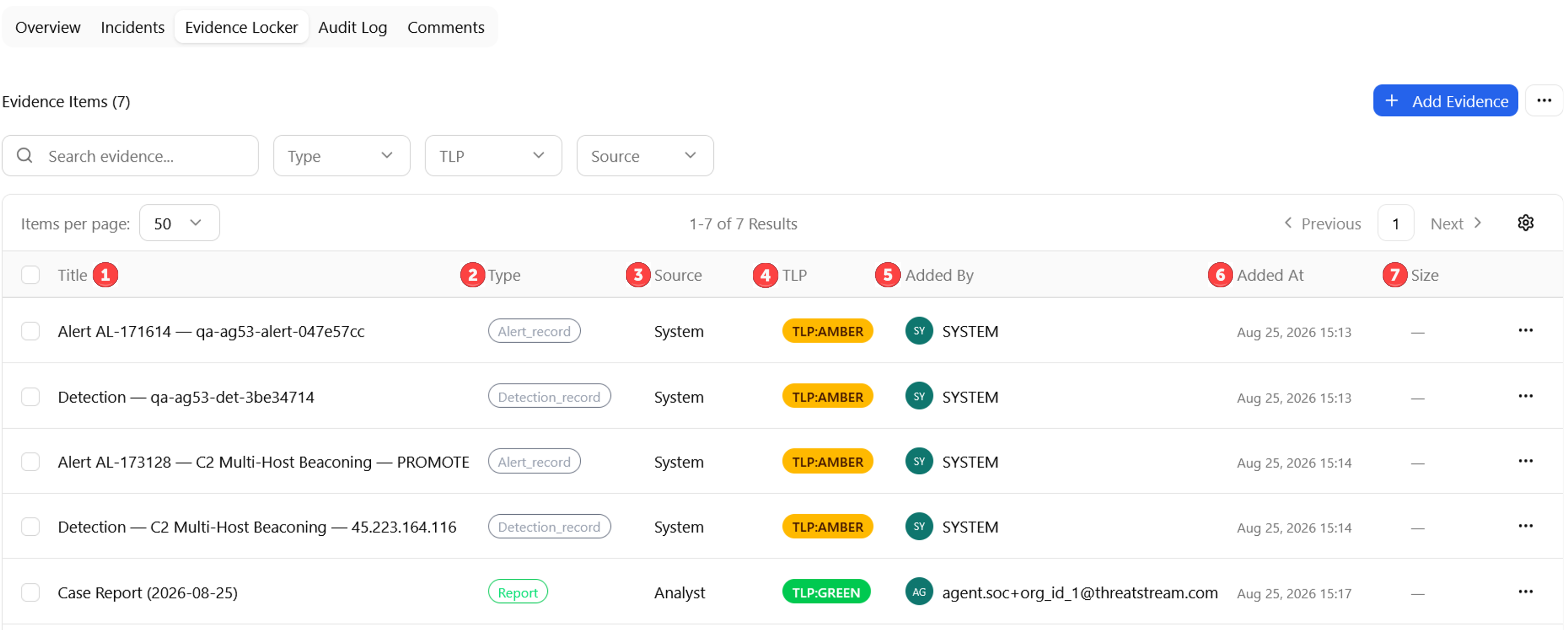
The Evidence Items sub-tab lists all evidence files in the case. Each evidence item row contains the following information:
 Title: Filename shown below the title.
 Type: Colored badge such as Screenshot or Other.
 Source: Analyst for manual uploads, or the originating system name for system-generated items.
 TLP: Colored badges such as
 TLP:WHITE, TLP:GREEN, TLP:AMBER, or TLP:RED
 Added By: Email address of the user adding the evidence.
 Added At: Absolute timestamp of when the evidence was added
 Size: Total case storage capacity is 5 GB.
Click the more options menu (...) of the evidence item you are interested in and then click Download to download the evidence file if available.
Exporting Evidence
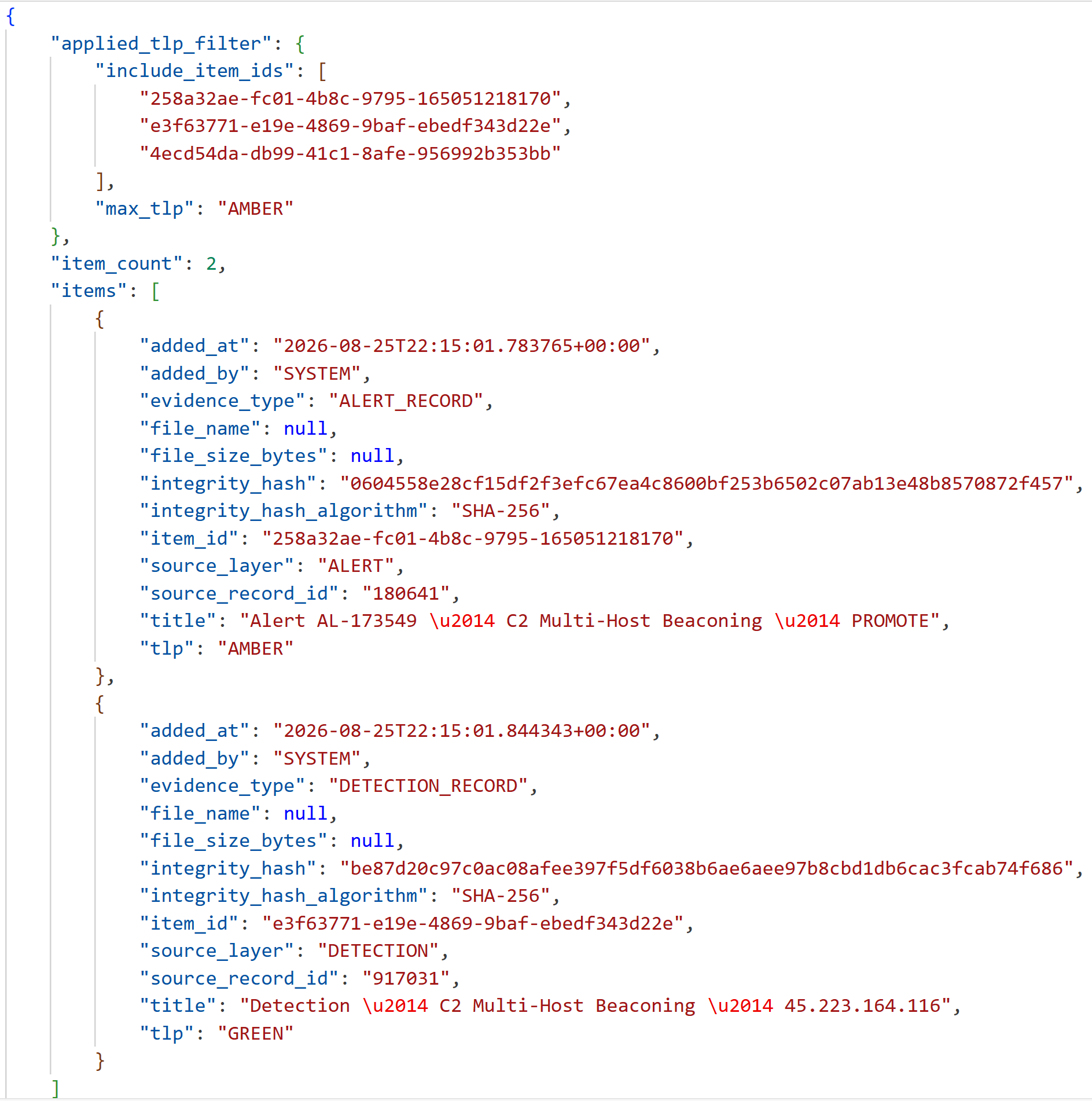
An evidence package export produces a TLP-filtered ZIP archive containing the selected files in their original format and a JSON manifest with item metadata and SHA-256 integrity hashes.
To generate a new export:
-
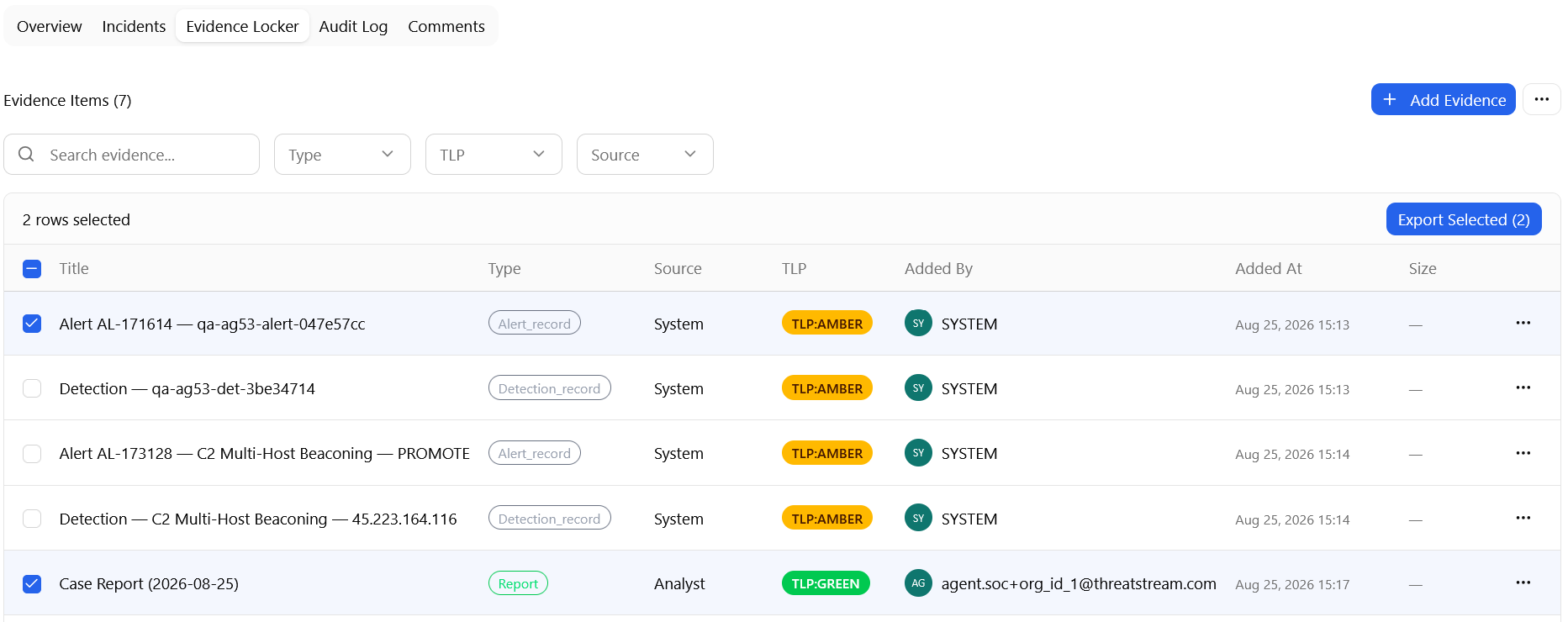
Select one or more evidence items.
-
Click Export Selected (N), where N is the number of evidence items you are about to export.
-
Select the maximum TLP level for the export from the Max TLP drop-down list.
-
Click Export to finish the export.
Once the export is complete, click Download to start the download.

The following is an example screenshot of a JSON manifest from an export.
An export record itself is permanently logged in the Audit Log tab. See Audit Log Tab for details.