Cases
The Cases page is your top-level investigation place in Anomali Agentic SOC Operations Security Operations. Cases compile incidents, alerts, detections, evidence, threat intelligence, analyst decisions, recommendations, and audit history into governed records.
A case also provides the capabilities beyond what an incident offers:
-
Evidence Locker that serves as an immutable evidence store wherein files, SIEM search results, and system-generated artifacts are stored with SHA-256 integrity hashing. See Using the Evidence Locker for details.
-
Response Workbook that comprises a structured four-phase incident response plan with task tracking and an Anomali AI-generated case summary. See Using the Response Workbook for details.
To access cases created within your organization, navigate to ThreatStream Next Gen > Security Operations > Cases.
You can use the tile or list view of the Cases page to manage cases in your organization.
(Click the image to enlarge it.)
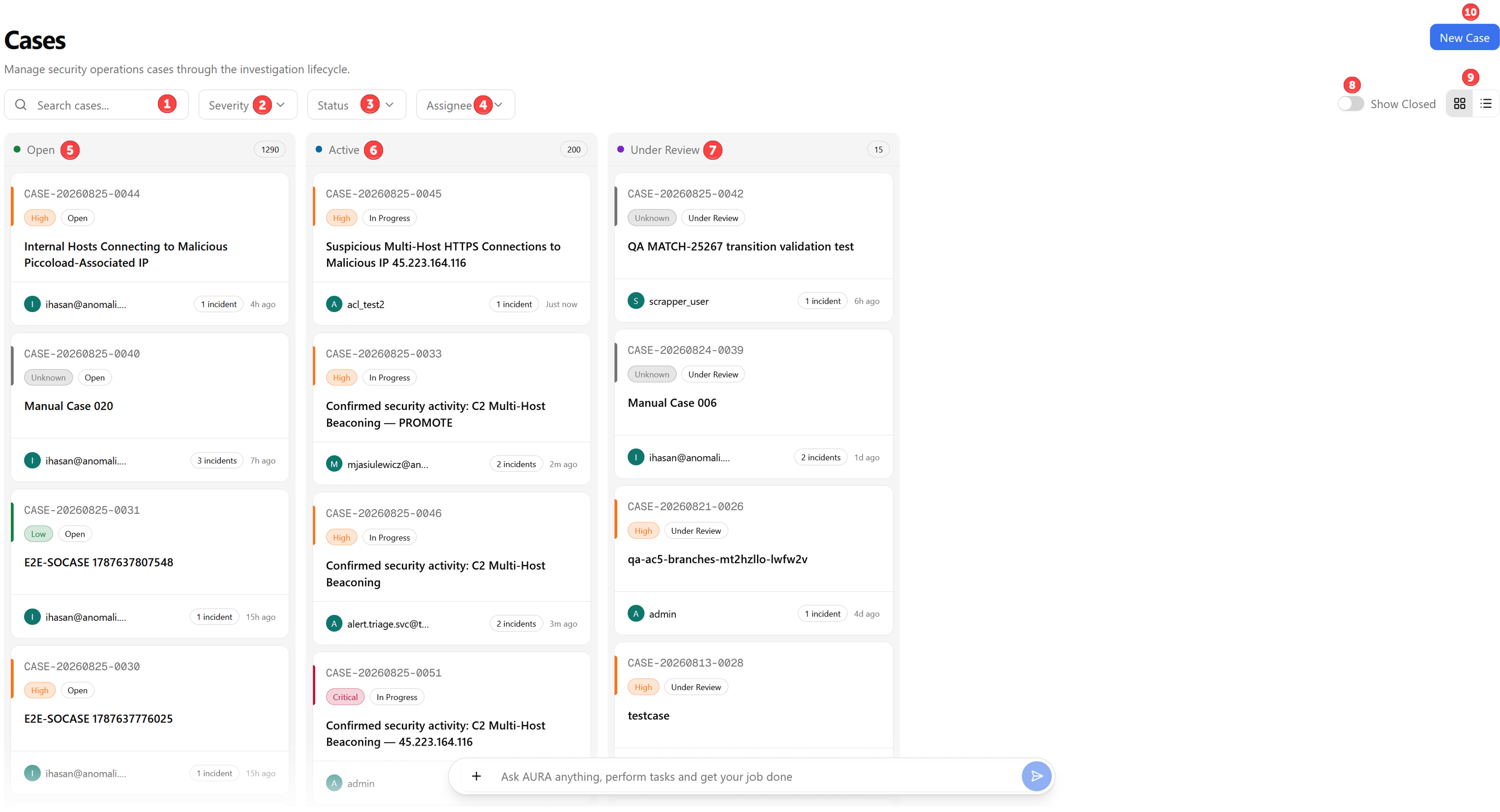
The Cases page defaults to the Kanban board view. The board has four columns representing the case lifecycle: Open, Active, Under Review, and Closed.
 Search: Free-text search across existing cases.
 Severity: Filter cases by severity. Possible values include Critical, High, Medium, Low, or Unknown.
 Status: Filter cases by lifecycle status.
 Assignee: Filter by the assigned lead analyst.
 Open: Denotes that the case has been created and is ready for investigation but has not yet been started.
 Active: Implies the case is actively in progress. Active cases display a sub-state badge:
-
In Progress— investigation is ongoing
-
On Hold— investigation has been temporarily paused
-
Escalated—investigation has been raised to a higher tier of criticality
 Under Review: Signifies that the investigation work is complete and the case has been submitted for sign-off by the assigned approver.
 Show Closed: Toggle the Show Closed switch to display closed cases. Closed cases are read-only and are a hidden column by default. See Closing Cases for more details on the case closure and reopening workflow.
 Click the grid icons to switch between a Kanban board view or a list view of all the cases.
 Click New Case in the top-right corner of the page to manually create a new case. See Creating a Case for more information.
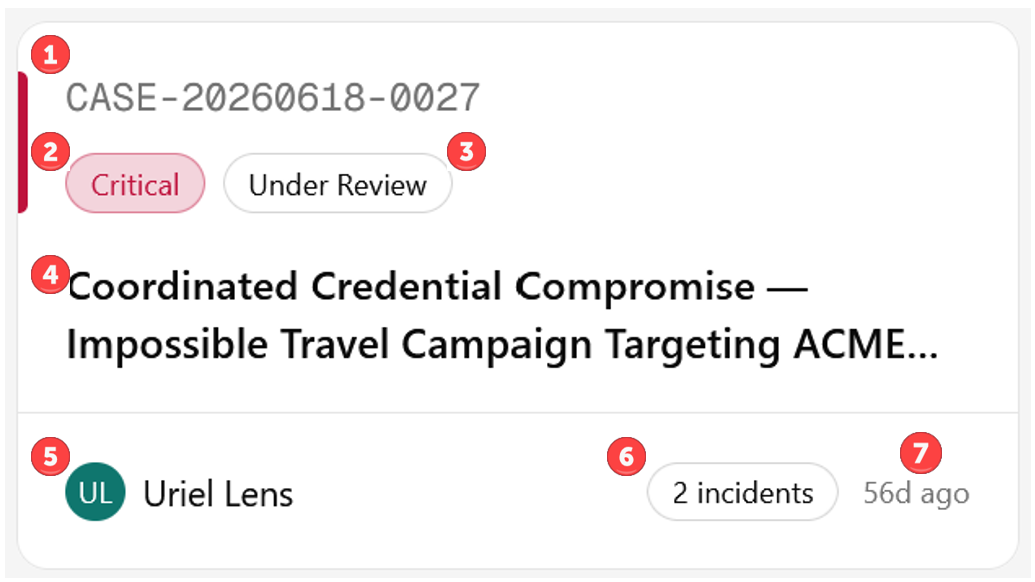
Each case card on the board displays:
Case number: Auto-generated identifier in CASE-{YYYYMMDD}-{NNNN} format
Severity: Severity level of the case, shown as a color-coded left border and badge (Critical=red, High=orange, Medium=yellow, Low=green, Unknown=gray)
Case Status: Status of the case.
Case Title: Name of the case.
Lead Analyst: Avatar and name of the assigned analyst. A case is automatically assigned to the analyst that created it.
Incidents: Number of incidents linked to the case.
Last Updated: Relative timestamp of when the case was last updated
Click a card to open the case in a slide-over panel. See Viewing Case Details for more information.

Switch to the list view and click the more options menu icon (...) to access more actions you can take on cases:
-
View Details: Opens the case slide-over panel. See Viewing Case Details for more information.
-
Edit: Opens an edit modal to update case metadata. See Editing Cases for more information.
-
Export: Generates a TLP-filtered evidence package export. See Exporting Evidence for more information.
-
Start: Opens the Start Case modal. See Starting Cases for more information.
-
Additional Actions: Select one or more cases and click Assign To to assign the case to an analyst, or click Add Tags to add one or more tags to the case. See Assigning Cases and Adding Tags to Cases for details.
You can also change the lifecycle status of a case directly by dragging its card to a different column on the board. See Changing a Status of Cases for more information.