Creating a Case
If you do not use the agentic SOC Operations workflow for your security operations, you can create cases manually.
To manually create a new case:
-
Navigate to ThreatStream Next Gen > Security Operations > Cases.
-
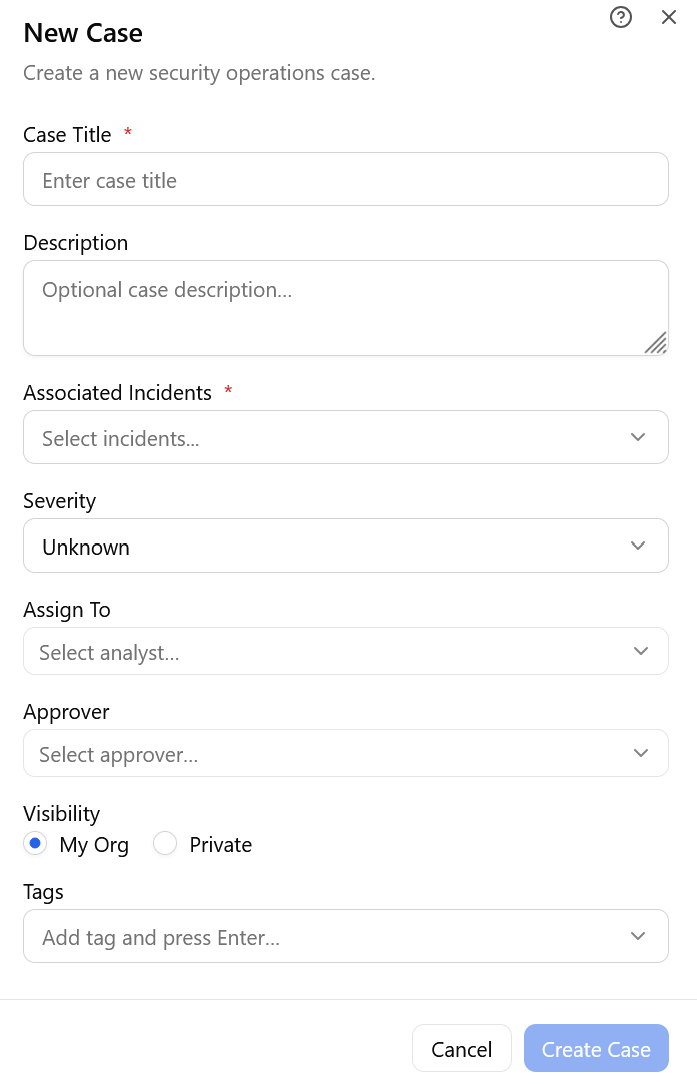
Click New Case in the top-right corner of the Cases page to open the New Case dialog box.
-
Define values for the following fields:
Field Description Case Title Provide a short unique name for the case. Description (Optional) Enter a summary of the case. Associated Incidents Select one or more incidents linked to this case. Severity Select a severity level of the case—Critical, High, Medium, Low, or Unknown.
Default: Unknown.
Assign To (Optional) Select an analyst to lead the case. Approver (Optional) Select a case approver. Visibility Set a case visibility:
-
My Org—makes the case visible to your organization.
-
Private—restricts access to the user managing the case.
Default: My Org.
Tags Select tags to be associated with the case.
The available tags are derived from the ThreatStream Preferred Tags list. See Adding Preferred Tags to Intelligence for more information. To create a custom tag, enter the desired tag value in the search field and click +.
-
- Click Create Case.
The case is assigned an auto-generated case number and placed in the Open column on the Cases page.