On this page:
Related topics:
Closing Cases
Closing a case in Anomali Agentic SOC Operations is a two-step workflow:
-
Case owner submits the case for review
-
Assigned approver then approves or returns it
Once approved, the case transitions to the Closed status and becomes read-only. A closure record is created automatically and is accessible from the Closure Record tab on the full-page Case view.
Submitting Cases for Review
When an investigation is complete, the case owner assigns an approver and submits the case for review. The case transitions to Under Review and the approver is notified.
To submit a case for review:
-
Navigate to ThreatStream Next Gen > Security Operations > Cases.
-
From the tile view, click the case and click the Open in New Tab (
 ) icon to open the case in full page in a new tab. Alternatively, switch to the Cases list view and then click the case name to open the case in full page.
 -
Select an approver from the Approver drop-down list on the left pane.
Note: The approver must have the Approve Case Closure permission. See Managing Roles for details on permissions. -
Click Submit for Review in the top-right corner of the page.
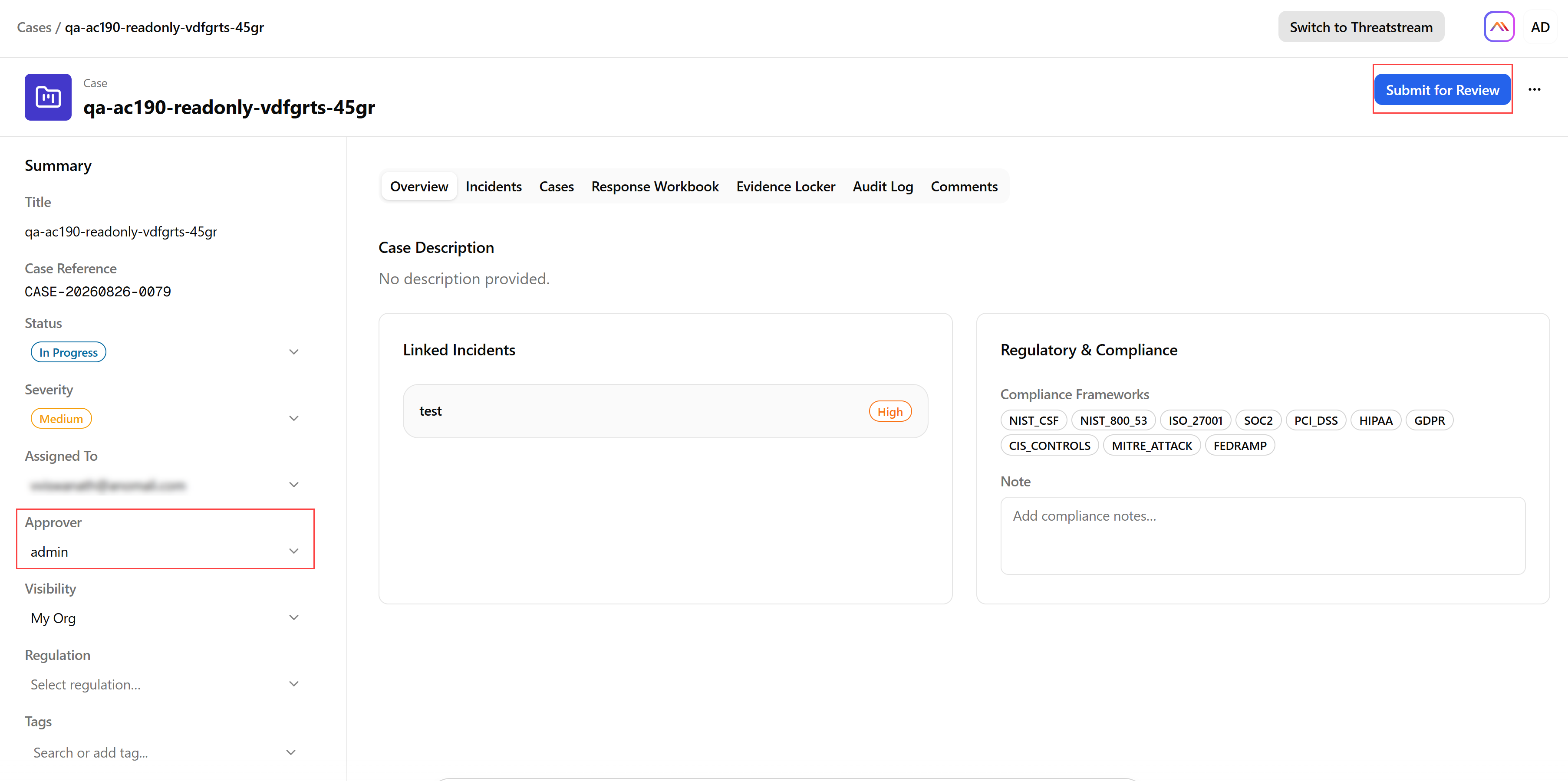
The case status changes to Under Review. The assigned approver can now approve or return the case.
Approving or Returning Cases
When a case is submitted for review, the assigned approver can see the Approve and Return buttons in the top-right corner of the case full-page view.
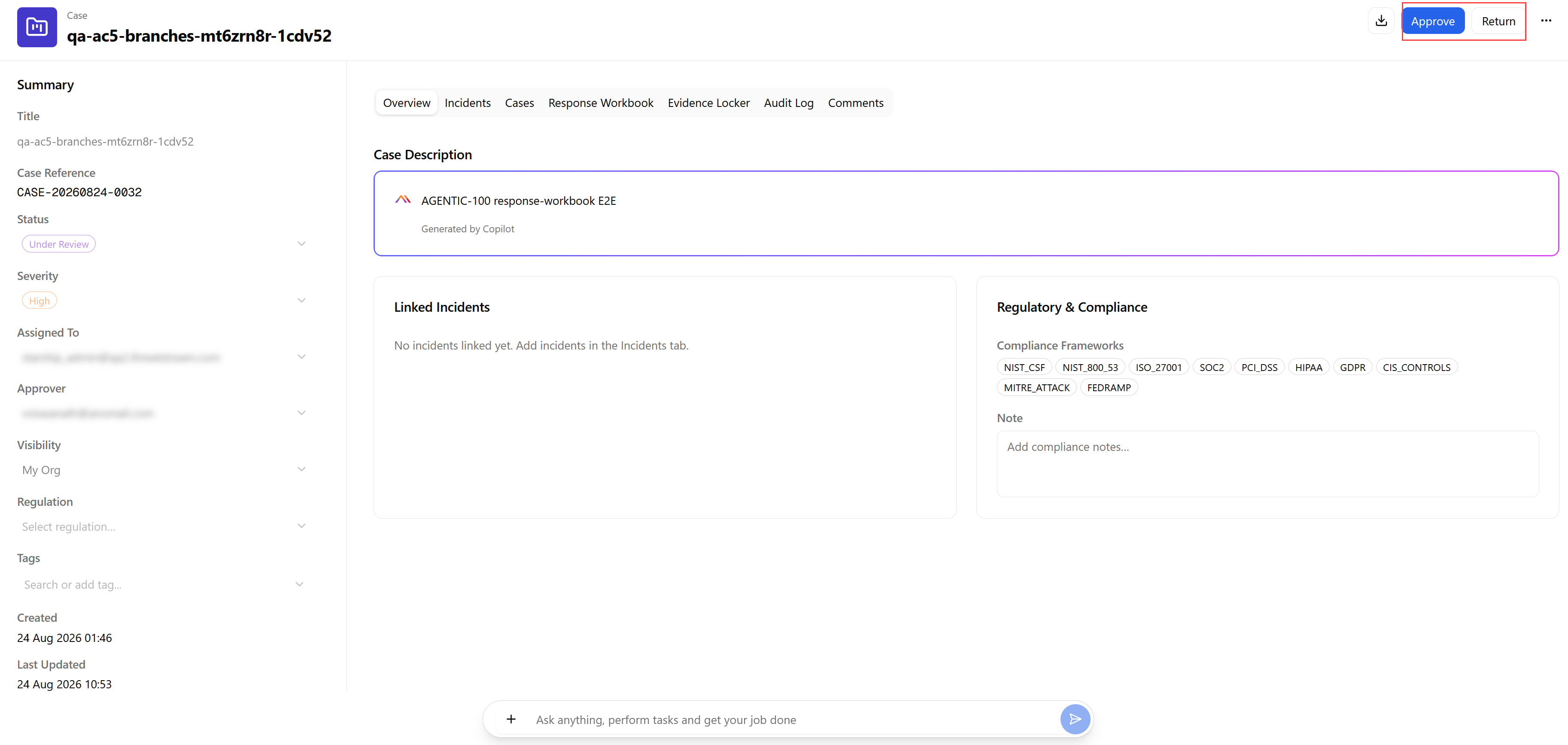
To approve and close a case:
-
Navigate to ThreatStream Next Gen > Security Operations > Cases.
-
Open the full-page view of the case you want to approve and close.
-
Click Approve.
-
In the confirmation dialog, click Approve & Close.
The case transitions to the Closed status and becomes read-only. A Closure Record is created under the Closure Record case tab.
To return a case to the Active status:
-
Navigate to ThreatStream Next Gen > Security Operations > Cases.
-
Open the full-page view of the case you want to return to the Active status.
-
Click Return.
-
In the Return this case? dialog, enter a note explaining what needs to be addressed. This field is required.
-
Click Return to Active.
The case returns to its previous Active sub-state (In Progress, On Hold, or Escalated) and the case assignee is notified.
Reopening Closed Cases
Reopening a case returns it to the Active status and preserves the existing closure record.
To reopen a closed case:
-
Navigate to ThreatStream Next Gen > Security Operations > Cases.
-
Enable the Show Closed toggle in the top-right corner to display closed cases.
-
Locate the closed case you want to re-open and open it in the full-page view. See Accessing the Case Full-Page View for details.
-
Click Reopen in the top-right corner of the page.
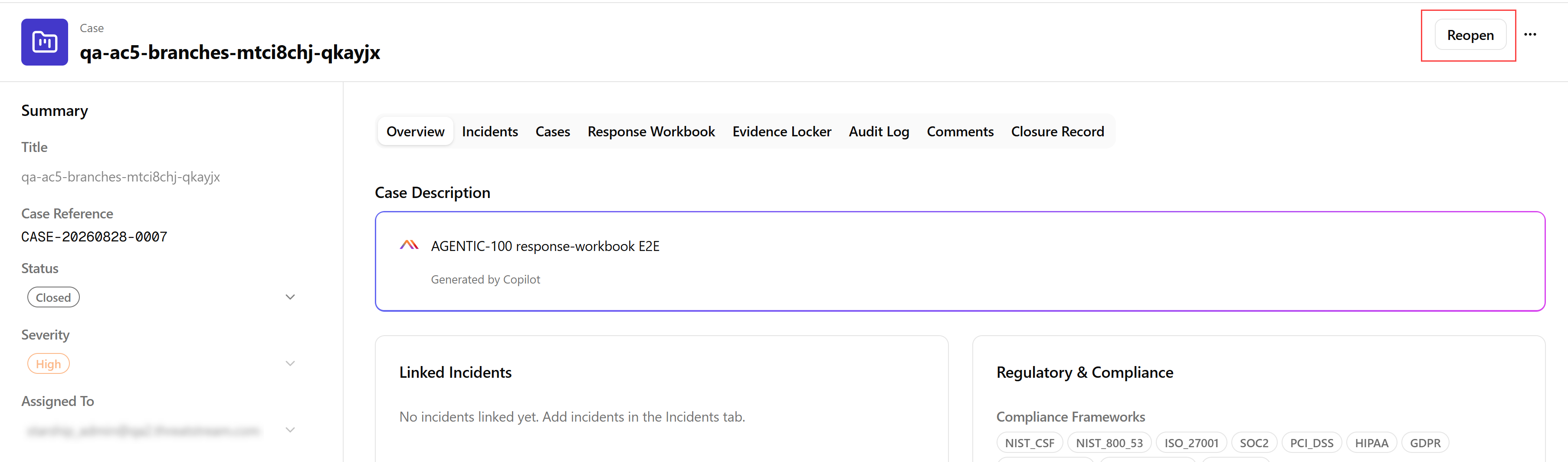
-
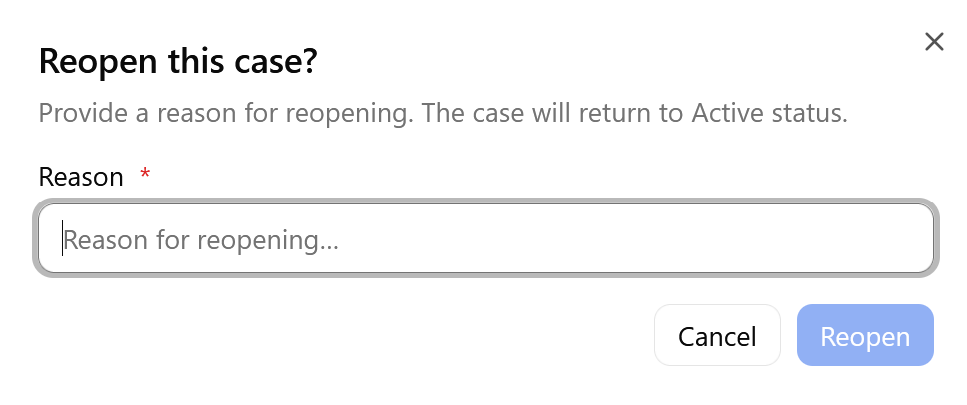
In the Reopen this case? dialog, enter a reason for reopening. This field is required.
-
Click Reopen.
The case returns to Active status. The closure record from the previous closure is preserved in the Closure Record tab.