Managing Cases
You can take several actions to manage cases in your queue. You can assign cases to lead analysts, add tags for categorization, edit case metadata, export case packages, start cases when they are ready for investigation and move cases through their lifecycle.
Assigning Cases
Assigning a case establishes the lead analyst responsible for investigating the case. You can change the assignee only for Open and Active cases.
You can assign cases for investigation in one of the following ways:
-
From the Cases page (list view)
-
From the Case Details panel/page
To assign a case from the Cases page (list view):
-
Navigate to ThreatStream Next Gen > Security Operations > Cases.
-
Switch to the Cases list view.
-
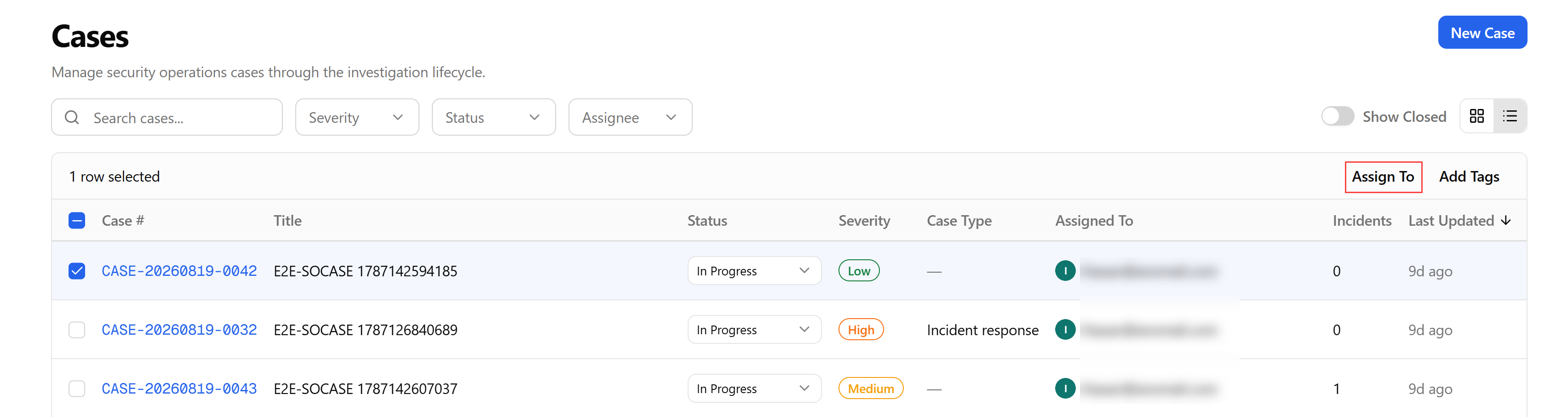
Select a case or more and click Assign To.
-
Select a user and click Assign.
The user is assigned to the selected cases.
To assign a case from the Case Details panel/page:
-
Navigate to ThreatStream Next Gen > Security Operations > Cases.
-
Locate the case of your interest and open its details panel of full-page view. See Viewing Case Details for details.
-
Select a user from the Assignee drop-down list.
The user is assigned to the case.
Adding Tags to Cases
You can add tags to cases to help you categorize and filter cases.
To add tags to cases:
-
Navigate to ThreatStream Next Gen > Security Operations > Cases.
-
Switch to the Cases list view.
-
Select one or more cases
-
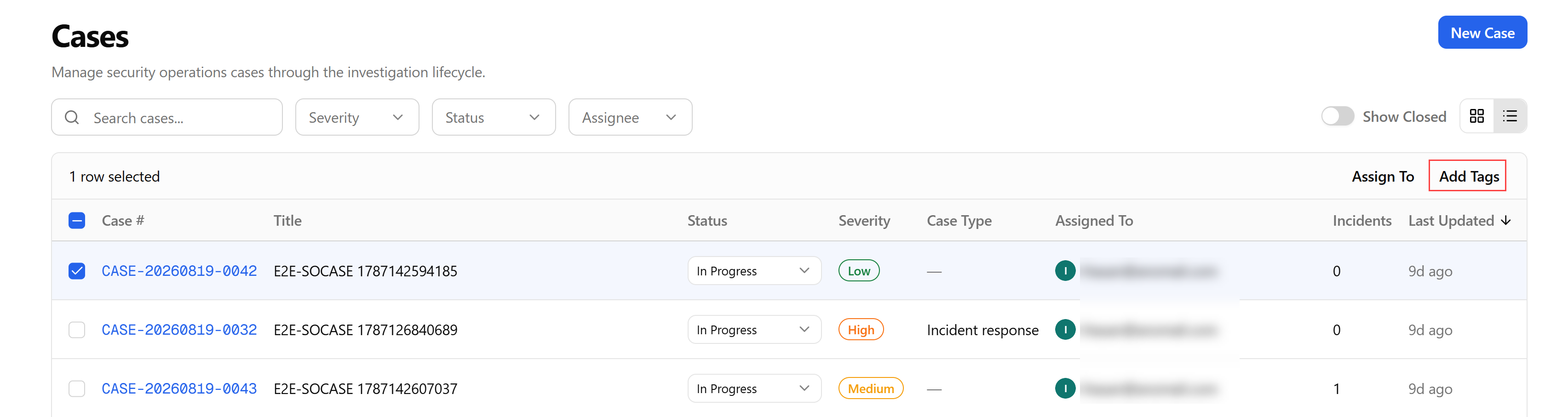
Click Add Tags.
-
Select tags to be associated with the case.
-
The available tags are derived from the ThreatStream Preferred Tags list. See Adding Preferred Tags to Intelligence for more information. To create a custom tag, enter the desired tag value in the search field and click +. Repeat these steps to add additional tags.
-
Click Add Tags.
The tags are added to the selected cases.
Editing Cases
You can edit cases that are either in Open or Active status, in one of the following ways:
-
From the Cases page (list view)
-
From the Case Details panel/page
To edit a case from the Cases page:
-
Navigate to ThreatStream Next Gen > Security Operations > Cases.
-
Switch to the list view.
-
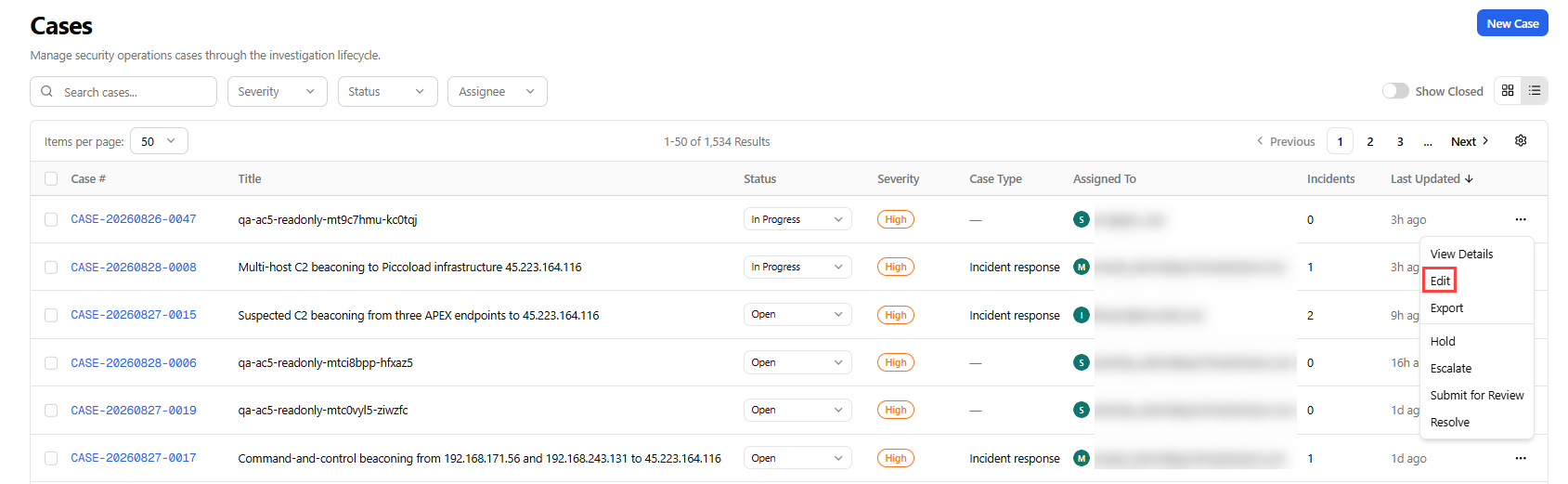
Click more options menu (...) of the case you want to edit and click Edit.
-
Update the case fields as needed. The changes are saved automatically.
To update a case from the Case Details panel/page:
-
Navigate to ThreatStream Next Gen > Security Operations > Cases.
-
Click the case you want to edit.
-
Update the case fields as needed.
The changes are saved automatically.
Exporting Cases
You can export case details in a .zip file in one of the following ways:
-
From the Cases page (list view)
-
From the Case Details panel/page
To export a case from the Cases page (list view)
-
Navigate to ThreatStream Next Gen > Security Operations > Cases.
-
Switch to the list view.
-
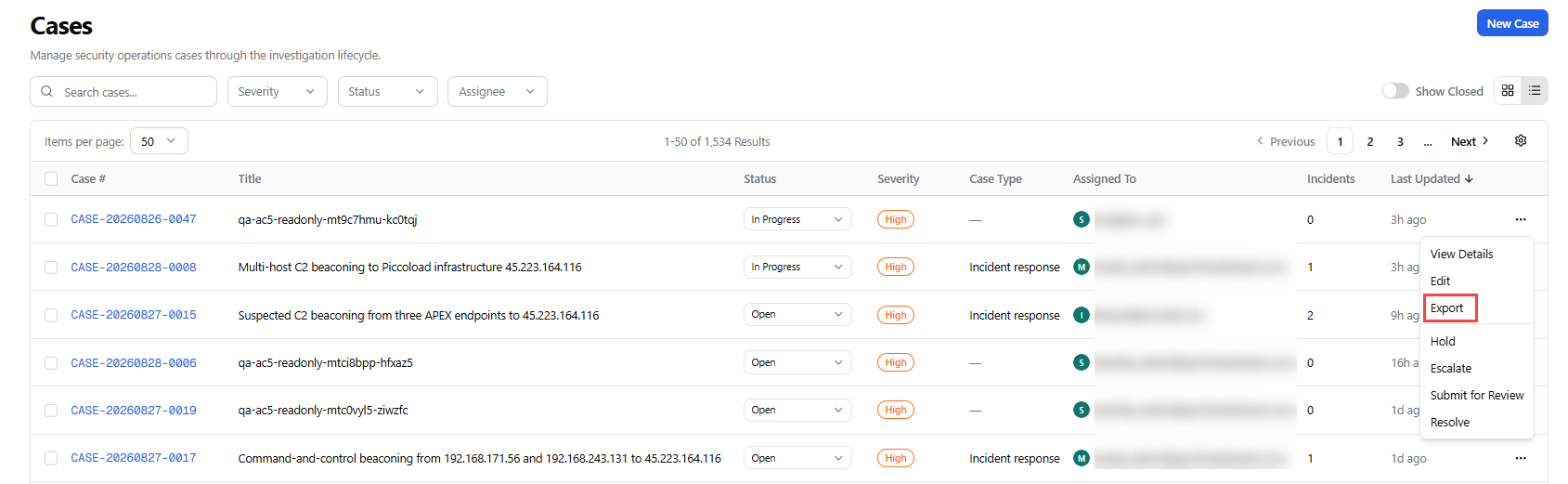
Click the case more options menu (...) and then click Export to initiate the export.
-
When the export is ready, click Download to download the exported files.
The download process starts immediately.
To export a case from the Case Details panel/page:
-
Navigate to ThreatStream Next Gen > Security Operations > Cases.
-
Click the case you want to edit.
-
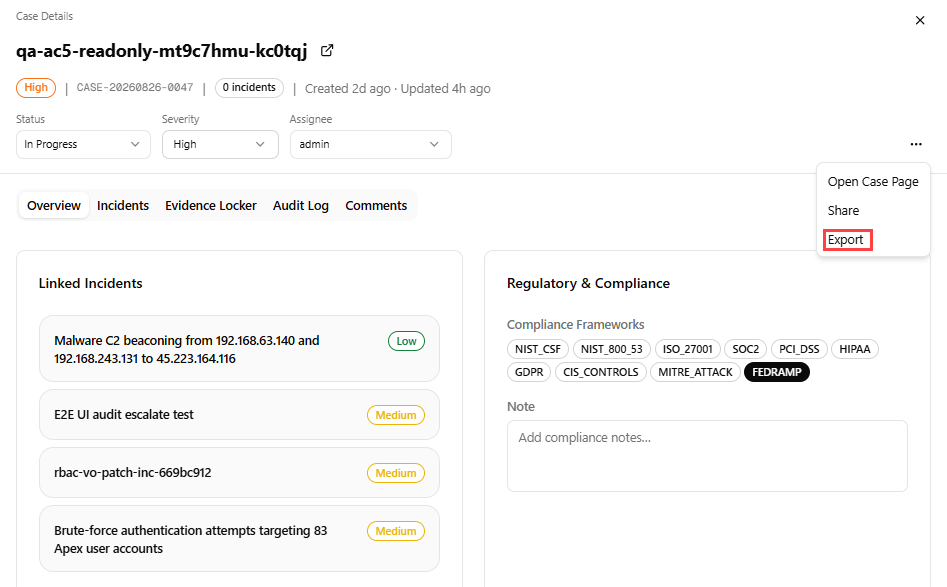
On the Case Details panel/page, click the more options menu (...) and then click Export to initiate the export.
-
When the export is ready, click Download to download the exported files.
The download process starts immediately.
Starting Cases
A newly created case begins in the Open state, with the assignee being the user who created it.
To start a case:
-
Navigate to ThreatStream Next Gen > Security Operations > Cases.
-
Switch to the list view.
-
Click the more options menu (...) of the case you want to start.
-
Select Start.
The case status transitions to In Progress.
Changing a Status of Cases
A case moves through its lifecycle as work progresses: from Open to Active (sub-statuses: In Progress, On Hold, or Escalated), then to Under Review once submitted for approver sign-off, and finally to Closed once the approver approves.
You can change the status of open and active cases from the Cases list view page or from the Case Details panel/page. For details on closing cases, see Closing Cases.
To change a case status from the Cases list view page:
-
Navigate to ThreatStream Next Gen > Security Operations > Cases.
-
Switch to the Cases list view and locate the case whose status you want to change.
-
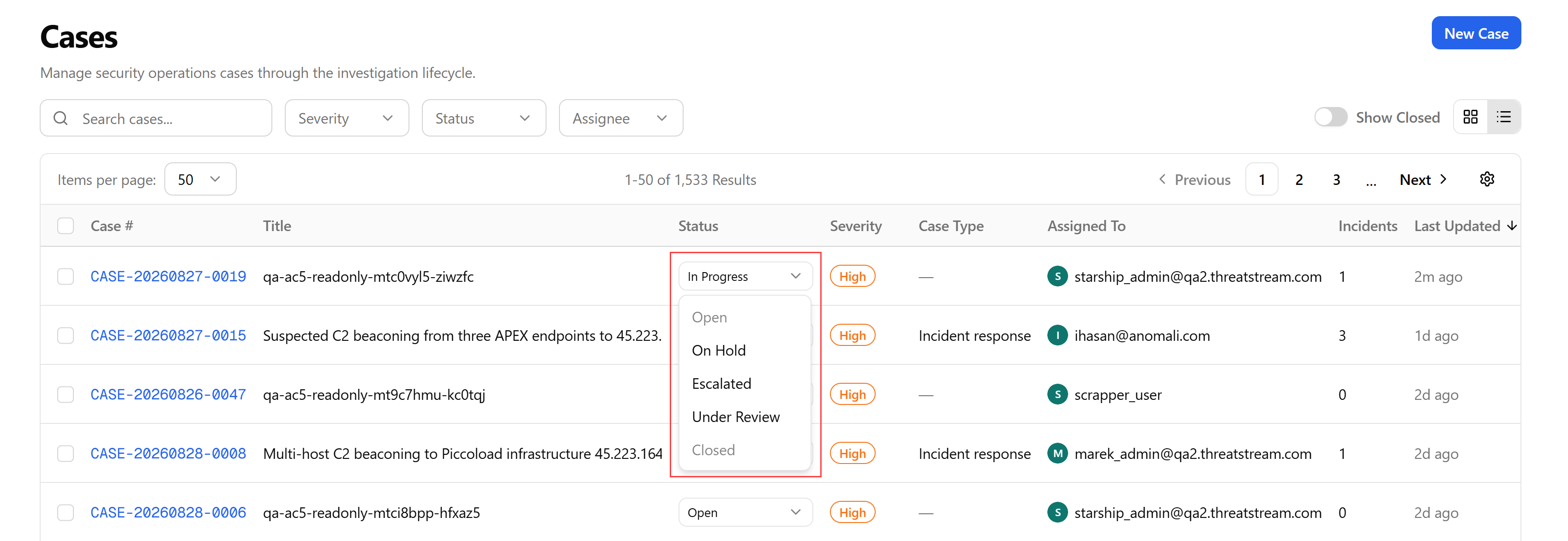
Select the desired status from the case Status drop-down list.
If you select On Hold or Escalate, provide a reason for putting the case on hold and click Confirm.
If you select Under Review, verify that the case has an approver assigned to it and all incidents linked to the case are closed. See Submitting Cases for Review for details.
The case status is updated.
To change a case status from the Case Details panel/page:
-
Navigate to ThreatStream Next Gen > Security Operations > Cases.
-
Open the Case Details panel or full-page view. See Viewing Agent Details for details.
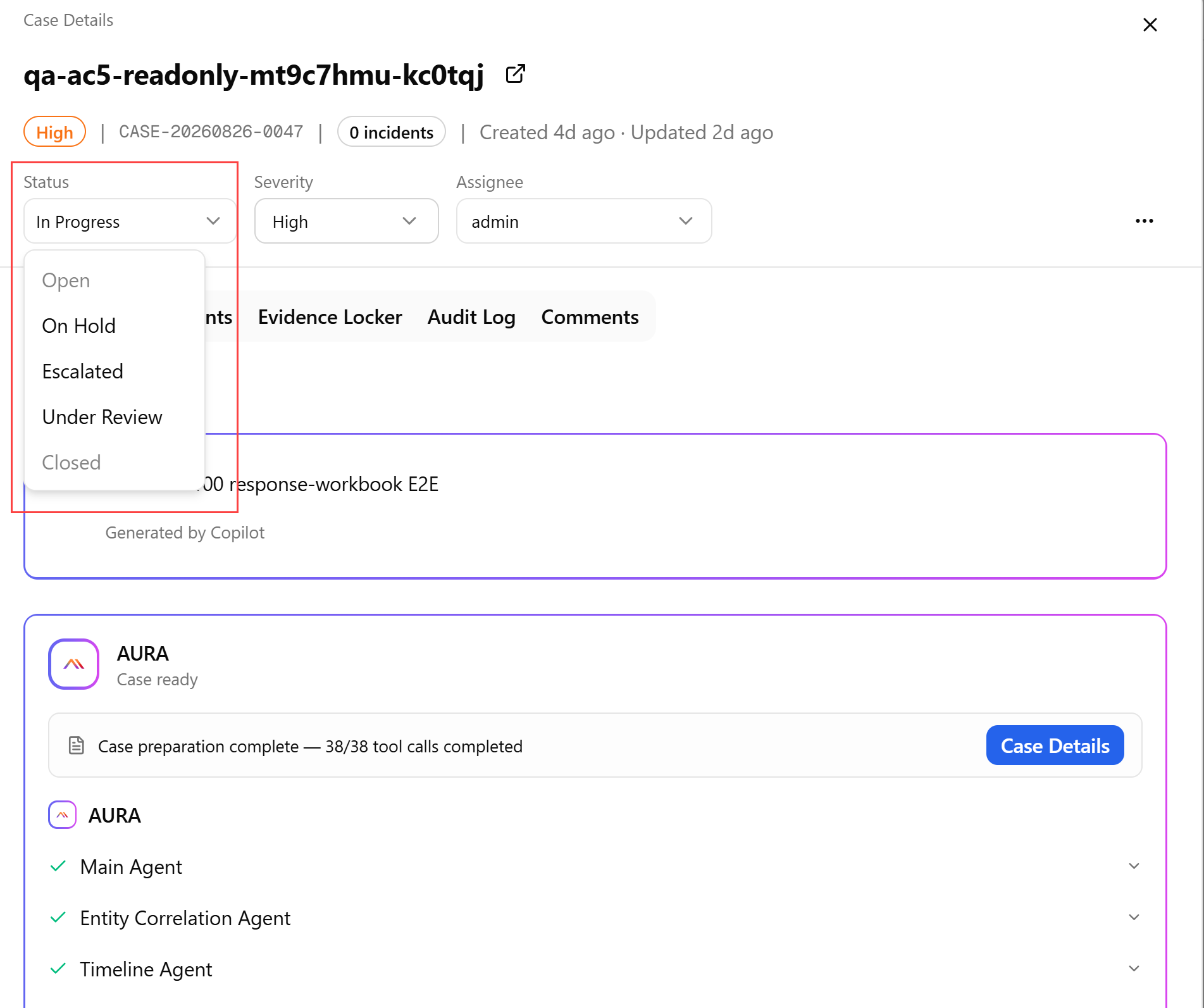
If you select On Hold or Escalate, provide a reason for putting the case on hold and click Confirm.
If you select Under Review, verify that the case has an approver assigned to it and all incidents linked to the case are closed. See Submitting Cases for Review for details.
-
Select the available status from the Status drop-down list.
The case status is updated.
Closing Cases
Closing a case marks the investigation complete and makes the case read-only. Closure requires an assigned approver to review and sign off on the investigation before the case can transition to Closed.
See Closing Cases for more information on the full closure workflow, including approver assignment, the review process, and reopening a closed case.
Viewing Case Details
See Viewing Case Details for details on the case slide-over panel and full-page view.