On this page:
Related topics:
-
Managing Access to Incidents
Viewing Incident Details
Note: Viewing an incident requires the View Incidents permission and at least Read access to that specific incident. For details, see Managing Roles.
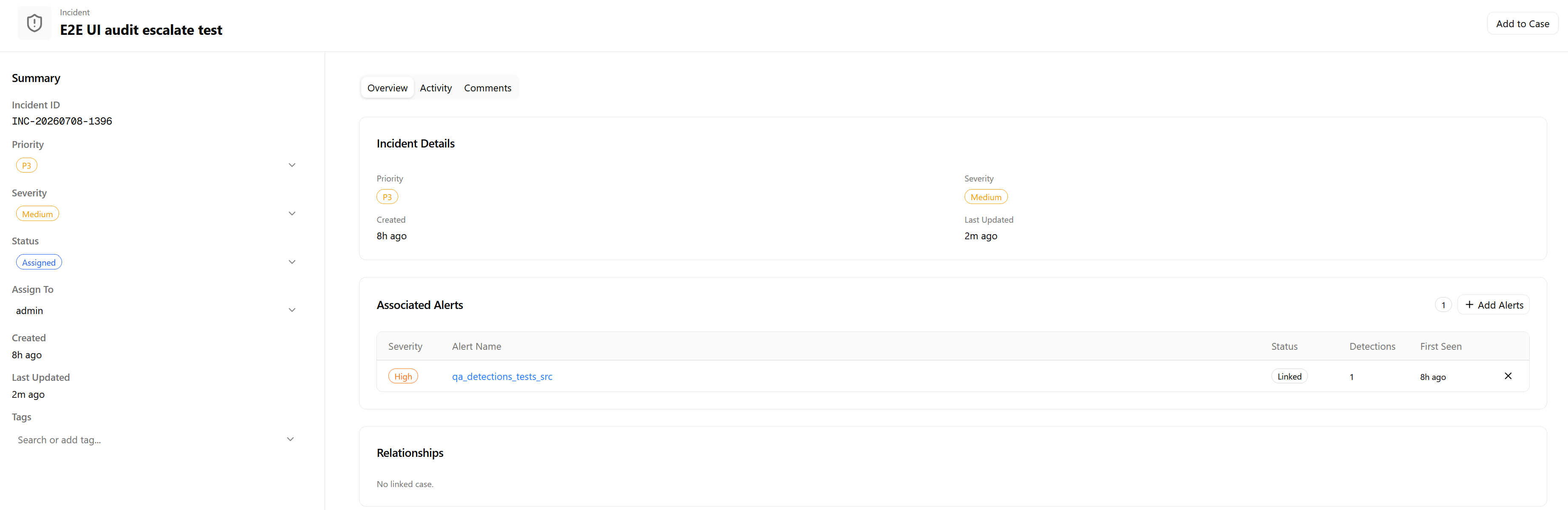
You can view the full context of an incident, including its source alerts, related entities, activity history, and analyst comments, in the incident details panel or the dedicated full-page view.
To open the incident details panel, click the more options menu (...) for an incident in the list view and select View Details. You can also click the incident title directly.
The Incident Details panel provides a focused view of a single incident across three tabs: Overview, Activity, and Comments. Use these tabs to review source alerts and incident details, track lifecycle activity, and collaborate with your team without leaving the Incidents page.
 Overview Tab
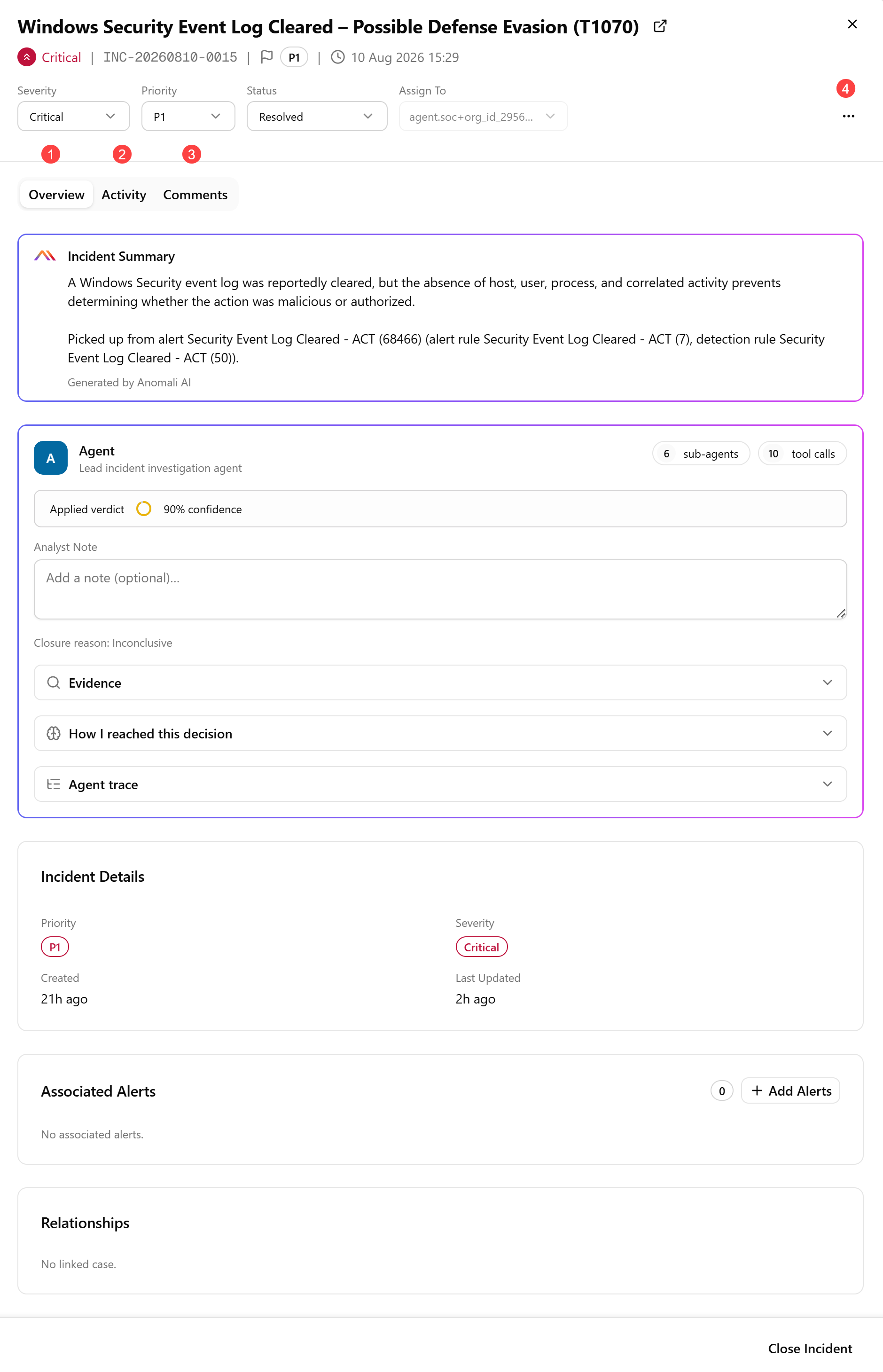
The Overview tab is the default landing tab. It gives you a summary of the incident metadata, its source alerts, and any case relationships that you may need to assess the incident before taking action.
The tab includes the following sections:
| Section Name | Description |
|---|---|
| Incident Summary | Anomali AI-generated incident summary. |
| Agent |
Incidents created by the Alert Triage Agent include the following fields: Proposed verdict: Final action recommended by the Incident Response Agent after evaluating the alerts associated with the incident. Incidents with the In Progress status require you to either accept the recommendation of the Agent, or submit an override action along with the note describing the reason for escalation.
|
| Incident Details |
Metadata displaying the following incident details:
|
| Associated Alerts |
Source alerts linked to this incident, with a count badge and an + Add Alerts button to link additional alerts.
|
| Relationships | Displays any case to which this incident has been linked. An incident can only be linked to one case. Click Open to open the linked case in a new tab and view the details of the case. See Viewing Case Details for more information. |
 Activity Tab
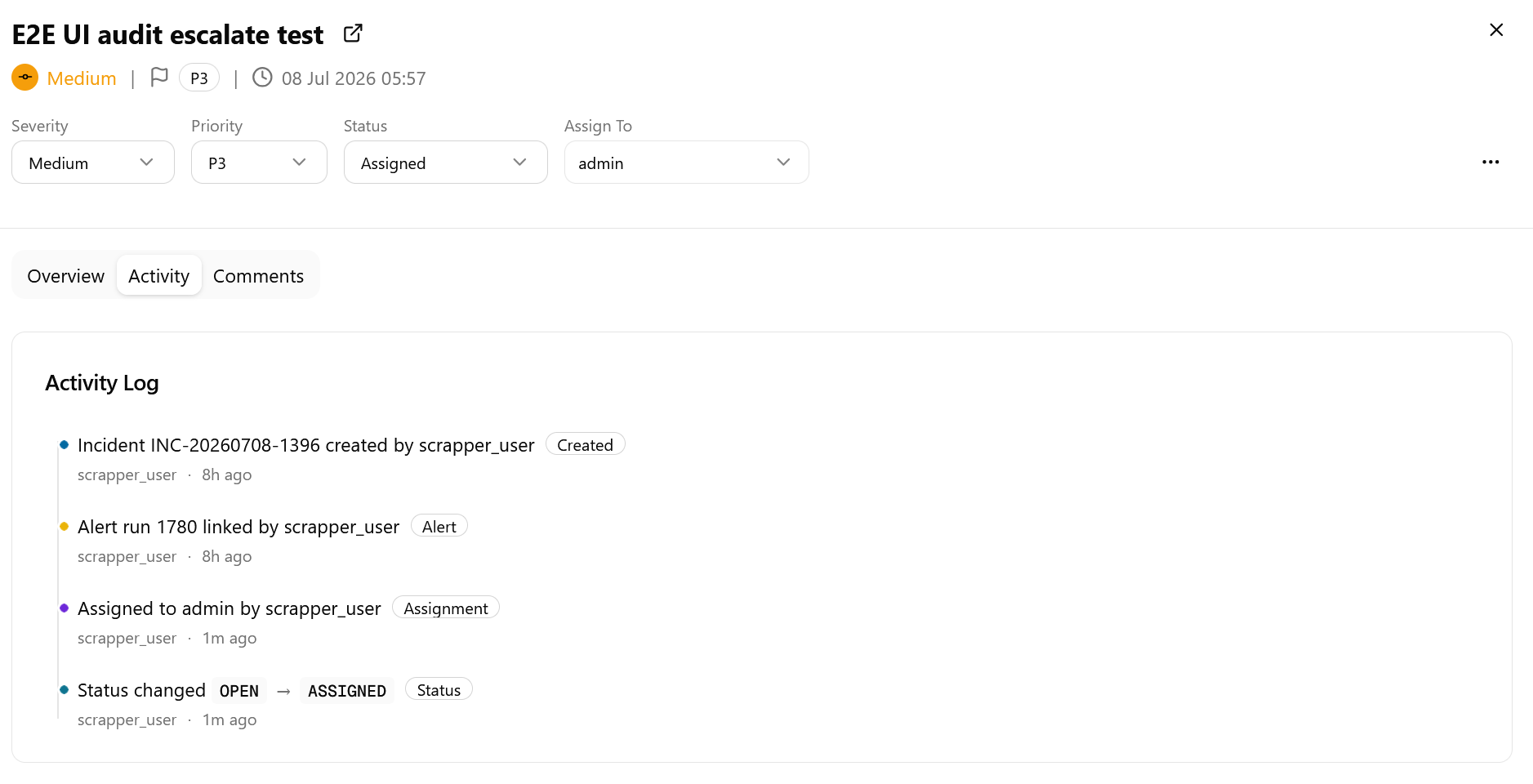
The Activity tab displays the Activity Log — a chronological, immutable record of all system and analyst events on this incident. Each entry shows a color-coded dot, an event description, an event type badge, the author, and a relative timestamp.
Logged event types include:
-
Created—records when the incident record was first created and by whom
-
Alert—records when an alert is linked to the incident
-
Assignment—records when the incident is assigned to an analyst
-
Status—records a status transition, for example
OPEN → ASSIGNED
 Comments Tab
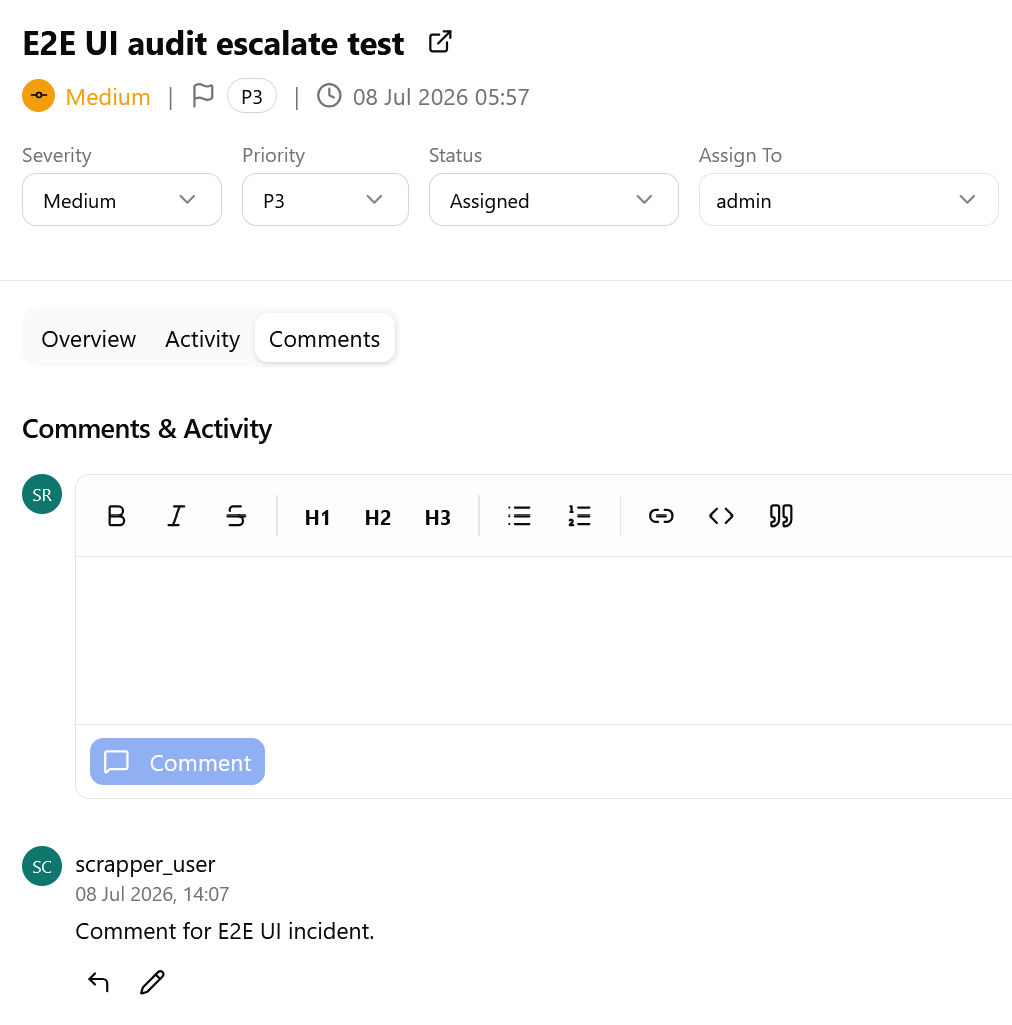
The Comments tab allows you to add notes and context to the alert record. A rich-text composer appears at the top of the tab that includes all the standard text formatting tools.
Click Submit to post a comment.
Each comment entry shows:
-
Author name and timestamp
-
The actual comment
-
Per-comment action icons: Reply (
 ) available on all comments and Edit (
 ) available only on your own comments.
Actions Menu
Click the action menu and select Add to Case to add the incident to a case. For details, see Managing Incidents.
Opening the Full Incident Page
To open an incident in a dedicated full-page view, click the external link icon next to the incident title.
The full-page view expands the same Overview, Activity, and Comments tabs into a two-column layout: the Summary sidebar on the left and the tab content on the right.