Detection Rules
The Detection Rules page is where you view, filter, create, and manage detection rules created within your organization. Detection rules form the foundation of your threat detection pipeline, generating detections that ultimately feed into alerts for analysts to investigate. Each rule defines a specific pattern of suspicious activity, expressed as an AQL query or generated from a natural-language AI prompt, and runs continuously against incoming log data on a configurable schedule. A detection is automatically generated whenever the pattern matches.
Every rule includes a risk score, one or more MITRE ATT&CK technique mappings, and an OCSF category, helping you prioritize and triage detections consistently across your environment. You can use Anomali pre-built detection rules or create your own. The output of a rule feeds directly into alert rules, which group and escalate detections into alerts for analysts to investigate. For more information on alerts, see Alerts.
To access your detection rules, navigate to ThreatStream Next Gen > Security Operations > Detection Rules.
(Click the image to enlarge it.)
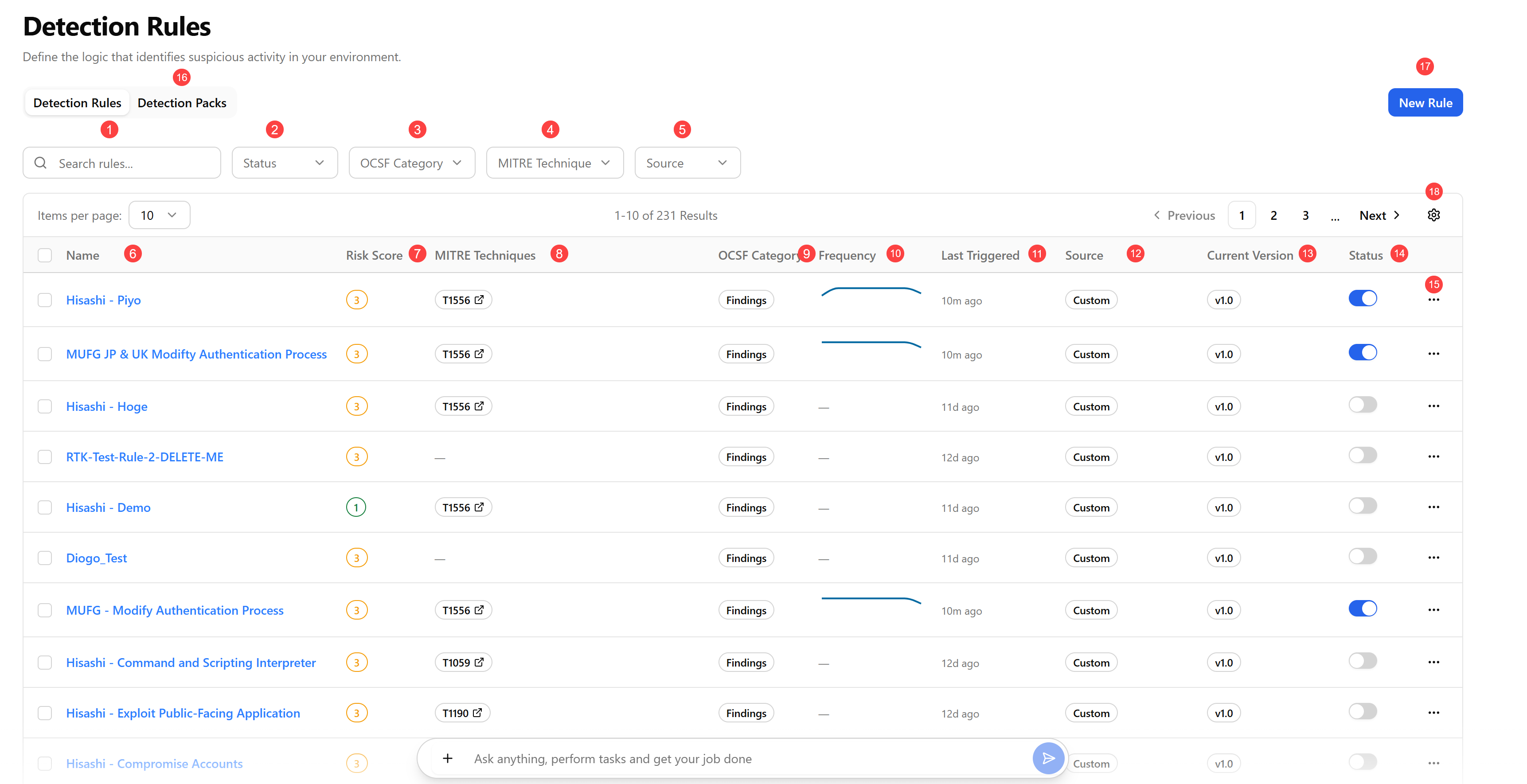
 Search: Search detection rules by their names. The search is case insensitive and updates incrementally.
 Status: Filter detection rules by their status—Enabled, Disabled, or All.
 OCSF Category: Filter rules by their assigned Open Cybersecurity Schema Framework (OCSF ) category.
 MITRE Technique: Filter rules by MITRE ATT&CK technique ID or name. For example, T1021 or Remote Services.
 Source: Filter rules by their origin.
 Name: Name of the rule. Click the name to open the rule configuration view.
 Risk Score: A circular badge showing the risk score of the rule, on a scale of 1 (lowest) to 5 (highest). See Entity Risk Scores for details.
 MITRE Techniques: The MITRE ATT&CK technique(s) associated with the rule, shown as badges. When more techniques are mapped than can be displayed, an overflow badge (+N) indicates additional techniques.
 OCSF Category: The OCSF category assigned to the rule. For example, System Activity, Network Activity, or Discovery.
 Frequency: A 7-day sparkline showing how often the rule has been triggered recently.
 Last Triggered: Timestamp of when the rule most recently fired.
 Source: Indicates whether the rule was manually created or came from a detection pack. See Detection Packs for more information.
 Current Version:
 Status: Toggle to enable or disable the rule directly from the list. Toggling a status of the rule takes effect immediately and is recorded in the audit trail. For other ways of enabling/disabling rules, see Enabling Detection Rules and Disabling Detection Rules.
 More options menu:
-
Edit: Edit the detection rule. See Editing Detection Rules for details.
-
Duplicate: Create a copy of the rule that can be customized independently. See Duplicating Detection Rules for details.
-
Test Rule: Test the detection rule. See Testing Detection Rules for details.
-
Manage Access: Define who can access the detection rule. See Managing Access to Detection Rules for details.
-
Disable/Enable: Turned the detection rule off/on. See Disabling Detection Rules and Enabling Detection Rules for details.
-
Delete: Delete the detection rule. See Deleting Detection Rules for details.
 Detection Packs: Access detection packs with Anomali pre-built detection rules. See Detection Packs for details.
 New Rule: Create a new detection rule. For details, see Creating Detection Rules.
 View Settings: Select the columns and table density (default or compact) to be displayed. By clicking the drag handle icon (
 ), drag and drop columns to change their position in the table. To return the view back to its default settings, click Reset View.