Related topics:
Alerts
The Alerts page is your primary place for managing alerts related to your security operations environment. Alerts are generated when one or more detections meet the conditions defined in an alert rule, such as a threshold, sequence, entity correlation, or compound logic pattern. Each alert gives you a meaningful, actionable signal, helping you decide whether it warrants deeper investigation or should be escalated urgently to an incident.
From this page, you can:
-
Filter and search the alert list by status, severity, triage verdict, MITRE ATT&CK tactic or technique, or assignee, or search by alert rule name, to quickly narrow down the queue
-
View alert details
-
Assign alerts to yourself, another analyst, or agent for investigation
-
Record a triage verdict to capture your assessment of an alert
-
Suppress alert rules temporarily if they generate alerts you do not currently need to act on
-
Escalate alerts to incidents
To access your alerts, navigate to ThreatStream Next Gen > Security Operations > Alerts.
(Click the image to enlarge it.)
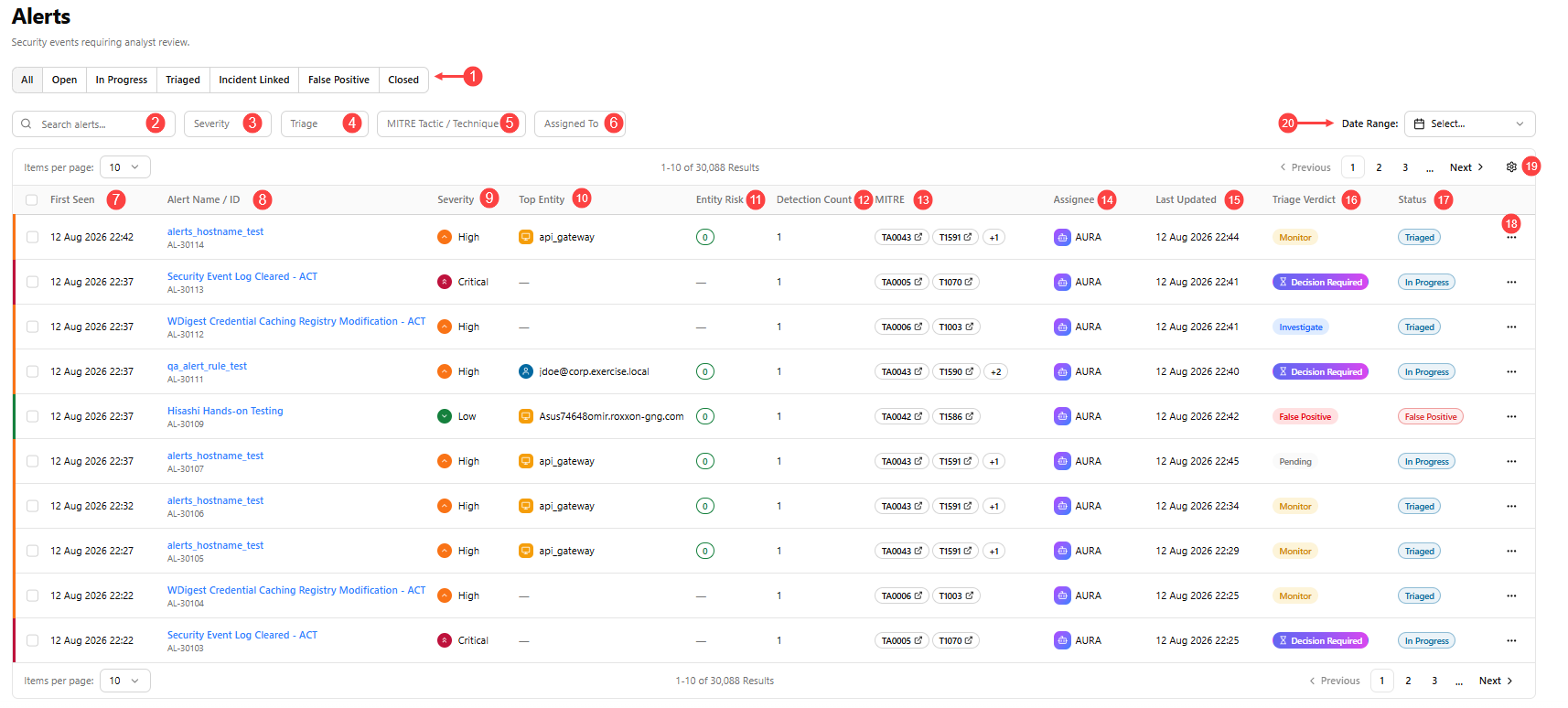
 Status Tabs: A tab bar scoping the list to a specific lifecycle state: All, Open, In Progress, Triaged, Incident Linked, False Positive, or Closed. Selecting a tab immediately filters the list to that group.
 Search: Search alerts by their associated alert rule name.
 Severity: Filter alerts by severity: Critical, High, Medium, or Low.
 Triage: Filter alerts by a triage verdict: Pending, Promote, Investigate, or Monitor. See Triaging Alerts for verdict descriptions.
 MITRE Tactic / Technique: Multi-select filtering by MITRE ATT&CK tactic or technique. The search field lets you find a specific entry by name or TA code.
 Assigned To: Filter by self, unassigned, a specific analyst, or agent-assigned alerts.
 First Seen: The timestamp of the first constituent detection.
 Alert ID: The unique alert reference in
 AL-{NNNN} format; click to open the Alert Detail View.
 Severity: A color-coded severity badge: Critical (red), High (orange), Medium (yellow), Low (green).
 Top Entity: The highest-risk entity involved in the alert.
 Entity Risk: The risk score of the top entity, shown as a color-coded badge.
 Detection Count: The count of constituent detections grouped under this alert.
 MITRE: The MITRE ATT&CK tactic or technique associated with the constituent detections.
 Assignee: The assigned analyst; agent-assigned alerts show an AI attribution icon alongside the agent name; unassigned alerts show "Unassigned."
 Last Updated: The timestamp of the most recent change to the alert record, such as a status transition, triage update, assignment change, or new comment. The list is sorted by this column, most recent first, by default.
 Triage Verdict: A verdict badge showing the current analyst decision: Pending (grey), Promote (green), Investigate (blue), or Monitor (orange).
 Status: The current status of the alert lifecycle.
 More options menu:
-
View Details: Open the Alert Detail panel for the selected alert. See Viewing Alert Details for details.
-
Escalate to Incident: Promote the alert into a new incident for formal investigation. See Escalating Alerts to Incidents for details.
-
Suppress: Temporarily suppress the alert rule that produced this alert. See Adding Suppression to Alerts for details.
 View Settings: Select the columns and table density (default or compact) to be displayed. By clicking the drag handle icon (
 ), drag and drop columns to change their position in the table. To return the view back to its default settings, click Reset View.
 Date Range: The time span from the first to the most recent constituent detection, showing the full activity window of the alert.