Manage Log Source Configurations
- Note:
-
You can add use the Security Analytics user interface to add log sources and manage active/inactive status for on-prem-to-cloud data flows through Universal Link.
-
Anomali Customer Support will facilitate the onboarding and management of log sources for cloud-to-cloud data flows.
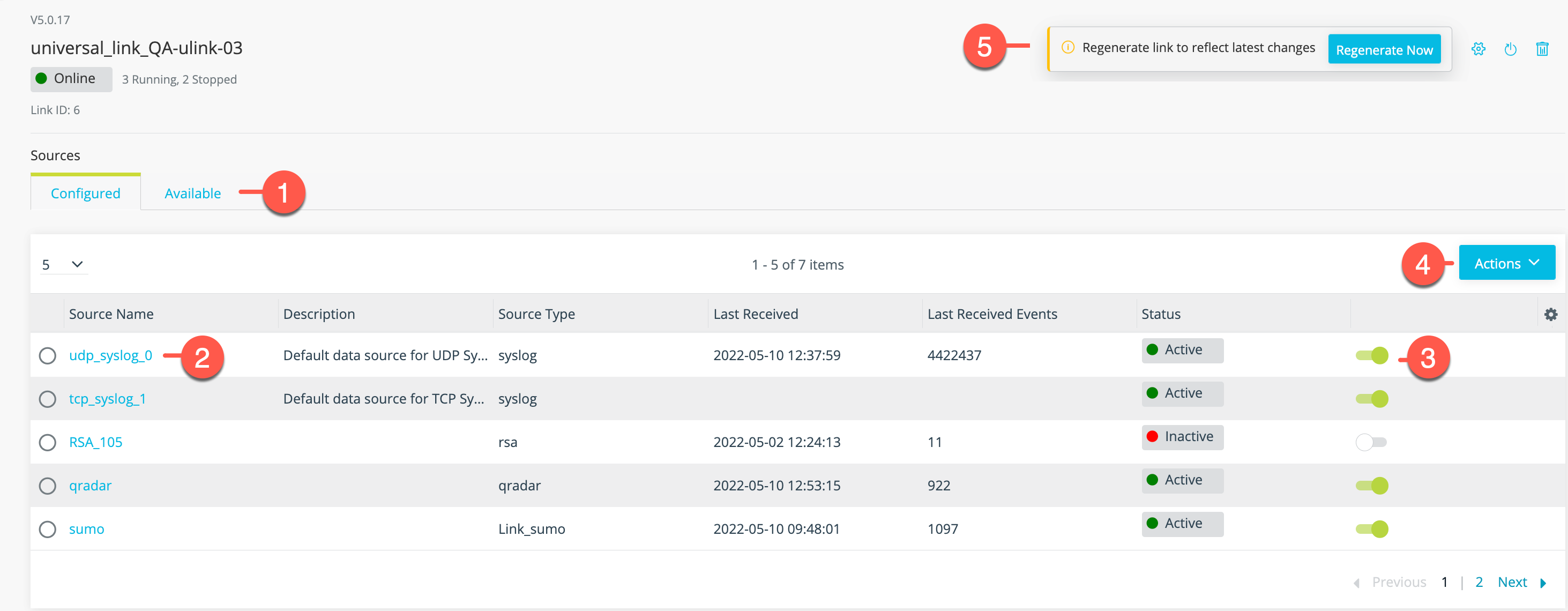
The following figure shows the tools provided on the Link details page for managing your Universal Link OnPrem log sources.

|
Configured / Available tabs: Manage configured log sources or click the Available tab to get started with a new log source. See Add a Log Source Configuration. |

|
Edit log source: Click the hyperlink in the Name column to edit the log source configuration. See Edit a Log Source Configuration. |

|
Activate / Deactivate toggle: Change active status of the log source. See Activate a Log Source Configuration. |

|
Actions: Select a log source in the leftmost column of the table, click Actions, and select an action:
|

|
Regenerate: For many log source types, after you add a log source, you must regenerate the Link configuration. Click Regenerate Now in the Link toolbar. See Regenerate a Universal Link Configuration. Note: This does not apply to "no link" log sources and some Universal Link and Cloud Link types. |
Add a Log Source Configuration
The following table summarizes telemetry log sources that have been tested for enterprise deployments. Click the hyperlink in the Log Source column for complete details about adding a log source configuration for the log source type.
Not on the list? Talk to your Anomali representative about any other log sources that you want to use the Anomali platform to analyze.
| Log Source | Link Software |
|---|---|
| 1Password | Cloud Link |
| AWS CloudTrail | Cloud Link |
| AWS GuardDuty | Cloud Link |
| AWS Load Balancer | Cloud Link |
| AWS VPC DNS | Cloud Link |
| AWS VPC Flow | Cloud Link |
| Azure Event Hubs | Cloud Link |
| Azure NSG Flow | Cloud Link |
| Azure Sentinel | Cloud Link |
| Carbon Black | Cloud Link |
| Cloudflare WAF | Cloud Link |
| Cribl | Cloud Link |
| CrowdStrike | Cloud Link |
| Custom | Universal Link |
| Duo | Cloud Link |
| Forcepoint | Cloud Link |
| Fortinet | Universal Link |
| Generic Syslog | Universal Link |
| Github Cloud | Cloud Link |
| Google Cloud Platform (firewall) | Cloud Link |
| Google Cloud Platform (VPC) | Cloud Link |
| Google Workspace | Cloud Link |
| HA Proxy | Cloud Link |
| HTTP Upload | Cloud Link |
| IBM QRadar on Cloud | Cloud Link |
| IBM QRadar OnPrem | Universal Link |
| Symantec ICDx | Universal Link |
| JumpCloud | Cloud Link |
| Kafka | Universal Link |
| Linux Server Audit | Cloud Link |
| Linux Server Auth | Cloud Link |
| Microsoft Defender | Cloud Link |
| Microsoft Defender ATP | Cloud Link |
| Microsoft Office 365 | Cloud Link |
| Mimecast | Cloud Link |
| NetFlow | Universal Link |
| Netskope | Cloud Link |
| NXLog | Cloud Link |
| Okta | Cloud Link |
| Palo Alto Networks firewall | Cloud Link |
| RSA NetWitness | Universal Link |
| sFlow | Universal Link |
| Splunk | Splunk Link |
| Sumo Logic | Cloud Link |
| Suricata Cloud-to-Cloud | Cloud Link |
| Suricata (OnPrem-to-Cloud) | Universal Link |
| Winlogbeat | Universal Link |
Activate a Log Source Configuration
By default, newly configured log sources are not active.
To activate a log source:
-
Click the Settings icon
 in the left navigation panel and select Security Analytics.
 -
Click Links.
-
Click Universal Links in the left navigation menu and then click the name of the Link you want to modify.
-
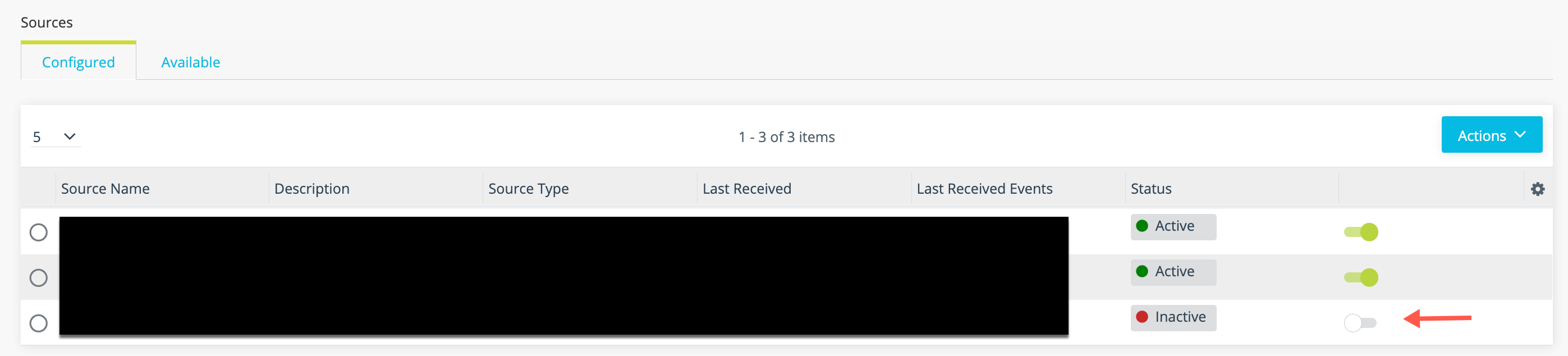
Locate the log source you want to modify and toggle the activation switch shown in the following figure.
-
A Universal Link configuration must be regenerated before modifications go into effect.
Click Regenerate Now in the Link tools panel.

Edit a Log Source Configuration
You can edit log source configuration settings as needed. The configuration can be edited only when it is inactive.
To edit a log source configuration:
-
Click the Settings icon
in the left navigation panel and select Security Analytics. -
Click Links.
-
Click Universal Links in the left navigation menu and then click the name of the Link you want to modify.
-
Click the Active toggle to deactivate the log source, if necessary.
-
Under Sources, on the Configured tab, click the name of the hyperlink in the Source Name column of the configuration you want to modify.
-
Make your changes.
-
Save the configuration.
Clone a Log Source Configuration
You can create a clone (an editable copy) of a log source configuration.
To clone a log source configuration:
-
Click the Settings icon
in the left navigation panel and select Security Analytics. -
Click Links.
-
Click Universal Links in the left navigation menu and then click the name of the Link you want to modify.
-
Locate the log source configuration you want to clone and click the selection option in the leftmost column of the table.
-
Click Actions and select Clone.
-
Edit the copy and give it an appropriate configuration name.
-
Save the configuration.
Delete a Log Source Configuration
You can delete a log source configuration that is no longer active and in use.
To delete a log source configuration:
-
Click the Settings icon
in the left navigation panel and select Security Analytics. -
Click Links.
-
Click Universal Links in the left navigation menu and then click the name of the Link you want to modify.
-
Locate the log source configuration you want to delete and click the selection option in the leftmost column of the table.
-
Click the Active toggle to deactivate the log source, if necessary.
-
Click Actions and select Delete.