Microsoft Office 365 
Anomali Security Analytics can ingest event logs from Office 365 through the Management Activity API and AWS S3.
Management Activity API
Onboarding steps
Prerequisites
You must enable audit logging for your Microsoft 365 tenancy through the Security and Compliance Center in the Office 365 Admin Portal. See Microsoft's guide to turning on auditing for more information.
Step 1: Register an App with Azure AD
-
Sign into the Microsoft Entra admin center.
-
Navigate to Identity > Applications > App registrations.
-
Click New Registration.
- Enter a display name. For example,
Office 365 Integration with Anomali. - Select Accounts in this organizational directory as the supported account type.
- Click Register.
-
Click Manage > Certificates and Secrets > New Client Secret.
-
Add a description and set the expiry date for the certificate, then click Add. Securely save the Client Secret value for subsequent steps.
-
Configure API permissions:
-
In the left menu, click API permissions > Add a permission > Office 365 Management APIs.
-
Click Application permissions and select all the available permissions. The following permissions must be selected:
-
Read activity data from your organization
-
Read DLP policy events including detected sensitive data
-
Read service health information from your organization
-
-
Click Add permissions.
-
In the API permissions page, click Grant admin consent for your organization and then click Yes.
-
-
Once consent has been granted, navigate to the Overview tab to view the following details you must provide to Anomali for log ingestion:
-
Application (Client) ID
-
Directory (Tenant) ID
-
Step 2: Add Office 365 as new log source
To add Office 365 as a new log source on the Anomali platform:
-
Navigate to Search > Log Source Management.
-
Click New to add a new log source.
-
Enter a name for the log source.
-
(Optional) Enter a description for the log source.
-
Select Office 365 as the log source type.
-
Select API as the ingestion method.
-
Select API as the ingest method.
-
Provide the Basic Configuration details, from Microsoft Office 365 :
-
Client ID: Application (client) ID of the Azure AD application.
-
Client Secret: Application (client) Secret associated with the Application ID above.
-
Tenant ID: Tenant ID assigned to your organization in Active Directory.
-
Log Schema: Enter the log schema.
-
-
(Optional) Next to the Basic Configuration section, click on the Advanced Options link to provide additional information about the event log data:
-
Enter one or more parameters that provide additional context about the data. For example, "File format" indicates the format of the event log data being shipped, or "File extension" that indicates the extension of the logs.
-
Enter the corresponding value of the parameter. For example, CSV is a file format. Similarly, ".gzip" is a file extension.
-
-
Click Save to add the log source.
Step 3: Configure permissions
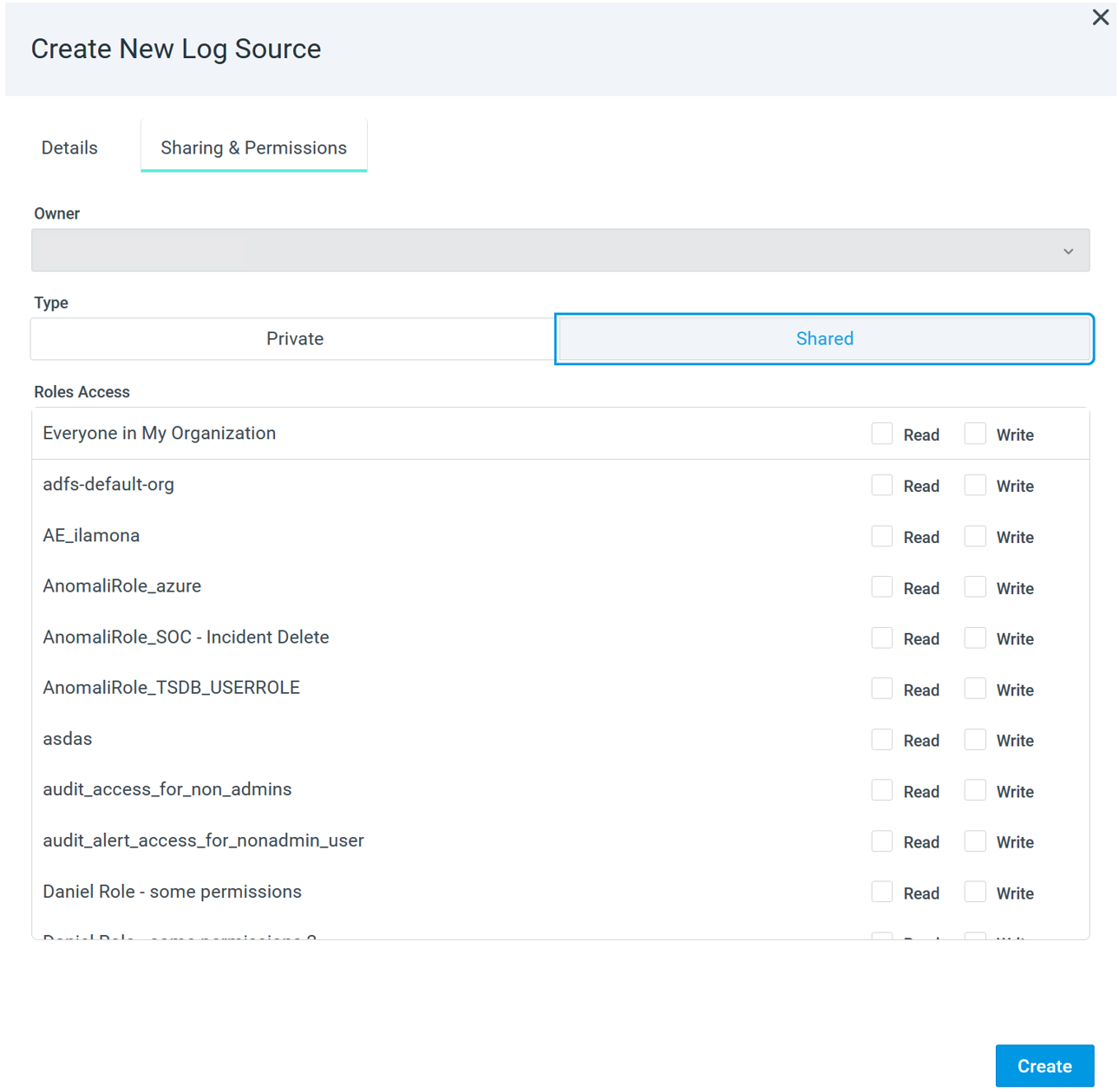
You can set permissions to decide which roles can view, add, or edit log sources. To do so, configure the following parameters:
-
Owner: Select an owner of the view from the list of users. This is the email address of the owner.
-
Type: Select the type of permission assigned to the view:
-
Private: Only the owner has read and write privileges, that is, no other user can access or edit the view.
-
Shared: Allows you to set the read-write privileges for a role that is mapped to different users, granting read-write permissions to all users assigned that role. You can also assign read or write permissions to everyone in your organization.
-
Step 4: Check log source status
Once added, the status of the log source becomes Create Requested. See Log Source Statuses to understand the different types statuses assigned to log sources.
Step 5: Receive confirmation email
You will receive a notification email from Anomali once you have created a new log source request. The Log Source Management page will show the status as Create Requested.
Once the log source has been provisioned and is ready for use, Anomali will send you another email and the Log Source Management page status for the log source will change to Active.
AWS S3
If your logs are already in S3, you can proceed directly to Step 2: Set up SQS queue. If not, Anomali recommends following Step 1: Ship data to S3 using NXLog to use NXLog to first ship the logs to S3. After S3 receives the data, it sends updates to an Amazon SQS queue you designate, enabling Anomali to automatically pull the logs from S3 whenever it receives a new notification from the queue.
Onboarding Steps
Step 1: Ship data to S3 using NXLog
See Using NXLog to Ship Data to set up NXLog to send data into S3.
Step 2: Set up SQS queue
Once your data is in S3, you can send it to Anomali using Amazon SQS. See Setting up Amazon SQS queue for more information.
Step 3: Enable AWS S3 notifications
Enable AWS S3 notifications for Amazon SQS to receive change notifications when you add logs. See Amazon's guide to configuring AWS S3 notification for SQS for more information.
Step 4: Add Office365 as new log source
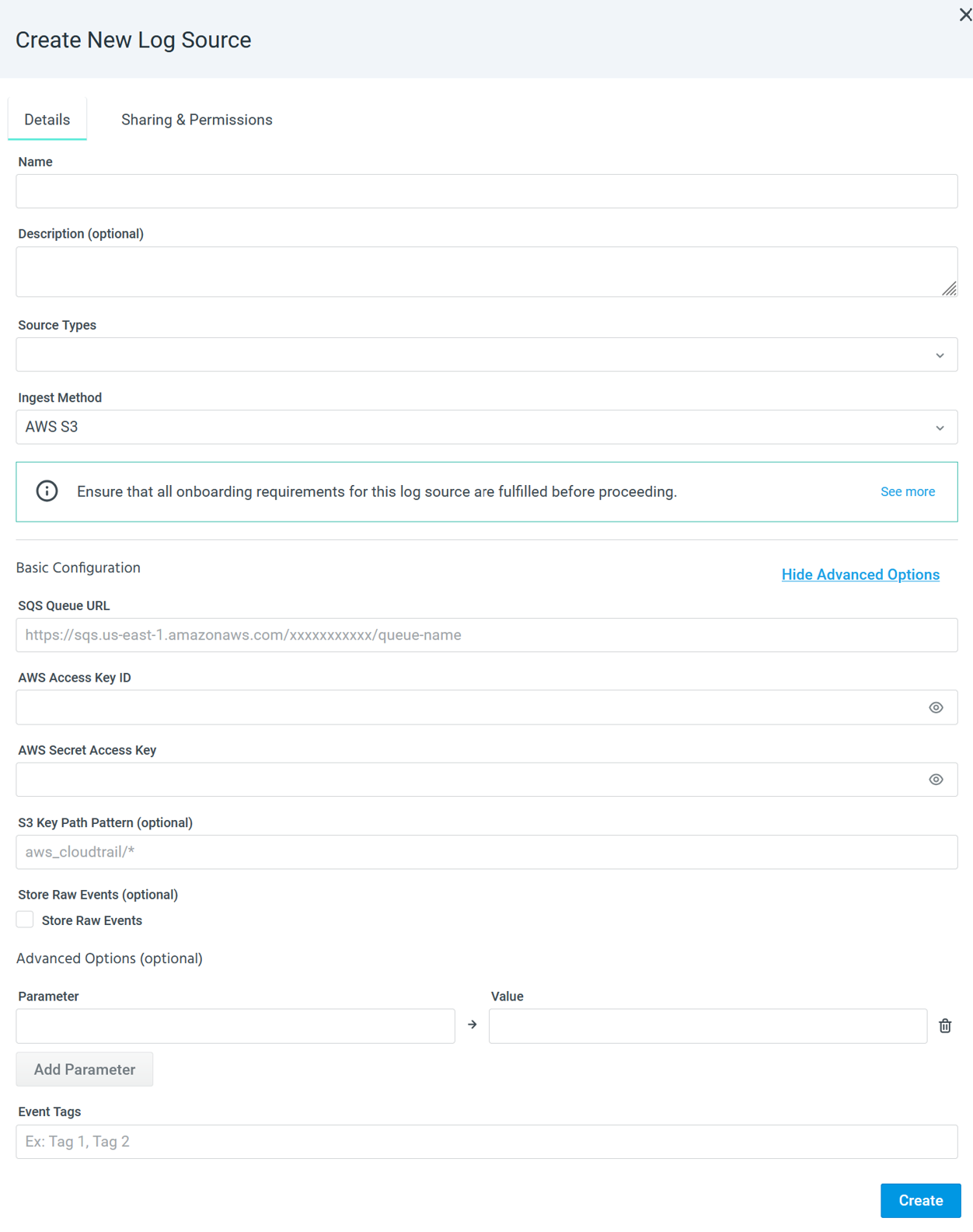
On the Anomali platform, add Office365 as a new log source, as follows:
-
Navigate to Search > Log Source Management.
-
Click New to add a new log source.
-
Enter a name for the log source.
-
(Optional) Enter a description for the log source.
-
Select it as the log source.
-
Select AWS S3 as the ingest method.
-
Ensure S3 notification are enabled. See Step 2: Enable AWS S3 notifications for more information.
-
Provide the Basic Configuration details:
-
AWS SQS Queue URL: Enter the URL of your AWS SQS queue. See Setting up Amazon SQS queue for more information.
-
AWS Secret Access Key: Provide the AWS secret access key.
-
AWS Access Key ID: Enter the AWS Access ID.
-
File Selector: Provide the path to the event log data files. Anomali recommends the following practices for the path:
-
-
Sourcetype must be the path prefix, as follows:
<sourcetype>/year=2025/month=04/day=05/path/to/file.
For example:office365/year=2025/month=03/day=22/events/event_data_logs/. -
Sourcetype name must not contain any spaces: For example,
"office365"or"office365_sourcetype"are correct, however"office365 sourcetype"is incorrect.
-
(Optional) Next to the Basic Configuration section, click on the Advanced Options link to provide additional information about the event log data:
- Enter one or more parameters that provide additional context about the data. For example, "File format" indicates the format of the event log data being shipped, or "File extension" that indicates the extension of the logs.
- Enter the corresponding value of the parameter. For example, CSV is a file format. Similarly, ".gzip" is a file extension.
-
Click Save to add the log source.
Step 5: Configure permissions
You can set permissions to decide which roles can view, add, or edit log sources. To do so, configure the following parameters:
-
Owner: Select an owner of the view from the list of users. This is the email address of the owner.
-
Type: Select the type of permission assigned to the view:
-
Private: Only the owner has read and write privileges, that is, no other user can access or edit the view.
-
Shared: Allows you to set the read-write privileges for a role that is mapped to different users, granting read-write permissions to all users assigned that role. You can also assign read or write permissions to everyone in your organization.
-
Step 6: Check log source status
Once added, the status of the log source becomes Create Requested. See Log Source Statuses to understand the different types statuses assigned to log sources.
Step 7: Receive confirmation email
You will receive a notification email from Anomali once you have created a new log source request. The Log Source Management page will show the status as Create Requested.
Once the log source has been provisioned and is ready for use, Anomali will send you another email and the Log Source Management page status for the log source will change to Active.