Generic Syslog
Anomali Security Analytics can ingest event log data from syslog servers. The Generic Syslog type supports drilldown to raw event logs, but it is not a log source type that supports scheduled backfill.
Network Topology and Requirements
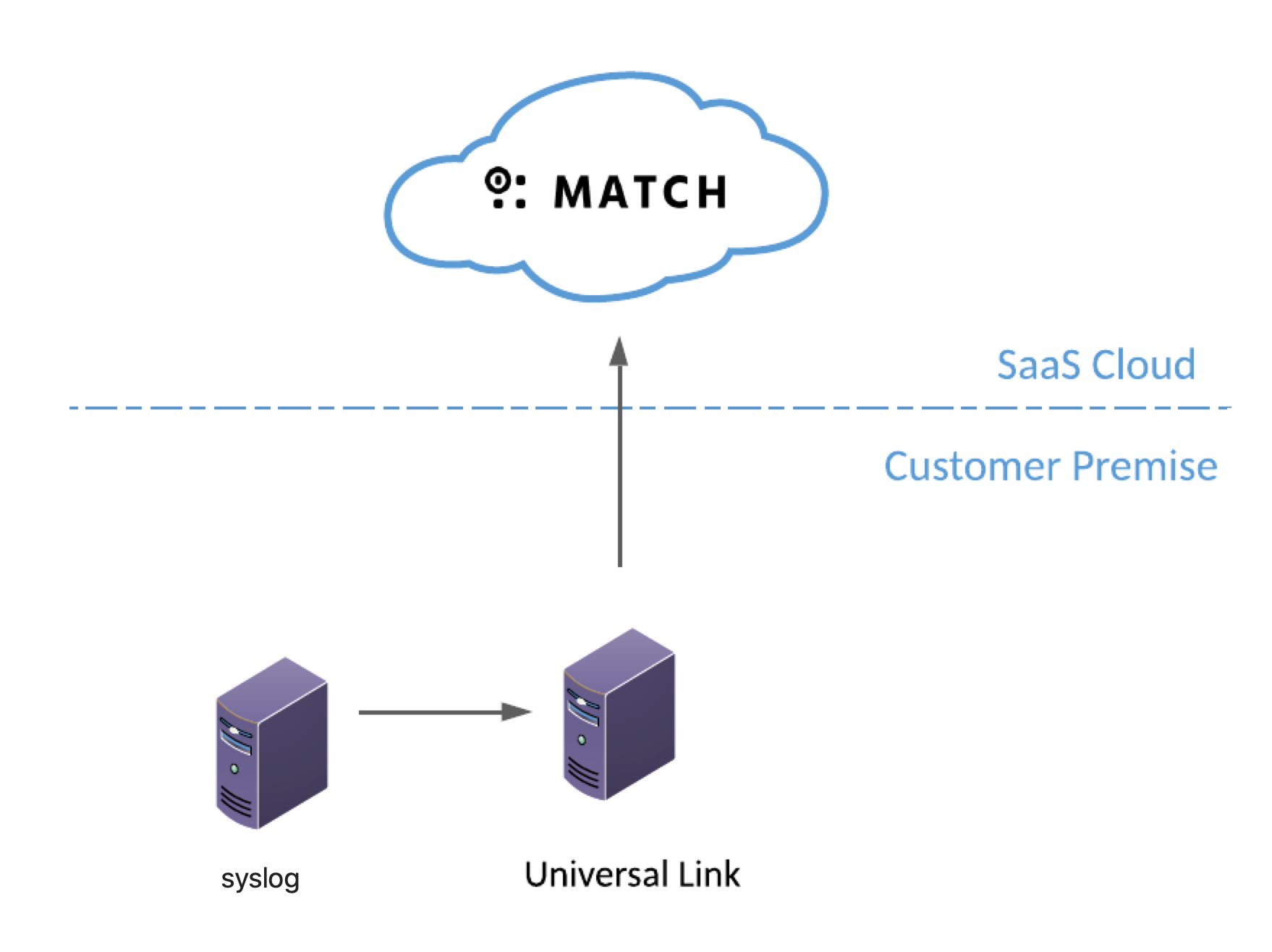
The Generic Syslog integration involves on premise-to-cloud data flow.
-
Universal Link listens for event log traffic on the inbound ports you specify in your configuration.
-
Make sure your firewall allows connectivity between the device that sends data and Universal Link. The standard port assignments for syslog are 2514/udp and 8514/tcp. If your organization uses different port assignments, be sure to configure all systems appropriately to allow communication.
- Universal Link must be able to send requests and data outbound to
api.threatstream.comand AWS S3. - Security Analytics listens to Universal Link for updates from log sources on port 443/https. Typically, your network and security team creates rules to allow this traffic when Universal Link is first installed.
-
Refer to Anomali Security Analytics IP Addresses, Ports, and URLs for Security Analytics network details that your network and security needs to know to allow communication from your enterprise resources to your Security Analytics deployment.
Step 1: Create the Security Analytics Log Source Configuration
To add the log source:
-
Click the Settings icon
 in the left navigation panel and select Security Analytics.
 -
Click Links.
-
Locate the Universal Link configuration for which you want to add a log source and click the hyperlink name in the Name column. The Link must be online.

-
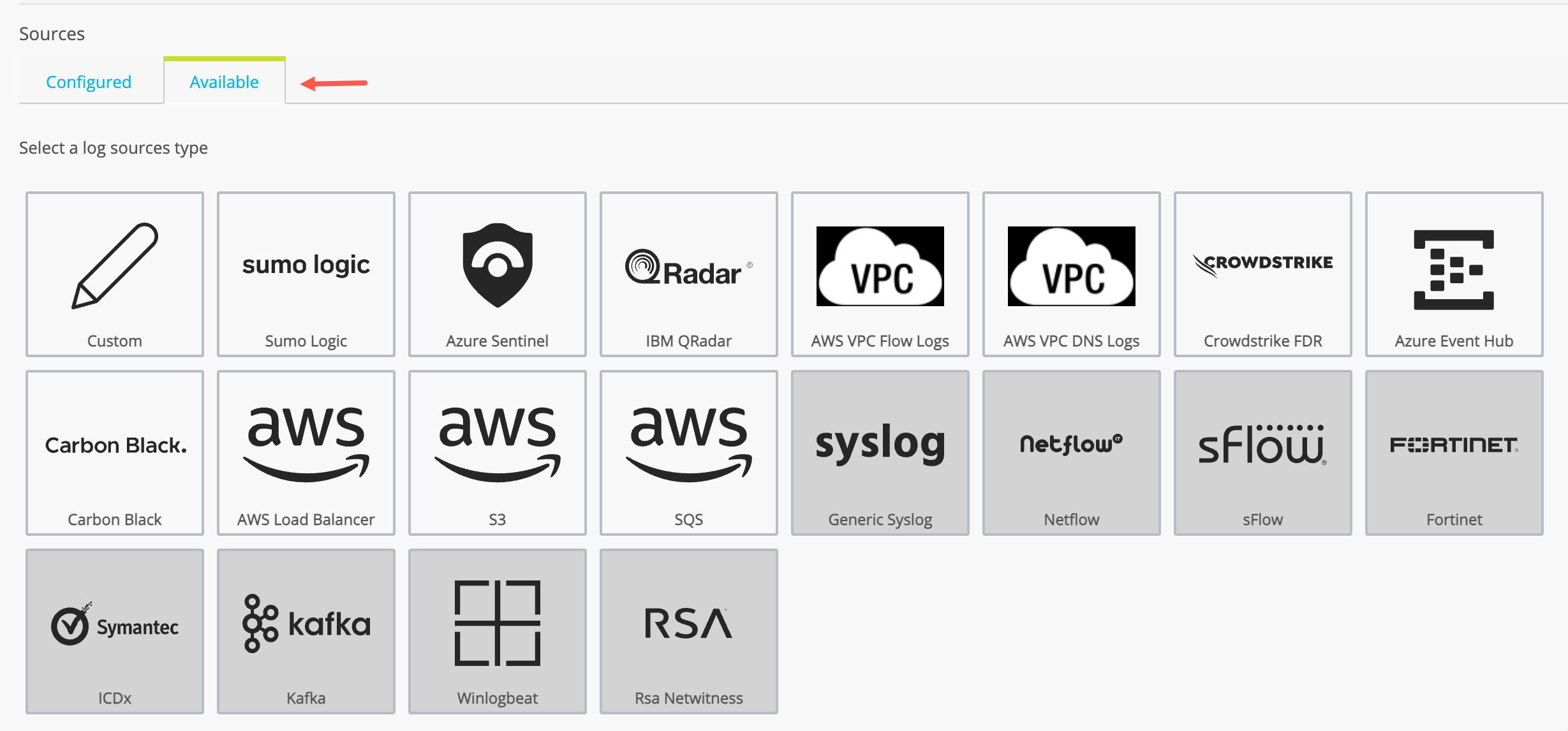
Click the Available tab to display the log source types available. The set of available log source types are different for Cloud Link and Universal Link deployed on premises.
-
Click the Generic Syslog icon.
-
Complete the configuration as described in the following table.
Setting Description Data Source Name Type a name that facilitates Link management. Only ASCII characters are allowed. Data Source Description A short description for the log source.
Parser Version Version of the default parser.
A generic syslog log source accepts CEF and non-CEF data.
For CEF data: Universal Link always parses all the five types of messages: IP addresses, domains, FileHash, URLs, and Email. Therefore, the selections below do not apply.
For non-CEF data: By default, Universal Link parses IP addresses and domains for non-CEF events. However, you can select the following options to perform additional parsing for non-CEF data:
- Parse Filehash Message
- Parse URL Message
- Parse Email Message
Exclude Internal Network Events
Select this option if you do not want to include traffic within your internal network in IOC matches.
Default Time Zone
Select the desired timezone for the log source from the drop-down list. Type the first few characters of the timezone for a quick search.
The default is Universal Link System Time Zone, which is the timezone where Universal Link is installed.
Store raw events Select this option to collect and store the entire event log that is available from the log source. Requires Universal Link 5.2 or later.
When this option is enabled, and you click Get Raw Logs to drill down from Security Analytics results, Security Analytics displays the log as seen on the original device.
When this option is not enabled, Security Analytics filters the fields collected and stored to include only fields that can be mapped to the Anomali Security Analytics eventlog schema. When this option is not enabled, and you click Get Raw Logs to drill down from Security Analytics results, Security Analytics can display only the log fields collected and used in Security Analytics.
Note: Collection and storage of raw event logs utilizes greater bandwidth and storage resources than collection of logs that have been filtered.
Input Type
Select the type of data received from the log source: TCP, UDP, File, or BEATS.
For BEATS, TCP, or UDP: Your selection populates the default port for the source type.
For File:
-
Specify an absolute pathname to a log file on the Universal Link host. Do not simply specify a folder.
- Make sure the user who installed Universal Link has read access to the log file. If the Link was installed by root, then the proper access rights are in place.
- Specify whether to parse the file from the beginning or the end.
Port The Universal Link host listens for data from this log source on this port.
- Click Save.
Step 2: Activate the Security Analytics Log Source Configuration
By default, a newly-added data source is not active.
To activate a log source:
-
Click the Settings icon
in the left navigation panel and select Security Analytics. -
Click Links.
-
Locate the Link configuration you want to review and click the hyperlink name in the Name column.
-
Locate the log source you want to activate and toggle the activation switch shown in the following figure.
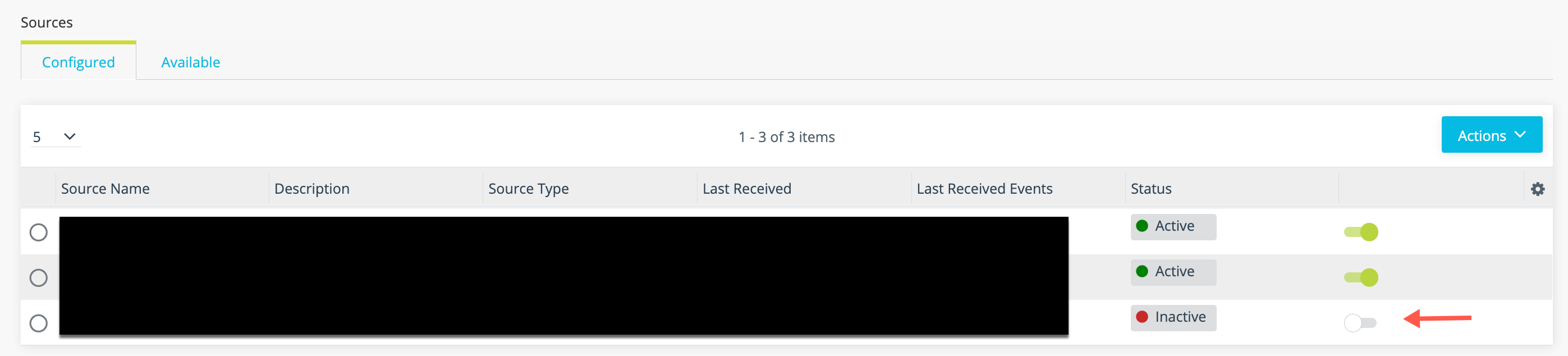
When you activate the log source, the associated Link configuration must be regenerated.
-
Click Regenerate Now in the Link tools panel.

Step 3: Configure the Log Source to Send Logs to Universal Link
Configure the syslog device to send logs to the Universal Link IP address. Specify the port that is set on the Security Analytics log source configuration (the port you set in Step 1).
Step 4: Verify Logs Are Ingested into Security Analytics
You can expect logs to be transmitted to Security Analytics shortly after the log source has been activated and the Universal Link regenerated.
To verify logs are ingested:
-
Click the Settings icon
in the left navigation panel and select Security Analytics. -
Click Links.
-
Click the hyperlink in the Name column for the Universal Link associated with the log source.
-
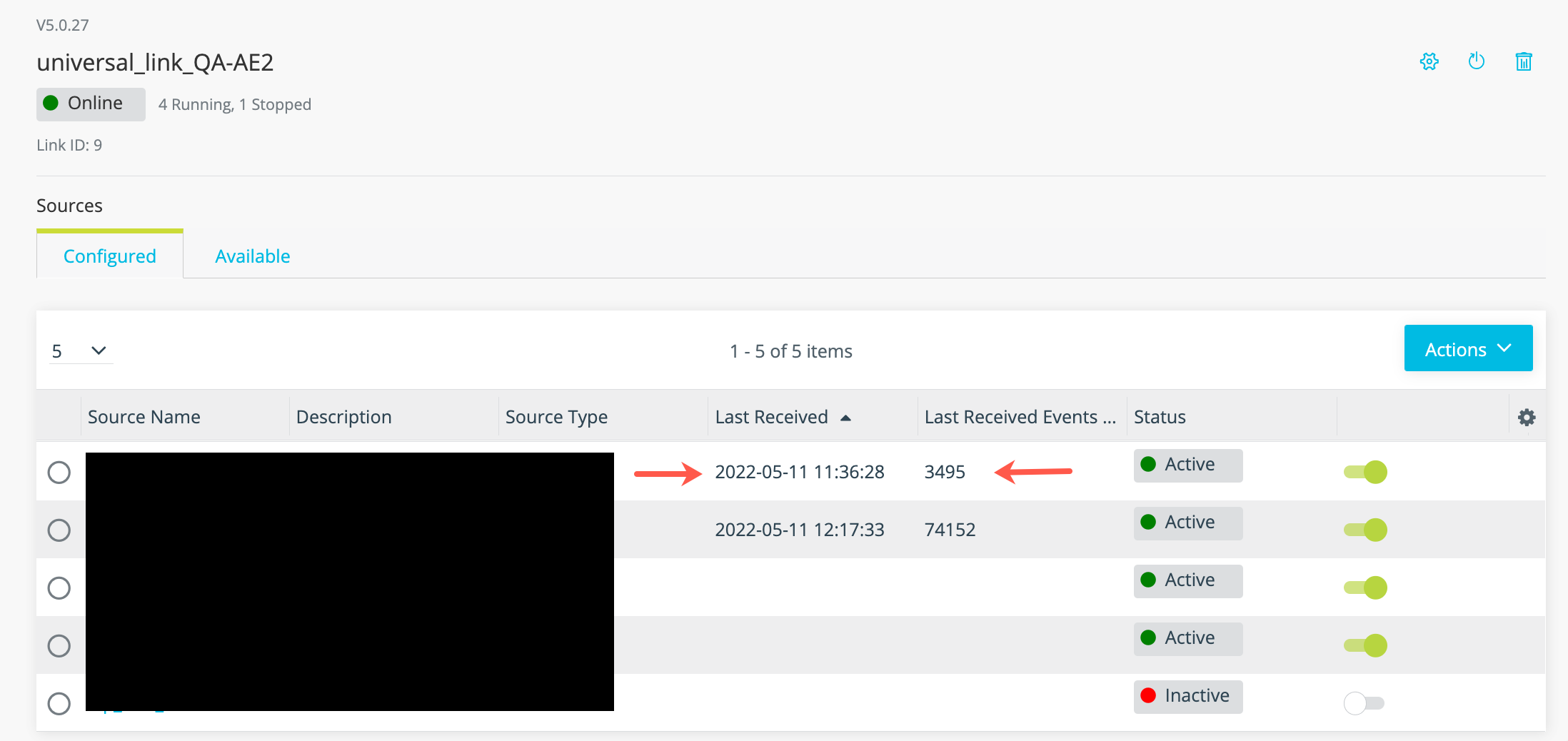
Review the timestamp for the last data received and the number of events in the last batch of data to confirm event logs are ingested as expected.