Adding a Custom Log Source with Universal Link OnPrem
Anomali Security Analytics supports custom log parsing for both structured and unstructured data. For a custom log configuration, you provide a sample and then map the sample data fields to Security Analytics fields.
The Custom log source type supports drilldown to raw logs, but it is not a log source type that supports scheduled backfill.
Note: You can configure multiple custom log sources for a single Universal Link.
Network Topology and Requirements
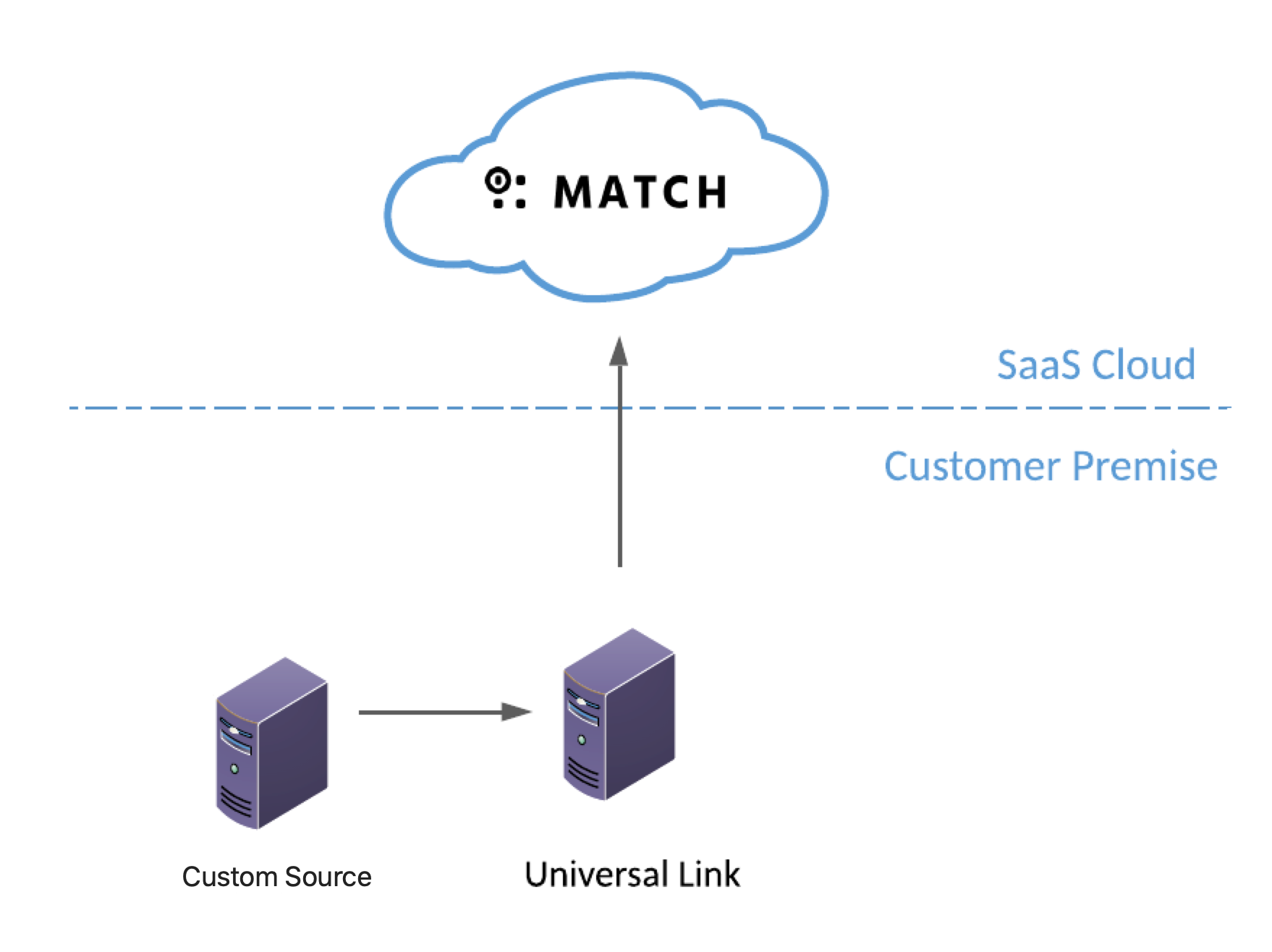
The custom event log integration involves on premise-to-cloud data flow.
-
Universal Link listens for event log traffic on the inbound port you specify in your configuration.
-
Make sure your firewall allows connectivity between the device that sends data and Universal Link.
- Universal Link must be able to send requests and data outbound to
api.threatstream.comand AWS S3. -
Security Analytics listens to Universal Link for updates from log sources on port 443/https. Typically, your network and security team creates rules to allow this traffic when Universal Link is first installed.
-
Refer to Anomali Security Analytics IP Addresses, Ports, and URLs for Security Analytics network details that your network and security needs to know to allow communication from your enterprise resources to your Security Analytics deployment.
Before You Begin
-
Have a sample log file at hand. During custom log configuration, you are prompted to upload sample log content.
Step 1: Enter Basic Information
First, locate the Universal Link for the log source and start the custom log source wizard.
To add the log source:
-
Click the Settings icon
 in the left navigation panel and select Security Analytics.
 -
Click Links.
-
Locate the Universal Link configuration for which you want to add a log source and click the hyperlink name in the Name column. The Link must be online.

-
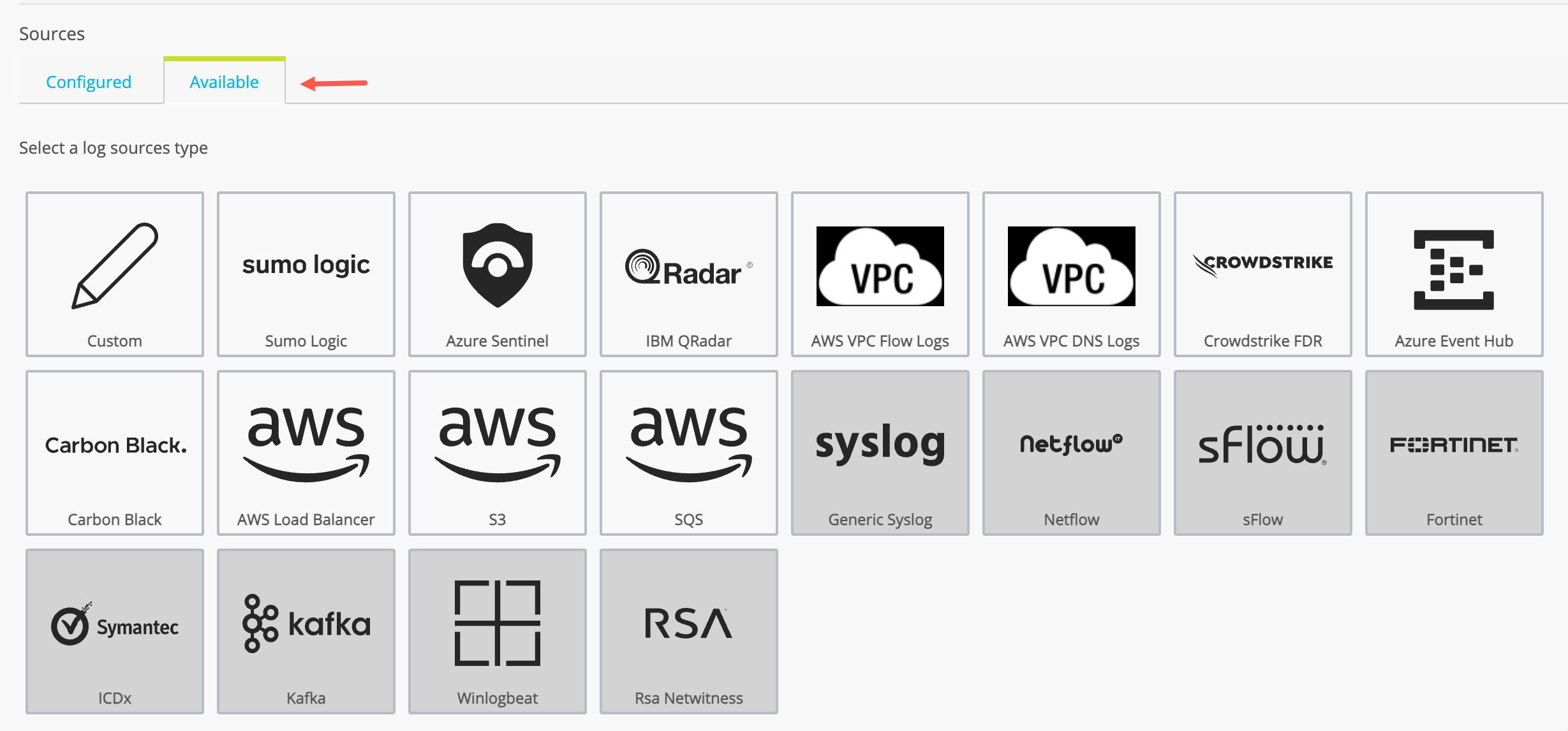
Click the Available tab to display the log source types available. The set of available log source types are different for Cloud Link and Universal Link deployed on premises.
-
Click the icon for Custom Log to start the Custom Log wizard.
-
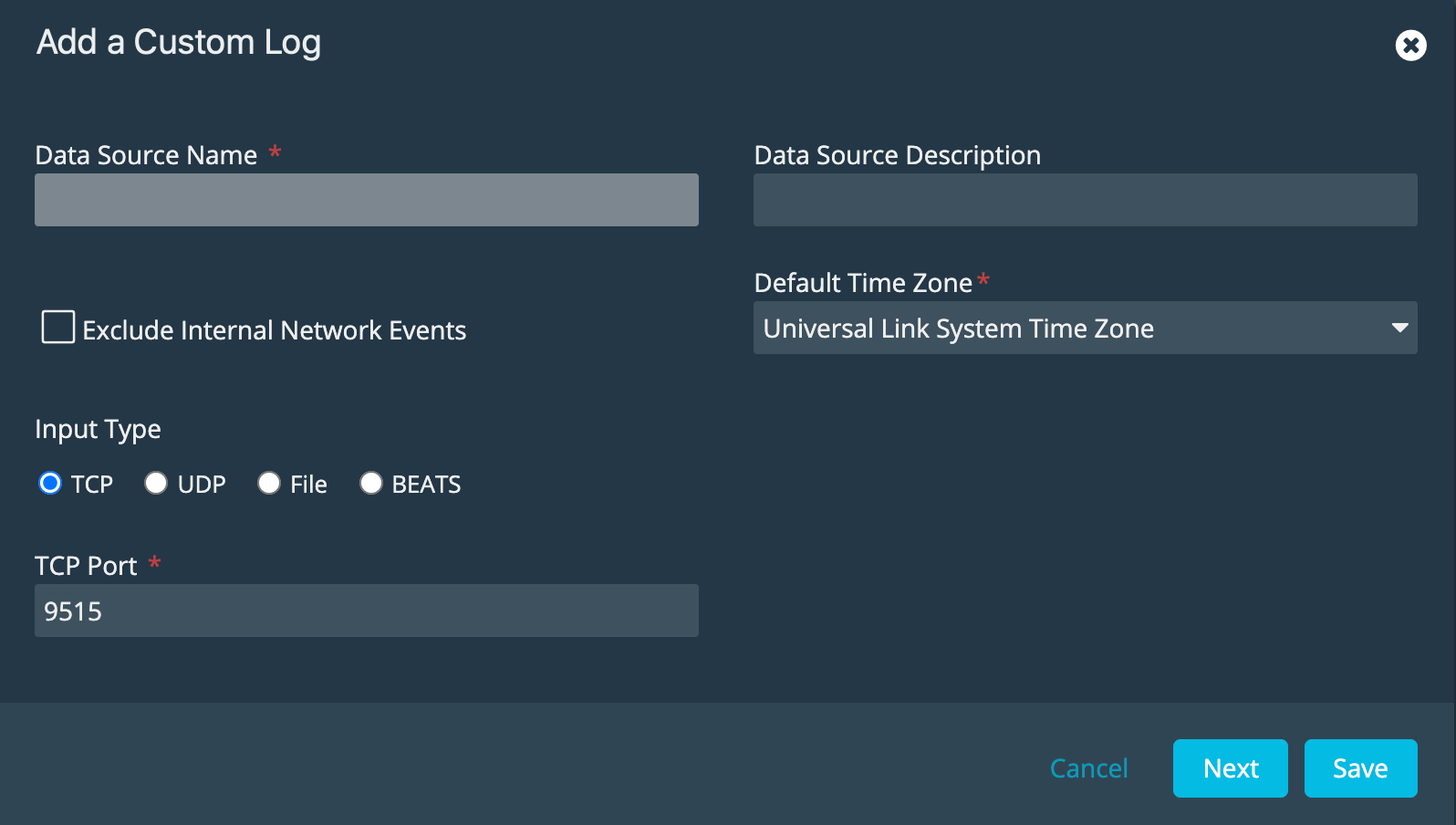
Complete the basic settings as described in the following table.
Setting Description Data Source Name Type a name that facilitates Link management. Only ASCII characters are allowed. Data Source Description A short description for the log source. Exclude Internal Network Events Select this option if you do not want to include traffic within your internal network in IOC matches. Default Time Zone Select the desired timezone for the log source from the drop-down list. Type the first few characters of the timezone for a quick search.
The default is Universal Link System Time Zone, which is the timezone where Universal Link is installed.
Store raw events Select this option to collect and store the entire event log that is available from the log source. Requires Universal Link 5.2 or later.
When this option is enabled, and you click Get Raw Logs to drill down from Security Analytics results, Security Analytics displays the log as seen on the original device.
When this option is not enabled, Security Analytics filters the fields collected and stored to include only fields that can be mapped to the Anomali Security Analytics eventlog schema. When this option is not enabled, and you click Get Raw Logs to drill down from Security Analytics results, Security Analytics can display only the log fields collected and used in Security Analytics.
Note: Collection and storage of raw event logs utilizes greater bandwidth and storage resources than collection of logs that have been filtered.
Input Type Select the type of data received from the log source: TCP, UDP, File, or BEATS.
For BEATS, TCP, or UDP: Your selection populates the default port for the source type.
For File:
-
Specify an absolute pathname to a log file on the Universal Link host. Do not simply specify a folder.
- Make sure the user who installed Universal Link has read access to the log file. If the Link was installed by root, then the proper access rights are in place.
- Specify whether to parse the file from the beginning or the end.
Port The required default port for the Input Type of this log source is used. Enter a different port number if required. -
-
Click Next.
Step 2: Provide Sample Content
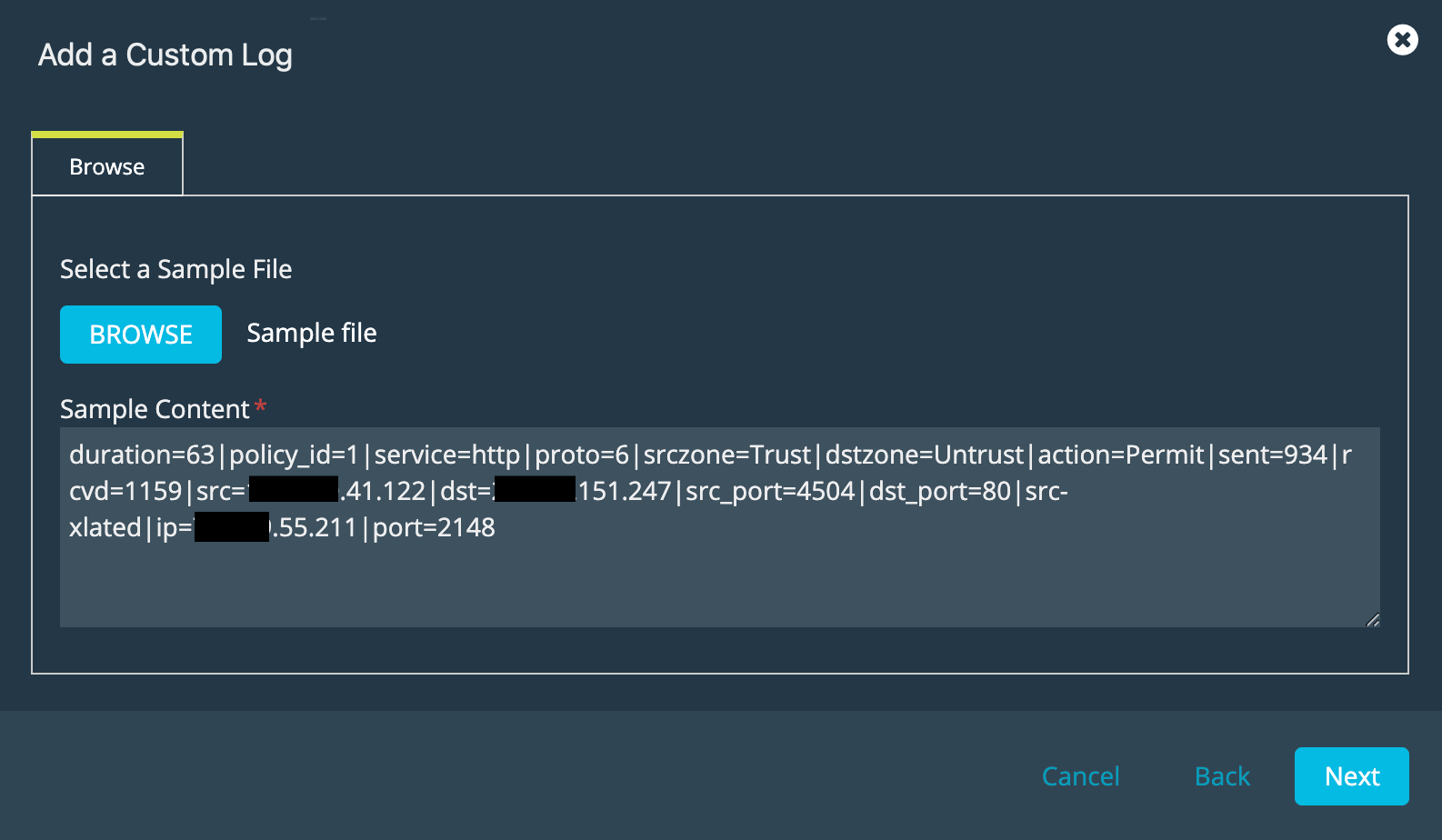
On the next page of the wizard, provide sample content for the custom log source.
To upload the sample content:
-
Click Browse and select a sample file from your local computer or paste an event log row into the Sample Content text box.
- Click Next.
Step 3: Set up the Parser and Map the Fields
On the next page of the wizard, set up the parser.
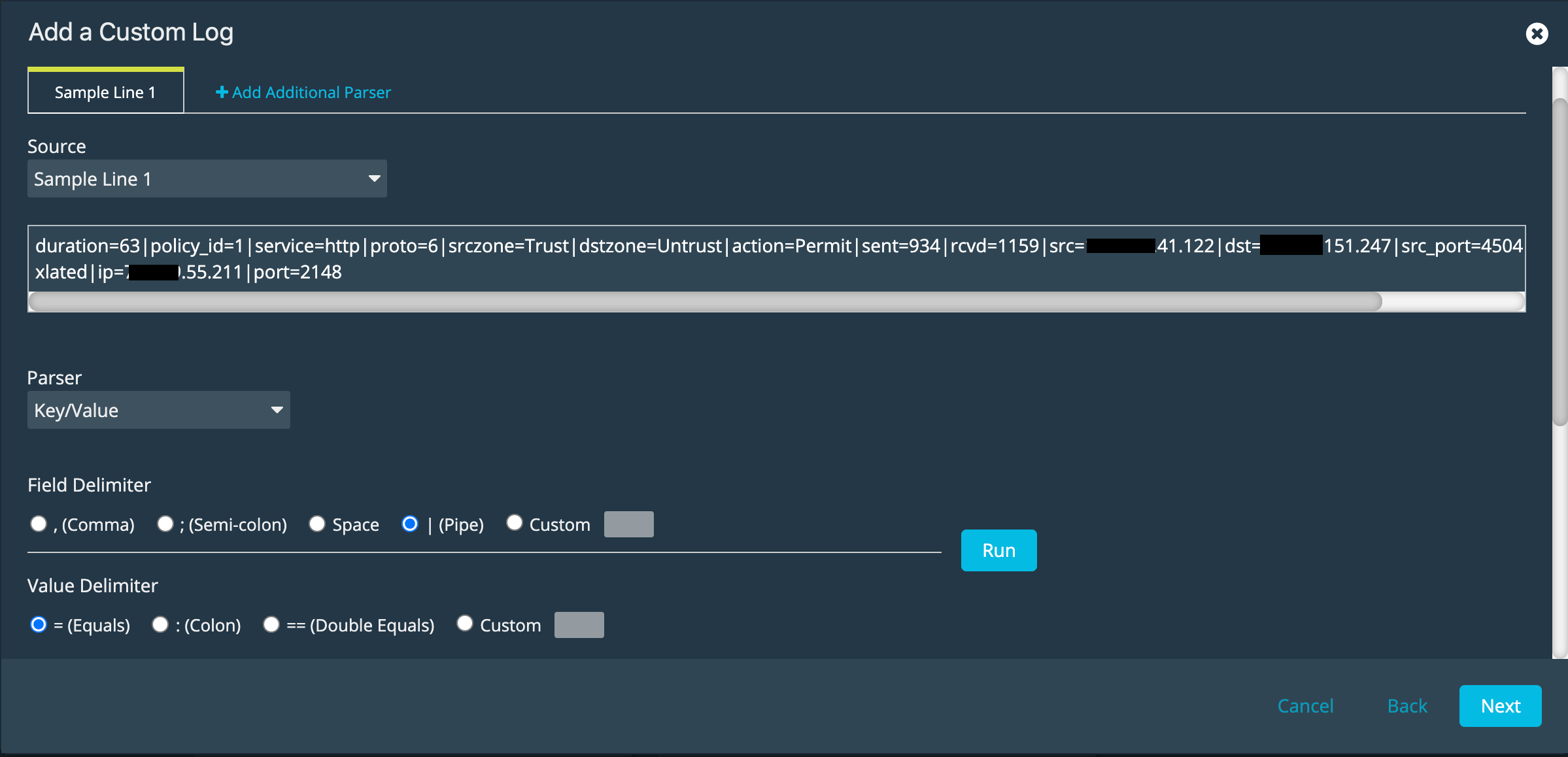
To set up the parser:
- Select a sample line from your log source sample file.
-
Select a parser type from the Parser list and set up column delimiters. The following table describes parser types and their respective settings.
Parser Type Delimiter CEF Uses default delimiters. CSV The delimiter characters include Pipe,Comma, Semi-colon, Space, or a Custom delimiter of your choice. Select one.
JSON Uses default delimiters. Key/Value This type has two sets of delimiters:
-
Field Delimiter: Comma, Semi-colon, Space, Pipe, or a Custom delimiter of your choice.
-
Value Delimiter: Colon, Equal, Double Equals, or Custom.
Select one from each set.
LEEF Field Delimiter: Pipe, Comma, Semi-colon, Space, Tab, or a Custom delimiter of your choice. Select one. Dissect Specify a Dissect expression in the Input box. Regex/Grok Specify a regex/grok expression in the Input box. Ruby Specify a Ruby expression in the Input box. -
-
Click Run to perform a test of your settings and review the output.
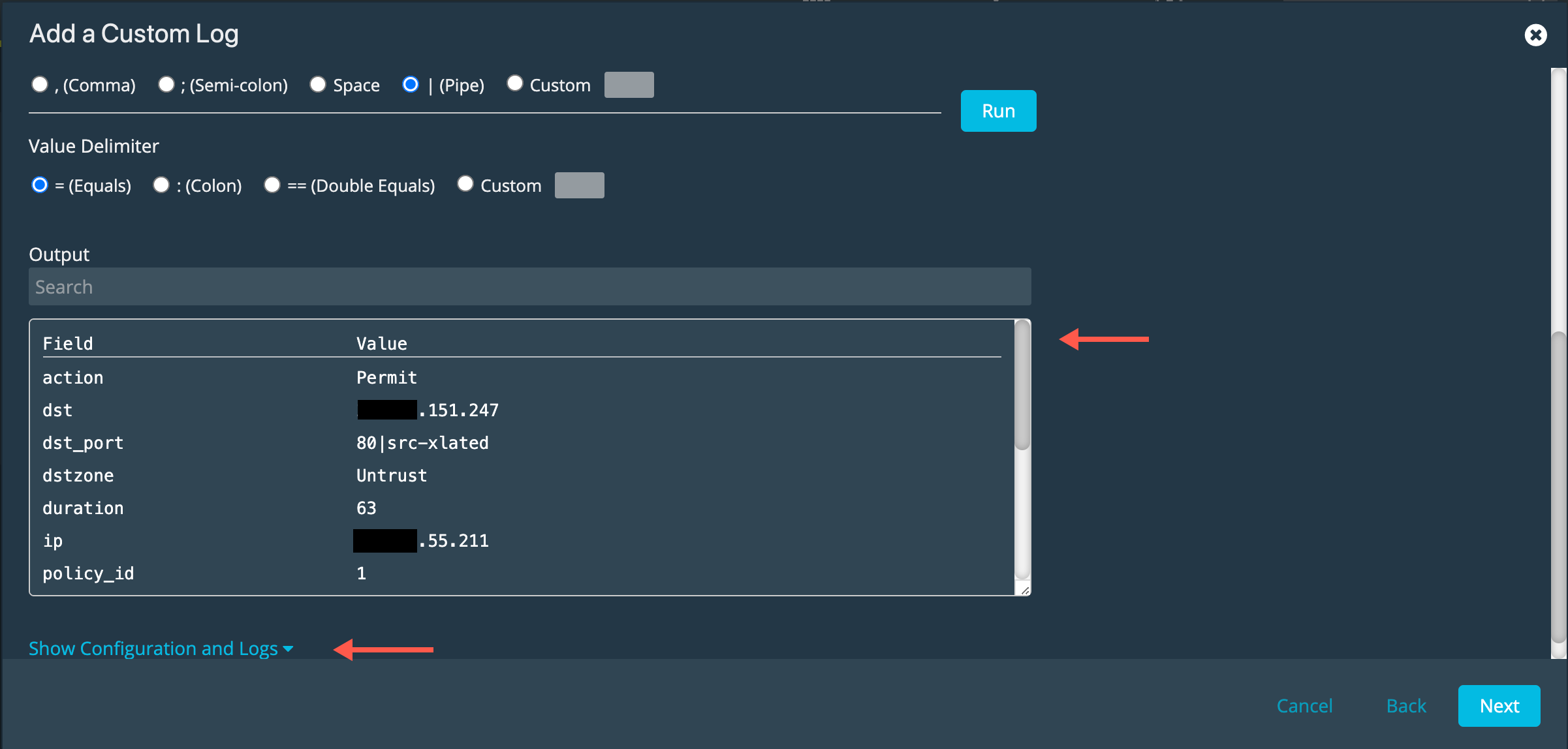
-
Click Show Configuration and Logs, review the configuration and rows log logs. Adjust the delimiters as needed to produce expected results.
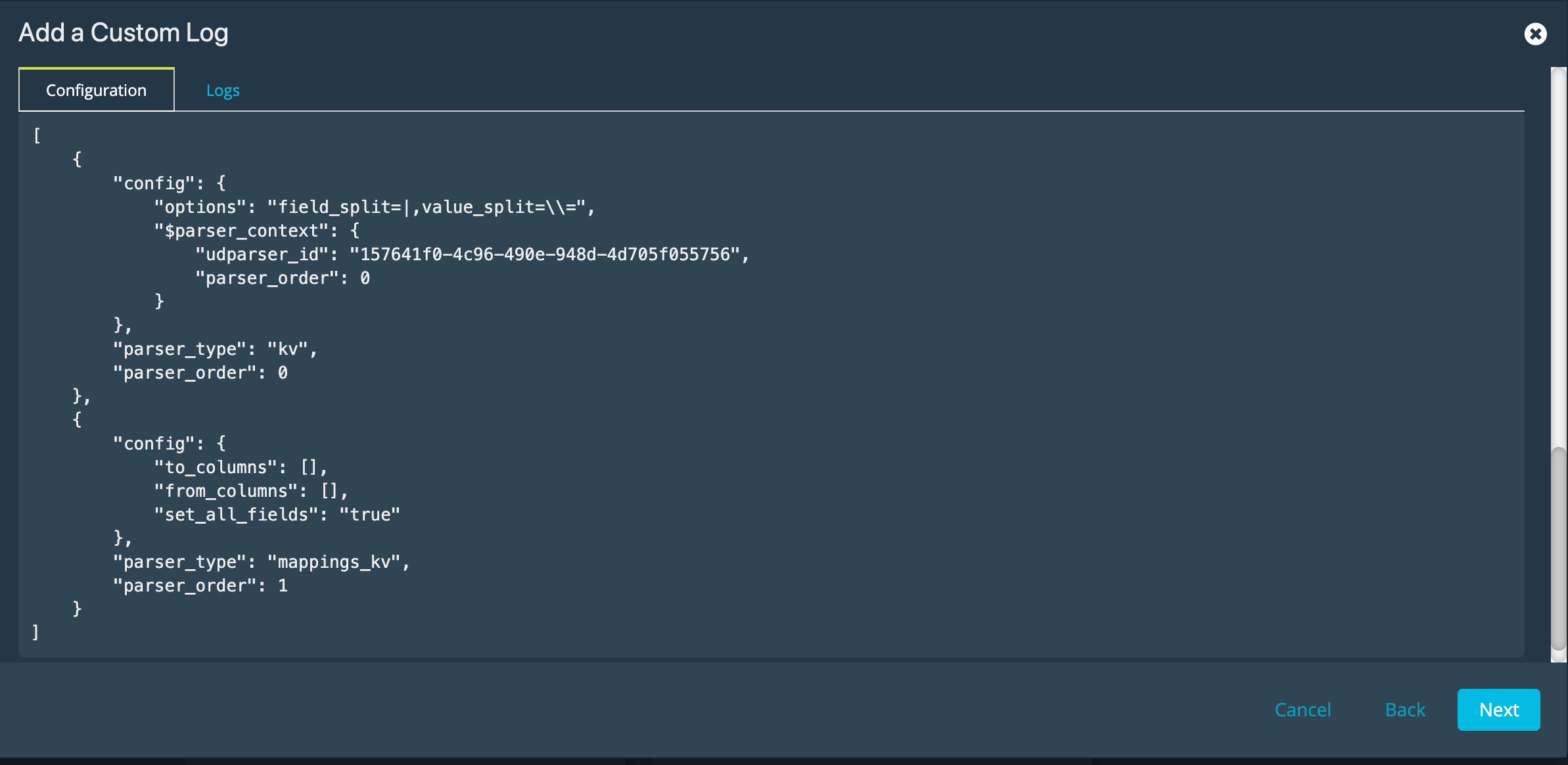
-
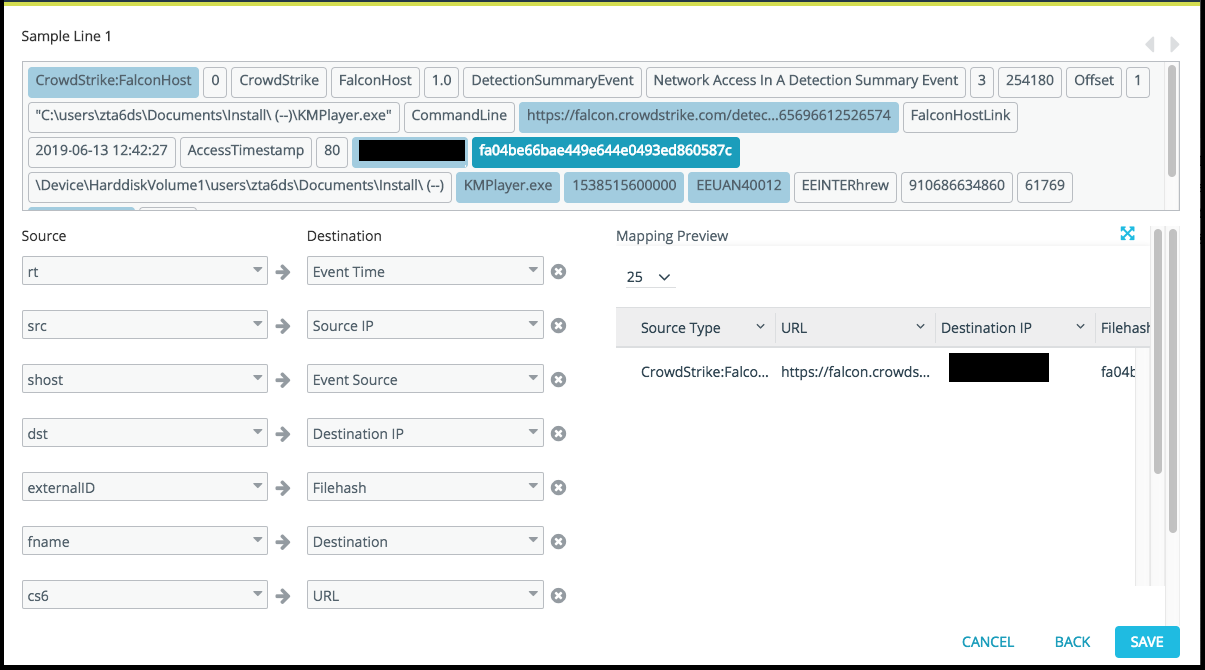
Click Next and use the final wizard page to map event source fields to Security Analytics fields. The top section shows the raw data from your log source. The left side of the screen lists the raw data (Source) and a field commonly used in the Anomali Security Analytics common event schema (Destination). The right side has a Mapping Preview section. If needed, use the Source and Destination drop down menus to manually remap the data.
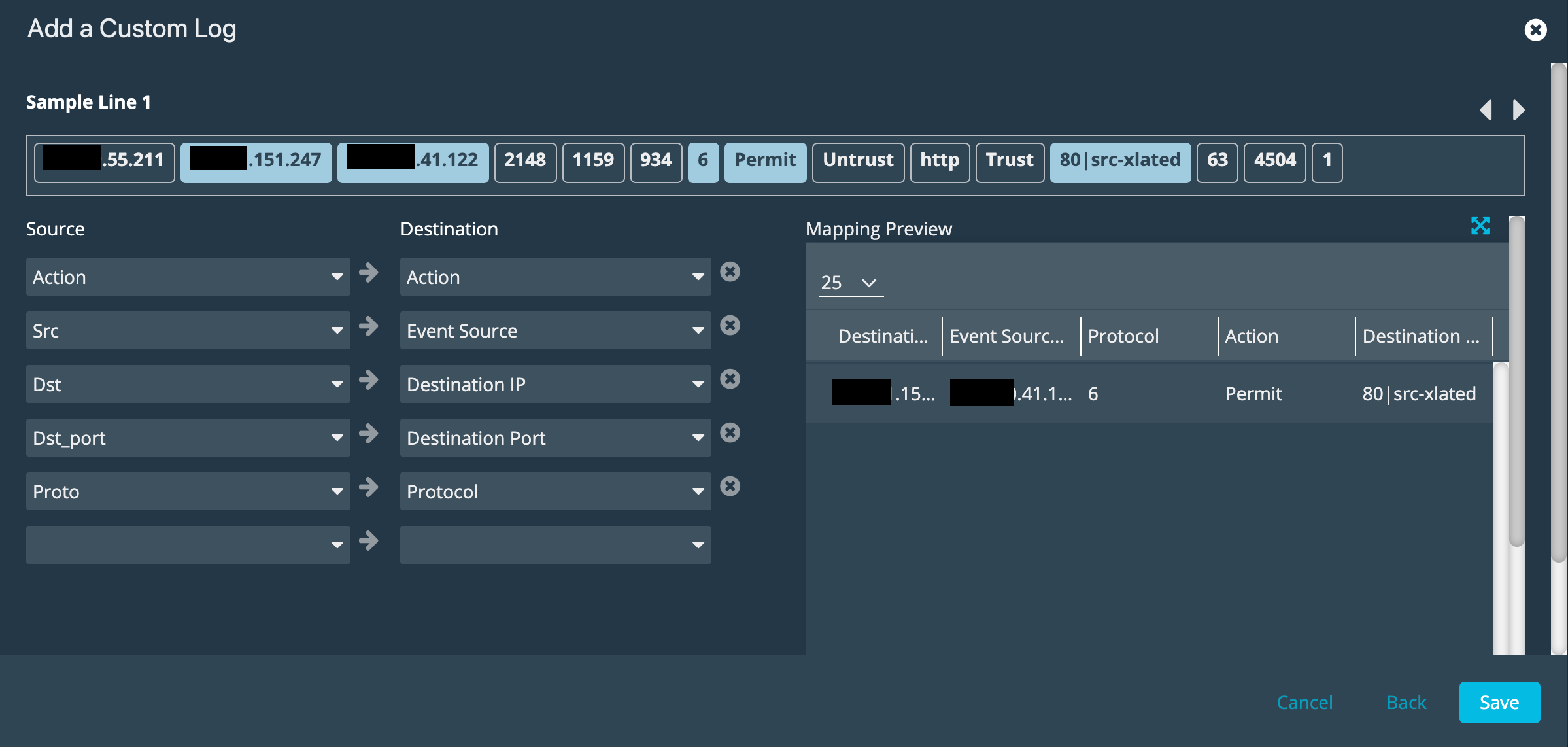
-
Click Save.
Note: Anomali recommends you not modify the parser type after you have completed the wizard, saved the configuration, activated it, and started ingesting logs. For example, do not change the parser type from LEEF to CEF. Unexpected errors can occur. Instead, if you want to change the parser type after you have activated a configuration, create a new log source configuration. Later, you can deactivate or delete the previous configuration.
Step 4: Activate the Security Analytics Log Source Configuration
By default, a newly-added data source is not active.
To activate a log source:
-
Click the Settings icon
in the left navigation panel and select Security Analytics. -
Click Links.
-
Locate the Link configuration you want to review and click the hyperlink name in the Name column.
-
Locate the log source you want to activate and toggle the activation switch shown in the following figure.
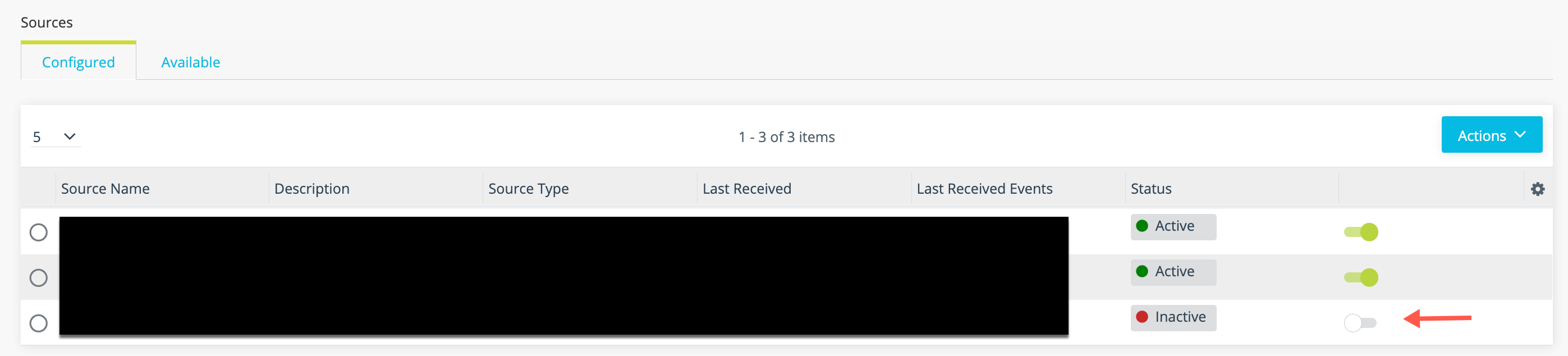
When you activate the log source, the associated Link configuration must be regenerated.
-
Click Regenerate Now in the Link tools panel.

Step 5: Configure the Log Source to Send Logs to Universal Link
Configure the log source device to send logs to the Universal Link IP address. Specify the port that is set on the Security Analytics log source configuration (the port you set in Step 1).
Step 6: Verify Logs Are Ingested into Security Analytics
You can expect logs to be transmitted to Security Analytics shortly after the log source has been activated and the Universal Link regenerated.
To verify logs are ingested:
-
Click the Settings icon
in the left navigation panel and select Security Analytics. -
Click Links.
-
Click the hyperlink in the Name column for the Universal Link associated with the log source.
-
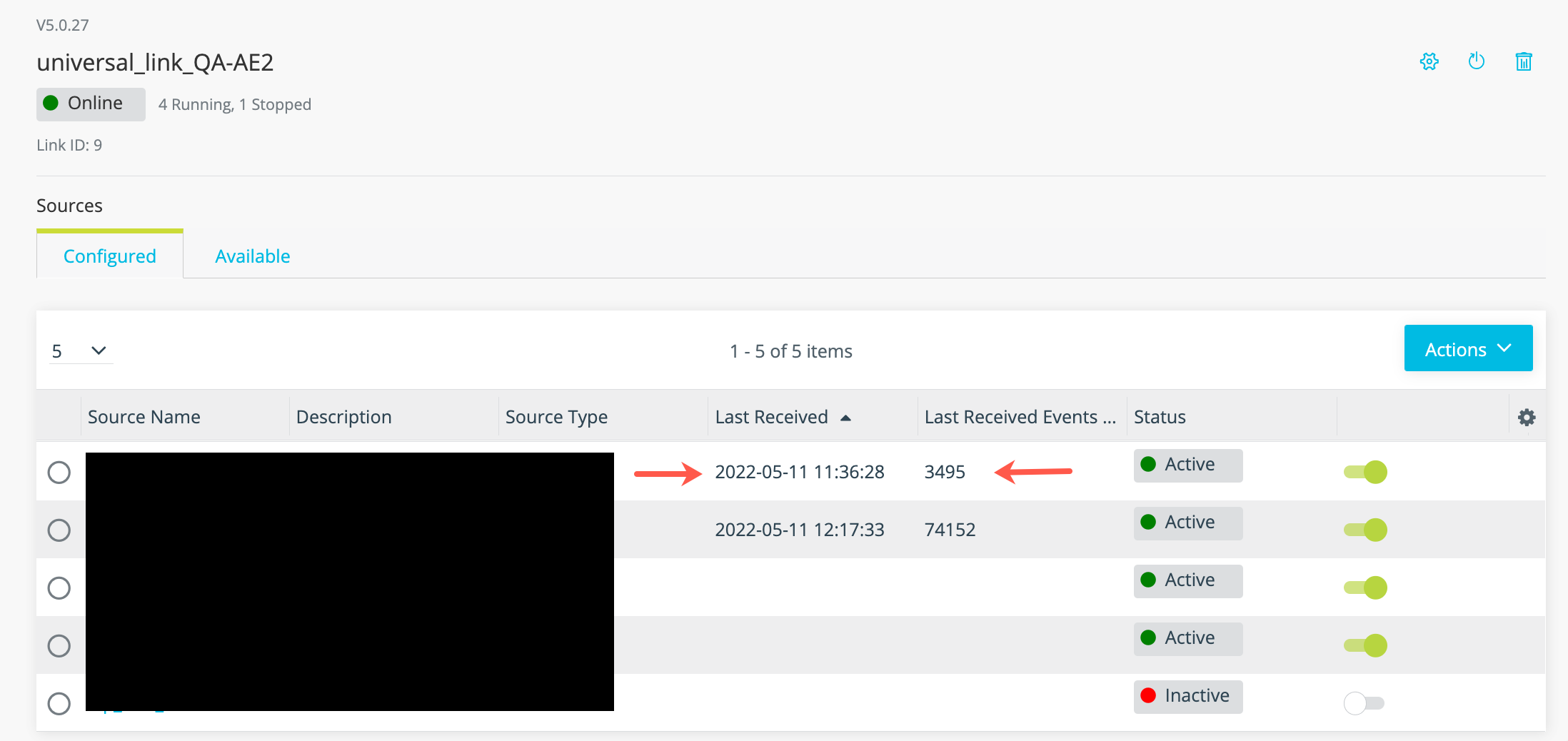
Review the timestamp for the last data received and the number of events in the last batch of data to confirm event logs are ingested as expected.
Advanced Configuration: Using Multiple Parsers
A user defined parser allows you to parse fields from your log source at your desired level of granularity, using up to five sub parsers:
-
Structured sub parsers
Use when the log structures are known to fit these structures:
-
KV (Key-Value)
-
CSV
-
JSON
-
CEF
-
LEEF
-
Dissect
-
-
Unstructured sub parsers
For advanced users, the following unstructured sub parsers offer more flexibility in parsing logs:
-
Grok (Regex/Grok)
-
Ruby
-
Unstructured sub parsers can be error prone and resource intensive. Minimize their usage and limit their scope.
Important: Anomali recommends that you implement no more than five sub parsers per log source.
Example
Typically, the first sub parser extracts certain fields from the original log. Then, any of the extracted fields or the original log can be used as the source of the second sub parser for further field extraction, and so on. The sub parsers are run in the sequence they are added to the custom log source.
The following example shows how to construct a user defined parser using two sub parsers from a CEF sample log. In this example:
-
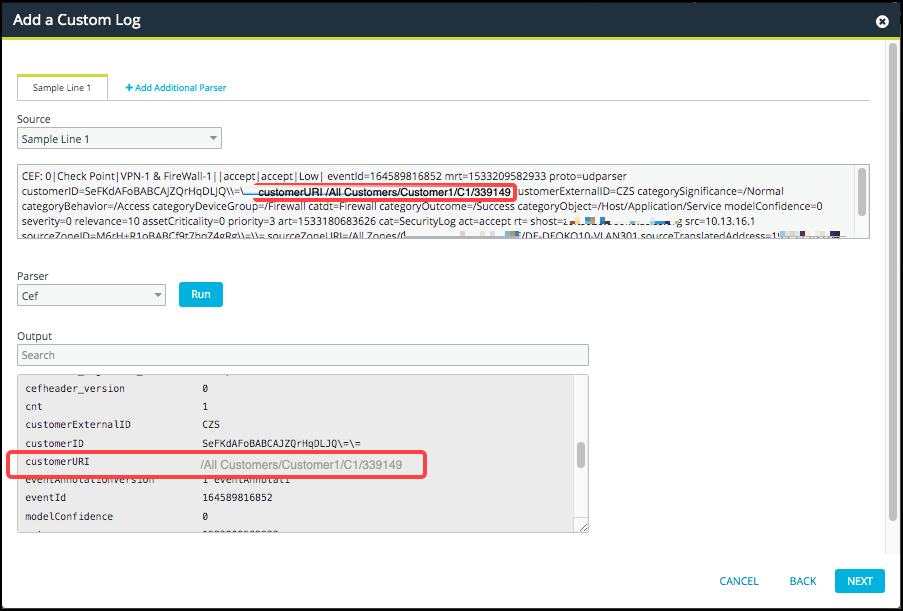
The first sub parser is a CEF type. It extracts all the fields from the CEF sample log. One of extracted fields is customerURI which has the value
/All Customers/Customer1/C1/33149. -
The second sub parser is Regex/Grok type. It is used to extract a new field, customer_name from the customerURI, the extracted field in the first parser above, to yield the last part of customerURI field value,
33149.
The goal is to map customer_name to the Anomali Security Analytics destination field called Customer Name.
To achieve this, we will provide the sample content from the log source. Then for the desired field, customerURI, we will use the Regex/Grok custom parser. We need to provide the pattern for Regex/Grok then optionally generate sample output to confirm. Finally, we will map the field and preview the results of our mapping.
To create a log source configuration with two sub parsers:
-
Create a new custom log source configuration and upload a sample CEF log file.
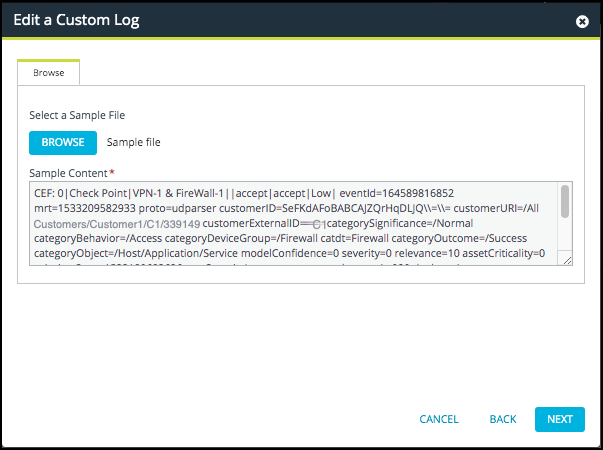
-
Click Next.
The next screen displays the first Source field as Sample Line 1, which is the sample CEF content.
-
Select CEF as the Parser type, and then click Run.
The Output displays a formatted list of the parsed fields and corresponding values, including the customerURI field, as shown.
-
Select the Add Additional Parser tab.
Refer to the next screen for guidance on how to configure an additional parser for
customerURIso you can get the value for customer_name, according to our scenario.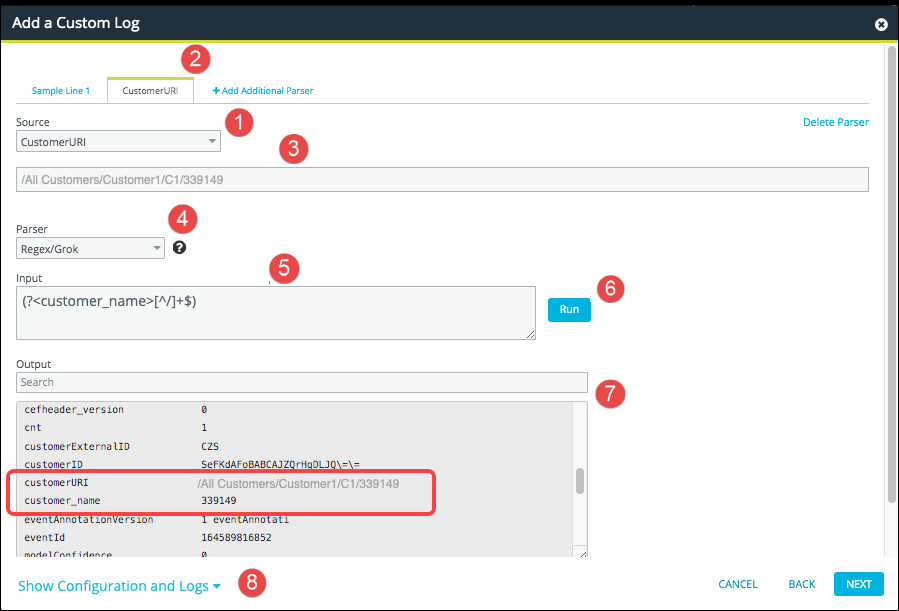
 Select CustomerURI as the source field for this additional parser. The tab name changes in
  to the source field (CustomerURI, in this case) you selected.
 The value for the source field is displayed.
 Select the additional parser from the drop-down list, in this scenario, Regex/Grok. Click
  to display sample patterns for Dissect, Grok, Regex, and Ruby parsers.
  Provide information based on the parser you picked. In this example, provide a pattern for our Regex/Grok parser in the Input field.
  Click Run to generate Output in
  . As seen in the output, the value for
 customer_nameis extracted fromcustomerURI, which is the goal of our second sub parser. Tip: If you cannot immediately locate the desired field and corresponding value, type the first few characters of the field name in the Search box.In the generated output, scroll down to view all the parsed fields. You can also enter the field name in the Search field to limit the Output to the fields you want.
 Click Show Configuration and Logs and review.
 -
View any error logs so that you can make the necessary corrections. For example, if no output is generated, review your sample content. Note that information on these tabs is provided in real time, and is not stored once you save your configuration.
-
Click Next.
-
Map the data as required.
By default, Universal Link maps CustomerURI to Customer Name. This default mapping needs to be changed so that CustomerURI is mapped to the field value extracted by the sub parser.
-
Click Save.