Azure Event Hubs
Anomali Security Analytics can ingest event log data from Microsoft Azure Event Hubs. Azure Event Hubs is not a log source type that supports drilldown queries or scheduled backfill.
Network Topology and Requirements
The Azure Event Hubs integration involves cloud-to-cloud data flow. Security Analytics sends queries to the Microsoft Azure Event Hubs instance you specify in the log source configuration to collect event logs.
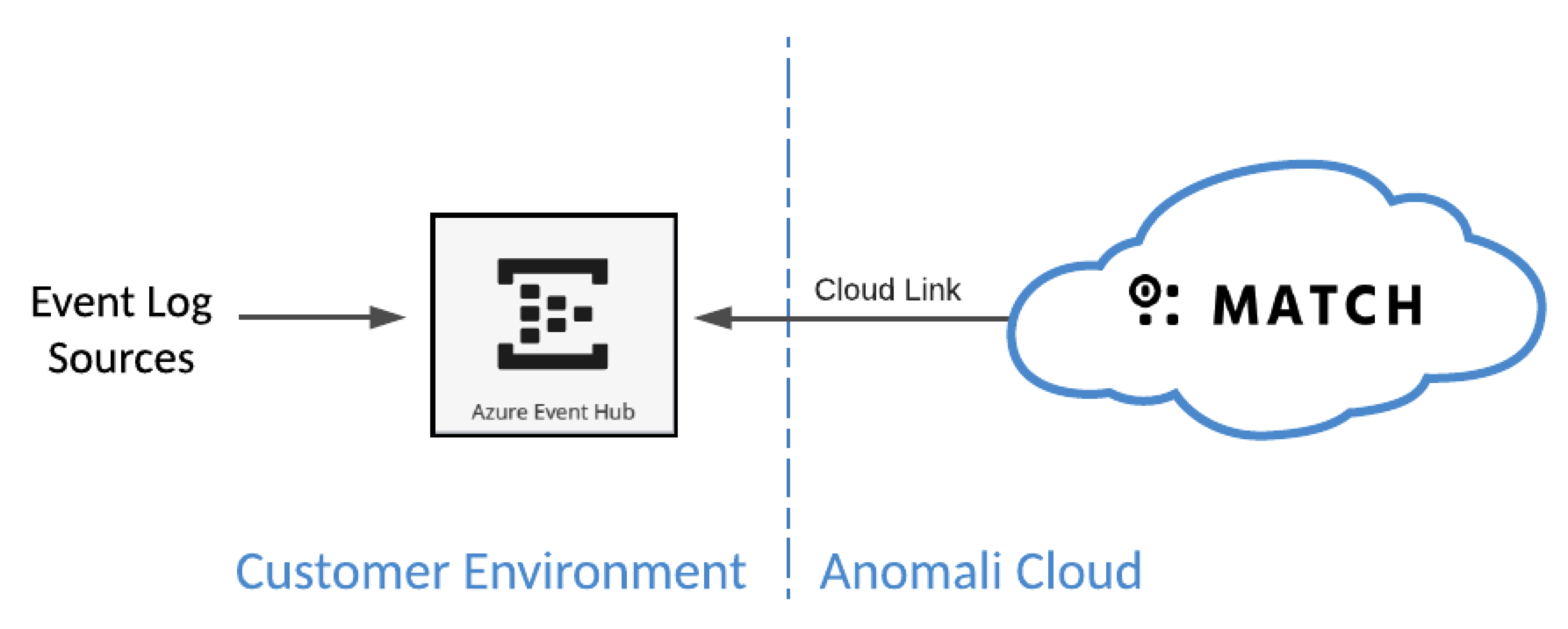
- Your network security rules must allow traffic from Security Analytics to Azure Event Hubs.
- Connections are initiated from Cloud Link to Azure Event Hubs.
- Cloud Link sends requests to Azure Event Hubs port 443/tcp.
-
Refer to Anomali Security Analytics IP Addresses, Ports, and URLs for Security Analytics network details that your network and security needs to know to allow communication from your enterprise resources to your Security Analytics deployment.
Before You Begin
-
Security Analytics has log source integrations for Azure Sentinel logs and for Microsoft Defender logs via Azure Storage or the Defender ATP API. This integration for Azure Event Hubs is intended to be used when the other options are not well suited for your integration with Security Analytics.
-
This documentation assumes your organization already knows how to stream event data to Azure Event Hubs.
-
Logs are ingested via Cloud Link. See Create a Link Configuration for details on setting up Cloud Link.
-
By default, Anomali assumes this integration uses the Azure public environment. Contact your Anomali Customer Success Manager if you have different requirements.
About Azure Event Hub Logs
Azure Event Hubs is a big data streaming platform that collects event data from Azure and Microsoft services, as well as third-party services.
Refer to the Microsoft topic, "Azure Event Hubs—A big data streaming platform and event ingestion service,"
for complete information.
Step 1: Set Up Event Hubs and Azure Storage
Complete Microsoft workflows for the following activities to set up your Microsoft Cloud environment:
-
Set up Microsoft Azure Event Hubs. First you create an Event Hubs namespace, and then you create Event Hubs within the namespace. Anomali recommends provisioning one dedicated Event Hub per Security Analytics log source configuration. Refer to the Microsoft topic, "Quickstart: Create an event hub using Azure portal," for details.
-
Set up Azure Storage. Create an Azure Storage Account and a container within it. When you set up the storage account, enable the following security settings on the Advanced tab: Secure transfer required, Allow storage account key access, TLS Version 1.2, RA-GRS replication. The other options on the Advanced tab should be disabled. Refer to the Microsoft topic, "Create a storage account," for details.
Step 2: Collect Credentials for the Connection from Security Analytics
Cloud Link sends queries to the Event Hub storage. The connection from Cloud Link requires the following settings from your Event Hubs and Azure Storage configurations.
| Event Hubs |
In the Azure Portal, find the Event Hubs instance you have provisioned for this integration and gather the following configuration details:
|
| Azure Storage |
In the Azure Portal, find the access key details for the storage account you have provisioned for this integration and gather the following configuration details:
Refer to the Microsoft topic, “Manage account access keys," for details. |
Step 3: Create the Security Analytics Log Source Configuration
To add the log source:
-
Click the Settings icon
 in the left navigation panel and select Security Analytics.
 -
Click Links.
-
Locate the Universal Link configuration for which you want to add a log source and click the hyperlink name in the Name column. The Link must be online.

-
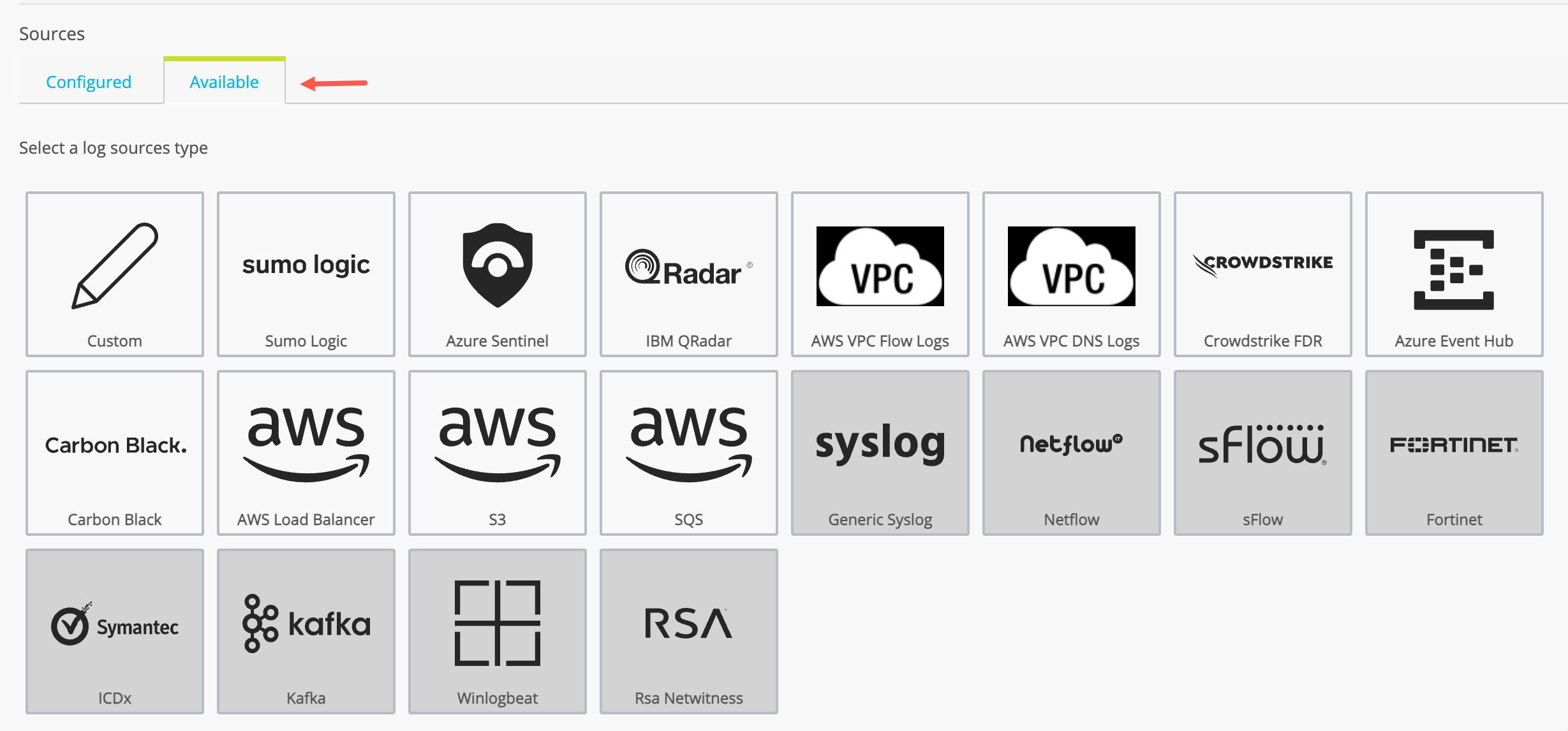
Click the Available tab to display the log source types available. The set of available log source types are different for Cloud Link and Universal Link deployed on premises.
-
Click the Azure Event Hubs icon.
-
Complete the configuration as described in the following table.
Setting Description Data Source Name Type a name that facilitates Link management. Only ASCII characters are allowed. Data Source Description (Optional) A short description for the log source.
Azure Event Hubs Connection String
Specify the Connection String from the Event Hubs configuration described in Step 1. For example:
Endpoint=sb://<NamespaceName>.servicebus.windows.net/;SharedAccessKeyName=<KeyName>;SharedAccessKey=<KeyValue>Event Hub Name Specify the Event Hubs configuration name.
Consumer Group
Optional. Specify the Consumer Group from the Event Hubs configuration (if any).
Azure Storage Account
Enter the application ID of the Azure AD application that can access your Log Analytics workspace. Refer to Step 2.
Azure Storage Account Key
Enter the Application Secret associated with the Application ID above. Refer to Step 2. -
Click Next to display the Sample Content setup page.
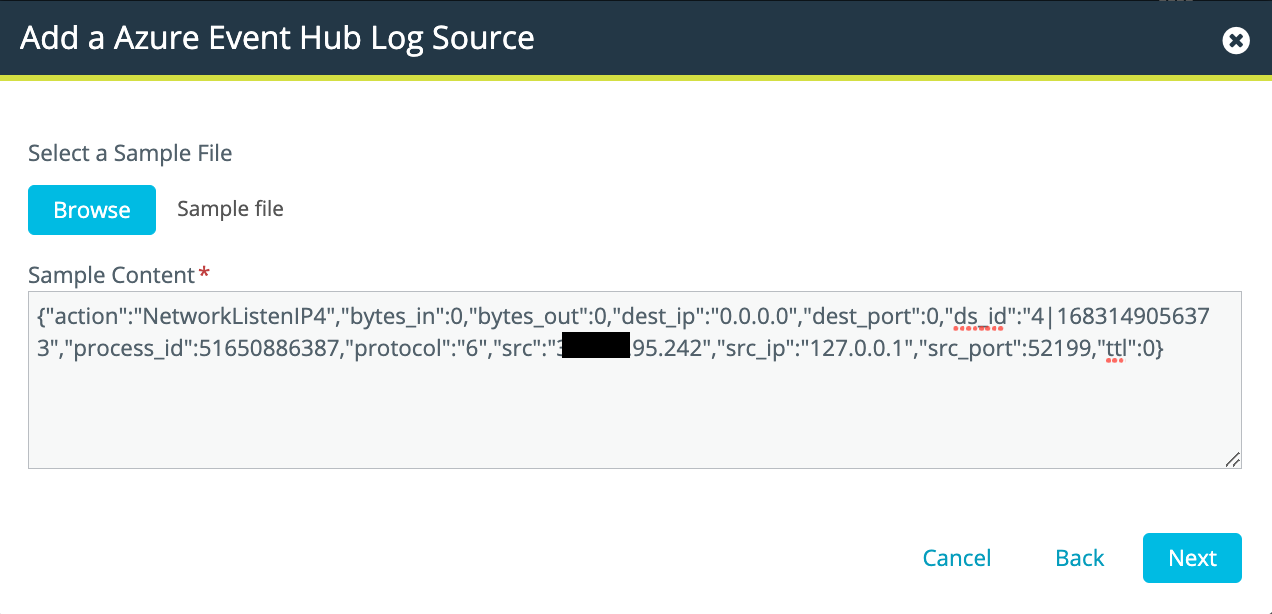
Click Browse and select a sample file from your local computer or paste an event log row into the Sample Content text box.
-
Click Next to display the Parser setup page.
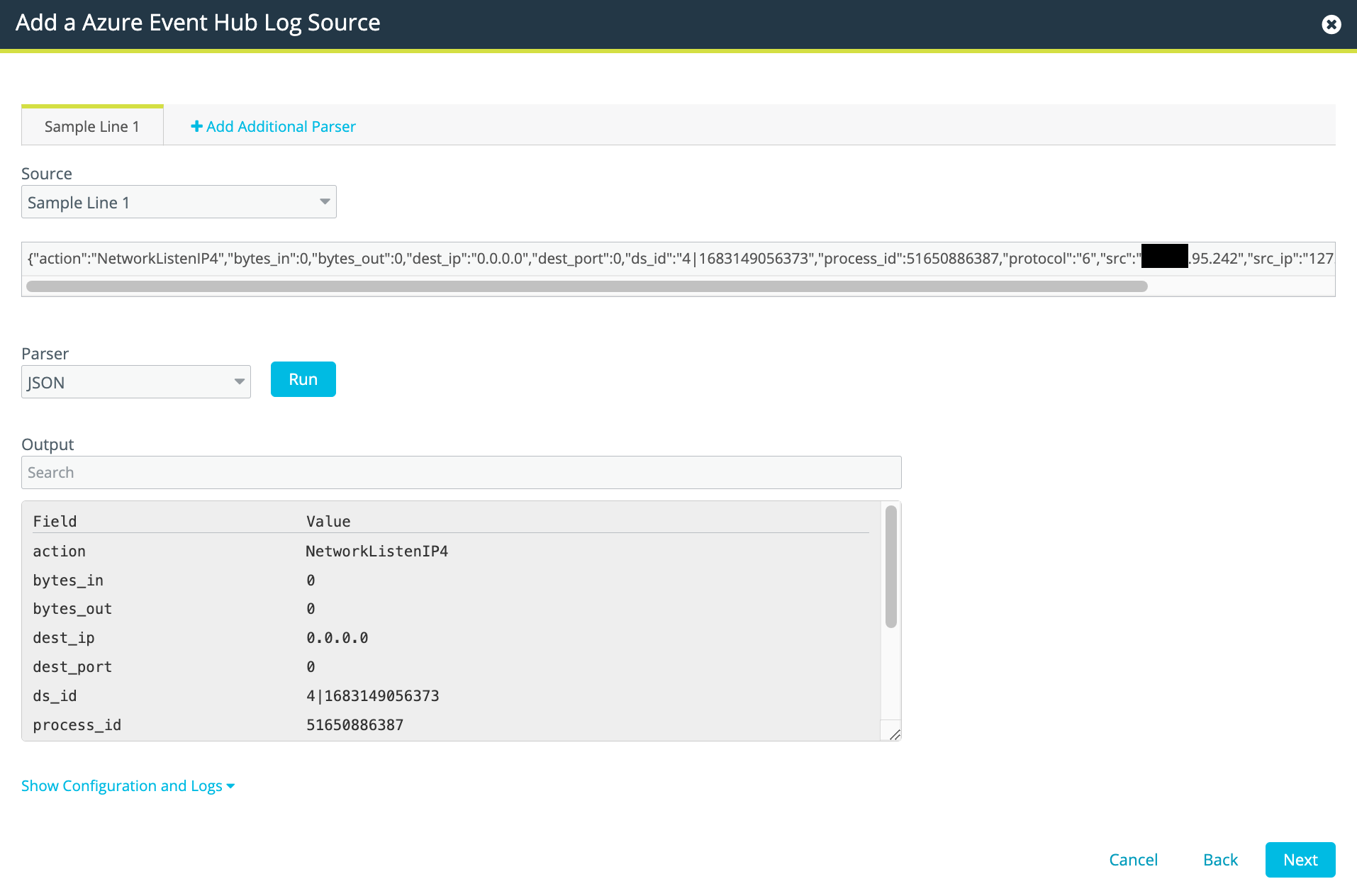
Select the parser and set the field delimiter. Click Run to test that your settings produce the desired output.
Parser Type Delimiter CEF Uses default delimiters. CSV The delimiter characters include Pipe,Comma, Semi-colon, Space, or a Custom delimiter of your choice. Select one.
JSON Uses default delimiters. Key/Value This type has two sets of delimiters:
-
Field Delimiter: Comma, Semi-colon, Space, Pipe, or a Custom delimiter of your choice.
-
Value Delimiter: Colon, Equal, Double Equals, or Custom.
Select one from each set.
LEEF Field Delimiter: Pipe, Comma, Semi-colon, Space, Tab, or a Custom delimiter of your choice. Select one. Dissect Specify a Dissect expression in the Input box. Regex/Grok Specify a regex/grok expression in the Input box. Ruby Specify a Ruby expression in the Input box. -
-
Click Next to display the mapping page.
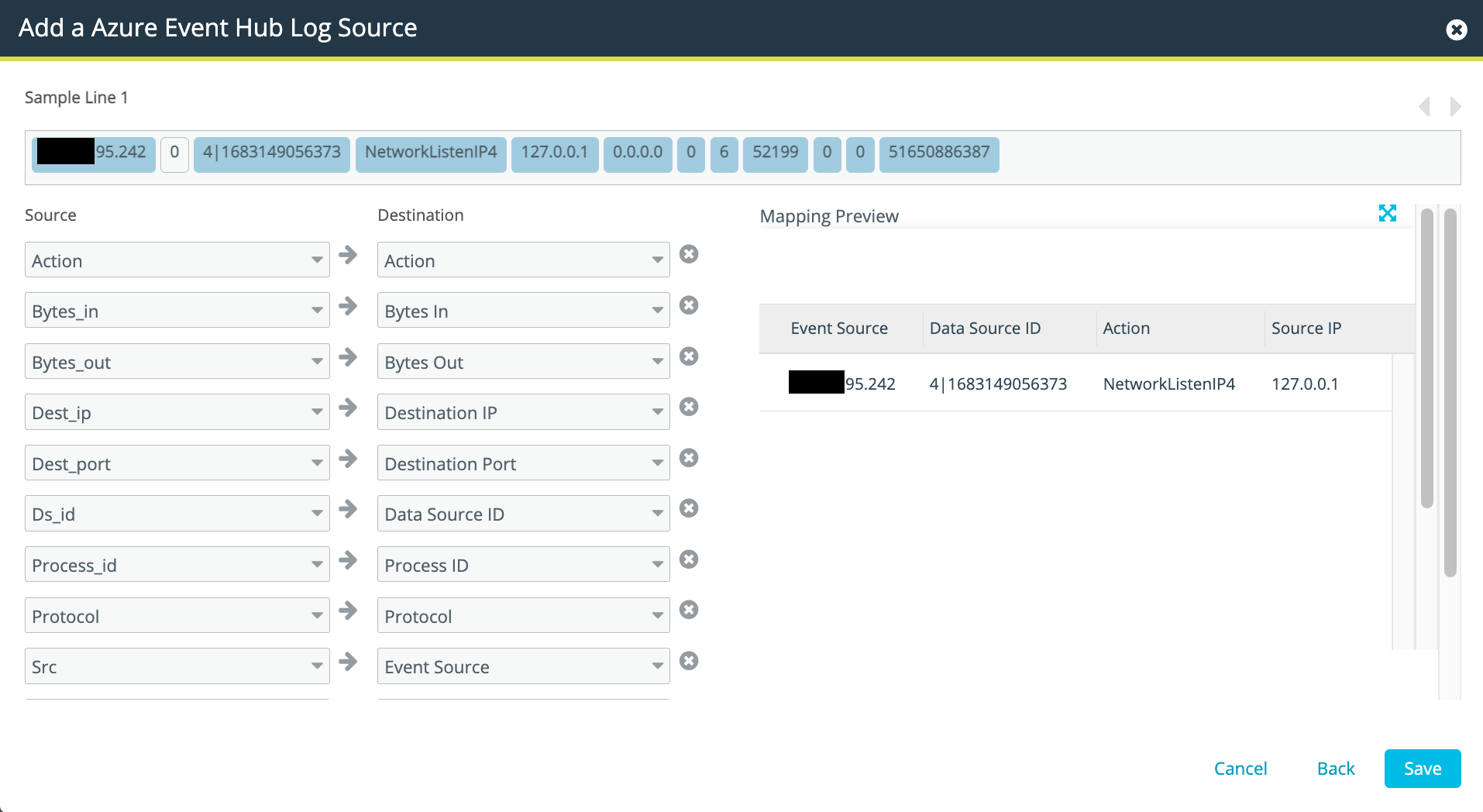
Map the data as required. The mapping information shows the default field mapping values. The top section shows the raw data from your log source. The left side of the screen lists the raw data (Source) and a likely match with one of the fields (Destination) in Anomali Security Analytics. The section on the right side shows a system-generated mapping. If needed, use the Source and Destination drop down menus to manually remap the data.
-
Click Save.
Step 4: Activate the Security Analytics Log Source Configuration
By default, a newly-added data source is not active.
To activate a log source:
-
Click the Settings icon
 in the left navigation panel and select Security Analytics.
 -
Click Links.
-
Locate the Link configuration you want to review and click the hyperlink name in the Name column.
-
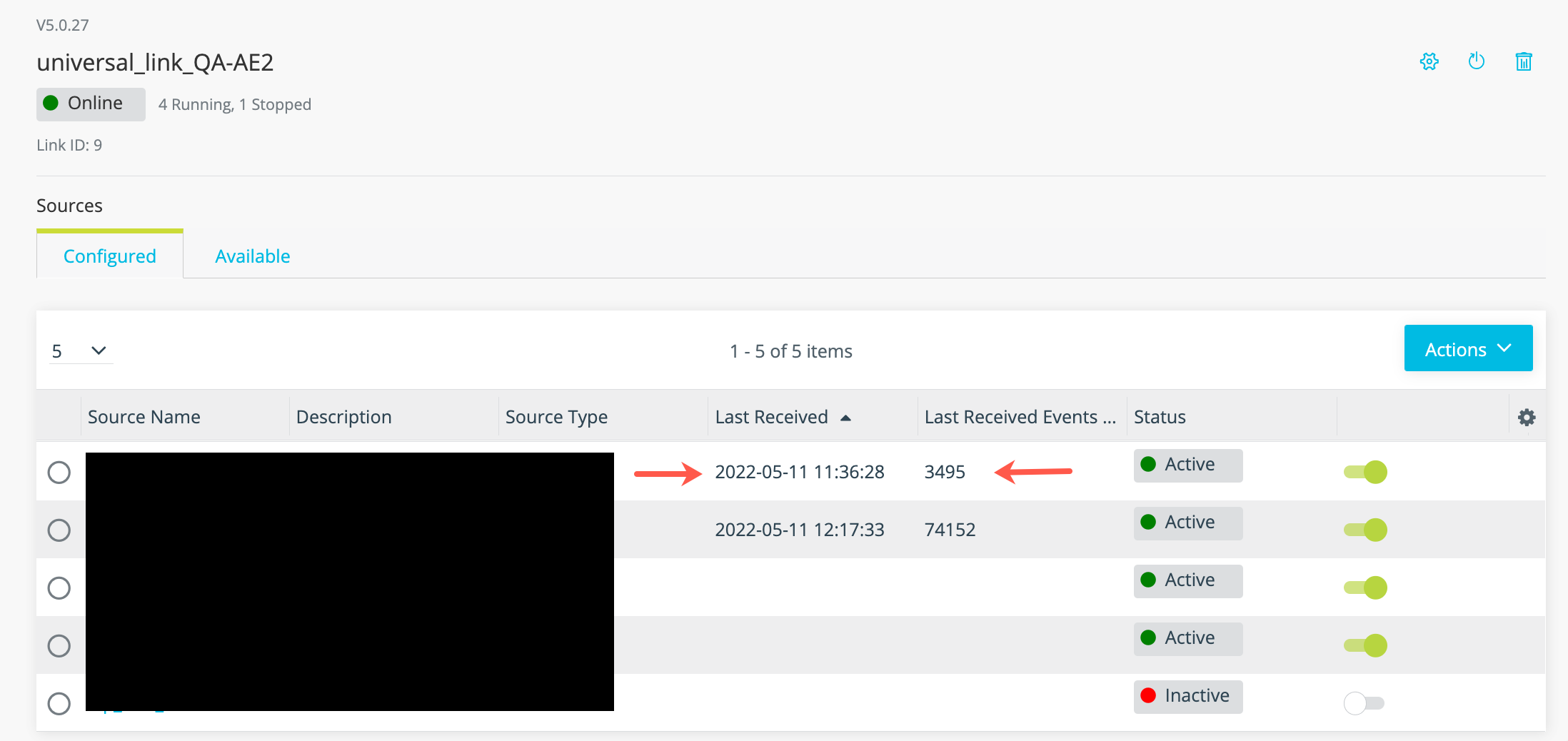
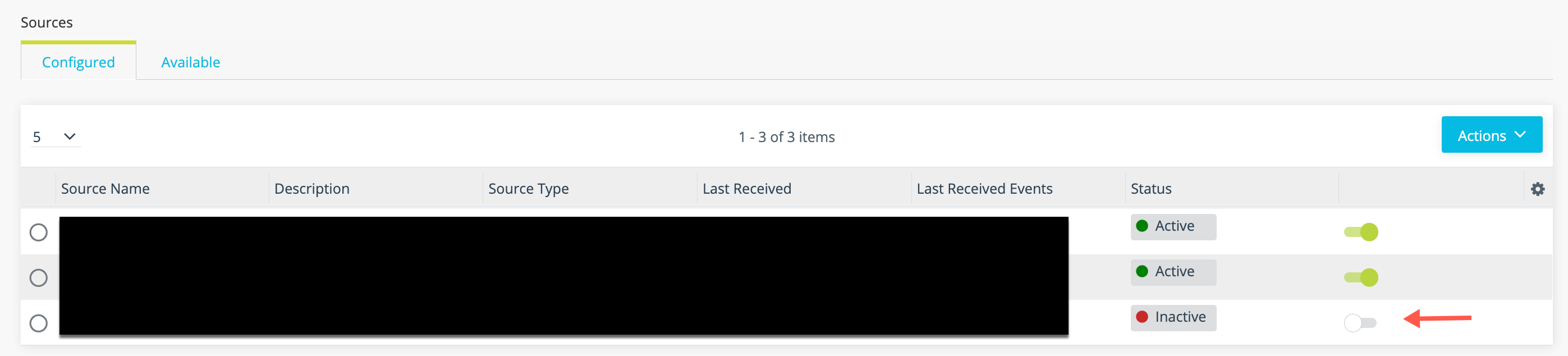
Locate the log source you want to activate and toggle the activation switch shown in the following figure.
With this log source type, the associated Link configuration does not need to be regenerated.
Step 5: Verify Logs Are Ingested into Security Analytics
You can expect logs to be transmitted to Security Analytics shortly after the log source has been activated and the Universal Link regenerated.
To verify logs are ingested:
-
Click the Settings icon
in the left navigation panel and select Security Analytics. -
Click Links.
-
Click the hyperlink in the Name column for the Universal Link associated with the log source.
-
Review the timestamp for the last data received and the number of events in the last batch of data to confirm event logs are ingested as expected.