Create a Link Configuration
Anomali Cloud Link instances are created by Anomali. Please contact Anomali Customer Support to request cloud-to-cloud log ingestion.
Anomali Universal Link and Anomali Link for Splunk autoregister with Security Analytics upon installation, so you typically do not need to create or modify those configurations.
Splunk Link
Anomali Link for Splunk autoregisters with Security Analytics upon installation, so you typically do not need to create or modify the configurations. If necessary, you can create a new Splunk configuration from within Security Analytics.
To create an Anomali Link for Splunk configuration:
-
Click the Settings icon
 in the left navigation panel and select Security Analytics.
 -
Click Links.
-
Click Splunk Links in the left navigation menu.
-
Click Actions and select Create New Link.
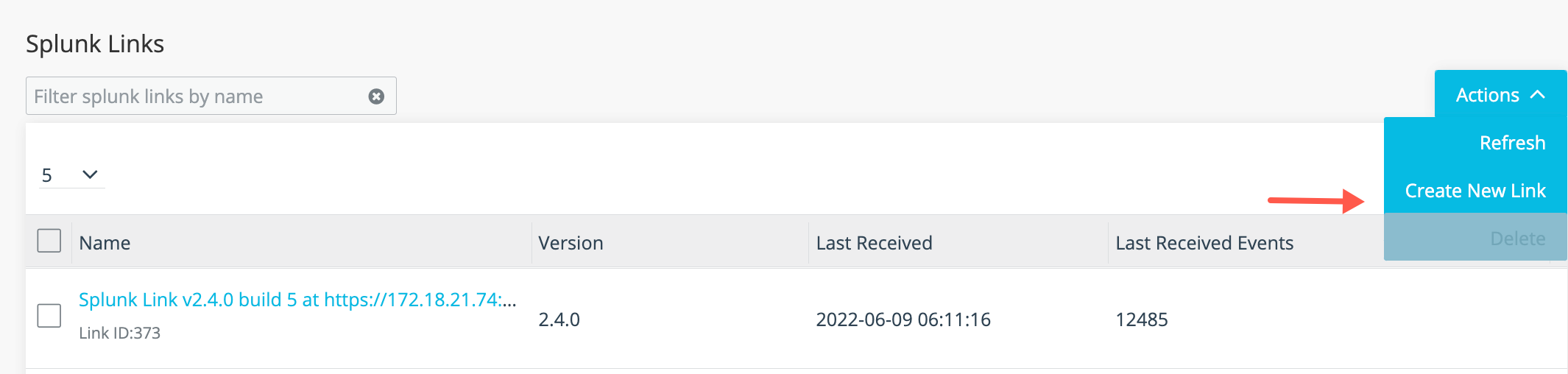
The Splunk Link configuration form is displayed.
-
Complete the configuration as described in the following table.
Setting Description Name Type a name that facilitates Link management. Only ASCII characters are allowed. Maximum 100 characters. Type Splunk. Splunk User Name User name that has been configured to authenticate to the Splunk instance. Password The corresponding password. Splunk Management URL The URL for the management port of this Splunk instance. For example:
https://<splunk_server_IP>:8089
When the Link is set up on the Splunk deployer, the URL is either https://<splunk_cluster_search_head_IP>:8089 or <https://splunk_cluster_ load_balancer_IP:8089>.
Drilldown Limit This is the maximum number of rows returned by the drilldown. Default is 100 rows. Index Filter Default is:
index=main
-
Click Save.