AWS Load Balancer
Anomali Security Analytics can ingest AWS Load Balancer log data. The AWS Load Balancer log source type is not a log source type that supports drilldown queries or scheduled backfill.
Network Topology and Requirements
This example involves cloud-to-cloud data flow. Security Analytics periodically sends requests to the AWS SQS or S3 resource that is specified in your log source configuration to pull batches of event logs.
Note: Anomali recommends setting up the integration with AWS SQS for performance and resource optimization reasons. In this scenario, Security Analytics sends requests to SQS, which monitors updates to the S3 bucket. Alternatively, you can skip SQS and send requests to S3 directly.
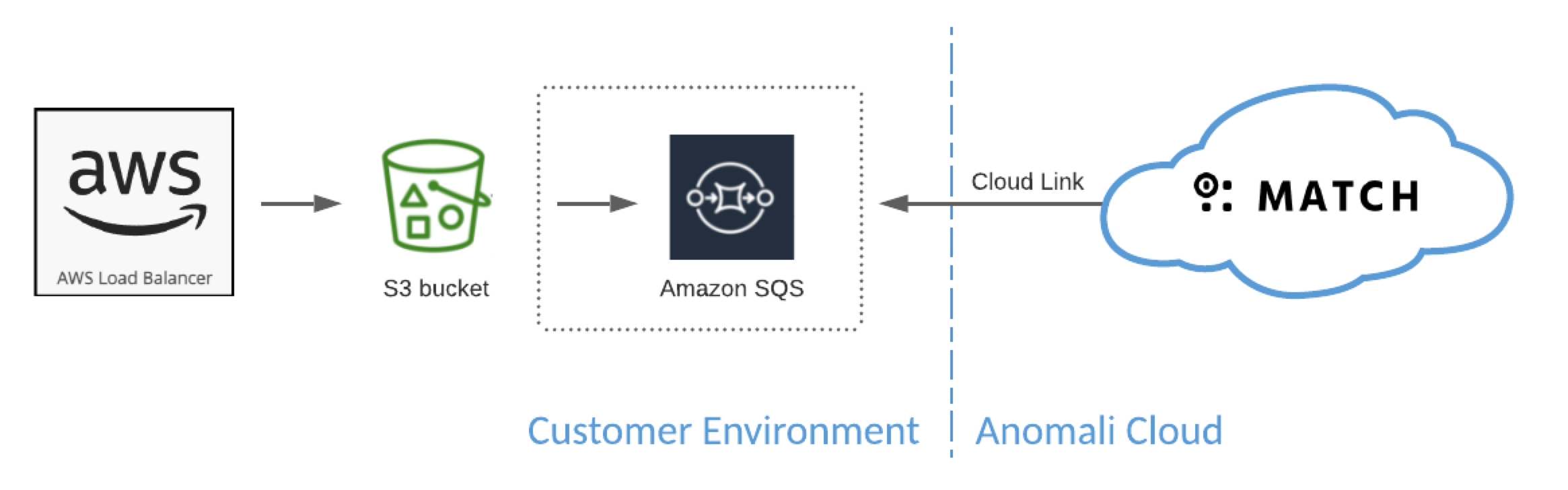
- Your network security rules must allow traffic from Security Analytics to your dedicated AWS resources.
- Connections are initiated from Cloud Link to your AWS resources.
- Cloud Link sends requests to port 443/https.
-
Refer to Anomali Security Analytics IP Addresses, Ports, and URLs for Security Analytics network details that your network and security needs to know to allow communication from your enterprise resources to your Security Analytics deployment.
Before You Begin
| Security Analytics |
Logs are ingested via Cloud Link. See Create a Link Configuration for details on setting up Cloud Link. |
| AWS |
This solution involves log ingestion of data from AWS Simple Storage Service (S3). US-EAST (N. Virginia) is recommended. This Anomali topic assumes you are already familiar with AWS resources and can complete the following in AWS for this integration:
|
About AWS Load Balancer Logs
AWS Elastic Load Balancing can be set up to generate "access logs" and store them as compressed files in an S3 bucket you specify during setup. Access logs have information about requests sent through the load balancer, such as the time the request was received, source and destination details, request paths, and server responses.
The following AWS load balancer access log fields are mapped to Security Analytics common event schema fields.
| AWS LB Column No. | AWS LB Field | Security Analytics Field |
|---|---|---|
| 1 | type | event.protocol |
| 2 | time | event_time |
| 3 | elb | |
| 4 | client:port |
event.src_ip event.src_port |
| 5 | target:port |
event.dest_ip event.dest_port |
| 6 | request_processing_time | |
| 7 | target_processing_time | |
| 8 | response_processing_time | |
| 9 | elb_status_code | |
| 10 | target_status_code | event.return_code |
| 11 | received_bytes | event.bytes_out |
| 12 | sent_bytes | event.bytes_in |
| 13 | "request" |
event.http_method event.url |
| 14 | "user agent" | event.user_agent |
| 15 | ssl_cipher | |
| 16 | ssl_protocol | |
| 17 | target_group_arn | |
| 18 | "trace_id" | |
| 19 | "domain_name" | |
| 20 | "chosen_cert_arn" | |
| 21 | matched_rule_priority | |
| 22 | request_creation_time | |
| 23 | "actions_executed" | event.action |
| 24 | "redirect_url" | |
| 25 | "error_reason" | |
| 26 | "target:port_list" | |
| 27 | "target_status_code_list" | |
| 28 | "classification" | |
| 29 | "classification_reason" |
Refer to the AWS topic, "Access logs for your Application Load Balancer," for complete information about AWS Elastic Search Load Balancing.
Step 1: Configure an AWS S3 Bucket
Set up a dedicated AWS S3 bucket to collect logs for this integration as described in the AWS topic, “Create your first S3 bucket.” The S3 bucket is a data source that can be queried by Anomali, and the S3 bucket can trigger events on an AWS SQS queue, which will be consumed by Anomali.
Be sure to configure an S3 bucket access policy that allows access from the Cloud Link IP address, as well as access for your own S3 bucket administration.
The following example is adapted from an AWS Knowledge Center example. For complete details, see the AWS Knowledge Base article, "How can I restrict access to my Amazon S3 bucket using specific VPC endpoints or IP addresses?"
{
  "Id": "SourceIP",
  "Version": "2012-10-17",
  "Statement": [
    {
      "Sid": "SourceIP",
      "Action": "s3:*",
      "Effect": "Deny",
      "Resource": [
        "arn:aws:s3:::<bucket-name>",
        "arn:aws:s3:::<bucket-name>/*"
      ],
      "Condition": {
        "NotIpAddress": {
          "aws:SourceIp": [
            "50.1.114.34/32",
            "<ADDITIONAL IPs TO ALLOW YOUR OWN ADMINISTRATION OF THE BUCKET"
          ]
        }
      },
      "Principal": "*"
    }
  ]
}
Caution: The example bucket policy explicitly denies access to any requests outside the allowed IP addresses. Be sure to include the IP address you use to manage the bucket in the allow settings. Unless you explicitly allow access, even the user that entered the bucket policy can be denied access to the bucket if the client IP address does not meet the conditions.
Step 2: Configure an Amazon SQS Queue
Create a dedicated Amazon SQS queue for each type of log to be consumed by Anomali. The SQS queue is used to stream events when new log files are added to the S3 bucket. For details on creating an SQS queue, refer to the AWS topic “Creating an Amazon SQS queue (console).”
Note: Skip this step if you prefer to integrate directly with S3 and not use SQS.
Step 3: Connect the Amazon S3 Bucket with the Amazon SQS Queue
Configure an event notification in the AWS SQS queue when new objects are added to the S3 bucket as described in the AWS topic, “Walkthrough: Configuring a bucket for notifications (SNS topic or SQS queue).”
Note: Skip this step if you prefer to integrate directly with S3 and not use SQS.
Step 4: Collect Credentials for the Connection from Anomali Security Analytics
Your AWS administrator (with admin role permissions) must create a dedicated AWS Identity and Access Management (IAM) account for the integration with Security Analytics. Security Analytics will use this account to connect to your resources (AWS S3 bucket or AWS SQS queue) to retrieve the logs for processing.
Typically, an organization grants resource access permissions through AWS administration groups as follows:
-
Sets up an administration group for the specific purpose of supporting the integration.
-
Associates a policy with the administration group.
-
Creates an IAM account and associates the account with the administration group.
The following example shows an IAM resource access policy configured to grant the permissions required for this integration.
{
	"Version": "2012-10-17",
	"Statement": [
		{
			"Sid": "resourcePermission",
			"Effect": "Allow",
			"Action": [
				"s3:GetObject",
				"s3:ListBucket",
				"s3:GetBucketLocation"
			],
			"Resource": [
				"arn:aws:s3:::<bucket-name>/*",
				"arn:aws:s3:::<bucket-name>"
			]
		},
		{
			"Sid": "VisualEditor0",
			"Effect": "Allow",
			"Action": [
				"sqs:ChangeMessageVisibility",
				"sqs:DeleteMessage",
				"sqs:GetQueueAttributes",
				"sqs:ReceiveMessage",
				"sqs:SendMessage"
			],
			"Resource": "<SQS-queue-ARN>"
		}
	]
}
Specify your resource IDs in place of the placeholders <bucket-name> and <SQS-queue-ARN> that are used in the example.
For details about IAM policies, refer to the AWS topic, “Creating IAM policies.”
The following table explains the required IAM resource access permissions.
| AWS S3 |
s3:GetObject Grants access to retrieve objects from S3 buckets. S3 files are related to the SQS event being processed. |
|
s3:ListBucket Grants access to list the content of an S3 bucket. S3 works through a polling mechanism by listing the bucket content every time and processing newer files. |
|
|
s3:GetBucketLocation Grants access to retrieve a bucket Region location, used to connect later by specifying the proper region. |
|
| AWS SQS QUeue |
s3:GetObject Grants access to retrieve objects from S3 buckets. S3 files are related to the SQS event being processed. |
|
sqs:DeleteMessage Grants access to remove a message from the queue. Given the distributed nature of SQS consumers, consumers must acknowledge receipt by deleting the message. |
|
|
sqs:ChangeMessageVisibility Grants access to modify the SQS message visibility timeout–a time window until the message is made available in the queue again if a consumer did not acknowledge receipt. |
|
|
sqs:GetQueueAttributes Grants access to read the SQS queue attributes. This is used to validate access for the given key pair. |
|
|
sqs:ReceiveMessage Grants access to reading messages from the SQS queue. |
Once the AWS IAM account is created, create and retrieve an Access Key needed to connect to the resources as described in the AWS topic, “Managing access keys for IAM users > Managing access keys (console).”
Copy the Access key ID and Secret access key values that will be needed when you create the Security Analytics log source configuration in Step 5: Create the Security Analytics Log Source Configuration.
Step 5: Create the Security Analytics Log Source Configuration
In Security Analytics, you configure the connection information, as well as log parsing and field mapping rules.
To add the log source:
-
Click the Settings icon
 in the left navigation panel and select Security Analytics.
 -
Click Links.
-
Locate the Universal Link configuration for which you want to add a log source and click the hyperlink name in the Name column. The Link must be online.

-
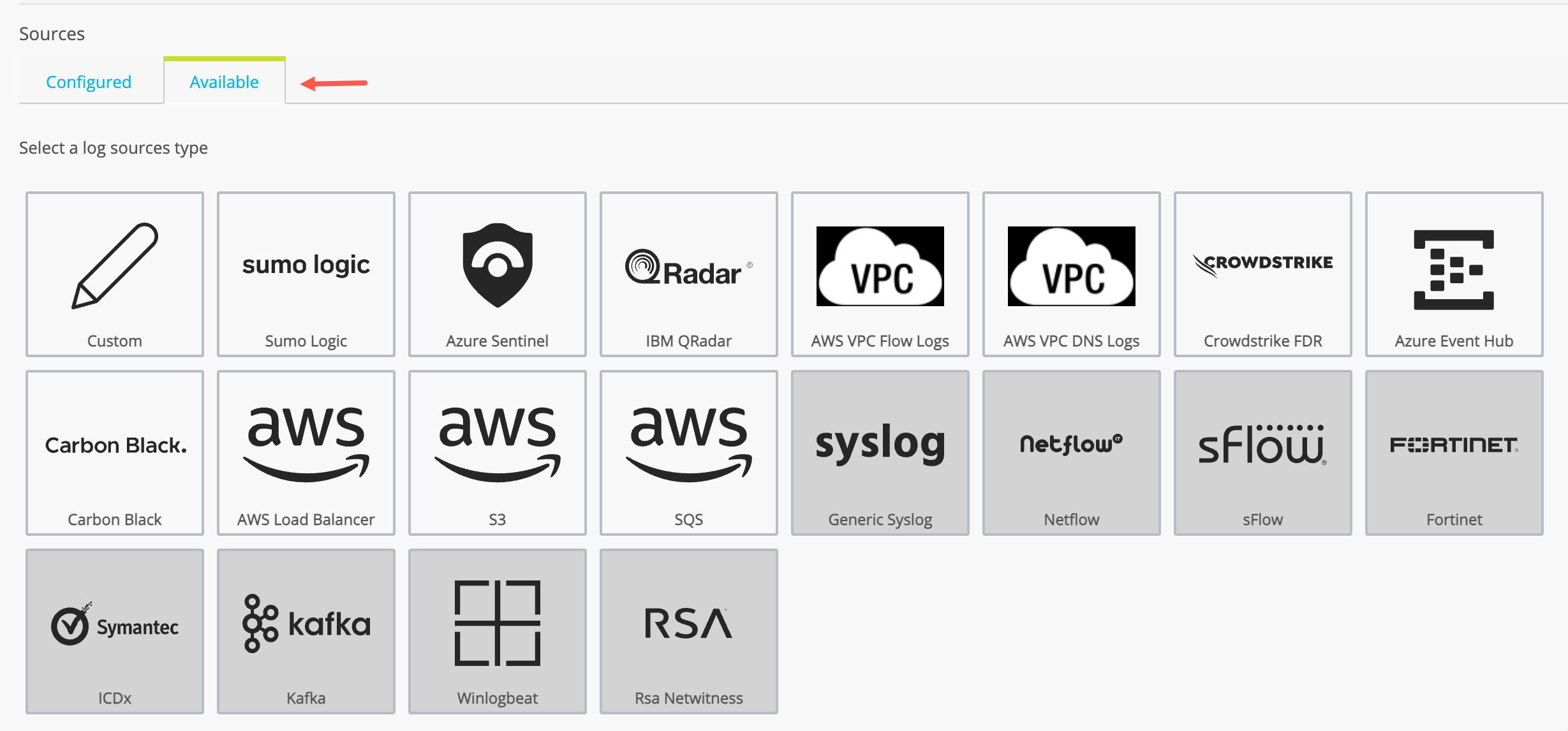
Click the Available tab to display the log source types available. The set of available log source types are different for Cloud Link and Universal Link deployed on premises.
-
Click the AWS Load Balancer icon.
-
Complete the configuration as described in the following table.
Setting Description Data Source Name Type a name that facilitates Link management. Only ASCII characters are allowed. Data Source Description A short description for the log source. Store raw events Select this option to collect and store the entire event log that is available from the log source. Requires Universal Link 5.2 or later.
When this option is enabled, and you click Get Raw Logs to drill down from Security Analytics results, Security Analytics displays the log as seen on the original device.
When this option is not enabled, Security Analytics filters the fields collected and stored to include only fields that can be mapped to the Anomali Security Analytics eventlog schema. When this option is not enabled, and you click Get Raw Logs to drill down from Security Analytics results, Security Analytics can display only the log fields collected and used in Security Analytics.
Note: Collection and storage of raw event logs utilizes greater bandwidth and storage resources than collection of logs that have been filtered.
AWS Access Key ID Specify the account provisioned for this integration. Refer to Step 4.
AWS Secret Access Key Specify the AWS Secret Access Key for the Access Key ID. Refer to Step 4.
Input Type: SQS SQS Queue URL
Specify the SQS Queue URL from which Security Analytics will ingest event log data. Refer to Step 3.
Input Type: S3 S3 Bucket
Specify the s3 bucket location in ARN format:
arn:aws:s3:::bucket_name/key_nameRefer to Step 1.
Paths
Specify the paths to be retrieved. For example:
test_01/You may specify multiple paths, but the event logs to be ingested from each path must have the same format and structure—for example, each path has firewall logs with the same columns. Separate the paths with a comma. For example:
test_01/,test_02/Refer to Step 1.
Note: Do not specify a leading path separator. For example, do not specify
/test01. Follow the example shown above instead. -
Click Next.
-
Sample log content is loaded. You use the sample log file to preview the log parsing and field mapping performed by Security Analytics.
Optionally, you can click Browse and upload your own sample log file.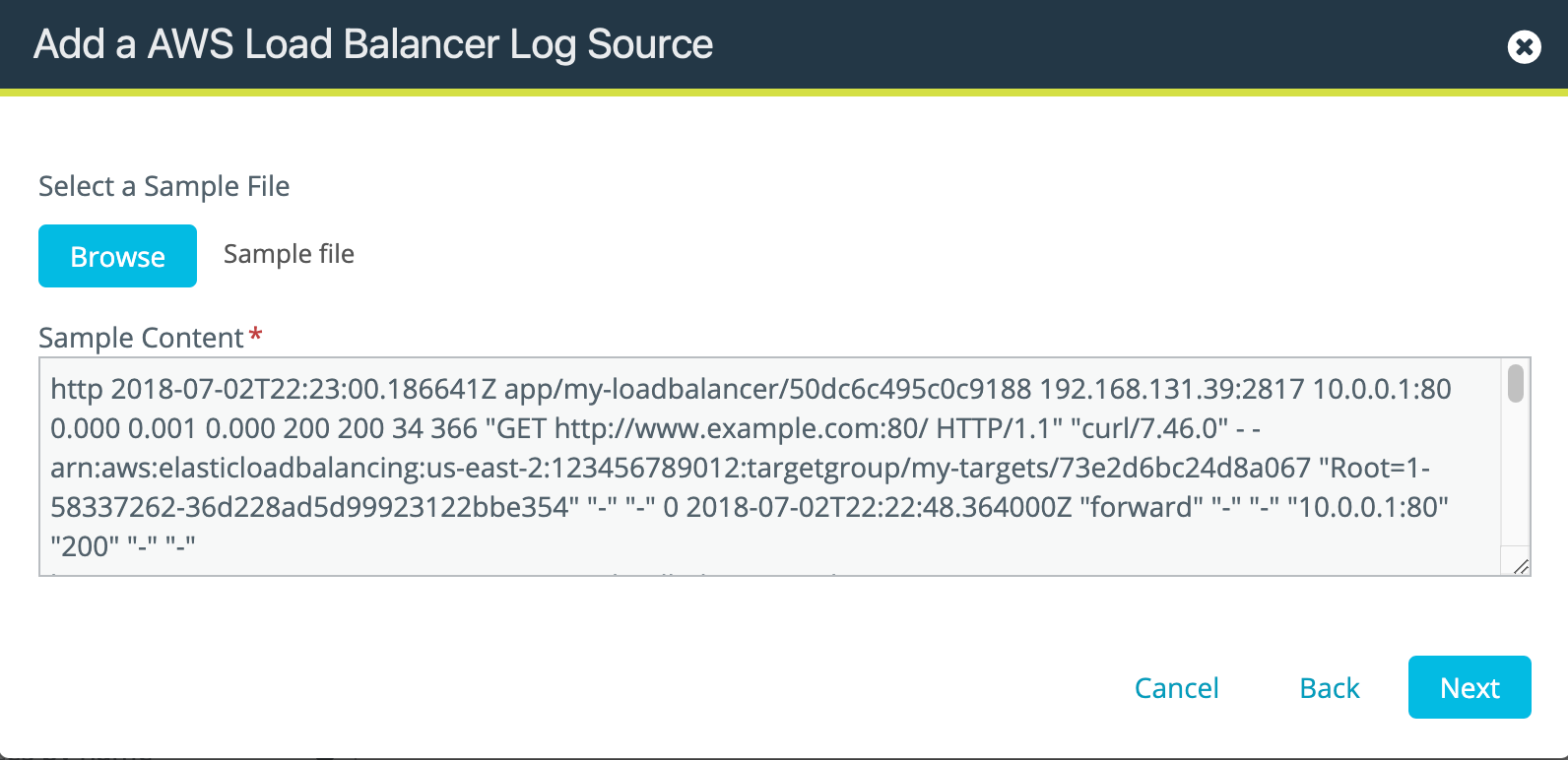
-
Click Next to display the parser setup page.
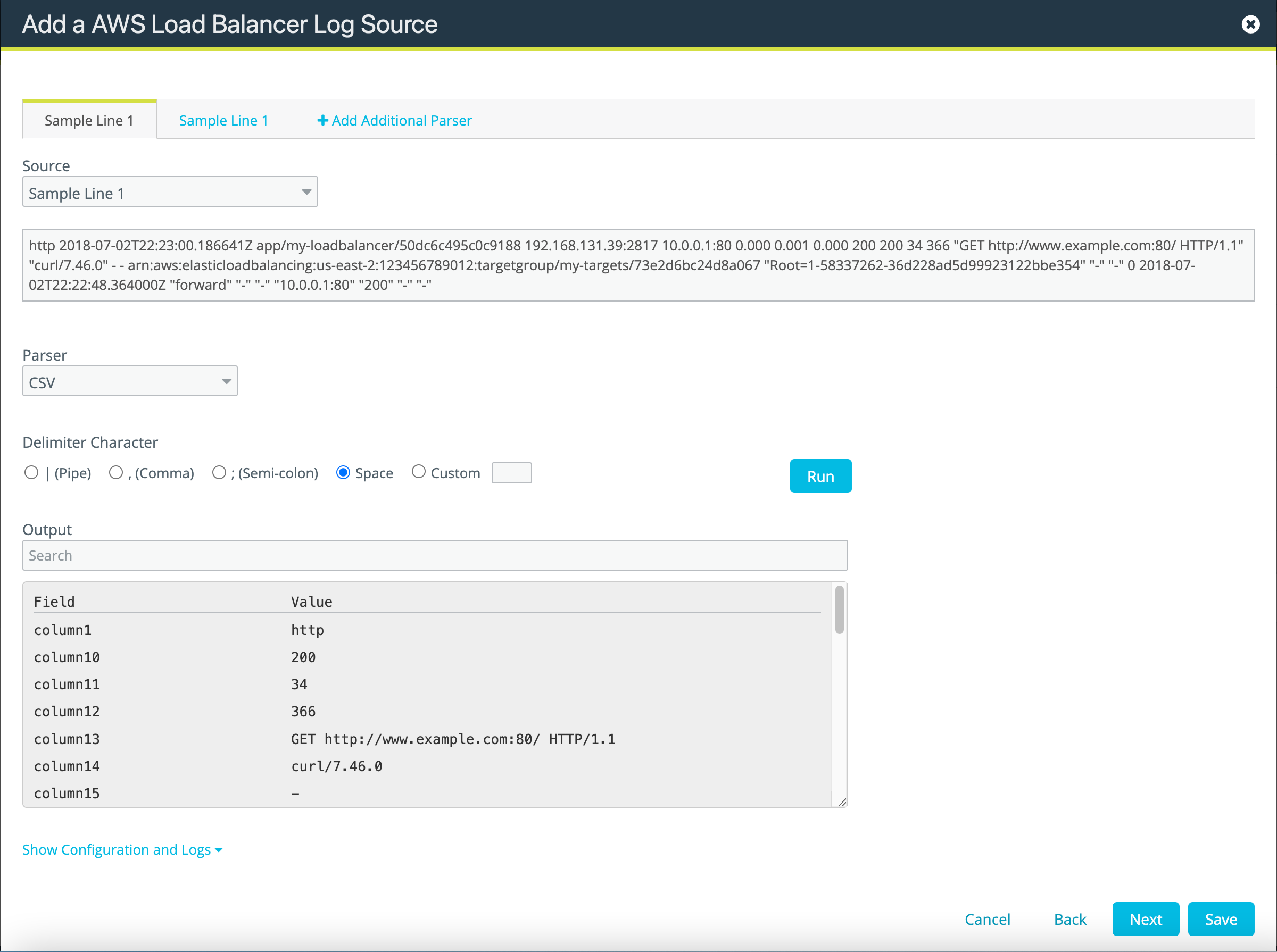
Security Analytics uses two parsers for AWS Load Balancer logs:
-
CSV: The first parser tab shows the CSV parser, which can be used to parse the space-delimited fields for this log type.
-
Ruby: The second parser tab uses Ruby to normalize the ingested event data so that it can be easily mapped to the Security Analytics event schema.
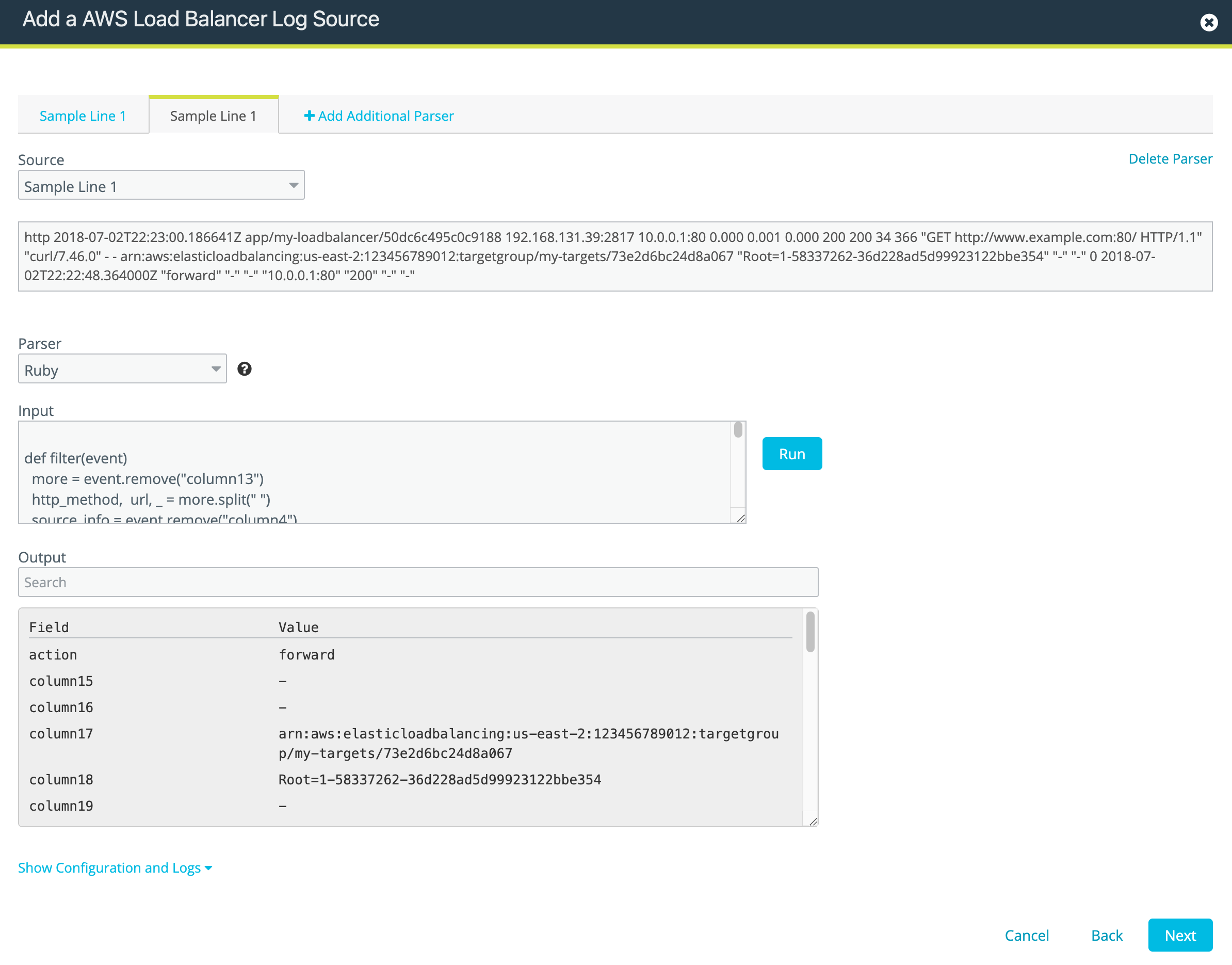
For each log parser tab, you can click Run to test and confirm that the settings produce the desired output.
-
-
Click Next to display the mapping page.
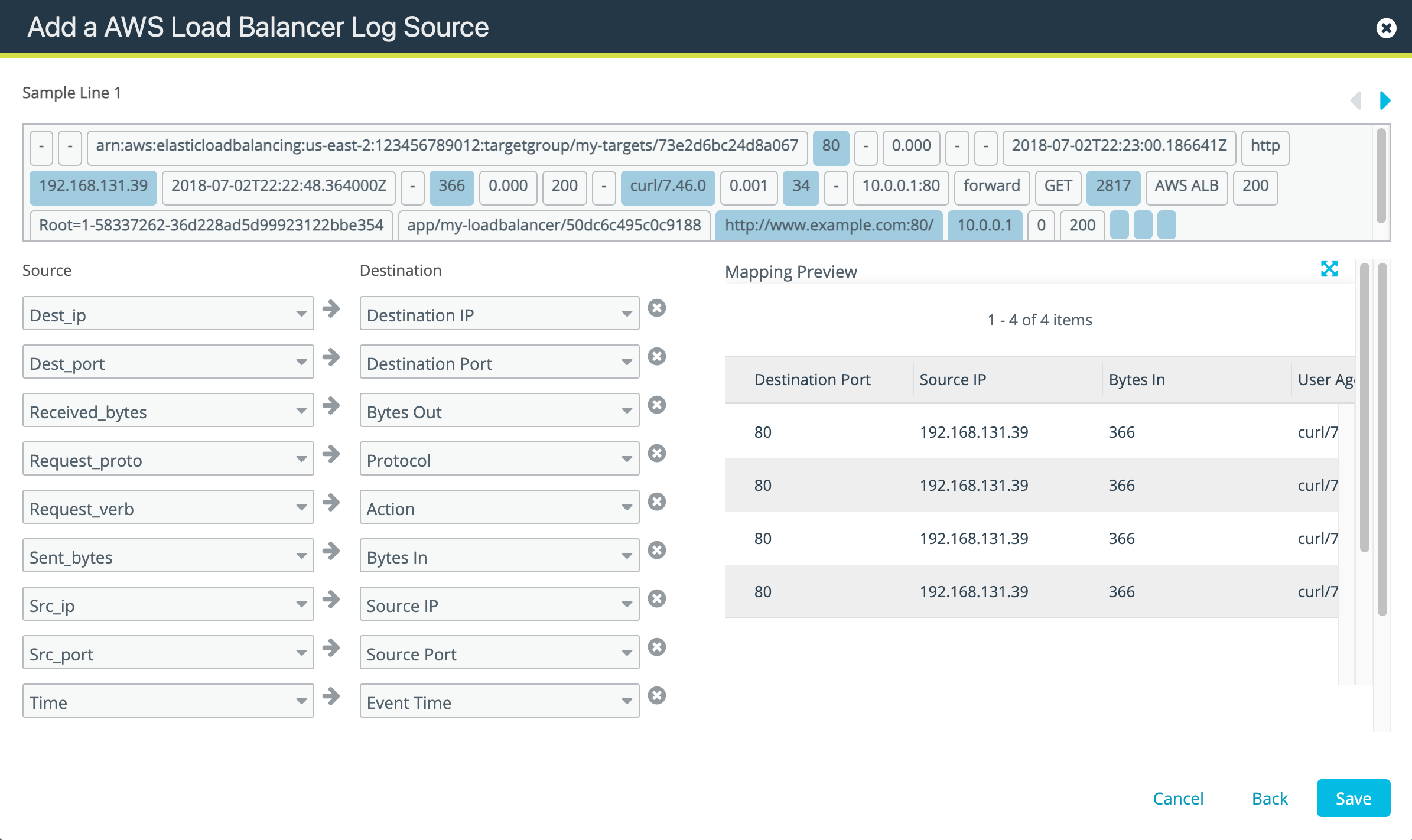
Map the data as required. The mapping information shows the default field mapping values. The top section shows the raw data from your log source. The left side of the screen lists the raw data (Source) and a likely match with one of the fields (Destination) in Anomali Security Analytics. The section on the right side shows a system-generated mapping. If needed, use the Source and Destination drop down menus to manually remap the data.
-
Click Save.
Step 6: Activate the Security Analytics Log Source Configuration
By default, a newly-added data source is not active.
To activate a log source:
-
Click the Settings icon
in the left navigation panel and select Security Analytics. -
Click Links.
-
Locate the Link configuration you want to review and click the hyperlink name in the Name column.
-
Locate the log source you want to activate and toggle the activation switch shown in the following figure.
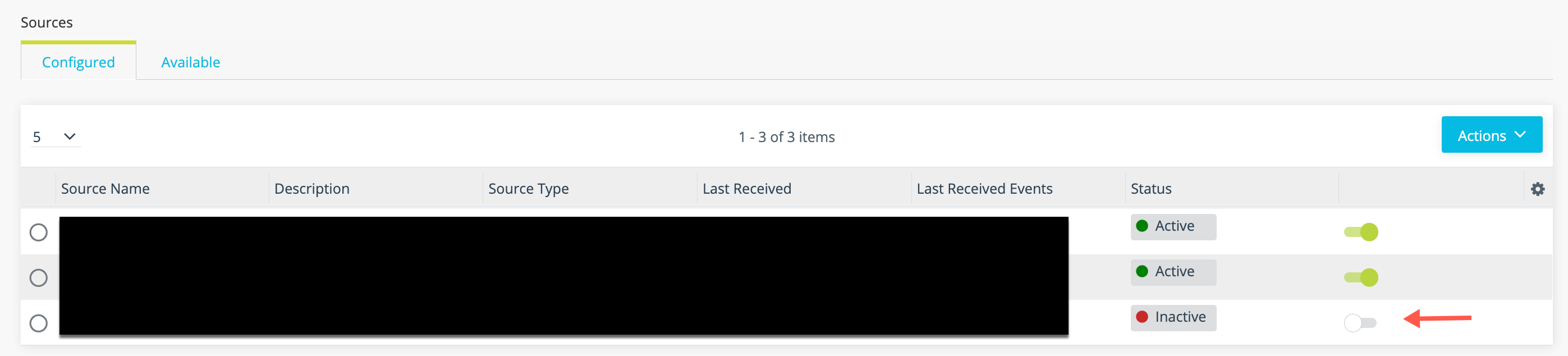
When you activate the log source, the associated Link configuration must be regenerated.
-
Click Regenerate Now in the Link tools panel.

Step 7: Verify Logs Are Ingested into Security Analytics
You can expect logs to be transmitted to Security Analytics shortly after the log source has been activated and the Universal Link regenerated.
To verify logs are ingested:
-
Click the Settings icon
in the left navigation panel and select Security Analytics. -
Click Links.
-
Click the hyperlink in the Name column for the Universal Link associated with the log source.
-
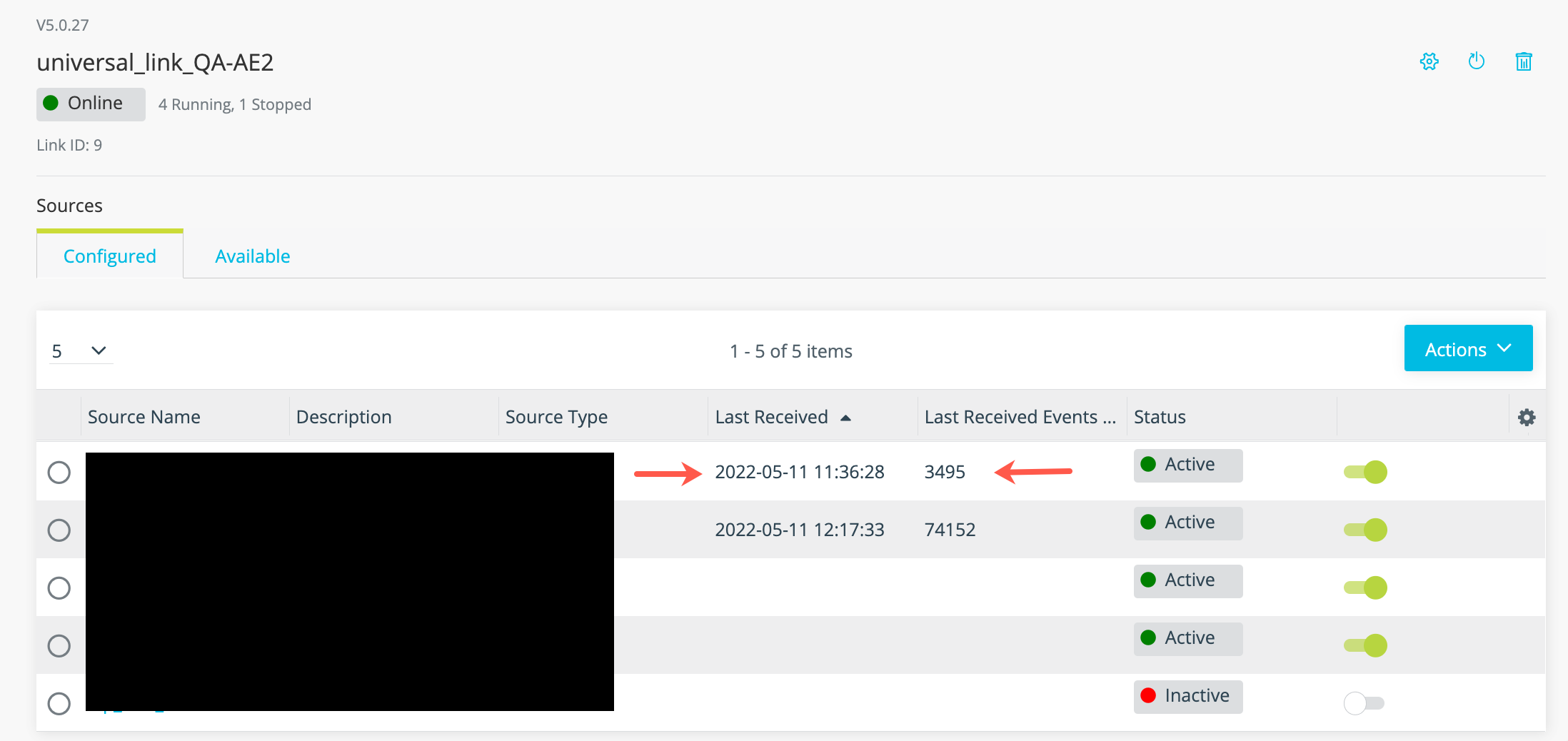
Review the timestamp for the last data received and the number of events in the last batch of data to confirm event logs are ingested as expected.