RSA NetWitness
Anomali Security Analytics can ingest event log data from RSA NetWitness. RSA NetWitness is a log source type that supports the following features:
-
Drilldown: The drilldown feature allows you to send queries for raw event log data to the log source.
-
Backfill: The backfill feature allows you to ingest event logs from a time period before the configuration was activated.
Network Topology and Requirements
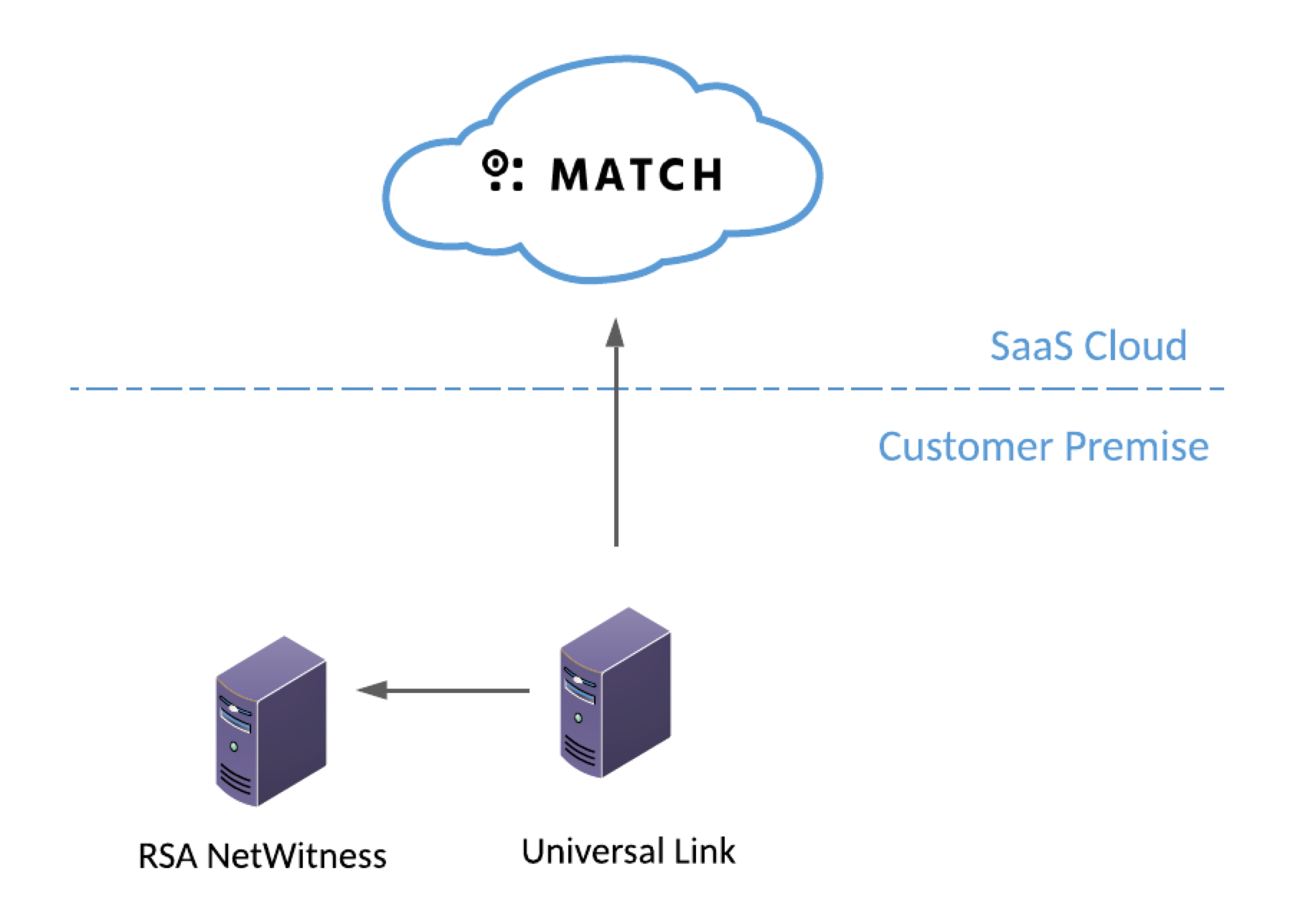
The RSA NetWitness integration involves on-premise-to-cloud data flow. Logs collected in your RSA NetWitness on premise deployment are forwarded by a Universal Link instance in your on premise environment to Security Analytics. Anomali has tested the integration with RSA NetWitness 11.2.0.0.
-
Universal Link sends queries to the RSA NetWitness SDK port 50105/tcp to collect events.
- Universal Link must be able to send requests and data outbound to
api.threatstream.comand AWS S3. - Security Analytics listens to Universal Link for updates from log sources on port 443/https. Typically, your network and security team creates rules to allow this traffic when Universal Link is first installed.
-
Refer to Anomali Security Analytics IP Addresses, Ports, and URLs for Security Analytics network details that your network and security needs to know to allow communication from your enterprise resources to your Security Analytics deployment.
Before You Begin
-
Security Analytics listens to Universal Link for updates from log sources. Universal Link sends queries to RSA NetWitness to collect events. Make sure your firewall allows connectivity between the RSA NetWitness service and Universal Link.
-
Have connection details at hand for both RSA NetWitness and Security Analytics. The log source configuration requires you to configure compatible settings between the two systems.
About RSA NetWitness Fields
The following table shows the mapping of RSA fields to Security Analytics fields.
Note: The field mappings in this table are fixed and cannot be customized.
| RSA Field | Security Analytics Field |
|---|---|
|
action |
event.action |
|
checksum |
event.file_hash |
|
device.ip |
event.host |
|
device.type |
event.sourcetype |
|
email.dst |
event.receiver |
|
email.src |
event.sender |
|
filename |
event.file_name |
|
host.dst |
event.dest |
|
host.src |
event.src |
|
ip.dst |
event.dest_ip |
|
ip.dstport |
event.dest_port |
|
ip.src |
event.src_ip |
|
ip.srcport |
event.src_port |
|
protocol |
event.protocol |
|
referrer |
event.http_referrer |
|
result.code |
event.return_code |
|
time |
event.event_time |
|
url |
event.url |
|
user.agent |
event.user_agent |
|
user.dst |
event.user |
Step 1: Create the Security Analytics Log Source Configuration
To add the log source:
-
Click the Settings icon
 in the left navigation panel and select Security Analytics.
 -
Click Links.
-
Locate the Universal Link configuration for which you want to add a log source and click the hyperlink name in the Name column. The Link must be online.

-
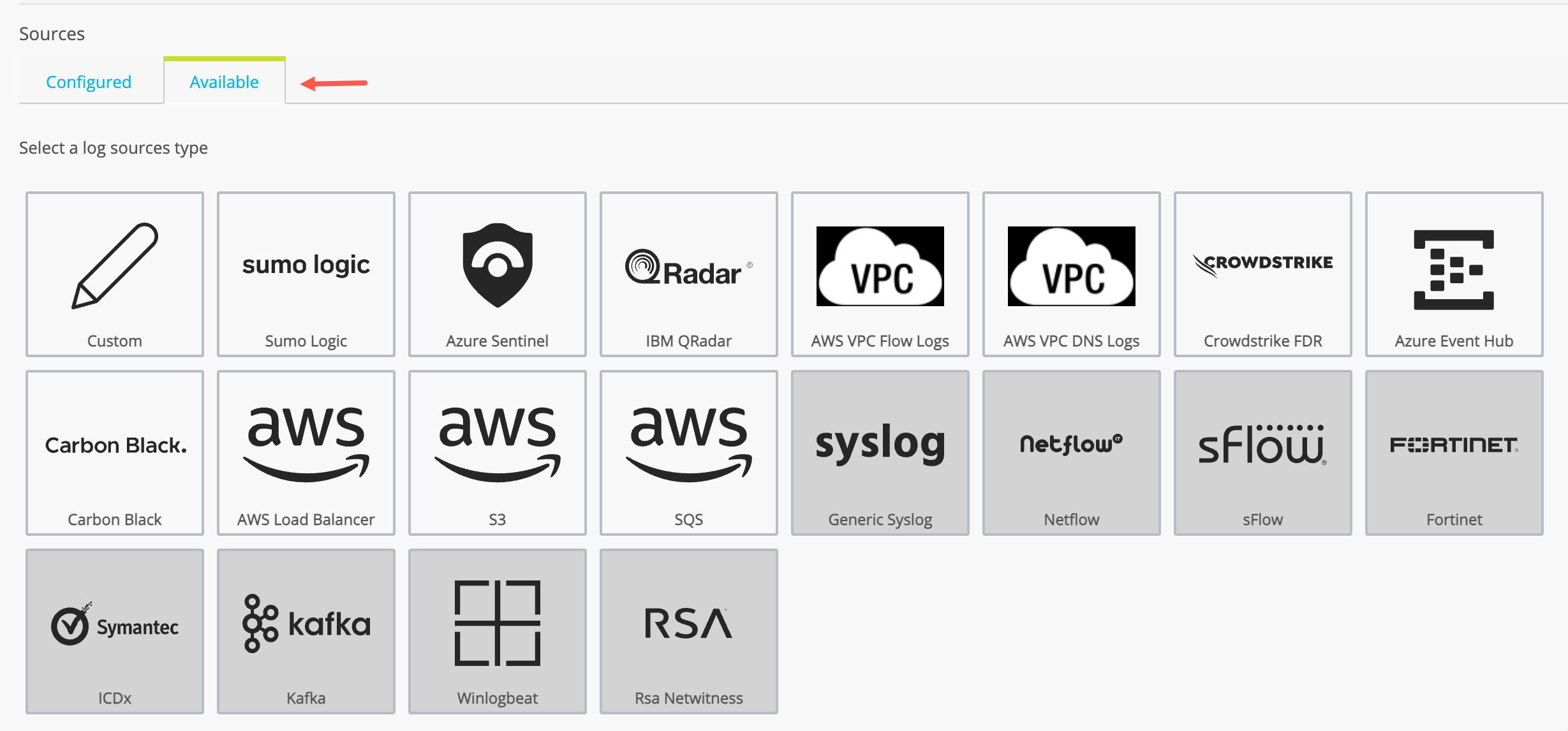
Click the Available tab to display the log source types available. The set of available log source types are different for Cloud Link and Universal Link deployed on premises.
-
Click the RSA NetWitness icon.
-
Complete the configuration as described in the following table.
Setting Description Data Source Name Type a name that facilitates Link management. Only ASCII characters are allowed. Data Source Description (Optional) A short description for the log source.
RSA NetWitness Link URL URL for the RSA NetWitness server. The format is:
http://<RSA Server IP or FQDN>:50105
Note: The SDK port default is 50105.
Username
Username for the RSA NetWitness account you have provisioned for the integration. This user account must have permission to use the RSA NetWitness API.
Password Password for the RSA NetWitness user. Use Proxy Not applicable for Security Analytics. - Click Next.
-
Enter your query string in the Search Query 1 field to define what data is to be retrieved from the log source.
The following is an example query:
SELECT time,device.ip,host.src,host.dst,ip.src,ip.dst,ip.srcport,ip.dstport,protocol,result.code,device.type,action,url,user.dst,user.agent,referrer,checksum,filename,email.src,email.dst,count(time) WHERE time = '{from_time}'-'{to_time}' && ((ip.src exists) || (ip.dst exists) || (email exists) || (referer exists) || (filename exists) || (checksum exists) || (email.src exists) || (email.dst exists)) && (((ip.src!=192.168.0.0/16) && (ip.src!=10.0.0.0/8) && (ip.src!=172.16.0.0/12)) || ((ip.dst!=192.168.0.0/16) && (ip.dst!=10.0.0.0/8) && (ip.dst!=172.16.0.0/12))) && (action!="block") && (action!="blocked") && (action!="drop") && (action!="dropped") && (action!="reject") GROUP BY ip.src,ip.dst,filename,checksum,email.src,email.dstClick (
 ) to add another query for the same table. Then enter the additional query statement in the field on the same table in the log source.
 - Enter Interval Schedule, the time between each query run. Default is 10 minutes.
-
Optional: Click Backfill Enable and specify a backfill period if you want to ingest event logs from a period before the log source was activated.
-
Click to expand Drilldown Settings and specify a drilldown limit. The drilldown limit is the number of rows to be returned by drilldowns. The default is 10 rows.
-
Click Save.
Step 2: Activate the Security Analytics Log Source Configuration
By default, a newly-added data source is not active.
To activate a log source:
-
Click the Settings icon
 in the left navigation panel and select Security Analytics.
 -
Click Links.
-
Locate the Link configuration you want to review and click the hyperlink name in the Name column.
-
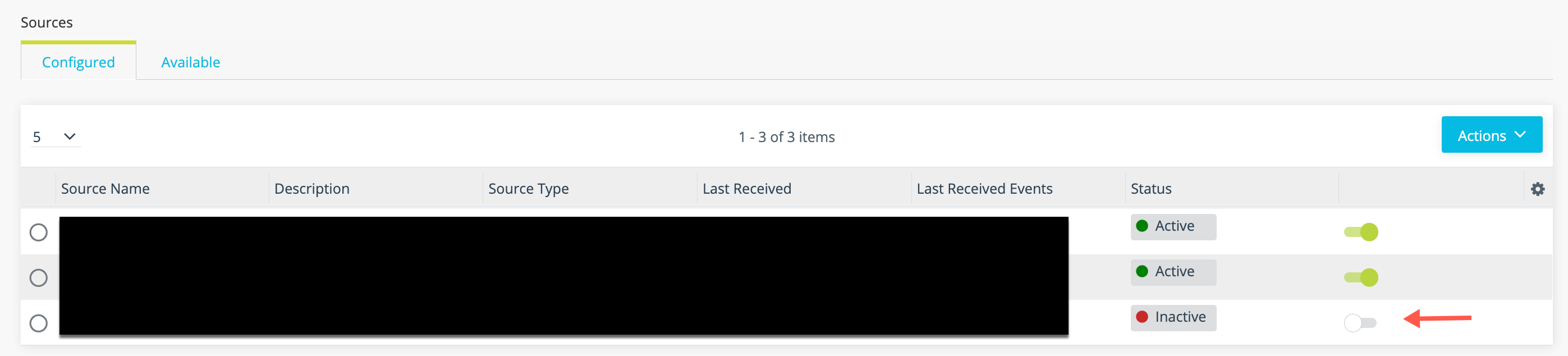
Locate the log source you want to activate and toggle the activation switch shown in the following figure.
With this log source type, the associated Link configuration does not need to be regenerated.
Step 3: Verify Logs Are Ingested into Security Analytics
You can expect logs to be transmitted to Security Analytics shortly after the log source has been activated and the Universal Link regenerated.
To verify logs are ingested:
-
Click the Settings icon
in the left navigation panel and select Security Analytics. -
Click Links.
-
Click the hyperlink in the Name column for the Universal Link associated with the log source.
-
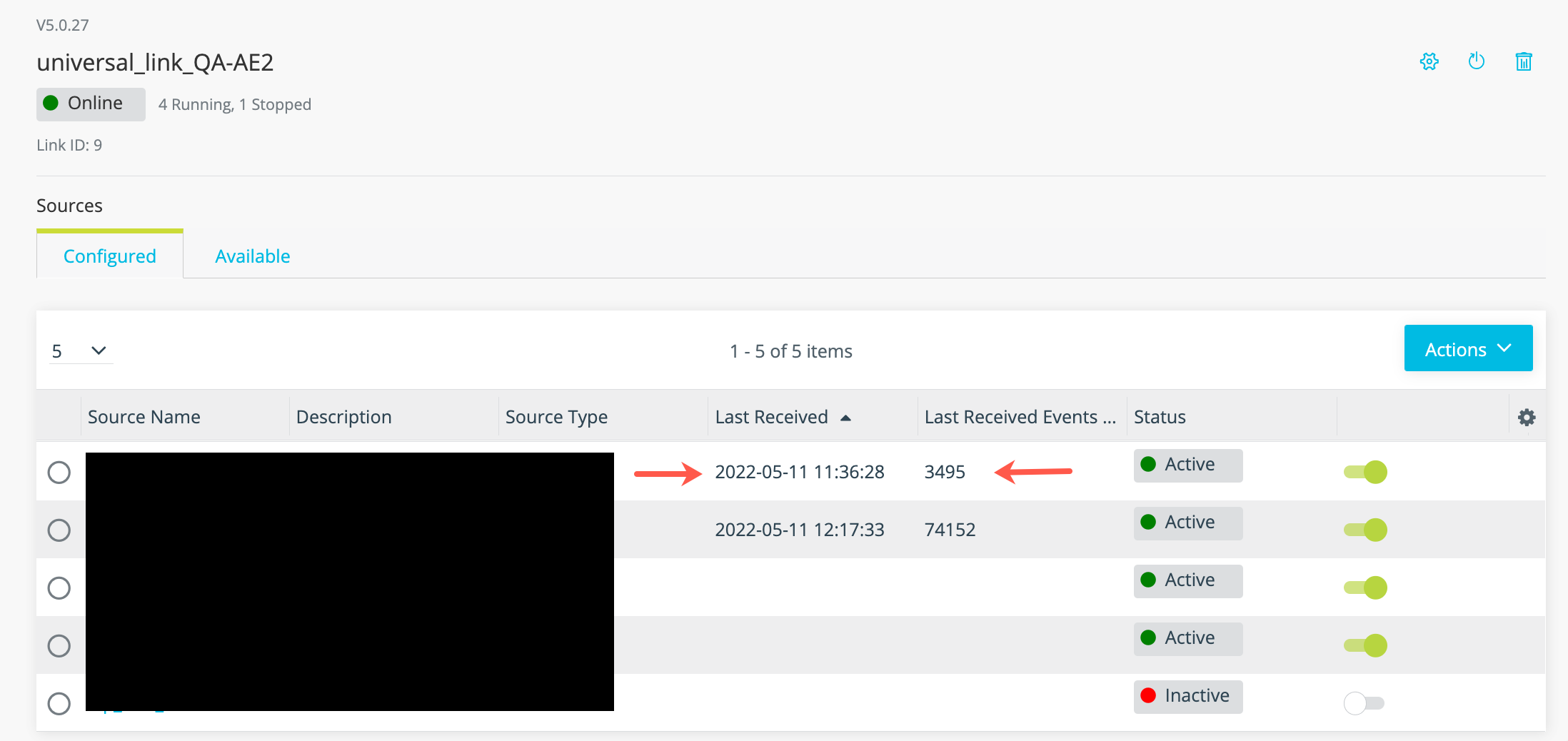
Review the timestamp for the last data received and the number of events in the last batch of data to confirm event logs are ingested as expected.